
1. Introduction
The Tenda 4G06 is a wireless gateway designed to provide high-speed internet access via LTE cellular networks and Wi-Fi. It integrates both cellular and Ethernet uplink access, offering flexible data and voice services. This device is suitable for various environments, including remote areas, temporary setups, and homes or offices where traditional wired broadband is unavailable or inconvenient. It supports Wi-Fi 4 (IEEE 802.11b/g/n) and includes an RJ11 port for voice services.

Image 1.1: Front view of the Tenda 4G06 Wi-Fi 4G VoLTE Router.
2. Product Features
- 4G LTE Connectivity: Provides internet access via a Mini SIM card, ideal for locations without wired broadband.
- High-Speed Wi-Fi: Supports Wi-Fi 4 (802.11b/g/n) with speeds up to 300Mbps, allowing up to 32 devices to connect simultaneously.
- VoLTE Voice Service: Features an RJ11 port to connect external landline phones for voice calls over the LTE network.
- Ethernet Ports: Includes Fast Ethernet ports (up to 100Mbps) for wired network connections.
- Detachable Antennas: Equipped with two external detachable antennas for improved signal reception.
- Data Traffic Monitoring: Allows setting a maximum monthly data traffic limit via the web interface to manage usage.
- Easy Setup: Simple installation by inserting a SIM card and powering on the device.
3. Package Contents
Verify that your package contains the following items:
- Tenda 4G06 Wi-Fi 4G VoLTE Router
- Power Adapter
- Ethernet Cable
- RJ11 Phone Cable
- Quick Installation Guide

Video 3.1: This video provides an overview of the Tenda 4G06 LTE Voice Router and its included components.
4. Hardware Overview
4.1 Front Panel Indicators
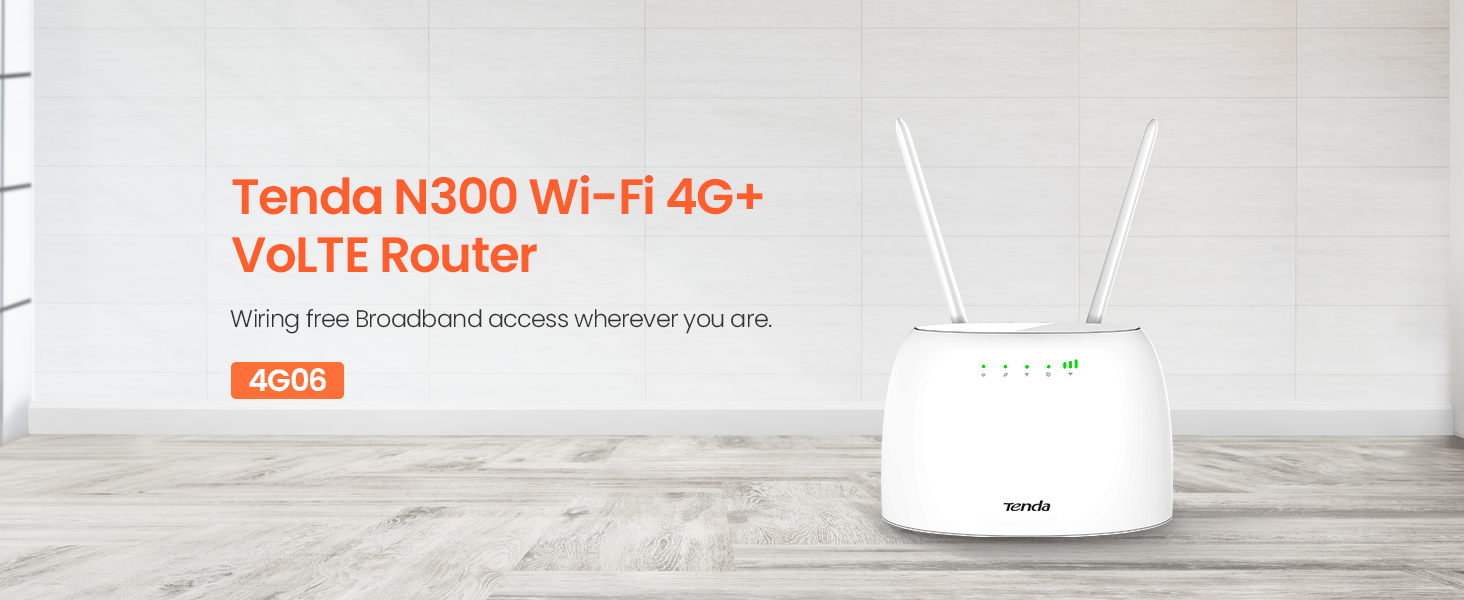
Image 4.1: Front view of the Tenda 4G06 showing LED indicators.
- Power Indicator: Indicates the power status of the device.
- 4G Signal Indicator: Displays the strength of the 4G cellular signal.
- Wi-Fi Indicator: Shows the status of the Wi-Fi network.
- Ethernet Port Indicator: Lights up when an Ethernet device is connected.
4.2 Rear Panel Ports and Buttons

Image 4.2: Rear view of the Tenda 4G06 showing ports and buttons.
- Power Button: Used to turn the device on or off.
- Power Port: Connects to the included power adapter.
- RJ11/TEL Port: Connects to a landline phone for voice calls.
- Fast Ethernet Ports: Connect to wired devices such as computers or switches.
- SIM Card Slot: Insert your Mini SIM card here.
- Detachable Antennas: Connect the two external antennas for optimal signal reception.
5. Setup Guide
Follow these steps for initial setup of your Tenda 4G06 router:
- Insert SIM Card: Locate the SIM card slot on the rear panel. Carefully insert your activated Mini SIM card into the slot until it clicks into place. Ensure the SIM card is correctly oriented.
- Attach Antennas: Screw the two detachable antennas onto the connectors on the rear of the router. Adjust their position for optimal signal reception.
- Connect Power: Connect the power adapter to the router's power port and then plug the adapter into a power outlet. Press the power button to turn on the device.
- Check Indicators: Wait for the Power, 4G Signal, and Wi-Fi indicators on the front panel to stabilize. The 4G Signal indicator will show the strength of your cellular connection.
- Connect Devices:
- Wi-Fi: On your computer or mobile device, search for the Wi-Fi network name (SSID) printed on the label at the bottom of the router. Connect to this network using the default Wi-Fi password (also on the label).
- Ethernet: Connect an Ethernet cable from one of the router's LAN ports to your computer's Ethernet port.
- Access Web Interface: Open a web browser and enter the default IP address (e.g.,
192.168.0.1) into the address bar. Log in using the default username and password (usuallyadminfor both, check the router label).
6. Operating Instructions
6.1 Basic Internet Configuration
After logging into the web interface, the router should automatically detect your SIM card's network settings. If not, navigate to the Internet Settings or WAN Settings section to manually configure the APN (Access Point Name) provided by your cellular service provider.
6.2 Wi-Fi Settings
In the web interface, go to the Wi-Fi Settings or Wireless Settings section. Here you can:
- Change the Wi-Fi network name (SSID).
- Change the Wi-Fi password for security.
- Enable or disable Wi-Fi.
- Adjust Wi-Fi channel and mode for better performance.
6.3 Voice Service (VoLTE)
To use the voice service, connect a standard landline phone to the RJ11/TEL port on the rear of the router using the provided phone cable. Ensure your SIM card plan supports VoLTE. You can then make and receive calls through the connected phone while simultaneously using the internet.
6.4 Data Traffic Monitoring
The Tenda 4G06 allows you to monitor and manage your data usage. In the web interface, look for a Data Usage or Traffic Statistics section. You can set a monthly data limit, and the router will automatically disconnect from the network once this limit is reached, helping you avoid unexpected charges.
7. Maintenance
To ensure optimal performance and longevity of your Tenda 4G06 router, consider the following maintenance tips:
- Placement: Place the router in a central location, away from obstructions and other electronic devices that may cause interference. Ensure good ventilation.
- Cleaning: Regularly clean the router's exterior with a soft, dry cloth. Avoid using liquid cleaners or aerosols.
- Firmware Updates: Periodically check the Tenda official website for firmware updates. Updating the firmware can improve performance, add new features, and fix bugs. Follow the instructions provided with the firmware update carefully.
- Restarting: If you experience slow performance or connectivity issues, try restarting the router by unplugging the power adapter for 10 seconds and then plugging it back in.
8. Troubleshooting
If you encounter issues with your Tenda 4G06 router, refer to the following common problems and solutions:
| Problem | Possible Solution |
|---|---|
| No Internet access |
|
| Weak Wi-Fi signal |
|
| Cannot access web interface |
|
| Voice calls not working |
|
9. Specifications
| Feature | Detail |
|---|---|
| Model | 4G06 |
| Wireless Type | 802.11b/g/n (Wi-Fi 4) |
| Wireless Speed | Up to 300 Mbps |
| Cellular Network | 4G LTE |
| SIM Card Type | Mini SIM |
| Ethernet Ports | Fast Ethernet (10/100 Mbps) |
| Voice Port | RJ11/TEL |
| Antennas | 2 x Detachable External Antennas |
| Dimensions (LxWxH) | 7.3 x 5 x 2.4 inches |
| Item Weight | 12.3 ounces |
| Operating System | TendaOS |
| Voltage | 12 Volts |
10. Warranty and Support
The Tenda 4G06 router comes with a 3-year product warranty. For technical assistance, product inquiries, or warranty claims, please contact Tenda Customer Support.
Customer Support Contact:
- Phone: +44 0800 041 8955
- Email: support.uk@tenda.cn
Please have your product model and purchase information ready when contacting support.


