
AMOCAM V70C-L101
AMOCAM Wired Video Intercom Doorbell System User Manual
Model: V70C-L101
Product Overview
The AMOCAM Wired Video Intercom Doorbell System provides enhanced home security and communication. This system includes an outdoor HD camera and an indoor 7-inch color LCD monitor, enabling two-way audio and video communication with visitors, monitoring capabilities, and remote unlocking of an electronic door lock.

Figure 1: AMOCAM Wired Video Intercom Doorbell System components.
Setup and Installation
1. Unpacking the System
Carefully unpack all components and ensure the following items are present:
- Doorbell (Outdoor Camera Unit)
- Monitor (Indoor Display Unit)
- Power Supply
- Connection Cable
- Accessories (screws, mounting brackets, etc.)
2. Outdoor Camera Unit Installation
The outdoor camera unit is designed for surface mounting. It features a 1/3 CMOS camera with 700 TV lines resolution, providing a 92-degree viewing angle. It includes night vision illumination with an effective distance of 1 meter. The casing is constructed from durable ABS and Aluminum materials, offering waterproofing and oxidation-proof properties.

Figure 2: Outdoor Camera Unit with labeled components (Microphone, Camera, LED, Speaker, Call Button).

Figure 3: Outdoor Camera Unit dimensions (approximately 5.0 inches high, 3.7 inches wide, 2.0 inches deep).
For mounting, you can either use screws to secure it to a wall (Method 1) or use 3M double-sided tape for a less intrusive installation (Method 2). Ensure the unit is placed at an appropriate height for clear viewing of visitors.
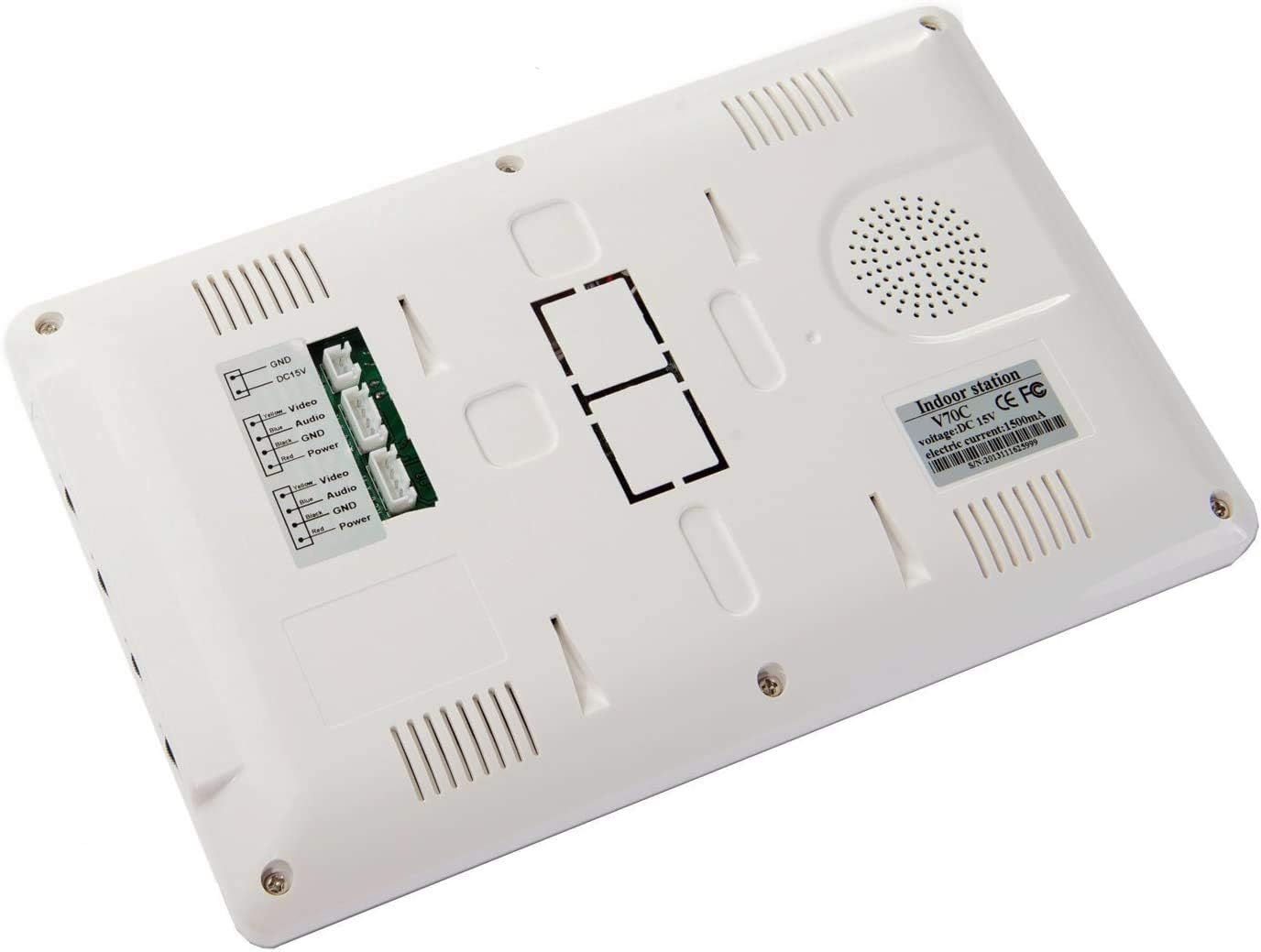
Figure 4: Two common installation methods for the outdoor unit.
3. Indoor Monitor Unit Installation
The indoor monitor features a 7-inch LCD screen with a 16:9 display ratio and a resolution of 800 x 480 pixels. It is designed for surface mounting and is constructed from ABS/Plastic.

Figure 5: Indoor Monitor Unit dimensions (approximately 5.9 inches high, 9.45 inches wide, 1.0 inch deep).

Figure 6: Rear view of the Indoor Monitor Unit, showing connection ports for wiring.
4. Wiring and Connection
The system uses wired connections for stable and clear vision. Connect the outdoor unit to the indoor monitor using the provided connection cable. Ensure all connections are secure to prevent signal loss. The power adapter is shared with the indoor unit. The system supports integration with an electronic lock for remote unlocking functionality.
Video 1: Demonstration of the AMOCAM Wired Video Intercom Doorbell System's functionality, including call, monitoring, and door unlock features.
Operating Instructions
1. Receiving a Call
When a visitor presses the call button on the outdoor unit, the indoor monitor will ring and display the live video feed from the outdoor camera. You can then see and speak with the visitor.

Figure 7: Illustration of the "See, Hear" function when a visitor presses the doorbell.
2. Two-Way Intercom
After a call is initiated, press the Intercom button on the indoor monitor to begin two-way communication with the visitor. Press it again to end the conversation.
3. Monitoring
To view the outdoor area at any time without a visitor pressing the doorbell, press the Monitor button on the indoor unit. The screen will display the live feed from the outdoor camera.
4. Unlocking the Door
If an electronic lock is connected to the system, press the Unlock button on the indoor monitor to remotely open the door for your visitor.

Figure 8: Indoor Monitor features including 7" TFL LCD, Two-way intercom, IR LED light, IR Night vision, IP65 Weatherproof, and Unlock function.

Figure 9: Side view of the Indoor Monitor showing control knobs for Intercom volume, Music & Ring volume, Brightness, and Screen color.
5. Adjusting Settings
The indoor monitor features control knobs on the side for adjusting various settings:
- Intercom Volume Knob: Adjusts the volume of the two-way communication.
- Music & Ring Volume Knob: Controls the volume of the doorbell ringtones.
- Brightness Knob: Adjusts the screen brightness.
- Screen Color Knob: Adjusts the color saturation of the display.
The system offers 25 selectable ringtones for the doorbell.
Maintenance
To ensure optimal performance and longevity of your AMOCAM Video Intercom Doorbell System, follow these maintenance guidelines:
- Cleaning: Use a soft, dry cloth to clean the surfaces of both the outdoor and indoor units. For stubborn dirt, a slightly damp cloth can be used, but ensure no liquid enters the device openings. Avoid using abrasive cleaners, solvents, or harsh chemicals.
- Outdoor Unit Protection: The outdoor unit has an IP65 international protection rating, indicating it is protected against dust and low-pressure water jets. While designed to be weather-resistant, avoid direct exposure to extreme weather conditions or prolonged submersion in water.
- Cable Integrity: Periodically inspect all wired connections for any signs of wear, damage, or loose connections. Damaged cables can affect system performance.
- Software Updates: Check the manufacturer's website for any available firmware updates to ensure your system has the latest features and security enhancements.
Troubleshooting
If you encounter issues with your AMOCAM Video Intercom Doorbell System, refer to the following common problems and their solutions:
| Problem | Possible Cause | Solution |
|---|---|---|
| No image or black screen on monitor. | Loose cable connection, power supply issue, camera malfunction. | Check all wiring connections between the outdoor unit and indoor monitor. Ensure the power supply is properly connected and receiving power. If the issue persists, contact support. |
| No sound or poor audio quality during intercom. | Volume settings too low, microphone/speaker obstruction, wiring issue. | Adjust the intercom volume knob on the side of the indoor monitor. Ensure the microphone and speaker on both units are clear of obstructions. Verify wiring connections. |
| Door unlock function not working. | Incorrect wiring to the electronic lock, incompatible lock, power issue to the lock. | Double-check the wiring diagram for the electronic lock connection. Ensure the lock receives adequate power and is compatible with the system's unlocking mechanism. |
| Monitor back becomes excessively hot. | Poor ventilation, internal component issue. | Ensure the monitor is installed in a well-ventilated area. If overheating persists, immediately disconnect power and contact customer support. |
| Limited viewing angle or distorted image. | Camera lens obstruction, improper camera positioning, environmental factors. | Clean the camera lens. Adjust the outdoor unit's position to optimize the viewing area. Ensure there are no direct light sources causing glare. |
Product Specifications
- Brand: AMOCAM
- Model Number: V70C-L101
- Connectivity Technology: Wired
- Indoor/Outdoor Usage: Indoor, Outdoor
- Display: 7-inch LCD screen, 16:9 Displays
- Resolution (Indoor Monitor): 800 x 480 pixels
- Outdoor Camera: 1/3 CMOS, 700 TV lines resolution
- Viewing Angle (Outdoor Camera): 92 Degrees
- Night Vision: Infrared (IR) with 1 meter illumination distance
- Material: Aluminum, Plastic (ABS/Aluminum for outdoor, ABS/Plastic for indoor)
- Power Source: Battery Powered (shared indoor unit power adapter)
- Input Voltage: AC 100-240V
- Output: DC 15V/1500 mA
- International Protection Rating (Outdoor Unit): IP65
- Item Dimensions L x W x H: 10 x 9.5 x 2.1 inches
- Item Weight: 2.25 pounds
- UPC: 647726601533, 706693550647
Warranty Information
This product may be eligible for extended protection plans. Please refer to your purchase documentation or the retailer's website for details on available 2-Year or 3-Year Protection Plans. The standard return policy allows for a refund or replacement within 30 days of purchase.
Customer Support
AMOCAM Technology Inc. is committed to providing high-quality products and excellent after-sales support. For technical assistance, troubleshooting not covered in this manual, or warranty inquiries, please contact AMOCAM customer service. Privacy and security are top priorities, and measures are in place to ensure your data is secure.
For more information, visit the official AMOCAM store or contact their support channels.
Related documentsV70C-L101


Ask a question about this manual
Ask about setup, troubleshooting, compatibility, parts, safety, or missing instructions. Manuals+ will review the question and use this page’s manual context to help answer it.