
Shaw Direct URC600
Contents
Shaw Direct IRC600 Remote Control User Manual
Model: URC600
Introduction
This user manual provides detailed instructions for the Shaw Direct IRC600 Remote Control (Model URC600). It covers everything from initial setup and basic operation to maintenance and troubleshooting, ensuring you get the most out of your remote control. This remote is designed for seamless control of your Shaw Direct satellite receiver.
Product Overview
The Shaw Direct IRC600 remote control is an ergonomic device designed for intuitive control of your satellite television experience. Below are images illustrating the remote's design and key features.

Figure 1: Front view of the Shaw Direct IRC600 Remote Control, showing all buttons and the Shaw Direct logo at the bottom.

Figure 2: The Shaw Direct IRC600 Remote Control positioned on top of a compatible black satellite receiver, illustrating its typical use context.
Setup
1. Battery Installation
The IRC600 remote control requires two (2) AA batteries for operation. Ensure correct polarity when inserting the batteries.
- Locate the battery compartment on the back of the remote control.
- Slide the battery cover downwards to open.
- Insert two AA batteries, matching the positive (+) and negative (-) terminals as indicated inside the compartment.
- Slide the battery cover back into place until it clicks securely.
2. Initial Use
Once batteries are installed, the remote is ready for use with your Shaw Direct satellite receiver. Point the remote directly at the receiver for optimal performance.
Operating the Remote Control
The IRC600 remote control features a variety of buttons for comprehensive control of your Shaw Direct satellite receiver. Familiarize yourself with the layout and functions below.
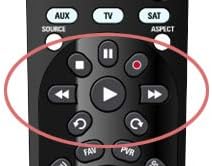
Figure 3: Close-up view of the media playback controls on the Shaw Direct IRC600 Remote Control, highlighted for easy identification.
Key Button Functions:
- POWER: Turns the satellite receiver on or off.
- AUX/TV/SAT: Selects the device the remote controls (Auxiliary, Television, or Satellite Receiver).
- VOL +/-: Adjusts the volume level.
- CH +/-: Changes the channel up or down.
- MUTE: Mutes or unmutes the audio.
- GUIDE: Displays the program guide.
- MENU: Accesses the main menu of the satellite receiver.
- INFO: Displays information about the current program.
- ENTER/OK: Confirms selections or enters a menu.
- Arrow Buttons (Up, Down, Left, Right): Navigates through menus and program guides.
- EXIT: Exits the current menu or screen.
- DVR Controls (Play, Pause, Stop, Rewind, Fast Forward, Record): Controls playback of recorded content.
- Number Pad (0-9): Directly enters channel numbers.
Using DVR Controls:
As shown in Figure 3, the central cluster of buttons includes dedicated controls for your Digital Video Recorder (DVR) functions:
- PLAY (▶): Starts playback of recorded content or resumes paused content.
- PAUSE (∥∥): Temporarily stops playback.
- STOP (■): Stops playback.
- REWIND (◀◀): Rewinds content.
- FAST FORWARD (▶▶): Fast forwards content.
- RECORD (●): Initiates recording of the current program.
No official product videos were found for this model from the seller. Please refer to the text descriptions and images for operational guidance.
Maintenance
1. Battery Replacement
When the remote control's performance degrades (e.g., reduced range, unresponsive buttons), it is likely time to replace the batteries. Follow the battery installation steps outlined in the Setup section.
2. Cleaning
To maintain the remote's appearance and functionality, clean it periodically:
- Use a soft, dry cloth to wipe the surface of the remote.
- For stubborn dirt, slightly dampen the cloth with water or a mild, non-abrasive cleaner. Avoid excessive moisture.
- Do not use harsh chemicals, solvents, or abrasive cleaning pads, as these can damage the remote's finish or internal components.
Troubleshooting
| Problem | Possible Cause | Solution |
|---|---|---|
| Remote not responding. | Dead or incorrectly inserted batteries. | Replace batteries, ensuring correct polarity. |
| Remote has limited range or intermittent response. | Low batteries; Obstruction between remote and receiver; Remote not pointed directly at receiver. | Replace batteries; Remove any obstructions; Ensure direct line of sight to the receiver. |
| Specific buttons not working. | Dirt or debris under the button; Internal malfunction. | Clean the remote surface around the button. If problem persists, consider replacing the remote. |
| Remote controls TV instead of satellite receiver (or vice-versa). | Incorrect device mode selected. | Press the appropriate mode button (AUX, TV, or SAT) to select the desired device. |
Specifications
- Brand: Shaw Direct
- Model Number: URC600
- Product Dimensions: 8 x 1.5 x 2 inches
- Item Weight: 7 ounces
- Batteries: 2 AA batteries required
- Color: Black
- Special Feature: Ergonomic design
- Max Number of Supported Devices: 1 (dedicated to satellite receiver, with TV/Auxiliary mode switching)
- Compatible Devices: Satellite Receivers
- Manufacturer: Motorola
- Date First Available: December 22, 2014
Warranty and Support
Specific warranty details and direct support contact information for the Shaw Direct IRC600 Remote Control are not available in the provided product data. For warranty claims or technical support, please refer to the documentation included with your Shaw Direct satellite receiver or visit the official Shaw Direct website for customer service contact information.
Ask a question about this manual
Ask about setup, troubleshooting, compatibility, parts, safety, or missing instructions. Manuals+ will review the question and use this page’s manual context to help answer it.