
Kirisun KSPL-08
Kirisun KSPL-08 USB Programming Cable User Manual
Model: KSPL-08
Introduction
This manual provides instructions for the proper setup, operation, and maintenance of the Kirisun KSPL-08 USB Programming Cable. This cable is specifically designed to facilitate programming and configuration of Kirisun PT7200 series two-way radios via a computer.
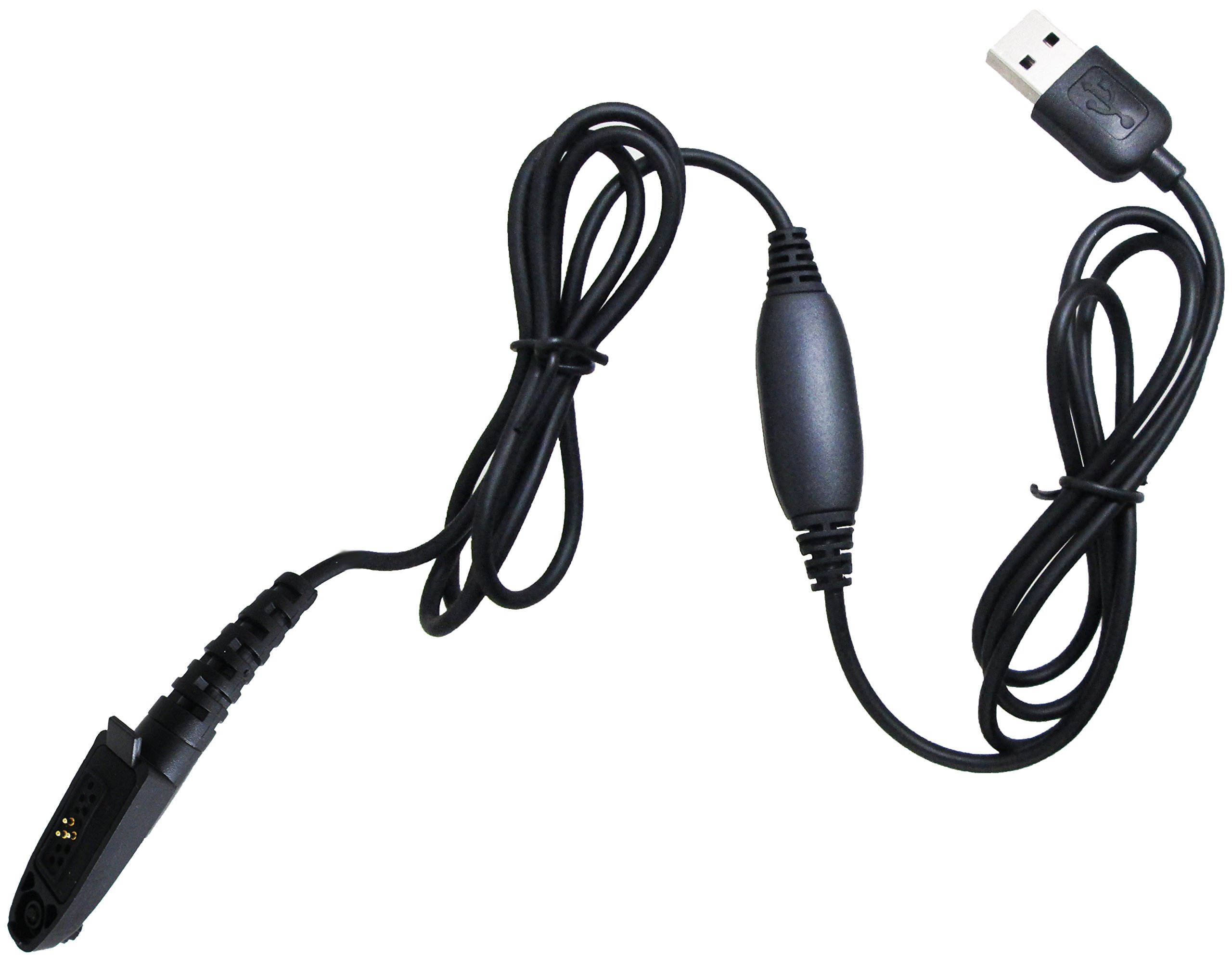
Image: The Kirisun KSPL-08 USB programming cable, featuring a standard USB-A connector on one end and a multi-pin connector designed for Kirisun PT7200 radios on the other. An inline cylindrical component is visible along the cable length.
Setup
Before using the KSPL-08 programming cable, ensure you have the necessary drivers and programming software installed on your computer.
- Driver Installation: Connect the USB-A end of the KSPL-08 cable to an available USB port on your computer. The operating system may attempt to install drivers automatically. If not, locate and install the appropriate USB driver for the KSPL-08 cable, typically provided by Kirisun or found on their official support website.
- Software Installation: Install the specific programming software compatible with your Kirisun PT7200 radio model. Refer to your radio's documentation for software requirements and installation instructions.
- Connect to Radio: With the radio powered off, connect the multi-pin connector of the KSPL-08 cable to the programming port on your Kirisun PT7200 radio. Ensure a secure connection.
- Power On Radio: Once the cable is securely connected, power on your Kirisun PT7200 radio.
Operating Instructions
Follow these steps to program your Kirisun PT7200 radio using the KSPL-08 cable:
- Launch Programming Software: Open the Kirisun programming software on your computer.
- Select Communication Port: Within the software, navigate to the communication settings or port selection. Choose the correct COM port assigned to the KSPL-08 USB cable. This is typically identified in your computer's Device Manager.
- Read Radio Data: Use the software's
Ask a question about this manual
Ask about setup, troubleshooting, compatibility, parts, safety, or missing instructions. Manuals+ will review the question and use this page’s manual context to help answer it.