
1. Introduction
This manual provides essential information for the proper installation, configuration, and operation of your Aruba IAP-215-RW Wireless Network Access Point. Please read this manual thoroughly before using the device to ensure optimal performance and safety.
The Aruba IAP-215-RW is a high-performance 802.11ac wireless access point designed for enterprise environments, offering robust and secure wireless connectivity.
2. Safety Information
- Use only the power adapter supplied or approved by Aruba for this device.
- Do not expose the device to water or excessive humidity.
- Ensure proper ventilation around the access point to prevent overheating.
- Do not attempt to open or repair the device yourself. Refer all servicing to qualified personnel.
- Install the device in a location that complies with local regulations for radio frequency emissions.
3. Package Contents
Verify that your package contains the following items:
- Aruba IAP-215-RW Wireless Network Access Point
- Mounting bracket (may vary by region/kit)
- Quick Start Guide
- Safety and Regulatory Information document
Note: Power adapter and Ethernet cables are typically sold separately or as part of specific kits.
4. Physical Overview
The Aruba IAP-215-RW features a compact design with indicator LEDs and necessary ports for connectivity.

Figure 4.1: Top-down view of the Aruba IAP-215-RW Access Point. This image displays the device's top surface, featuring the 'aruba NETWORKS' logo prominently in the center. Below the logo, four small indicator lights are visible, labeled 'PWR', 'ENET', '5GHz', and '2.4GHz', providing status information for power, Ethernet connection, and activity on the 5GHz and 2.4GHz wireless bands, respectively. The device has a textured, vented design along its edges.
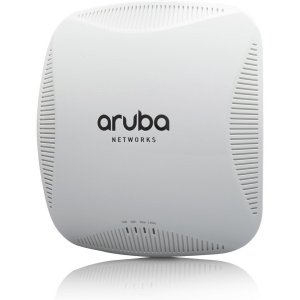
Figure 4.2: Angled view of the Aruba IAP-215-RW Access Point. This image shows the device from a slight angle, highlighting its curved profile and the same 'aruba NETWORKS' logo on the top surface. The four LED indicators (PWR, ENET, 5GHz, 2.4GHz) are also visible, positioned towards the front edge of the device. The image provides a better sense of the device's three-dimensional shape and its vented sides.
LED Indicators:
- PWR: Power status indicator.
- ENET: Ethernet link/activity indicator.
- 5GHz: 5 GHz wireless band activity indicator.
- 2.4GHz: 2.4 GHz wireless band activity indicator.
5. Setup
5.1 Mounting the Access Point
The Aruba IAP-215-RW can be mounted on a ceiling tile rail or a wall. Ensure the mounting location provides optimal wireless coverage and is away from obstructions.
- Attach the mounting bracket to the desired surface (ceiling rail or wall) using appropriate screws or clips (not always included).
- Align the access point with the mounting bracket and twist to secure it in place. Ensure it clicks firmly.
5.2 Connecting Power
The IAP-215-RW can be powered via Power over Ethernet (PoE) or an optional external power adapter.
- PoE: Connect an Ethernet cable from a PoE-enabled switch or PoE injector to the Ethernet port on the access point.
- External Power Adapter: If not using PoE, connect a compatible 12V DC power adapter (sold separately) to the DC power jack on the access point and then to a power outlet.
5.3 Network Connection
Connect an Ethernet cable from your network switch or router to the Ethernet port on the access point. This provides network access and, if using PoE, power.
5.4 Initial Configuration
The Aruba IAP-215-RW operates in Instant (IAP) mode, forming a cluster with other Aruba Instant Access Points for simplified management.
- Once powered on, the access point will boot up. The PWR LED will turn solid green.
- If this is the first IAP in your network, it will become the Virtual Controller. Connect a computer to the network segment where the IAP is connected.
- Open a web browser and navigate to
https://instant.arubanetworks.comor the IP address assigned to the IAP (e.g., via DHCP). - Follow the on-screen instructions to set up your wireless network (SSID, security, etc.).
- For detailed configuration, refer to the Aruba Instant User Guide available on the Aruba support website.
6. Operating
6.1 Normal Operation
Once configured, the Aruba IAP-215-RW will broadcast the configured wireless networks (SSIDs). Client devices can connect to these networks using the provided security credentials.
6.2 Understanding LED Status
- PWR LED:
- Solid Green: Device is powered on and operating normally.
- Flashing Green: Device is booting up or performing a firmware upgrade.
- Off: No power.
- ENET LED:
- Solid Green: Ethernet link established.
- Flashing Green: Ethernet activity.
- Off: No Ethernet link.
- 5GHz / 2.4GHz LEDs:
- Solid Green: Radio is enabled and operational.
- Flashing Green: Wireless activity on the respective band.
- Off: Radio is disabled or not operational.
7. Maintenance
7.1 Cleaning
To clean the access point, gently wipe the exterior with a soft, dry cloth. Do not use liquid cleaners or aerosol sprays directly on the device.
7.2 Firmware Updates
Regularly check the Aruba support website for firmware updates. Keeping your device's firmware up-to-date ensures optimal performance, security, and access to new features. Firmware updates are typically managed through the Instant web interface.
8. Troubleshooting
- No Power (PWR LED Off):
- Check power source (PoE switch/injector or power adapter).
- Ensure all cables are securely connected.
- No Network Connectivity (ENET LED Off):
- Verify the Ethernet cable connection to the switch/router.
- Check the status of the connected switch port.
- Clients Cannot Connect to Wi-Fi:
- Ensure the 5GHz and 2.4GHz LEDs are solid green.
- Verify SSID and password settings in the configuration.
- Check for any client device limitations or interference.
- Poor Wireless Performance:
- Relocate the access point to a more central location or away from obstructions.
- Check for sources of interference (e.g., microwaves, cordless phones).
- Consider adjusting channel settings in the configuration.
- Resetting the Device:
To perform a factory reset, locate the reset button (usually a small pinhole) on the device. With the device powered on, use a paperclip to press and hold the reset button for approximately 10 seconds until the LEDs change behavior. Release the button, and the device will reboot with factory default settings.
9. Specifications
| Feature | Detail |
|---|---|
| Model Number | IAP-215-RW |
| Manufacturer | Aruba |
| Product Dimensions | 8.9 x 8.7 x 2.3 inches |
| Weight | 0.01 ounces (Note: This weight seems unusually low and may be a data entry error. Refer to official Aruba documentation for accurate weight.) |
| ASIN | B00QUERBN4 |
| Date First Available | November 8, 2014 |
10. Warranty and Support
For warranty information, technical support, and additional resources, please visit the official Aruba Networks website. You can find detailed documentation, firmware downloads, and contact information for customer service.
Aruba Support Website: www.arubanetworks.com/support/


