
Introduction
This user manual provides comprehensive instructions for the safe and efficient use of your Onida 24-inch HD Ready LED TV, model LEO24HRD. Please read this manual thoroughly before operating the television and retain it for future reference.
Important Safety Information
Always follow basic safety precautions when using this television to reduce the risk of fire, electric shock, and injury.
- Do not expose the TV to rain or moisture.
- Do not open the TV casing; refer all servicing to qualified personnel.
- Ensure proper ventilation around the TV.
- Keep the TV away from direct sunlight, heat sources, and extreme temperatures.
- Use only the power cord supplied with the TV.
- Unplug the TV during lightning storms or when unused for long periods.
Package Contents
Verify that all items are present in the package:
- Onida LEO24HRD LED TV
- Remote Control
- Power Cord
- Table Stand (if applicable)
- User Manual (this document)

Image: Front view of the Onida LEO24HRD LED TV with its included table stand.
Setup
1. Attaching the Stand
If you are not wall-mounting the TV, attach the provided stand:
- Carefully place the TV screen-down on a soft, flat surface to prevent scratches.
- Align the stand with the mounting holes on the bottom of the TV.
- Secure the stand using the screws provided. Do not overtighten.
2. Connecting External Devices
The Onida LEO24HRD TV features various ports for connecting external devices. Refer to the images below for port locations.

Image: Rear view of the Onida LEO24HRD TV, highlighting the input/output ports.

Image: Detailed view of the connectivity ports on the Onida LEO24HRD TV, including HDMI, USB, VGA, and AV inputs.
- HDMI: Connect Blu-ray players, gaming consoles, or set-top boxes. This model has 1 HDMI port.
- USB: Connect USB storage devices for media playback. This model has 1 USB port.
- VGA (PC IN): Connect a computer.
- AV IN: Connect older devices using composite video and stereo audio cables.
- RF IN: Connect an antenna or cable TV feed.
3. Power Connection
Plug the power cord into the TV's power input, then into a wall outlet. Ensure the voltage matches the TV's requirements.
Operation
1. First-Time Setup
Upon first power-on, the TV will guide you through initial setup steps:
- Language Selection: Choose your preferred language.
- Country/Region: Select your country for correct channel tuning.
- Channel Scan: The TV will automatically scan for available channels. This may take several minutes.
2. Using the Remote Control
The remote control allows full functionality of your TV. Insert two AAA batteries (not included) into the remote control, observing polarity.

Image: The remote control for the Onida LEO24HRD TV, showing power, volume, channel, input, and navigation buttons.
- Power Button: Turns the TV on or off.
- Source/Input: Selects the input source (HDMI, AV, TV).
- Volume +/-: Adjusts the volume level.
- Channel +/-: Changes TV channels.
- Menu: Accesses the TV's main menu for settings adjustments.
- Navigation Buttons (Up/Down/Left/Right/OK): Navigates through menus and confirms selections.
3. Adjusting Settings
Press the Menu button on the remote to access settings such as:
- Picture Settings: Brightness, Contrast, Color, Sharpness, Picture Mode.
- Sound Settings: Volume, Bass, Treble, Sound Mode, Balance.
- Channel Settings: Auto Scan, Manual Scan, Channel List.
- Time Settings: Clock, Sleep Timer, Auto Standby.
- System Settings: Language, OSD Duration, Factory Reset.
Maintenance
Cleaning the TV
- Always unplug the TV before cleaning.
- Use a soft, dry cloth to wipe the screen and cabinet.
- For stubborn marks, lightly dampen the cloth with water or a mild, non-abrasive screen cleaner.
- Do not use alcohol, benzene, thinners, or other volatile substances.
Storage
If storing the TV for an extended period, ensure it is unplugged, clean, and stored in a dry, dust-free environment. Use original packaging if available.
Troubleshooting
| Problem | Possible Cause | Solution |
|---|---|---|
| No power | Power cord not connected; power outlet not working. | Check power cord connection; test outlet with another device. |
| No picture, but sound is present | Incorrect input source selected; external device off or disconnected. | Press Source button to select correct input; check external device power and connections. |
| No sound, but picture is present | Volume muted or too low; incorrect audio output settings. | Unmute volume or increase level; check audio settings in the menu. |
| Remote control not working | Batteries dead or incorrectly inserted; obstruction between remote and TV. | Replace batteries; ensure clear line of sight to TV's IR sensor. |
| Poor picture quality | Weak antenna signal; incorrect picture settings. | Adjust antenna position; perform channel scan; adjust picture settings. |
Specifications
| Feature | Detail |
|---|---|
| Model | LEO24HRD |
| Screen Size | 24 Inches (59.94 cm) |
| Display Technology | LED |
| Resolution | HD Ready (1366 x 768 pixels) |
| Aspect Ratio | 1.77:1 |
| Viewing Angle | 176 Degrees |
| Refresh Rate | 60 Hz |
| Audio Output | 20 Watts (Stereo) |
| Connectivity | 1x HDMI, 1x USB, VGA, AV In, RF In |
| Mounting Type | Wall Mount |
| Power Source | AC |
| Item Weight | 4.6 kg |
| Package Dimensions | 64 x 45.2 x 14.2 cm |
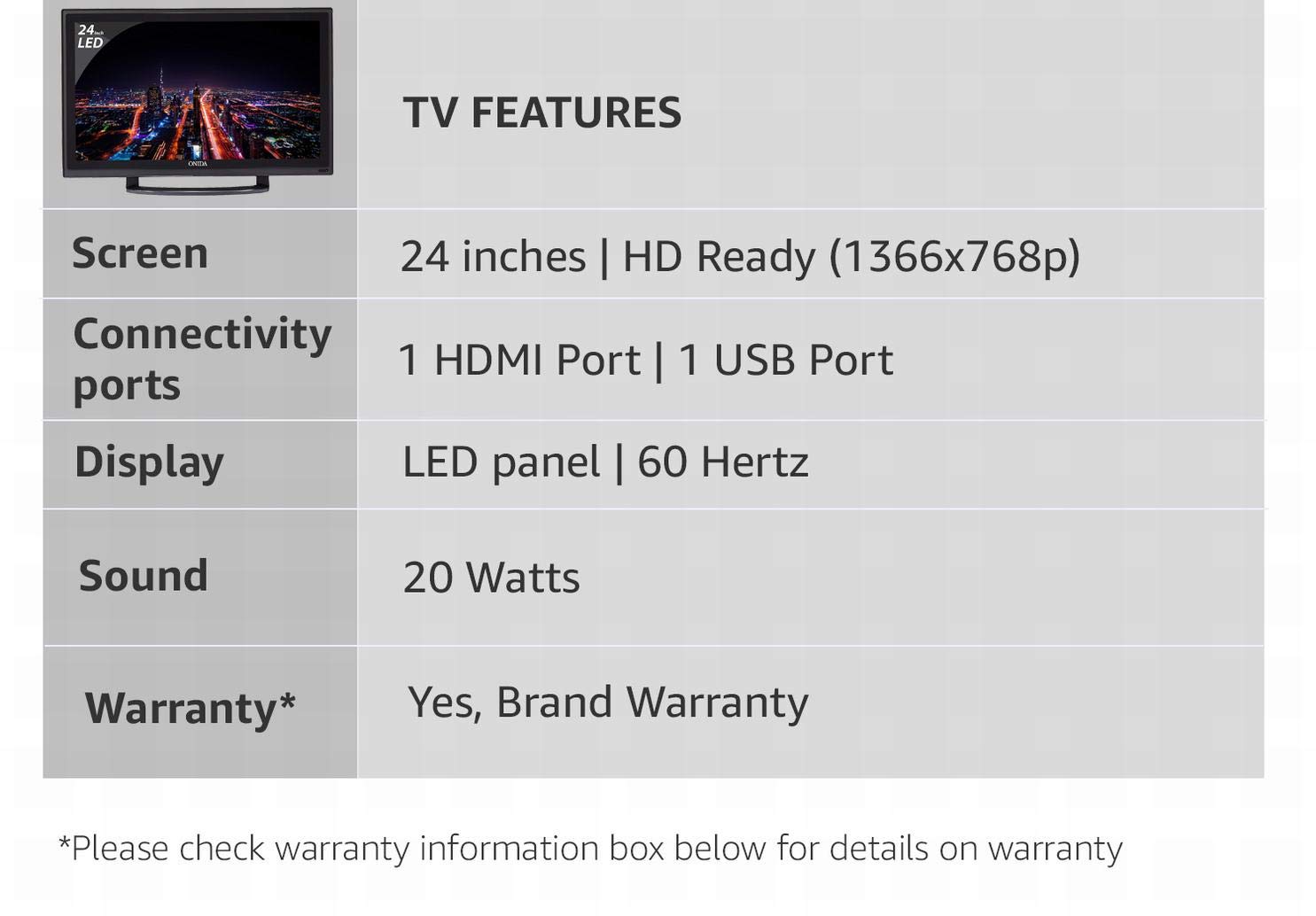
Image: Summary of key TV features including screen size, resolution, connectivity, display type, sound, and warranty.
Warranty and Support
Warranty Information
This Onida LEO24HRD LED TV comes with a 1 Year Warranty from the date of purchase. Please retain your purchase receipt as proof of warranty. The warranty covers manufacturing defects and does not cover damage caused by misuse, accidents, or unauthorized repairs.
Customer Support
For technical assistance, service requests, or further information, please contact Onida customer support. Refer to the official Onida website or your purchase documentation for the most current contact details.
You can visit the official Onida store page for more information: Onida Store

