
Astrum Aero BT
Astrum Aero BT Bluetooth Mouse User Manual
Model: Aero BT
Introduction
Thank you for choosing the Astrum Aero BT Bluetooth Mouse. This manual provides detailed instructions for setting up, operating, maintaining, and troubleshooting your new wireless mouse. Please read this manual carefully before use to ensure optimal performance and longevity of your device.
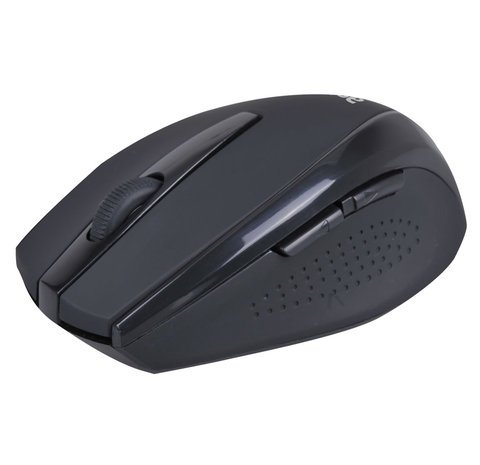
Image of the Astrum Aero BT Bluetooth Mouse, showcasing its compact and ergonomic design.
Package Contents
- Astrum Aero BT Bluetooth Mouse (1)
- User Manual (1)
- Note: Batteries are not included and must be purchased separately.
Setup
Follow these steps to connect your Astrum Aero BT Bluetooth Mouse to your computer:
- Install Batteries: Open the battery compartment on the underside of the mouse. Insert the required batteries (typically AA or AAA, refer to the compartment label) ensuring correct polarity. Close the compartment securely.
- Power On: Locate the power switch on the underside of the mouse and slide it to the 'ON' position. An indicator light may illuminate briefly.
- Enable Bluetooth on Your Device: On your laptop or personal computer, ensure Bluetooth is enabled. This setting is usually found in your operating system's settings or control panel.
- Enter Pairing Mode: Press and hold the Bluetooth pairing button on the underside of the mouse for a few seconds. The indicator light should start blinking, indicating it is in pairing mode.
- Pair with Your Device: On your computer, search for new Bluetooth devices. Select "Astrum Aero BT" or a similar name from the list of available devices. Follow any on-screen prompts to complete the pairing process.
- Confirmation: Once successfully paired, the indicator light on the mouse may stop blinking and remain solid, or turn off. Your mouse is now ready for use.
Operating Instructions
The Astrum Aero BT Bluetooth Mouse is designed for intuitive use. Here are its primary functions:
- Left Click: Use the left button for selecting items, opening links, and primary interactions.
- Right Click: Use the right button to access contextual menus and secondary functions.
- Scroll Wheel: Roll the scroll wheel up or down to navigate through documents and web pages. The scroll wheel may also function as a middle click button for additional actions depending on your software settings.
- Ambidextrous Design: The mouse features an ambidextrous design, making it comfortable for both left-handed and right-handed users.
- Power Saving: To conserve battery life, the mouse will automatically enter a sleep mode after a period of inactivity. To wake it up, simply move the mouse or click any button.
Maintenance
Proper maintenance ensures the longevity and optimal performance of your mouse:
- Cleaning: Use a soft, dry cloth to clean the surface of the mouse. For the optical sensor, use a cotton swab lightly dampened with isopropyl alcohol, ensuring no liquid enters the mouse's interior.
- Battery Replacement: When the mouse's performance degrades or the indicator light signals low battery, replace the batteries promptly. Always use new batteries of the specified type.
- Storage: When not in use for extended periods, turn off the mouse to conserve battery life. Store it in a cool, dry place away from direct sunlight and extreme temperatures.
- Avoid Liquids: Do not expose the mouse to water or other liquids, as this can cause internal damage.
Troubleshooting
If you encounter issues with your Astrum Aero BT Bluetooth Mouse, refer to the following common solutions:
| Problem | Solution |
|---|---|
| Mouse not connecting or unresponsive |
|
| Cursor lagging or erratic movement |
|
| Buttons or scroll wheel not working |
|
Specifications
- Brand: Astrum
- Model: Aero BT
- Connectivity Technology: Bluetooth
- Special Features: Wireless, Ambidextrous Design
- Battery Average Life: Up to 12 Months
- Compatible Operating Systems: Linux, Windows XP
- Hardware Platform: Laptop, Personal Computer
Warranty and Support
For information regarding warranty coverage, technical support, or service, please refer to the warranty card included with your purchase or visit the official Astrum website. You may also contact Astrum customer support directly for assistance with product-related inquiries.
Ask a question about this manual
Ask about setup, troubleshooting, compatibility, parts, safety, or missing instructions. Manuals+ will review the question and use this page’s manual context to help answer it.