
1. Introduction
This manual provides comprehensive instructions for the D-Link DWR-910 4G LTE Wireless USB Router. This device is designed to provide high-speed 4G LTE mobile internet access, allowing you to share a cellular data connection via Wi-Fi with multiple devices. It features a compact design, built-in drivers for easy installation, and support for various cellular bands.
2. Package Contents
Verify that your package contains the following items:
- D-Link DWR-910 4G LTE Wireless USB Router
3. Product Overview
3.1 Device Features
- USB 2.0 interface for power and data connection
- Super-fast 4G LTE connectivity with download speeds up to 150 Mbps
- Integrated 6-pin SIM card slot
- MicroSD card slot (supports up to 32 GB, card not included)
- Internal antennas for LTE and Wi-Fi
- Built-in drivers and software for plug-and-play installation (no CD-ROM required)
- Connection Manager with features like phonebook, SMS messaging, and APN management
3.2 Physical Components
The DWR-910 features a compact design with essential indicators and ports.
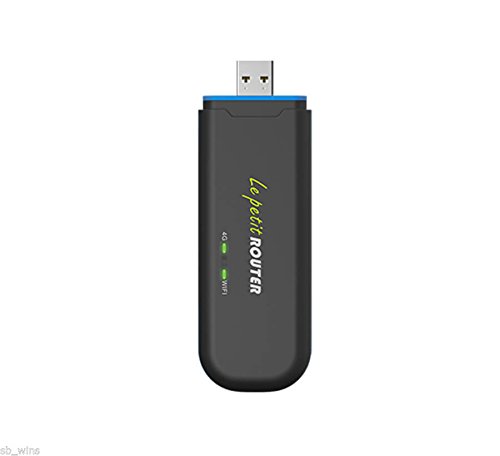
Front view of the D-Link DWR-910, showing the USB connector and LED indicators.
- USB Connector: Used for connecting to a computer or USB power adapter.
- LTE LED Indicator: Displays the status of the cellular network connection (2G/3G/4G).
- Wi-Fi LED Indicator: Shows the status of the Wi-Fi hotspot.
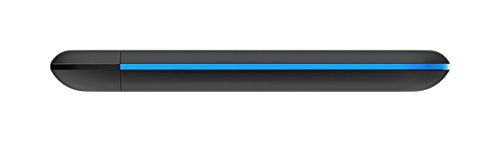
Side view of the D-Link DWR-910, highlighting the SIM and MicroSD card slots.
- SIM Card Slot: Insert your 6-pin SIM card here.
- MicroSD Card Slot: Insert a MicroSD card for storage (up to 32 GB).
4. Setup
4.1 Inserting the SIM Card
- Locate the SIM card slot on the side of the DWR-910.
- Carefully insert your 6-pin SIM card into the slot. Ensure the correct orientation as indicated on the device. Push until it clicks into place.
4.2 Connecting to a Power Source
- Plug the DWR-910 into an available USB 2.0 port on a computer or a compatible USB power adapter (a 5V, 1A adapter is recommended for stable operation).
- The device will power on automatically, and the LED indicators will illuminate.
4.3 Driver Installation (Plug and Play)
The DWR-910 features built-in drivers and connection software. Upon first connection to a computer, the necessary drivers and software will install automatically. No external CD-ROM or manual driver installation is typically required.
5. Operating Instructions
5.1 Connecting to the Wi-Fi Hotspot
- Once the DWR-910 is powered on and has established a connection to a cellular network (indicated by the LTE LED), it will broadcast a Wi-Fi network.
- On your Wi-Fi enabled device (e.g., laptop, smartphone, tablet), search for available Wi-Fi networks.
- Select the network name (SSID) corresponding to your DWR-910. The default SSID and Wi-Fi password are typically printed on a label on the device or its packaging.
- Enter the Wi-Fi password to connect.
5.2 Accessing the Web Interface
To manage advanced settings, send SMS messages, view the phonebook, or configure APN settings, access the device's web-based graphical user interface (GUI).
- Ensure your device is connected to the DWR-910's Wi-Fi network or via USB.
- Open a web browser and enter the default IP address (e.g.,
192.168.0.1or192.168.1.1). Refer to the device label or documentation for the exact address. - Enter the default username and password (e.g.,
admin/admin).
5.3 LED Indicators
The LED indicators provide visual feedback on the device's status:
- LTE LED:
- Green (blinking): Connected to LTE network
- Blue (blinking): Connected to 3G network
- Purple (blinking): Connected to 2G network
- Red (blinking): No service or device error
- Wi-Fi LED:
- Green (solid): Wi-Fi is active and broadcasting
6. Maintenance
To ensure optimal performance and longevity of your DWR-910, follow these maintenance guidelines:
- Keep the device clean and free from dust. Use a soft, dry cloth for cleaning.
- Avoid exposing the device to extreme temperatures, direct sunlight, or high humidity.
- Do not attempt to open, disassemble, or repair the device yourself. Refer to qualified service personnel for any repairs.
- Ensure proper ventilation when the device is in use to prevent overheating.
- Regularly check for firmware updates on the D-Link support website to enhance performance and security.
7. Troubleshooting
This section addresses common issues you might encounter with your DWR-910.
7.1 No Internet Connection
- SIM Card: Ensure the SIM card is correctly inserted and activated with a data plan.
- LTE LED: Check the LTE LED status. If it is red, there might be no cellular service in your area or a device error.
- APN Settings: Verify that the Access Point Name (APN) settings are correct via the device's web interface. These are usually auto-detected but may require manual configuration for some carriers.
- Restart: Try restarting the device by unplugging it from the USB port and plugging it back in.
7.2 Cannot Connect to Wi-Fi
- Wi-Fi LED: Ensure the Wi-Fi LED is green, indicating the Wi-Fi hotspot is active.
- Password: Verify that you are entering the correct Wi-Fi password (WPA2-PSK key).
- Range: Ensure your client device is within the Wi-Fi range of the DWR-910. The Wi-Fi range is typically limited, suitable for a single room (approx. 10-12 feet). Walls and obstructions can significantly reduce range.
- Restart: Restart both the DWR-910 and your Wi-Fi client device.
7.3 Device Overheating
- Ventilation: Ensure adequate airflow around the device. Avoid placing it in enclosed spaces or covering it.
- Power Source: Use a stable 5V, 1A USB power adapter. Using underpowered USB ports can sometimes lead to instability or heat.
- Environment: Avoid prolonged use in direct sunlight or high ambient temperatures.
8. Technical Specifications
| Feature | Detail |
|---|---|
| Model | DWR-910 |
| Interface | USB 2.0 |
| SIM Slot | 6-pin |
| MicroSD Card Slot | Up to 32 GB (card not included) |
| Cellular Access | LTE-FDD Cat.4 (Downlink: 150 Mbps, Uplink: 50 Mbps) DC-HSPA+ (Downlink: 42 Mbps, Uplink: 11 Mbps) |
| LTE Bands | B1 / B3 / B5 / B40 (2100/1900/850/2300 MHz) |
| UMTS/HSPA+ Bands | B1 / B8 (900 / 2100 MHz) |
| GSM/GPRS/EDGE Bands | 850 / 900 / 1800 / 1900 MHz |
| Wi-Fi Standard | 802.11n/g/b |
| Wi-Fi Speed | Up to 75 Mbps (802.11n) |
| Wireless Security | WPA2-PSK, WPA-PSK, WEP, MAC filter |
| Max Connected Clients | Up to 10 |
| Dimensions (L x W x D) | 113 mm x 37 mm x 11.5 mm (4.45 x 1.46 x 0.45 inches) |
| Weight | 40.5 grams (1.43 ounces) |
| Operating Temperature | 0 to 45 °C (32 to 113 °F) |
| Operating System Support | Windows 8 / 7 / Vista / XP, Mac OS X 10.5 or higher, Ubuntu Linux 10.04 or higher |
9. Warranty Information
The D-Link DWR-910 4G LTE Wireless USB Router typically comes with a 1-year limited warranty from the date of purchase. This warranty covers manufacturing defects under normal use. Please retain your proof of purchase for any warranty claims. The warranty does not cover damage resulting from misuse, accidents, unauthorized modifications, or external factors such as power surges.
10. Customer Support
For technical assistance, product registration, or further information regarding your D-Link DWR-910, please visit the official D-Link support website or contact D-Link customer service.
D-Link Official Website: www.dlink.com


