
1. Product Overview
The D-Link DWM-222 4G LTE USB Adapter provides high-speed mobile internet connectivity, allowing you to connect to the internet wherever a 4G LTE signal is available. This compact and portable device is designed for ease of use with built-in drivers and software, eliminating the need for a CD-ROM during installation.

Figure 1.1: Front view of the D-Link DWM-222 4G LTE USB Adapter, showing the D-Link logo and an LED indicator.
Key Features:
- Integrated antenna for reliable signal reception.
- Built-in drivers and software for plug-and-play installation.
- MicroSD card slot (supports up to 32 GB, card not included) for additional storage.
- Connection Manager software with Phonebook and SMS messaging capabilities.
- Compact dimensions: 103 x 34 x 11.5 mm (4.06 x 1.34 x 0.45 inches).
Package Contents:
- 1 x D-Link DWM-222 4G LTE USB Adapter
- Quick Install Guide
- Warranty Information
2. Setup and Installation
Follow these steps to set up your D-Link DWM-222 4G LTE USB Adapter:
- Insert SIM Card: Carefully open the adapter's cover to reveal the SIM card slot. Insert your activated 4G LTE SIM card into the designated slot. Ensure the SIM card is correctly oriented as indicated by the diagram near the slot.
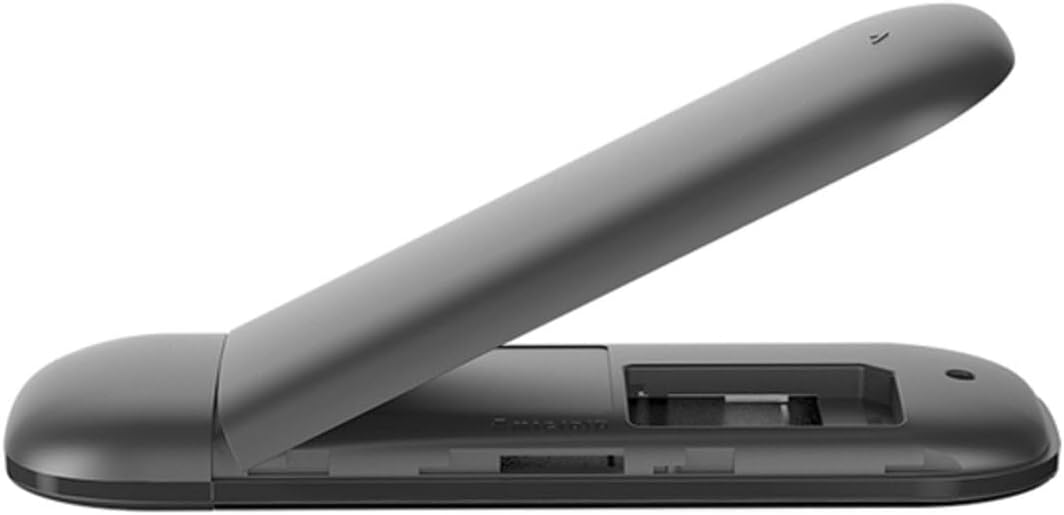
Figure 2.1: The DWM-222 adapter with its cover open, revealing the internal SIM card slot. Ensure proper orientation when inserting the SIM card.
- Insert MicroSD Card (Optional): If you wish to use the adapter as a portable storage device, insert a MicroSD card (up to 32 GB) into its dedicated slot.
- Connect to Computer: Plug the DWM-222 USB Adapter into an available USB 2.0 port on your computer.

Figure 2.2: The DWM-222 adapter with its USB connector extended, ready to be plugged into a computer's USB port.
- Software Installation: The adapter features built-in drivers and software. Upon connecting, your operating system (Windows XP/Vista/7/8, Mac OS X 10.5 and later) should automatically detect the device and initiate the installation process. Follow any on-screen prompts to complete the installation of the D-Link Connection Manager software. No CD-ROM is required.
3. Operating the Adapter
Once the software is installed, you can manage your connection using the D-Link Connection Manager application.
Connecting to the Internet:
- Launch the D-Link Connection Manager application from your desktop or Start Menu.
- The application will display available networks and signal strength.
- Select your preferred network and click 'Connect'.
- The LED indicator on the adapter will change color or state to indicate a successful connection.
Using SMS Messaging and Phonebook:
- The Connection Manager software includes features for sending and receiving SMS messages directly from your computer.
- Access the 'SMS' tab within the application to compose, send, and view messages.
- The 'Phonebook' feature allows you to store and manage contacts for easy SMS communication.
MicroSD Card Functionality:
- When a MicroSD card is inserted, the adapter functions as a portable storage device.
- You can access the contents of the MicroSD card through your computer's file explorer, similar to a USB flash drive.
4. Maintenance
To ensure the longevity and optimal performance of your D-Link DWM-222 USB Adapter, follow these maintenance guidelines:
- Cleaning: Use a soft, dry cloth to clean the exterior of the adapter. Do not use liquid cleaners or aerosols, as they may damage the device.
- Storage: When not in use, store the adapter in a cool, dry place, away from direct sunlight and extreme temperatures.
- Handling: Avoid dropping the adapter or subjecting it to strong impacts. Do not force the USB connector into ports.
- Software Updates: Periodically check the D-Link support website for any available firmware or software updates for your DWM-222 adapter to ensure compatibility and performance improvements.
5. Troubleshooting
If you encounter issues with your D-Link DWM-222 USB Adapter, refer to the following common problems and solutions:
No Internet Connection:
- Check SIM Card: Ensure your SIM card is correctly inserted and activated with a valid data plan.
- Signal Strength: Verify that you are in an area with adequate 4G LTE signal coverage. The LED indicator on the adapter can provide a visual cue for signal status.
- APN Settings: In some cases, you may need to manually configure the Access Point Name (APN) settings in the D-Link Connection Manager software. Refer to your mobile network provider for the correct APN settings.
- Carrier Compatibility: Be aware that some DWM-222 models may not be compatible with all regional carriers. Confirm compatibility with your service provider if issues persist.
Software Installation Issues:
- USB Port: Try plugging the adapter into a different USB port on your computer.
- Antivirus/Firewall: Temporarily disable your antivirus software or firewall during installation, as they may interfere with the process. Remember to re-enable them afterward.
- Operating System Compatibility: While the adapter supports various Windows and Mac OS versions, very recent operating system updates (e.g., Mac OS Ventura) may sometimes introduce compatibility challenges if specific drivers are not updated by the manufacturer. Check the D-Link support website for the latest driver availability.
Adapter Disconnects Frequently:
- Signal Stability: Unstable signal strength can cause frequent disconnections. Try relocating the adapter to an area with better signal.
- Power Management: On some computers, USB power management settings might cause the port to power down. Adjust power settings in your operating system to prevent this.
6. Specifications
Detailed technical specifications for the D-Link DWM-222 4G LTE USB Adapter:
| Feature | Specification |
|---|---|
| Model Name | DWM-222 |
| Connectivity Technology | USB |
| Wireless Type | 802.11n (for internal components, not direct Wi-Fi sharing) |
| Frequency Band Class | Single-Band |
| Frequency | 2.4 GHz |
| Operating System Compatibility | Windows XP/Vista/7/8, Mac OS X 10.5 and later |
| Item Weight | 1.16 ounces (approx. 32.9 grams) |
| Product Dimensions (LxWxH) | 4.06 x 1.34 x 0.45 inches (103 x 34 x 11.5 mm) |
| Color | Black |
| Power Source | USB |
| Special Feature | LED Indicator |
7. Warranty and Support
Warranty Information:
Your D-Link DWM-222 4G LTE USB Adapter comes with a limited warranty. Please refer to the 'Warranty Information' document included in your product package for detailed terms, conditions, and registration procedures. Retain your proof of purchase for warranty claims.
Technical Support:
For further assistance, technical support, or to download the latest drivers and firmware, please visit the official D-Link support website:
You may also find helpful resources and FAQs on the D-Link store page on Amazon:


