
1. Product Overview
The D-Link DWA-192 AC1900 Wi-Fi USB 3.0 Adapter is designed to provide powerful Wireless AC technology to your desktop or notebook computer. It enables access to a secure, high-speed Internet connection over both the 2.4 GHz (up to 600 Mbps) and 5 GHz (up to 1300 Mbps) bands, optimizing performance for streaming, gaming, and VoIP calls. Its Advanced AC Smart Beam technology enhances network speed and coverage.

Figure 1.1: Front view of the D-Link DWA-192 AC1900 USB WiFi Adapter, showcasing its spherical design and illuminated blue LED ring.
2. Key Features
- Dual Band Wireless: Supports both 2.4GHz and 5GHz bands for flexible and high-speed connectivity options.
- Advanced AC Smart Beam: Improves wireless coverage and performance by intelligently directing bandwidth between your Smart Beam router and the DWA-192 adapter.
- Easy Setup: Features a 1-button setup for a fast and secure connection to compatible routers.
- USB 3.0 Interface: Provides a fast connection to your PC, ensuring maximum data throughput.
- Backwards Compatible: Can connect to legacy 802.11N/g/a networks, ensuring broad compatibility.
3. Package Contents
Verify that your package contains the following items:
- D-Link DWA-192 AC1900 Wi-Fi USB 3.0 Adapter
- USB 3.0 Cable
- Quick Install Guide
- Installation CD (may vary by region/package)

Figure 3.1: Contents of the D-Link DWA-192 package, including the adapter, USB cable, and documentation.
4. Setup Instructions
4.1. Driver Installation
- Insert Installation CD: If your computer has a CD/DVD drive, insert the provided installation CD. The setup wizard should launch automatically. If not, navigate to the CD drive and run the setup executable.
- Download Drivers (if no CD drive): If your computer lacks a CD/DVD drive, visit the official D-Link support website (dlink.com) and download the latest drivers for the DWA-192 model.
- Follow On-Screen Prompts: Proceed with the driver installation by following the instructions provided by the setup wizard. This may include accepting license agreements and choosing installation locations.
- Restart Computer: After the drivers are successfully installed, you may be prompted to restart your computer. It is recommended to do so to ensure all changes take effect.
4.2. Connecting the Adapter
Once the drivers are installed, connect the DWA-192 adapter to your computer.
- Connect USB Cable: Plug one end of the provided USB 3.0 cable into the USB port on the DWA-192 adapter.
- Connect to PC: Plug the other end of the USB 3.0 cable into an available USB 3.0 port on your desktop or laptop computer for optimal performance. The adapter is also compatible with USB 2.0 ports.

Figure 4.1: Close-up view of the DWA-192 adapter, highlighting its USB 3.0 port and WPS button.

Figure 4.2: The DWA-192 adapter connected to a laptop via its USB 3.0 cable.
5. Operating Instructions
5.1. Connecting to a Wireless Network
After connecting the adapter and installing drivers, you can connect to your wireless network.
- Using Windows/macOS Network Settings:
- Click on the Wi-Fi icon in your system tray (Windows) or menu bar (macOS).
- Select your desired Wi-Fi network (SSID) from the list of available networks.
- Click "Connect" and enter your network's security key (password) if prompted.
- The adapter's LED will indicate a successful connection.
- Using Wi-Fi Protected Setup (WPS):
- Press the WPS button on your wireless router.
- Within two minutes, press the WPS button on your DWA-192 adapter.
- The adapter will automatically connect to your network.
5.2. Understanding the LED Indicator
The DWA-192 features an LED ring that indicates its status:
- Solid Blue: The adapter is powered on and connected to a wireless network.
- Blinking Blue: The adapter is attempting to connect to a wireless network or is in WPS pairing mode.
- Off: The adapter is not powered on or is not functioning correctly.
6. Troubleshooting
If you encounter issues with your D-Link DWA-192 adapter, refer to the following common solutions:
- No Internet Connection:
- Ensure the adapter is securely plugged into a USB port.
- Verify that the Wi-Fi network is active and other devices can connect.
- Check if the correct Wi-Fi password has been entered.
- Restart your computer and your wireless router.
- Slow Connection Speed:
- Ensure you are connected to the 5GHz band if your router supports it, as it generally offers faster speeds.
- Minimize interference from other electronic devices.
- Try moving closer to your wireless router.
- Update the adapter's drivers to the latest version from the D-Link website.
- Intermittent Connection:
- Check for firmware updates for your wireless router.
- Ensure the adapter is not overheating.
- Try a different USB port on your computer.
- Disable any other wireless adapters on your computer.
- Driver Installation Issues:
- Temporarily disable antivirus software during driver installation.
- Ensure your operating system is up to date.
- Download drivers directly from the D-Link support website if the CD is not working.
For more detailed troubleshooting, please refer to the official D-Link support resources.
7. Technical Specifications
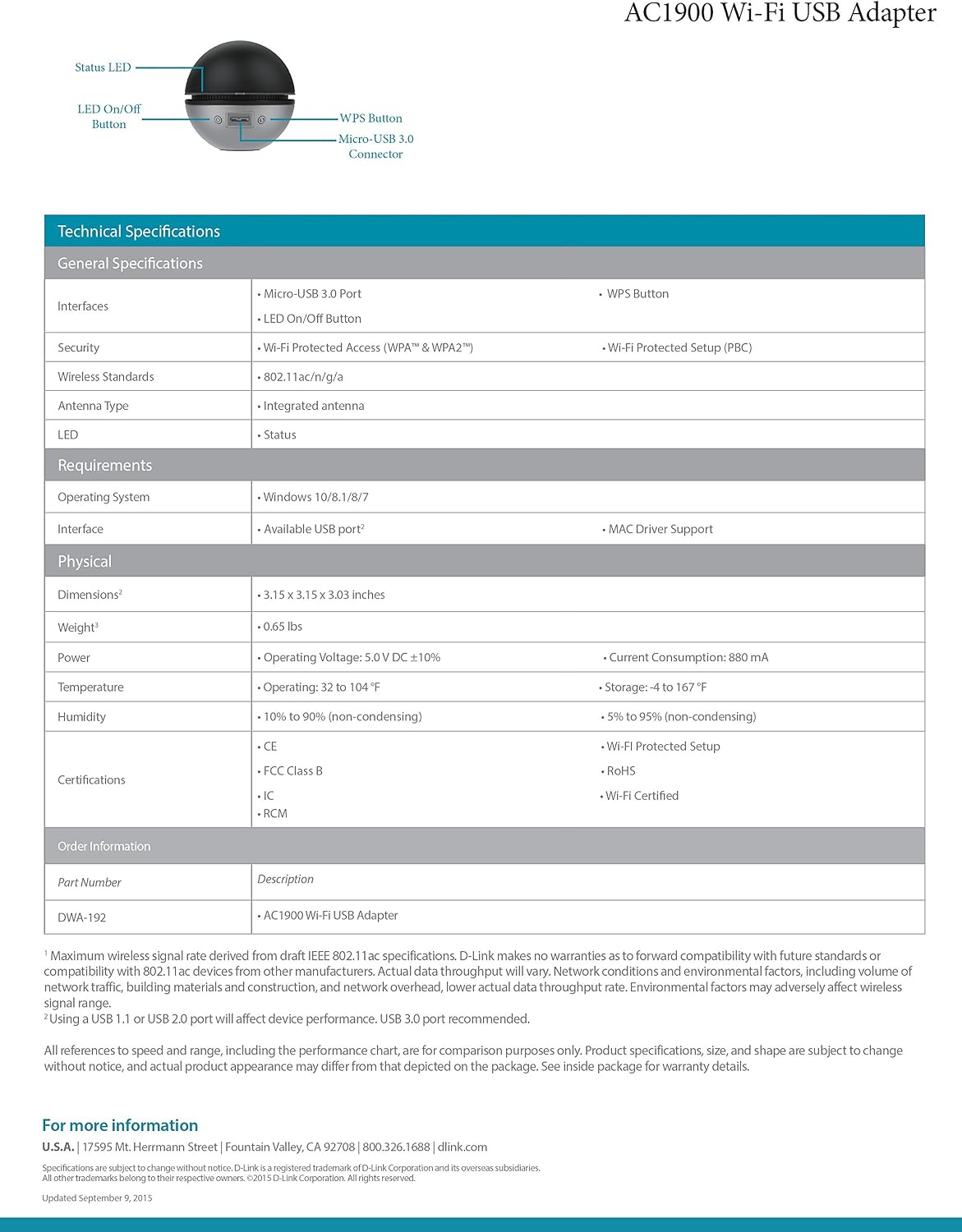
Figure 7.1: A detailed view of the technical specifications for the DWA-192 adapter.
| Category | Specification |
|---|---|
| Model Number | DWA-192 |
| Wireless Type | 802.11ac (AC1900), 802.11a/b/g/n |
| Frequency Bands | 2.4 GHz (up to 600 Mbps), 5 GHz (up to 1300 Mbps) |
| Hardware Interface | USB 3.0 (backward compatible with USB 2.0) |
| Dimensions (LxWxH) | 3.15 x 3.03 x 3.15 inches (80 x 77 x 80 mm) |
| Item Weight | 5.9 ounces (167 Grams) |
| Color | Black and gray with blue trim |
| Compatible Devices | Desktop, Laptop |
| Operating System Support | Windows 10/8.1/8/7, macOS |
| Manufacturer | D-Link Systems, Inc. |
| UPC | 790069430473, 790069417832, 790069417887, 809200110461, 790069414695, 809394579686 |
8. Official Product Video
Video 8.1: Official D-Link product video showcasing the features and benefits of the DWA-192 AC1900 USB WiFi Adapter.
9. Warranty and Support
D-Link Systems, Inc. provides support for the DWA-192 AC1900 USB WiFi Adapter. For detailed warranty information, technical support, and additional resources, please visit the official D-Link website or refer to the full user manual.
- Official User Manual (PDF): Download PDF
- D-Link Support Website: dlink.com
- Contact Information: 17595 Mt. Herrmann Street, Fountain Valley, CA 92708 | 800.326.1688


