
1. Introduction
This manual provides detailed instructions for the installation, operation, and maintenance of your D-Link DCS-5030L HD Pan & Tilt Wi-Fi Camera. This camera offers 720p HD video resolution, pan and tilt functionality, night vision, and sound and motion detection for comprehensive surveillance. Remote access is available via the mydlink Lite mobile application.
2. What's in the Box
Verify that all items are present in the package:
- HD Pan & Tilt Wi-Fi Camera (DCS-5030L)
- MicroUSB Power Adapter
- Ethernet Cable
- Mounting Kit
- Quick Installation Guide (QIG)
3. Product Overview
The D-Link DCS-5030L is designed for indoor surveillance, offering a wide range of features to monitor your home or business effectively.
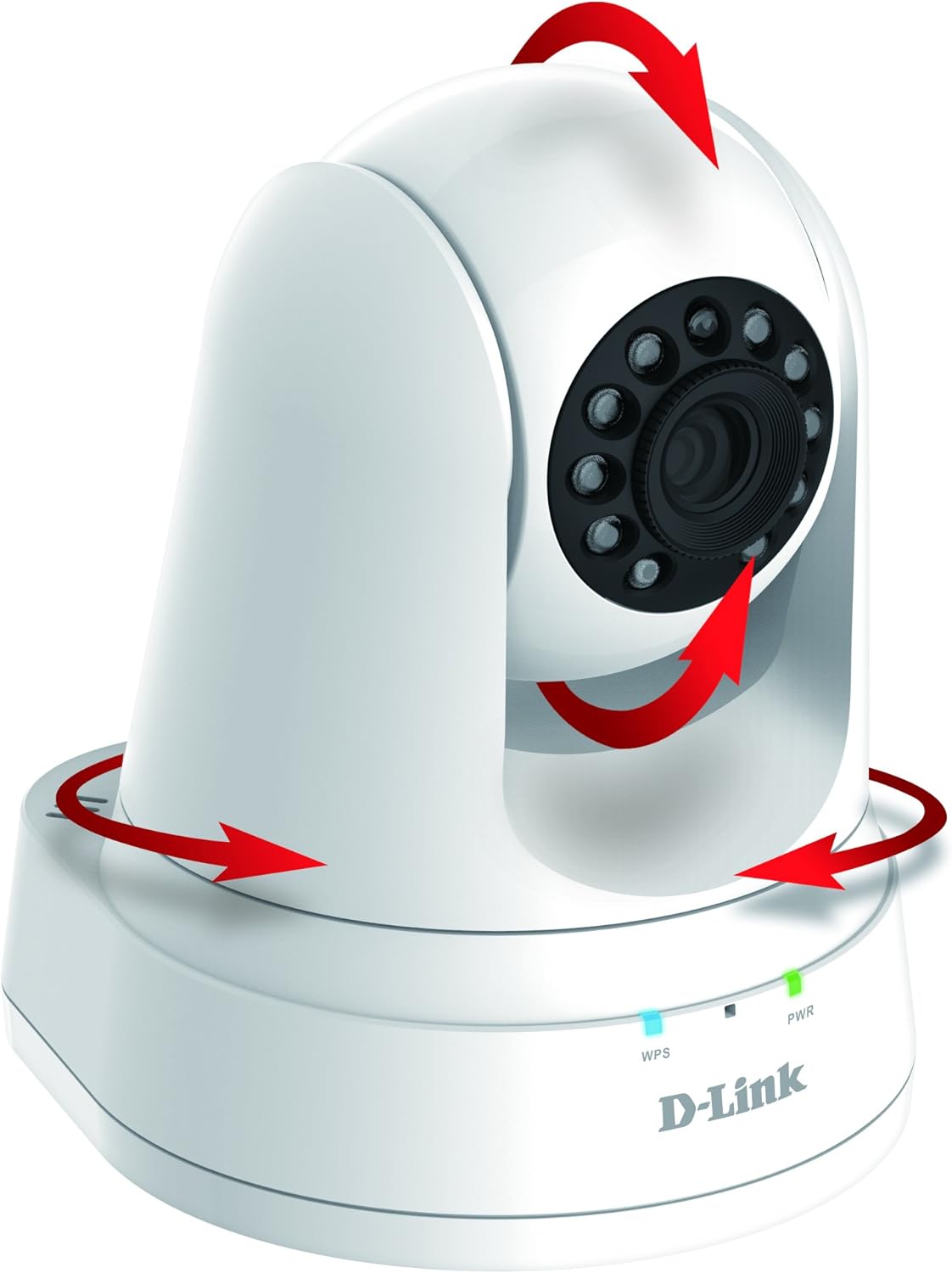
Image 1: D-Link DCS-5030L HD Pan & Tilt Wi-Fi Camera. This image displays the camera unit with red arrows indicating its pan and tilt capabilities.

Image 2: Front and Back View of the DCS-5030L Camera. This diagram highlights key components such as the light sensor, camera lens, IR LEDs, microphone, WPS LED, Power LED, Ethernet Port, WPS Button, Reset Button, microSDXC Card Slot, and microUSB Power Connector.
Product Overview Video
Video 1: An official D-Link product overview video demonstrating the camera's features and functionality.
DCS-5030L Features Video
Video 2: A video showcasing the D-Link DCS-5030L's key features, including 720p HD resolution, night vision, and remote access capabilities.
4. Setup
4.1 Physical Placement
Place the camera in a central location within the desired monitoring area. Ensure it is within range of your Wi-Fi network. The camera can be placed on a flat surface or mounted to a wall or ceiling using the included mounting kit.
4.2 Power Connection
- Connect the MicroUSB Power Adapter to the camera's microUSB port.
- Plug the power adapter into a power outlet.
- Wait for the Power LED on the camera to turn solid green, indicating it is ready for setup.
4.3 App Installation and Initial Setup
- Download the mydlink Lite app from the Apple App Store or Google Play Store on your smartphone or tablet.
- Open the mydlink Lite app and follow the on-screen instructions to create a new mydlink account or log in to an existing one.
- Select 'Add a new device' and scan the QR code located on the bottom of your camera or on the Quick Installation Guide.
- Follow the app's prompts to connect the camera to your existing Wi-Fi network. This may involve using the WPS button on your router or manually entering Wi-Fi credentials.
- Once connected, the camera's LED will turn solid green, and you will be able to view live video from the app.
5. Operating the Camera
5.1 Pan & Tilt Control
From the mydlink Lite app, you can remotely control the camera's viewing angle:
- Pan: Swipe left or right on the live view screen to rotate the camera horizontally (up to 340 degrees).
- Tilt: Swipe up or down on the live view screen to adjust the camera's vertical angle.
- Digital Zoom: Pinch to zoom in or out on the live video feed for a closer look (4x digital zoom).
5.2 Night Vision
The camera is equipped with built-in IR LEDs, enabling it to see up to 16 feet in complete darkness. Night vision activates automatically in low-light conditions, providing continuous surveillance.
5.3 Motion & Sound Detection
The DCS-5030L features integrated motion and sound sensors. When triggered, the camera can:
- Automatically begin recording video to a microSD card (if installed).
- Send push notifications to your mobile device.
You can configure detection zones and sensitivity settings within the mydlink Lite app.
5.4 Remote Access
Access your camera's live feed and recordings from anywhere using the mydlink Lite app on your iOS or Android device, or through the mydlink web portal on a computer.
5.5 Recording Options
The camera supports local recording to a microSD card (up to 128 GB, not included). You can set up recording schedules or trigger recordings based on motion and sound detection events via the mydlink Lite app.
6. Maintenance
- Cleaning: Use a soft, dry cloth to clean the camera lens and exterior. Avoid abrasive cleaners or solvents.
- Firmware Updates: Periodically check the mydlink Lite app or the D-Link support website for firmware updates to ensure optimal performance and security.
- Environmental Conditions: Operate the camera within the specified temperature range of 32 to 104°F (0 to 40°C) and humidity range of 20% to 80% non-condensing.
7. Troubleshooting
- Issue: Camera not connecting to Wi-Fi.
- Solution: Ensure the camera is within range of your Wi-Fi router. Check Wi-Fi password. Try restarting the camera and router. If using WPS, ensure your router supports it and is activated. For persistent issues, try a factory reset and re-setup.
- Issue: No video feed in the mydlink Lite app.
- Solution: Verify the camera is powered on and connected to the network (solid green LED). Check your internet connection. Ensure the mydlink Lite app is updated to the latest version. Restart the app.
- Issue: Motion/Sound detection alerts are not received.
- Solution: Check the detection settings in the mydlink Lite app to ensure they are enabled and configured correctly. Verify that push notifications are enabled for the mydlink Lite app in your phone's settings. Ensure the camera has a stable internet connection.
- Issue: Night vision is not clear.
- Solution: Ensure there are no obstructions directly in front of the camera lens. Avoid placing the camera facing a window at night, as reflections can impair night vision performance.
8. Specifications
| Model Name | DCS-5030L |
| Video Capture Resolution | 720p |
| Connectivity Technology | Wireless (Wi-Fi) |
| Night Vision Range | 16 Feet |
| Viewing Angle | 94.36 Degrees |
| Pan/Tilt Functionality | Yes |
| Digital Zoom | 4x |
| Storage | microSDXC Card Slot (up to 128 GB) |
| Motion/Sound Detection | Yes |
| Power Source | AC/DC (MicroUSB Power Adapter) |
| Operating Temperature | 32 to 104°F (0 to 40°C) |
| Dimensions (L x W x H) | 4.57 x 4.29 x 5.24 inches |
| Item Weight | 10.2 ounces |
9. Warranty and Support
The D-Link DCS-5030L comes with a 1-Year Limited Warranty. For detailed warranty information and to access technical support, please visit the official D-Link support website: support.dlink.com/warranty.
For further assistance, you can also refer to the D-Link website for FAQs, product documentation, and contact information for customer service.


