
1. Introduction
The Comfast CF-WU712P is a compact 150Mbps USB WiFi Wireless Adapter designed to provide wireless network connectivity to desktop computers or laptops. This device supports the IEEE 802.11N standard, offering enhanced wireless bandwidth and stability. It features a Soft AP function, allowing it to act as a WiFi hotspot, and supports WPS (Wi-Fi Protected Setup) for easy and secure connections.
This manual provides detailed instructions for the setup, operation, maintenance, and troubleshooting of your CF-WU712P adapter.
2. Product Features
- Wireless Standard: Complies with IEEE 802.11n, 802.11g, and 802.11b standards.
- Data Transfer Rate: Up to 150Mbps.
- Compact Design: Small and portable for convenient use and transport.
- WPS Function: Supports Wi-Fi Protected Setup for quick and secure wireless connections.
- Soft AP Function: Enables the adapter to create a wireless hotspot, sharing internet with other devices.
- Smart Antenna: Built-in smart antenna enhances wireless signal reception and stability.
- CCA Technology: Utilizes Clear Channel Assessment to automatically adapt to frequency modes, avoiding interference.
3. Package Contents
Upon opening the package, please verify that all items are present and in good condition:
- Comfast CF-WU712P Mini USB WiFi Adapter
- Driver CD-ROM

Image: The Comfast CF-WU712P Mini USB WiFi Adapter shown alongside its driver CD-ROM.

Image: The retail packaging for the Comfast CF-WU712P adapter, displaying product information and branding.
4. Setup Instructions
Follow these steps to install and set up your Comfast CF-WU712P USB WiFi Adapter:
- Insert the Driver CD: Insert the provided driver CD-ROM into your computer's CD/DVD drive. If your computer does not have a CD/DVD drive, you may need to download the drivers from the official Comfast website.
- Install Drivers:
- Locate the setup file (e.g., "setup.exe" or "install.exe") on the CD.
- Double-click the setup file to start the installation wizard.
- Follow the on-screen prompts to complete the driver installation. This typically involves accepting the license agreement, choosing an installation location, and clicking "Next" or "Install".
- Restart your computer if prompted after the installation is complete.
- Connect the Adapter: Once the drivers are installed, plug the Comfast CF-WU712P USB WiFi Adapter into an available USB port on your computer.
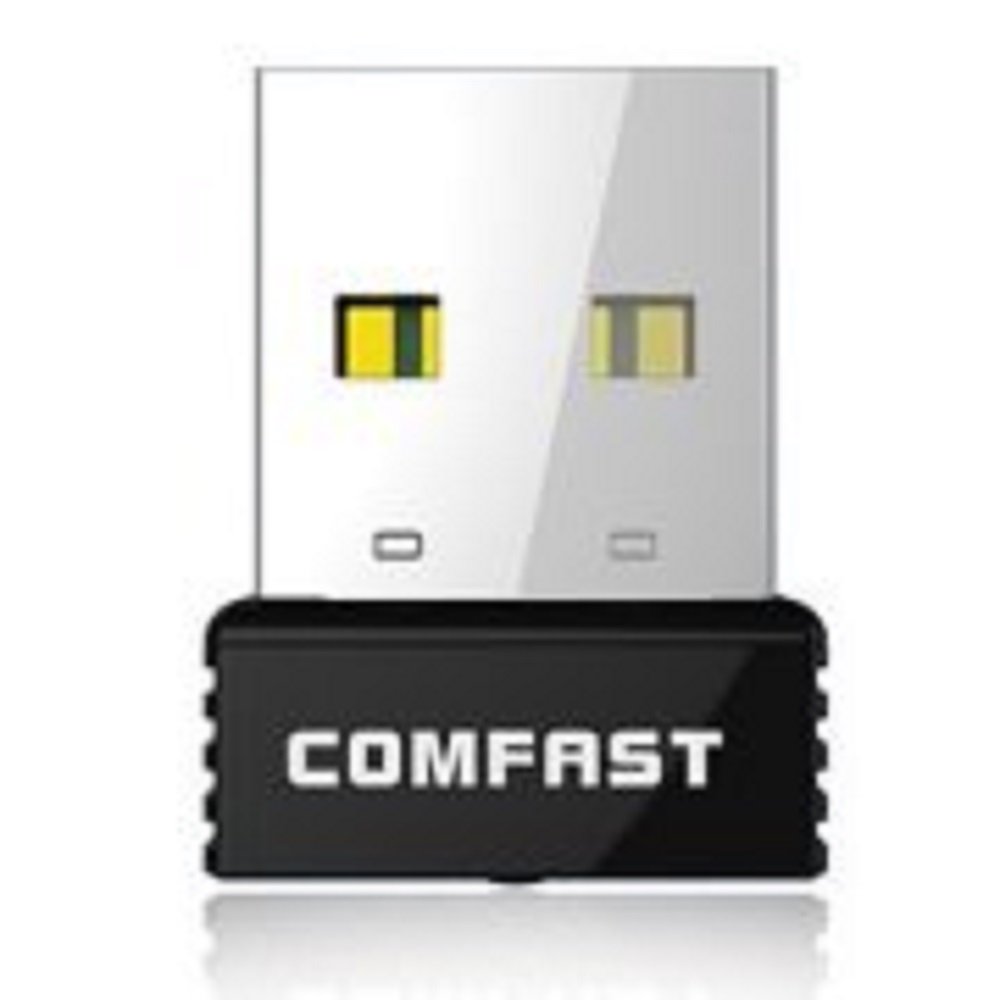
Image: The Comfast CF-WU712P Mini USB WiFi Adapter, ready to be inserted into a USB port.
- Verify Installation:
- For Windows: Go to Device Manager (Right-click "My Computer" or "This PC" -> "Manage" -> "Device Manager"). Look under "Network adapters" for an entry related to "Comfast" or "Wireless N USB Adapter".
- A successful installation will show the device without any yellow exclamation marks or red crosses.
5. Operating Instructions
5.1 Connecting to a Wireless Network
- Ensure the adapter is properly installed and recognized by your computer.
- Click on the network icon (usually a Wi-Fi symbol) in your system tray (bottom-right corner of the screen for Windows).
- A list of available wireless networks will appear. Select your desired network (SSID).
- Click "Connect". If the network is secured, you will be prompted to enter the network security key (password).
- Once the password is entered correctly, your computer should connect to the wireless network.
5.2 Using WPS (Wi-Fi Protected Setup)
The CF-WU712P supports WPS for a simplified connection process with WPS-enabled routers.
- Press the WPS button on your wireless router.
- Within two minutes, activate the WPS function on your computer. This is typically done through the wireless utility software installed with the adapter drivers, or by clicking the WPS option when selecting a network.
- The adapter and router will automatically establish a secure connection without needing to manually enter a password.
5.3 Soft AP Function (Creating a WiFi Hotspot)
The Soft AP function allows your computer, with the CF-WU712P adapter, to act as a wireless access point, sharing its internet connection with other devices.
- Ensure your computer has an active internet connection (e.g., via Ethernet).
- Open the wireless utility software installed with the adapter drivers.
- Look for an option like "Soft AP Mode", "Access Point Mode", or "Virtual WiFi".
- Configure the SSID (network name) and security password for your new hotspot.
- Activate the Soft AP function. Other wireless devices can now connect to your computer's hotspot using the configured SSID and password.
6. Maintenance
To ensure optimal performance and longevity of your Comfast CF-WU712P USB WiFi Adapter, consider the following maintenance tips:
- Keep Drivers Updated: Periodically check the official Comfast website for updated drivers to ensure compatibility and performance improvements.
- Clean Gently: If necessary, gently clean the adapter with a soft, dry cloth. Avoid using liquid cleaners or solvents.
- Proper Storage: When not in use, store the adapter in a cool, dry place away from direct sunlight and extreme temperatures.
- Avoid Physical Damage: Handle the adapter with care. Avoid bending, dropping, or exposing it to excessive force.
- Secure USB Port: Ensure the USB port you use is clean and free from debris to maintain a stable connection.
7. Troubleshooting
If you encounter issues with your Comfast CF-WU712P adapter, refer to the following troubleshooting steps:
7.1 Adapter Not Detected or Not Working
- Re-insert Adapter: Unplug the adapter and plug it back into a different USB port.
- Check Device Manager: Open Device Manager (Windows) and check if the adapter is listed under "Network adapters" without any error symbols. If there's an error, try reinstalling the drivers.
- Driver Installation: Ensure drivers are correctly installed from the provided CD or the official website. Sometimes, an incomplete or corrupted driver installation can cause issues.
- Restart Computer: A simple restart can often resolve minor software conflicts.
- Try Another Computer: If possible, test the adapter on another computer to determine if the issue is with the adapter or your computer's setup.
7.2 Cannot Connect to WiFi Network
- Verify Network Availability: Ensure your WiFi network is active and other devices can connect to it.
- Correct Password: Double-check that you are entering the correct WiFi password (security key). Passwords are case-sensitive.
- Router Proximity: Move closer to your wireless router to ensure a strong signal.
- Router Reboot: Reboot your wireless router by unplugging it from power for 10-15 seconds, then plugging it back in.
- Disable/Enable Adapter: In Device Manager, right-click the wireless adapter, select "Disable device," then right-click again and select "Enable device."
7.3 Slow Connection Speed
- Signal Strength: Check your WiFi signal strength. A weak signal can lead to slower speeds.
- Interference: Other electronic devices (cordless phones, microwaves, Bluetooth devices) can cause interference. Try to minimize these or move the adapter.
- Router Channel: Your router might be on a congested channel. Access your router's settings and try changing the wireless channel.
- Driver Update: Ensure you have the latest drivers installed.
7.4 System Instability (e.g., System Hangs)
- Driver Compatibility: Ensure the installed drivers are fully compatible with your operating system version. Outdated or incorrect drivers can cause system instability.
- USB Port Issues: Try using a different USB port. Sometimes, specific USB ports can have power delivery or compatibility issues.
- System Resources: Ensure your computer meets the minimum system requirements for the adapter and its drivers.
- Operating System Updates: Keep your operating system updated to ensure all system components are functioning correctly.
8. Specifications
| Feature | Description |
|---|---|
| Model Number | CF-WU712P |
| Brand | Comfast |
| Hardware Interface | USB |
| Data Link Protocol | IEEE 802.11n, 802.11g, 802.11b |
| Data Transfer Rate | 150 Megabits Per Second |
| Compatible Devices | Desktop, Laptop |
| Item Weight | 9 g |
| Color | Black |
| Country of Origin | China |
9. Warranty and Support
For warranty information and technical support, please refer to the documentation included with your product or visit the official Comfast website. Typically, support resources include driver downloads, FAQs, and contact information for customer service.
It is recommended to keep your purchase receipt as proof of purchase for warranty claims.


