
Introduction
Welcome to the user manual for the D-Link DNH-1000 Nuclias Connect Hardware Controller. This device is designed to provide centralized management for up to 500 compatible D-Link network devices, simplifying network deployment and ongoing operation. This manual provides essential information for setting up, operating, maintaining, and troubleshooting your DNH-1000 controller.
Package Contents
- Network Controller (DNH-1000)
- Power Adapter
- Quick Installation Guide (QIG)
Product Overview
Front Panel

The front panel features the D-Link branding, model number, a LAN port with status indicators, and a USB port for external storage or future expansion.
Rear Panel
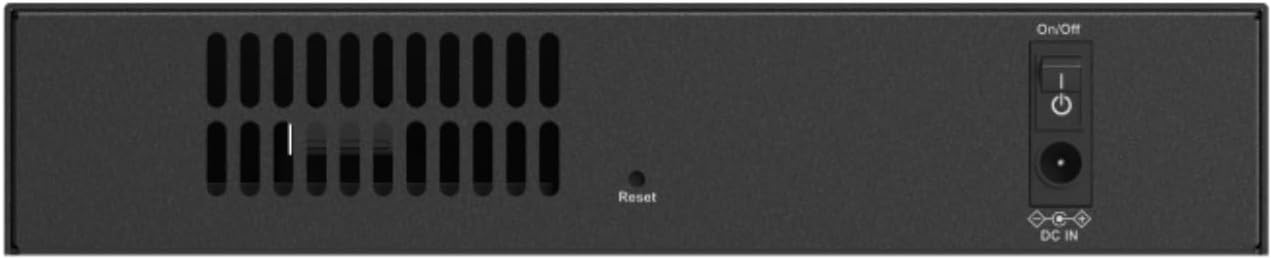
The rear panel includes ventilation slots, a recessed reset button, and the DC power input jack with an integrated On/Off power switch.
Setup
Initial Hardware Connection
Step 1: Power Connection
- Connect the power adapter to the DC IN port on the rear panel of the DNH-1000.
- Plug the power adapter into a suitable power outlet.
Step 2: Network Connection
- Connect an Ethernet cable from your network switch or router to the LAN port on the front panel of the DNH-1000.
Step 3: Power On
- Press the On/Off switch on the rear panel to power on the device. The power indicator LED on the front will illuminate.
Software Configuration (Nuclias Connect)
The DNH-1000 comes pre-loaded with Nuclias Connect software. To access the management interface, ensure your computer is connected to the same network as the DNH-1000. Refer to the included Quick Installation Guide (QIG) for initial access credentials and IP address details to log in via a web browser.
Operation
Centralized Device Management
The DNH-1000 enables centralized management of up to 500 compatible D-Link WiFi access points and DGS-1100V2, DGS-1210, DXS-1210, and DMS-1250 switches through the Nuclias Connect interface.
Network Configuration
- SSID Management: Configure multiple Service Set Identifiers (SSIDs) to create separate wireless networks for different user groups or purposes.
- VLAN Configuration: Implement Virtual Local Area Networks (VLANs) to segment network traffic, enhance security, and optimize performance.
- RF Optimization: Utilize Auto RF and Bandwidth Optimization features to ensure optimal wireless connectivity and minimize interference across your network.
Access Control and Security
- Role-Based Access: Assign different access levels and permissions to network administrators for granular control.
- Captive Portal: Set up secure, customizable login options for guest and employee networks, enhancing network security and user experience.
- Security Protocols: The device supports WPA2-Enterprise and WPA3 for robust wireless security.
Multi-Site Management
The DNH-1000 supports deployment for both single-site and multi-site networks, offering streamlined management with automatic device discovery and multi-tenant monitoring capabilities, allowing the network to scale effortlessly.
Remote Monitoring
Monitor your network remotely using the Nuclias Connect app, which provides real-time monitoring, device adoption, and configuration capabilities directly from your mobile device.
Maintenance
Firmware Upgrades
The DNH-1000 supports remote firmware upgrades, ensuring the device benefits from the latest features, security patches, and performance improvements without requiring manual intervention on-site.
Monitoring and Reporting
Utilize the centralized dashboard to monitor real-time network status, generate comprehensive reports, and receive instant alerts regarding network events. Advanced traffic analytics provide valuable insights for optimizing network performance.
Troubleshooting
Power Issues
- No Power: Ensure the power adapter is securely connected to the device and a working power outlet. Verify the On/Off switch on the rear panel is in the 'On' position.
- Power LED Off: If the power LED on the front panel is not illuminated, double-check all power connections.
Network Connectivity Issues
- No Network Access: Verify the Ethernet cable is properly connected to the LAN port on the DNH-1000 and your network switch/router. Check the LAN port status indicators for activity.
- Cannot Access Management Interface: Ensure your computer or management device is on the same network segment as the DNH-1000. Refer to the QIG for the default IP address or device discovery method.
Resetting the Device
To restore the device to factory default settings, use a paperclip or similar pointed object to press and hold the recessed Reset button on the rear panel for approximately 5-10 seconds while the device is powered on. Release the button when the power LED blinks, indicating the reset process has begun.
Specifications
Technical Specifications
| Brand | D-Link |
| Model Name | DNH-1000 |
| Connectivity Technology | Ethernet |
| Number of Ports | 2 (1x LAN, 1x USB) |
| LAN Port Bandwidth | 1000 Mbps |
| Wireless Communication Standard | 802.11ac, 802.11ax (for managed APs) |
| Security Protocol | WPA2-Enterprise, WPA3 |
| Operating System | Linux |
| Item Weight | 1.4 pounds |
| Item Dimensions (L x W x H) | 7.48"L x 4.72"W x 1.5"H |
Warranty and Support
Warranty Information
The D-Link DNH-1000 Nuclias Connect Hardware Controller comes with a Limited Lifetime Warranty. Please refer to the official D-Link website or the warranty card included in your package for full terms and conditions regarding warranty coverage and claims.
Technical Support
For technical assistance, product information, or troubleshooting not covered in this manual, please visit the official D-Link support website or contact D-Link customer service for further assistance.


