
D-Link DCS-8350LH
D-Link mydlink 2K Indoor WiFi Camera
Model: DCS-8350LH
User Instruction Manual
1. Introduction
This manual provides detailed instructions for the setup, operation, maintenance, and troubleshooting of your D-Link mydlink 2K Indoor WiFi Camera (DCS-8350LH). Please read this manual thoroughly before using the device to ensure proper functionality and safety.
The DCS-8350LH is designed for indoor surveillance, offering 2K QHD (1440p) resolution, color night vision, AI-based person detection, two-way audio, and flexible recording options including microSD card and cloud storage. It integrates with smart home ecosystems like Amazon Alexa and Google Assistant.
2. Package Contents
Verify that all items are present in your package:
- D-Link mydlink 2K Indoor WiFi Camera (DCS-8350LH)
- Power Adapter
- Mounting Hardware
- Quick Installation Guide (QIG)
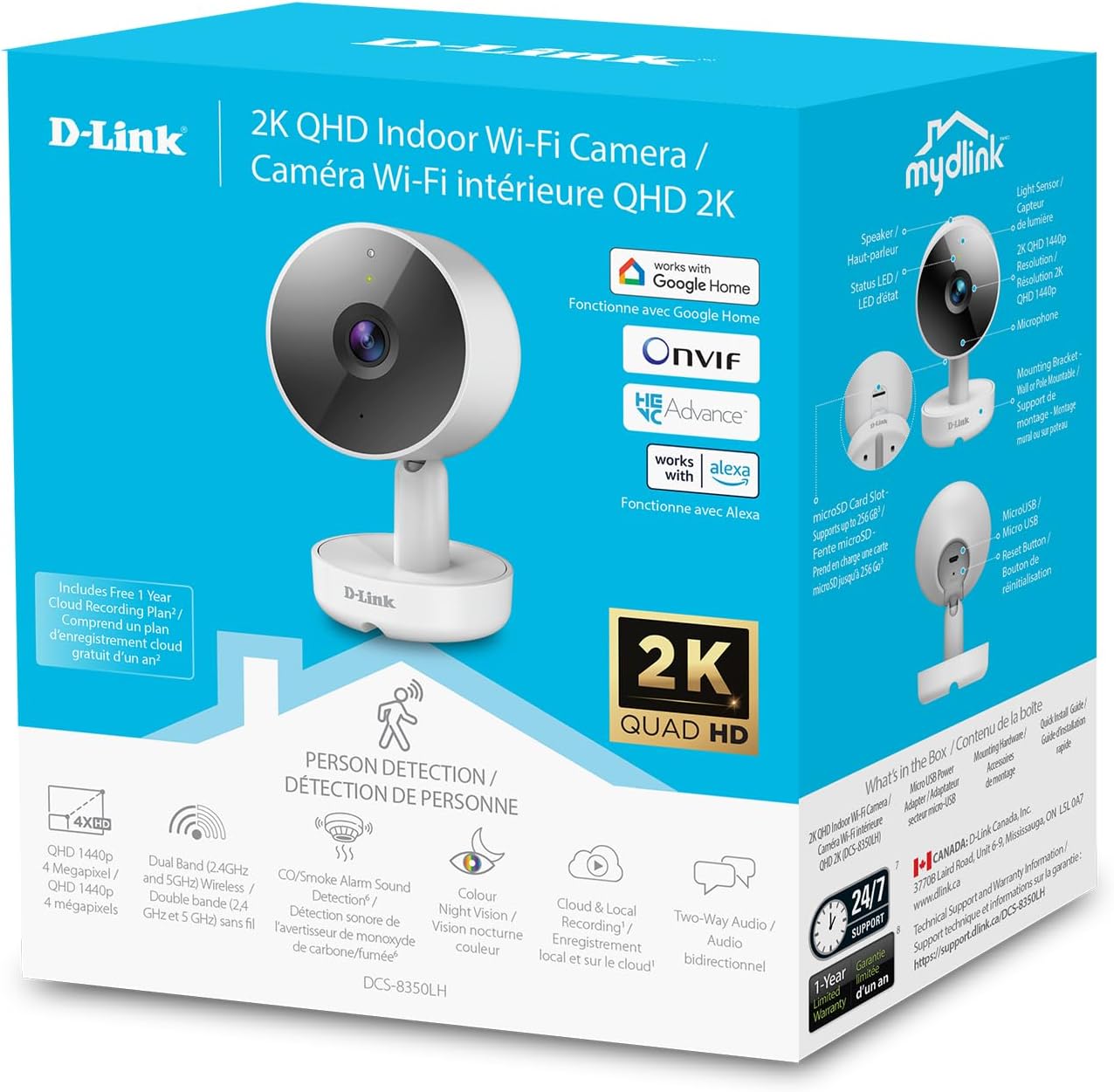
Image: The retail packaging for the D-Link mydlink 2K Indoor WiFi Camera, highlighting key features and included components.
3. Product Overview
Familiarize yourself with the camera's components:

Image: A detailed diagram illustrating the various parts of the D-Link DCS-8350LH camera, including the lens, status LED, speaker, microphone, microSD card slot, reset button, and power connector.
- Lens: Captures video footage.
- Status LED: Indicates camera status (e.g., power, connection, recording).
- IR LED: Infrared emitters for night vision.
- Microphone: Captures audio for two-way communication and sound detection.
- Speaker: Outputs audio for two-way communication.
- MicroSD Card Slot: For local video storage (supports up to 256 GB).
- Reset Button: Used to restore factory default settings.
- Power Connector: Connects to the included power adapter.
4. Setup Instructions
- Download the mydlink App: Search for "mydlink" in the Apple App Store or Google Play Store and install the application on your smartphone or tablet.
- Power On the Camera: Connect the power adapter to the camera's power connector and plug it into a wall outlet. The status LED will begin to blink.
- Add Device in App: Open the mydlink app, log in or create an account. Tap the menu icon (usually three lines or dots) and select "Add a Device." Follow the on-screen instructions to scan the QR code on your camera or its packaging.
- Connect to Wi-Fi: The app will guide you through connecting the camera to your home Wi-Fi network. Ensure your Wi-Fi network is 2.4 GHz or 5 GHz compatible.
- Placement: Position the camera in your desired indoor location. The camera can be placed on a flat surface or mounted to a wall using the included hardware. Ensure it has a clear line of sight to the area you wish to monitor.

Image: The D-Link mydlink 2K Indoor WiFi Camera, ready for setup and placement in your home.
5. Operating Instructions
5.1. Live View and Monitoring
Access the live video feed from your camera anytime through the mydlink app. Simply open the app and select your camera from the device list to view real-time footage.
5.2. Two-Way Audio
The camera features a built-in microphone and speaker, enabling two-way communication. To use this function, tap the microphone icon in the live view screen of the mydlink app. Speak into your mobile device to transmit audio through the camera's speaker. Release the icon to listen.
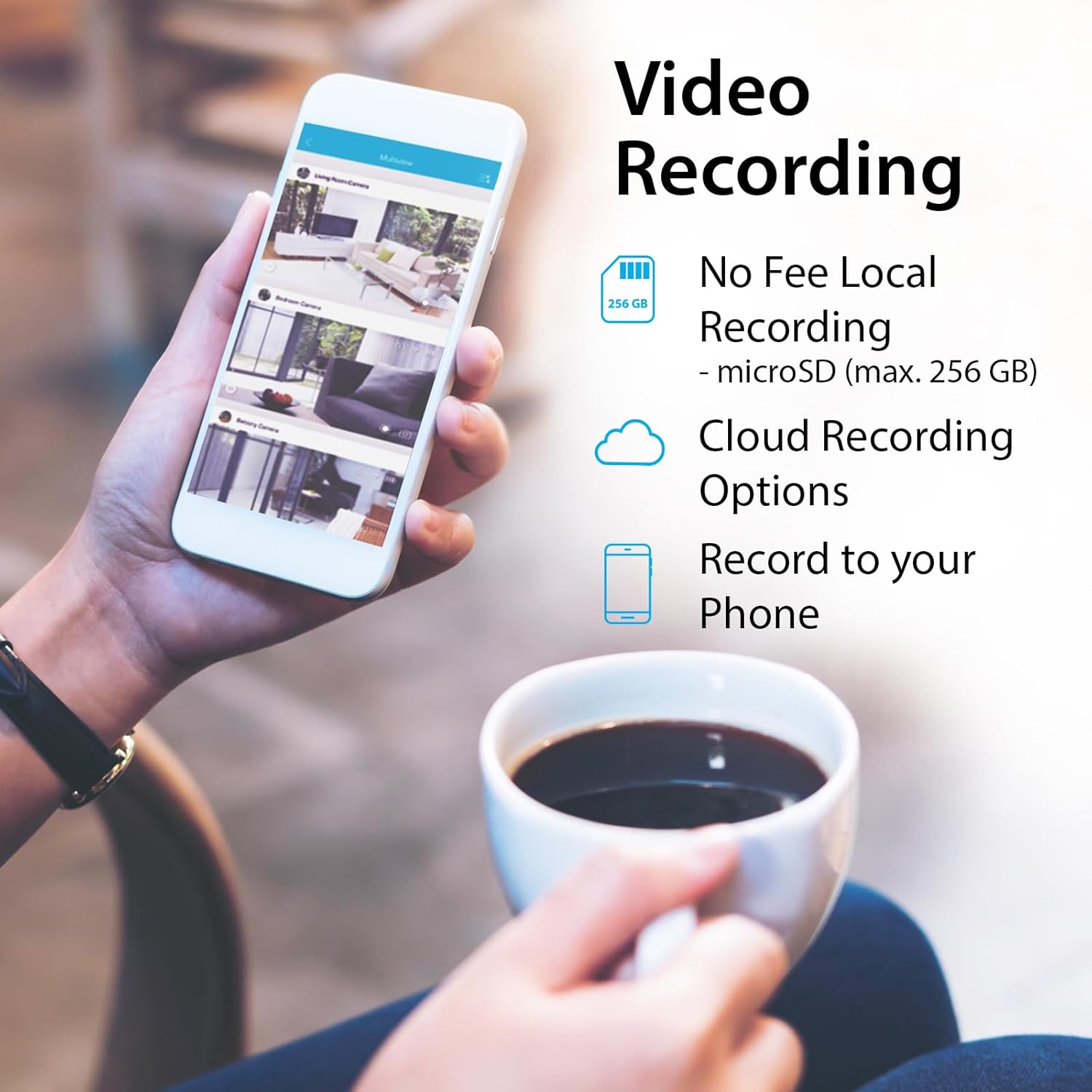
Image: An illustration of the two-way audio feature, showing the camera and a dog with a speech bubble, indicating remote communication.
5.3. Video Recording Options
The DCS-8350LH offers flexible recording solutions:
- MicroSD Card Recording: Insert a microSD card (up to 256 GB, not included) into the camera's slot for local storage of video footage. Configure recording settings (e.g., continuous, motion-triggered) within the mydlink app.
- Cloud Recording: Subscribe to a mydlink Cloud Recording plan for secure off-site storage of video clips. Access your recordings from anywhere via the mydlink app.
- Record to Phone: Manually record live footage directly to your mobile device through the app.

Image: A smartphone screen showing the various video recording options available through the mydlink app, including local storage, cloud storage, and direct recording to the phone.
5.4. Night Vision
The camera is equipped with color night vision, allowing it to capture clear, vibrant images in low-light conditions up to 7 meters (23 feet). This provides enhanced detail compared to traditional black and white night vision.
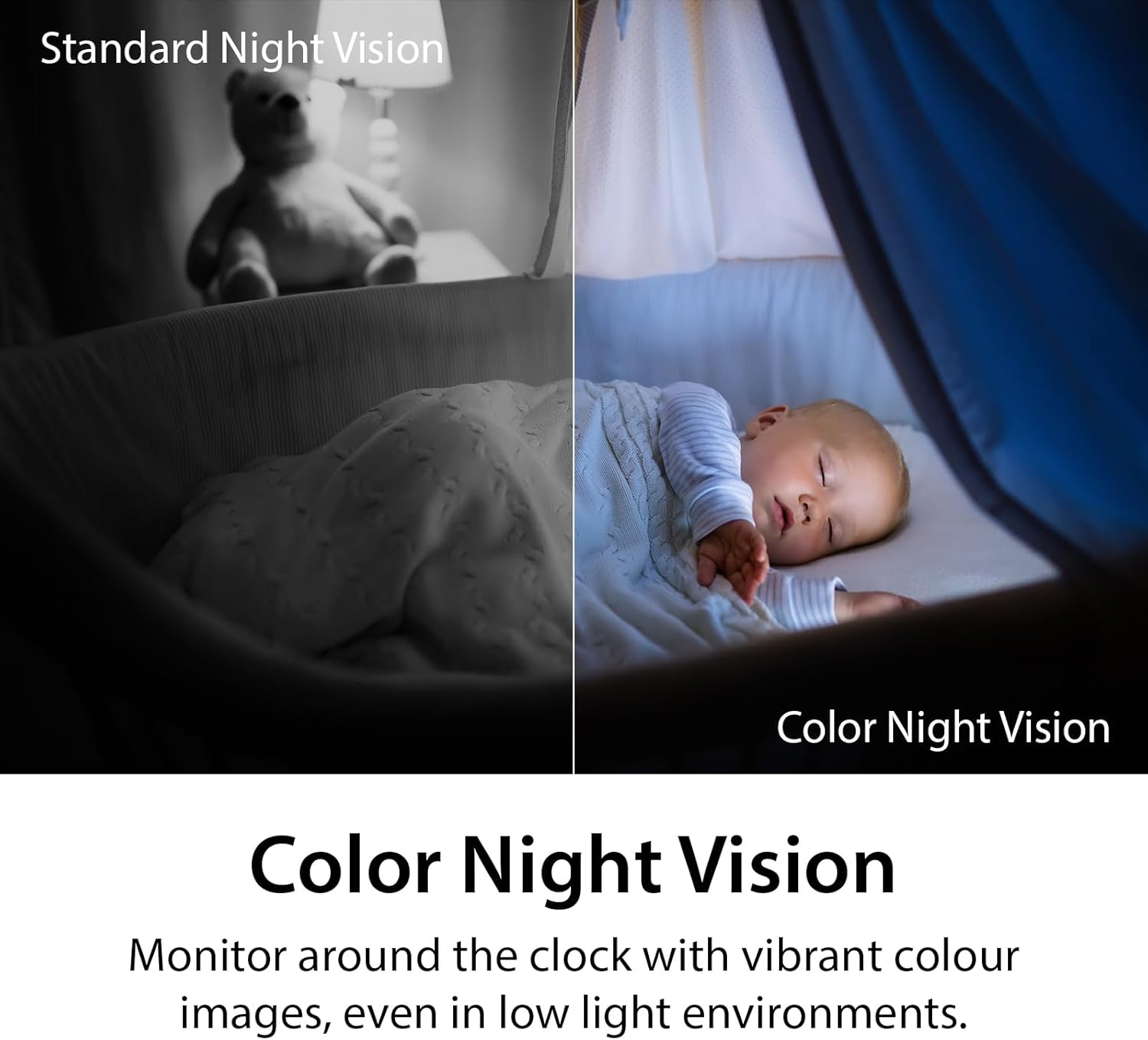
Image: A side-by-side comparison demonstrating the difference between standard monochrome night vision and the camera's color night vision, showing improved detail and color in low light.
5.5. AI Person Detection and Sound Detection
The camera utilizes AI-based person detection to minimize false alarms by distinguishing human movement from other motion. It also features sound detection for glass-break, carbon monoxide, and smoke alarms, sending alerts to your mobile device when these sounds are detected.

Image: A smartphone showing a notification from the mydlink app indicating an alarm has been detected, with a smoke detector in the background, illustrating the sound detection feature.
5.6. Voice Control Integration
The DCS-8350LH is compatible with Amazon Alexa and Google Assistant. You can use voice commands to view your camera's live feed on compatible smart displays or TVs.
- For Google Assistant: Say, "Ok Google, show me the [camera name] on the [device name]."
- For Amazon Alexa: Say, "Alexa, show me the [camera name]."

Image: Two scenes demonstrating voice control integration: one showing a user asking Google Assistant to display the camera feed on a tablet, and another showing a user asking Alexa to display a baby room feed on a TV.
6. Maintenance
- Cleaning: Use a soft, dry cloth to clean the camera lens and body. Avoid abrasive cleaners or solvents.
- Firmware Updates: Regularly check for and install firmware updates through the mydlink app. Updates often include performance improvements and security enhancements.
- MicroSD Card Management: If using a microSD card, periodically review and delete old footage to free up space, or configure the camera to overwrite older recordings automatically.
- Network Stability: Ensure your Wi-Fi network is stable and provides adequate bandwidth for optimal camera performance.
7. Troubleshooting
| Issue | Possible Solution |
|---|---|
| Camera not connecting to Wi-Fi |
|
| Poor video quality |
|
| No recording to microSD card |
|
| AI Person Detection issues |
|
| Camera offline (Error 11102) |
|
8. Specifications
| Feature | Detail |
|---|---|
| Model Number | DCS-8350LH |
| Indoor/Outdoor Usage | Indoor |
| Video Capture Resolution | 1440p (2K QHD) |
| Frame Rate | 30 fps |
| Connectivity Protocol | Wi-Fi (Dual Band) |
| Wireless Communication Technology | Bluetooth, Wi-Fi |
| Night Vision Range | Up to 7 meters (23 Feet) |
| Special Features | 2-Way Audio, Local Recording, Color Night Vision, AI Person Detection, Sound Triggered Recording |
| Storage Options | MicroSD card (up to 256 GB), Cloud Recording |
| Compatible Devices | Smartphone, Amazon Alexa, Google Assistant |
| Power Source | Corded Electric |
| Dimensions (L x W x H) | 2.54 x 2.6 x 4.35 inches |
| Item Weight | 4 ounces (0.25 Pounds) |
| Material | Plastic |
| ONVIF Compliant | Yes (ONVIF Profile S) |
9. Warranty and Support
The D-Link mydlink 2K Indoor WiFi Camera (DCS-8350LH) comes with a 1-Year Limited Warranty. For detailed warranty information, please refer to the warranty card included in your package or visit the official D-Link website.
For technical support, frequently asked questions, or to download the latest firmware and manuals, please visit the D-Link support website:
You can also contact D-Link customer service directly through the contact information provided on their support page.
Related documentsDCS-8350LH


Ask a question about this manual
Ask about setup, troubleshooting, compatibility, parts, safety, or missing instructions. Manuals+ will review the question and use this page’s manual context to help answer it.