
1. Product Overview
The D-Link E30 AX3000 Mesh WiFi 6 Smart Mesh Range Extender is designed to expand your existing Wi-Fi coverage and eliminate dead zones. It supports Wi-Fi 6 technology, offering enhanced speed, capacity, and range. This device is universally compatible with any brand of Wi-Fi router or Internet Service Provider (ISP) gateway, and can also be paired with D-Link AQUILA PRO AI Routers for additional features.

Figure 1: D-Link E30 AX3000 Mesh WiFi 6 Range Extender.
2. What's in the Box
- 1x D-Link E30 AX3000 Mesh WiFi 6 Range Extender
- 1x Quick Installation Guide (QIG)
- 1x Quick Installation Card (QIC)
3. Key Features
- Ultra-Fast Wi-Fi 6 Extension: Extends Wi-Fi coverage up to 13,999 sq. ft. with speeds up to 3 Gbps (574 + 2403 Mbps), utilizing an additional antenna on the 5 GHz band.
- Universal Compatibility: Works with any Wi-Fi router or ISP gateway.
- Smart Wi-Fi Signal Strength Indicator: An LED indicator assists in optimizing placement for the best signal.
- Gigabit LAN Port: Allows reliable wired connections for devices or can be used to set up the extender as a wired access point.
- Mesh Smart Roaming: Supports 802.11k/v standards for seamless whole-home mesh networking, automatically connecting devices to the strongest Wi-Fi signal.
- AQUILA PRO AI Features: When paired with AQUILA PRO AI M30 or M60 routers, it unlocks AI-optimized Wi-Fi and MESH performance.
- Easy App Setup: Guided setup and network monitoring via the AQUILA PRO AI app, including automatic firmware updates.
4. Setup Guide
4.1 Physical Installation
- Unpack the D-Link E30 extender and its components.
- Plug the extender into a power outlet. Ensure the outlet is within a reasonable range of your existing Wi-Fi router where the signal is still strong.
- Observe the LED Smart Signal Indicator on the front of the device. A solid white light indicates a strong signal, while a breathing white light indicates a weak signal. Adjust placement if necessary to achieve a solid white light.
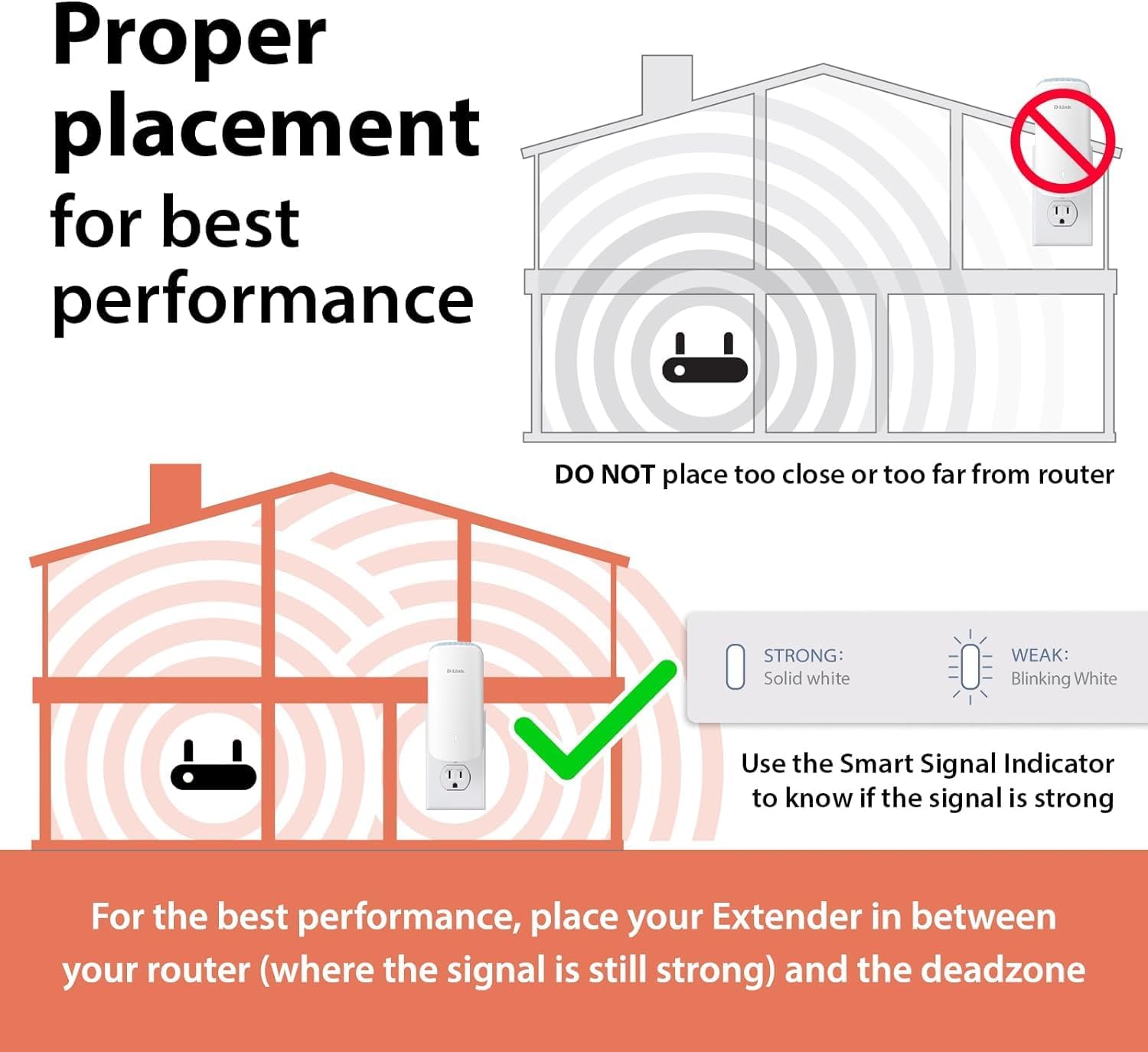
Figure 2: Optimal placement for the D-Link E30 extender is halfway between your router and the Wi-Fi dead zone.

Figure 3: The LED Smart Signal Indicator helps determine the best location for optimal connectivity.
4.2 App-Guided Setup
For the easiest setup, use the D-Link AQUILA PRO AI app:
- Download the AQUILA PRO AI app from your device's app store.
- Follow the in-app guidance to connect the E30 to your existing Wi-Fi network. The app will walk you through selecting your network and entering the password.
- The app also provides tools to monitor your mesh network and manage settings.
Video 1: Official D-Link guide on how to set up the Aquila Pro AI Smart Mesh Extender (E30).
4.3 WPS (Wi-Fi Protected Setup) Setup
If your router supports WPS, you can use this method for quick setup:
- Press the WPS button on your existing Wi-Fi router.
- Within 2 minutes, press the WPS button on the D-Link E30 extender (located on the side).
- The extender will automatically connect to your router. The LED indicator will turn solid white upon successful connection.
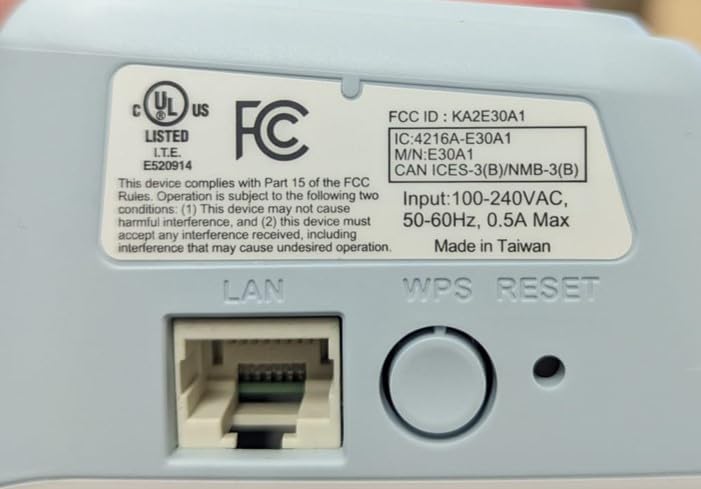
Figure 4: Side view of the D-Link E30, highlighting the WPS/Reset button and Gigabit LAN port.
5. Operating Modes
The D-Link E30 supports multiple operating modes to suit various network needs:
- Repeater Mode: Extends the range of your existing Wi-Fi network. This is the primary function of the device.
- Access Point (AP) Mode: Converts a wired network connection into a wireless access point. Connect an Ethernet cable from your router to the E30's Gigabit LAN port to create a new Wi-Fi hotspot.
- Bridge Mode: Connects wired devices to your wireless network. Use the Gigabit LAN port to provide a wired connection to a device like a gaming console or PC, extending your Wi-Fi to it.

Figure 5: The D-Link E30 supports Bridge, Repeater, and Access Point modes for flexible network configuration.
6. Maintenance
- Firmware Updates: The AQUILA PRO AI app provides automatic firmware updates to ensure optimal performance and security. Regularly check the app for available updates.
- Cleaning: Keep the device clean and free from dust to ensure proper ventilation. Use a soft, dry cloth for cleaning. Do not use liquid cleaners or aerosols.
- Ventilation: Ensure the device is placed in a well-ventilated area and its vents are not obstructed.
7. Troubleshooting
- Weak Signal: If the LED Smart Signal Indicator is breathing white, the extender is too far from your router. Relocate the extender to a position roughly halfway between your router and the desired coverage area where the signal is still strong.
- No Connection: Ensure the extender is powered on and the LED indicator is lit. If using WPS, ensure you press the WPS button on both the router and extender within the 2-minute window. For app setup, verify your network credentials.
- Factory Reset: If issues persist, you can perform a factory reset. Locate the Reset button (often combined with WPS) on the side of the device. Use a paperclip to press and hold the button for approximately 10 seconds until the device reboots. This will restore the extender to its default factory settings.
- Interference: Performance may vary with environment, building materials, and network conditions. Try adjusting the extender's position or the orientation of its antennas to minimize interference.
8. Specifications
| Feature | Detail |
|---|---|
| Model Number | E30 |
| Wireless Type | 802.11ac, 802.11ax, 802.11g, 802.11n |
| Data Transfer Rate | 3000 Megabits Per Second |
| Frequency Band Class | Dual-Band |
| Special Features | Access Point Mode, LED Indicator, MU-MIMO, WiFi Mesh |
| Item Weight | 5.7 ounces |
| Product Dimensions | 2.93 x 2.16 x 6.42 inches |
| Color | White |
9. Warranty and Support
For warranty information, technical support, or further assistance, please visit the official D-Link support website or contact their customer service. Keep your purchase receipt for warranty claims.
Video 2: Product Overview of the D-Link E30 AX3000 Mesh WiFi 6 Range Extender.


