
D-Link DWA-185 AC1300 MU-MIMO Dual-Band USB 3.0 Wi-Fi Adapter User Manual
Model: DWA-185
1. Introduction
The D-Link DWA-185 AC1300 MU-MIMO Dual-Band USB 3.0 Wi-Fi Adapter provides high-speed wireless connectivity for your desktop or laptop computer. This adapter supports the 802.11ac Wave 2 standard, offering speeds up to 867 Mbps on the 5 GHz band and 400 Mbps on the 2.4 GHz band. Featuring MU-MIMO technology and a detachable high-gain antenna, it ensures an extended range and a more reliable connection. This manual will guide you through the installation, configuration, and troubleshooting of your DWA-185 adapter.
2. Package Contents
Please verify that your package contains the following items:
- D-Link DWA-185 AC1300 MU-MIMO Dual-Band USB 3.0 Wi-Fi Adapter
- Detachable High-Gain Antenna
- Quick Installation Guide (this document)
- Driver CD (or link to online drivers)
If any items are missing or damaged, please contact your retailer for assistance.
3. System Requirements
Before installing the DWA-185 adapter, ensure your computer meets the following minimum requirements:
- Available USB 3.0 port (compatible with USB 2.0, but performance may be reduced)
- Operating System: Windows 7/8/10, Mac OS, or Linux
- CD-ROM drive (for driver installation, if not downloading online)
- An existing 802.11ac, 802.11n, 802.11g, or 802.11b wireless network
4. Product Overview
The DWA-185 adapter is designed for enhanced wireless performance and flexibility. It features a compact USB form factor with a powerful external antenna.
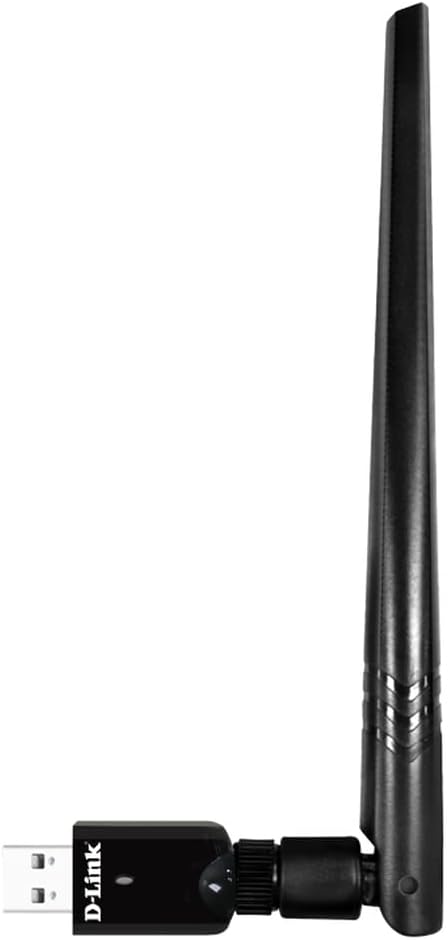
Figure 1: D-Link DWA-185 AC1300 MU-MIMO Dual-Band USB 3.0 Wi-Fi Adapter with antenna attached, side view.

Figure 2: D-Link DWA-185 AC1300 MU-MIMO Dual-Band USB 3.0 Wi-Fi Adapter with antenna attached, angled view showing USB connector.
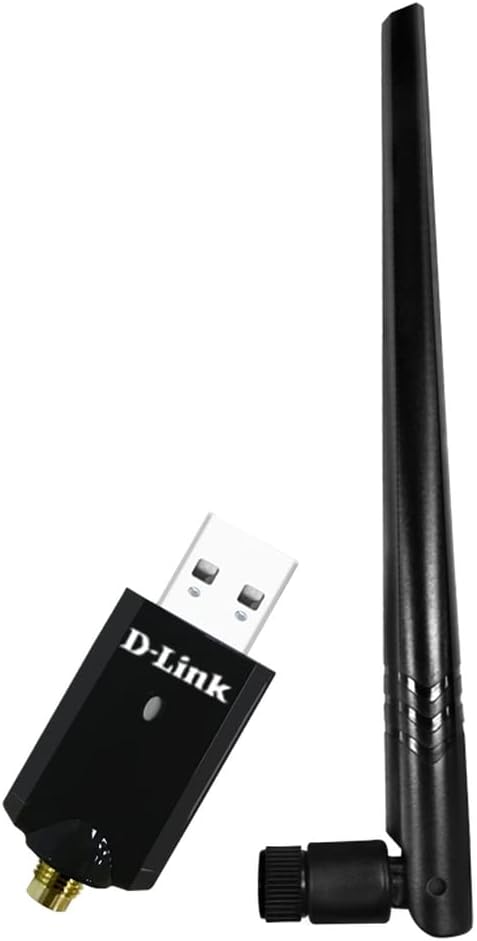
Figure 3: D-Link DWA-185 AC1300 MU-MIMO Dual-Band USB 3.0 Wi-Fi Adapter with antenna detached, showing the antenna connector.
Key Features:
- Dual-Band Connectivity: Operates on both 2.4 GHz (up to 400 Mbps) and 5 GHz (up to 867 Mbps) frequencies for versatile and high-speed connections.
- MU-MIMO Technology: Enhances efficiency and performance when used with a Wireless AC Wave 2 router by allowing simultaneous data streams to multiple devices.
- USB 3.0 Interface: Provides maximum throughput to your computer, ensuring fast data transfer rates.
- Detachable High-Gain Antenna: Improves wireless signal reception and extends coverage range.
- WPA3 Security: Supports the latest Wi-Fi security protocol for enhanced authentication and encryption.
5. Setup and Installation
Follow these steps to install your D-Link DWA-185 Wi-Fi Adapter:
- Install Drivers:
- Insert the provided driver CD into your computer's CD-ROM drive. If you do not have a CD-ROM drive, download the latest drivers from the official D-Link support website.
- Follow the on-screen instructions to complete the driver installation. Restart your computer if prompted.
- Connect the Antenna:
- Carefully screw the detachable high-gain antenna onto the adapter's connector. Ensure it is securely fastened but do not overtighten.
- Plug in the Adapter:
- Insert the DWA-185 adapter into an available USB 3.0 port on your computer. The adapter is also compatible with USB 2.0 ports, but for optimal performance, a USB 3.0 port is recommended.
- Verify Installation:
- After plugging in the adapter, your operating system should detect the new hardware. A small LED indicator on the adapter may light up or blink, indicating activity.
- Check your computer's Device Manager (Windows) or System Information (Mac/Linux) to confirm that the DWA-185 adapter is recognized and drivers are installed correctly.
6. Operating Instructions
Once the adapter is installed, you can connect to a wireless network.
- Connect to a Wireless Network:
- Windows: Click the Wi-Fi icon in the system tray. Select your desired wireless network (SSID) from the list and click 'Connect'. Enter the network security key (password) if prompted.
- Mac OS: Click the Wi-Fi icon in the menu bar. Select your desired wireless network (SSID) and enter the password.
- Linux: Use your distribution's network manager to scan for and connect to wireless networks.
- Selecting a Frequency Band (2.4 GHz or 5 GHz):
- If your router broadcasts separate SSIDs for 2.4 GHz and 5 GHz bands (e.g., 'MyNetwork_2.4GHz' and 'MyNetwork_5GHz'), you can choose which band to connect to.
- The 5 GHz band offers higher speeds and less interference but has a shorter range. The 2.4 GHz band offers better range but lower speeds and more interference. Choose the band that best suits your needs.
- Security:
- The DWA-185 supports WPA3, WPA2, and WPA encryption protocols. Always connect to networks using the strongest available security (WPA3 or WPA2) to protect your data.
7. Maintenance
To ensure optimal performance and longevity of your DWA-185 adapter:
- Keep Drivers Updated: Periodically check the D-Link support website for the latest driver updates. Updated drivers can improve performance, add features, and fix bugs.
- Physical Care: Keep the adapter clean and free from dust. Avoid exposing it to extreme temperatures or moisture.
- Antenna Position: Adjust the antenna position for the best signal reception. Experiment with different angles to find the optimal orientation.
8. Troubleshooting
If you encounter issues with your DWA-185 adapter, refer to the following troubleshooting tips:
- No Wireless Connection:
- Ensure the adapter is securely plugged into a USB port.
- Verify that the drivers are correctly installed. Reinstall them if necessary.
- Check if your wireless network (SSID) is visible in the list of available networks.
- Confirm that your router is powered on and broadcasting a Wi-Fi signal.
- Try connecting to a different USB port.
- Slow Connection Speed:
- Ensure you are connected to the 5 GHz band if your router supports it, as it generally offers higher speeds.
- Check for interference from other devices (e.g., microwaves, cordless phones).
- Move closer to your wireless router or adjust the antenna position for better signal strength.
- Ensure your router's firmware is up to date.
- Adapter Not Recognized:
- Try restarting your computer.
- Uninstall and reinstall the drivers.
- Ensure your USB port is functioning correctly by testing it with another device.
- macOS Compatibility Note:
- Please be aware that this adapter may not function correctly with macOS 11 (Big Sur) and later versions. Apple has discontinued support for many third-party USB Wi-Fi dongles beyond macOS Catalina. Check D-Link's support website for specific driver availability and compatibility for newer macOS versions.
9. Specifications
| Feature | Description |
|---|---|
| Brand | D-Link |
| Model Number | DWA-185 |
| Interface Hardware | USB 3.0, 802.11 ac/b/g/n |
| Data Transfer Rate | Up to 867 Mbps (5 GHz), Up to 400 Mbps (2.4 GHz) |
| Data Link Protocol | USB |
| Operating System Compatibility | Windows 7/8/10, Mac OS, Linux |
| Dimensions (L x W x H) | 12 x 2.5 x 19.5 cm (approximate, with antenna) |
| Weight | 50 Grams |
| Special Features | MU-MIMO, Dual-Band, Detachable High-Gain Antenna, WPA3 Security |
10. Warranty Information
The D-Link DWA-185 Wi-Fi Adapter comes with a three-year warranty against manufacturing defects. Please retain your proof of purchase for warranty claims. For detailed warranty terms and conditions, refer to the D-Link official website or contact D-Link support.
11. Support
For further assistance, technical support, or to download the latest drivers and firmware, please visit the official D-Link support website:
You may also find helpful FAQs and community forums on the support portal.


