
D-Link DSL-X1852E
D-Link DSL-X1852E WI-FI 6 Wireless AX 1800 Dual-Band Gigabit VDSL2/ADSL2+ IAD User Manual
Model: DSL-X1852E | Brand: D-Link
1. Product Overview
The D-Link DSL-X1852E is an advanced Wi-Fi 6 (802.11ax) modem router designed to provide high-speed internet connectivity and robust wireless performance for homes and businesses. It integrates a VDSL2/ADSL2+ modem, a powerful Wi-Fi 6 access point, and multiple Gigabit Ethernet ports, offering a comprehensive networking solution.

Figure 1: Front view of the D-Link DSL-X1852E modem router, showcasing its sleek design and four external antennas.
Key features include:
- Integrated VDSL/ADSL2+ Modem: Supports universal DSL connectivity.
- Wi-Fi 6 (802.11ax) Technology: Delivers faster speeds, greater capacity, and reduced network congestion with AX1800 speeds (1200Mbps on 5GHz and 574Mbps on 2.4GHz).
- Gigabit Ports: One dedicated Gigabit WAN port and four Gigabit LAN ports for high-speed wired connections.
- Voice over IP (VoIP): Two FXS ports for connecting traditional phones to make calls over the internet.
- USB 3.0 Port: For connecting external storage devices to share files across the network.
- Advanced Technologies: OFDMA and MU-MIMO for efficient data transmission to multiple devices, BSS Colouring for interference reduction, and Target Wake Time (TWT) for improved device battery life.
- VPN Support: Built-in VPN Wizard for LAN-to-LAN and remote access VPN connections.
2. Setup Guide
2.1 Package Contents
Before you begin, ensure all items are present in the box:
- D-Link DSL-X1852E Modem Router
- Power Adapter
- Ethernet Cable
- DSL Cable
- Quick Install Guide
- Warranty Documents

Figure 2: The product packaging, illustrating the modem router and its included accessories.
2.2 Hardware Installation
- Positioning: Place the router in a central location in your home or office, away from obstructions and sources of interference (e.g., microwaves, cordless phones).
- Connect DSL Line: Connect one end of the DSL cable to the DSL port on the back of the router and the other end to your telephone wall jack or DSL splitter.
- Connect Power: Connect the power adapter to the DC-IN port on the router and plug the other end into a power outlet. Press the ON/OFF button to power on the device.
- Connect Devices (Optional):
- For wired devices, connect an Ethernet cable from a LAN port (LAN1-LAN4) on the router to your computer or other network device.
- For VoIP phones, connect them to the Phone1 or Phone2 FXS ports.
- Antenna Adjustment: Ensure all four external antennas are securely attached and oriented vertically for optimal Wi-Fi coverage.

Figure 3: Rear view of the D-Link DSL-X1852E, showing the power button, DC-IN, USB 3.0, FXS ports (Phone1, Phone2), LAN ports (LAN1-LAN4), WAN port, and DSL port.
2.3 Initial Configuration
After hardware installation, configure the router via a web browser:
- Connect to Router: Connect your computer to the router either via an Ethernet cable (to any LAN port) or wirelessly using the default Wi-Fi name (SSID) and password printed on the router's label.
- Access Web Interface: Open a web browser and type
http://dlinkrouter.localorhttp://192.168.1.1(default IP address) into the address bar and press Enter. - Login: Enter the default username and password (usually printed on the router's label or in the Quick Install Guide).
- Run Setup Wizard: Follow the on-screen instructions of the setup wizard to configure your internet connection (VDSL/ADSL settings provided by your ISP), Wi-Fi network name (SSID), and password. It is highly recommended to change the default administrator password for security.
3. Operating Instructions
3.1 Wi-Fi Connectivity
The DSL-X1852E supports dual-band Wi-Fi 6, operating on both 2.4 GHz and 5 GHz frequencies. Wi-Fi 6 technology enhances network efficiency and speed, especially in environments with many connected devices.

Figure 4: Visual representation of Wi-Fi 6 benefits, including exceptional capacity, smart home optimization, next-gen speed and range, and unprecedented efficiency.
- Connecting Devices: Search for your Wi-Fi network name (SSID) on your device and enter the Wi-Fi password.
- OFDMA: Orthogonal Frequency Division Multiple Access allows small data packets for multiple devices to be transmitted simultaneously, improving efficiency.
- MU-MIMO: Multi-User, Multiple-Input, Multiple-Output technology enables the router to communicate with multiple devices concurrently, enhancing throughput. The DSL-X1852E supports two-way MU-MIMO for both upstream and downstream transmissions.
- BSS Colouring: Reduces interference from neighboring Wi-Fi networks, making more efficient use of the Wi-Fi spectrum.
- Target Wake Time (TWT): Allows devices to negotiate when and how often they will wake up to send or receive data, extending battery life for connected devices.
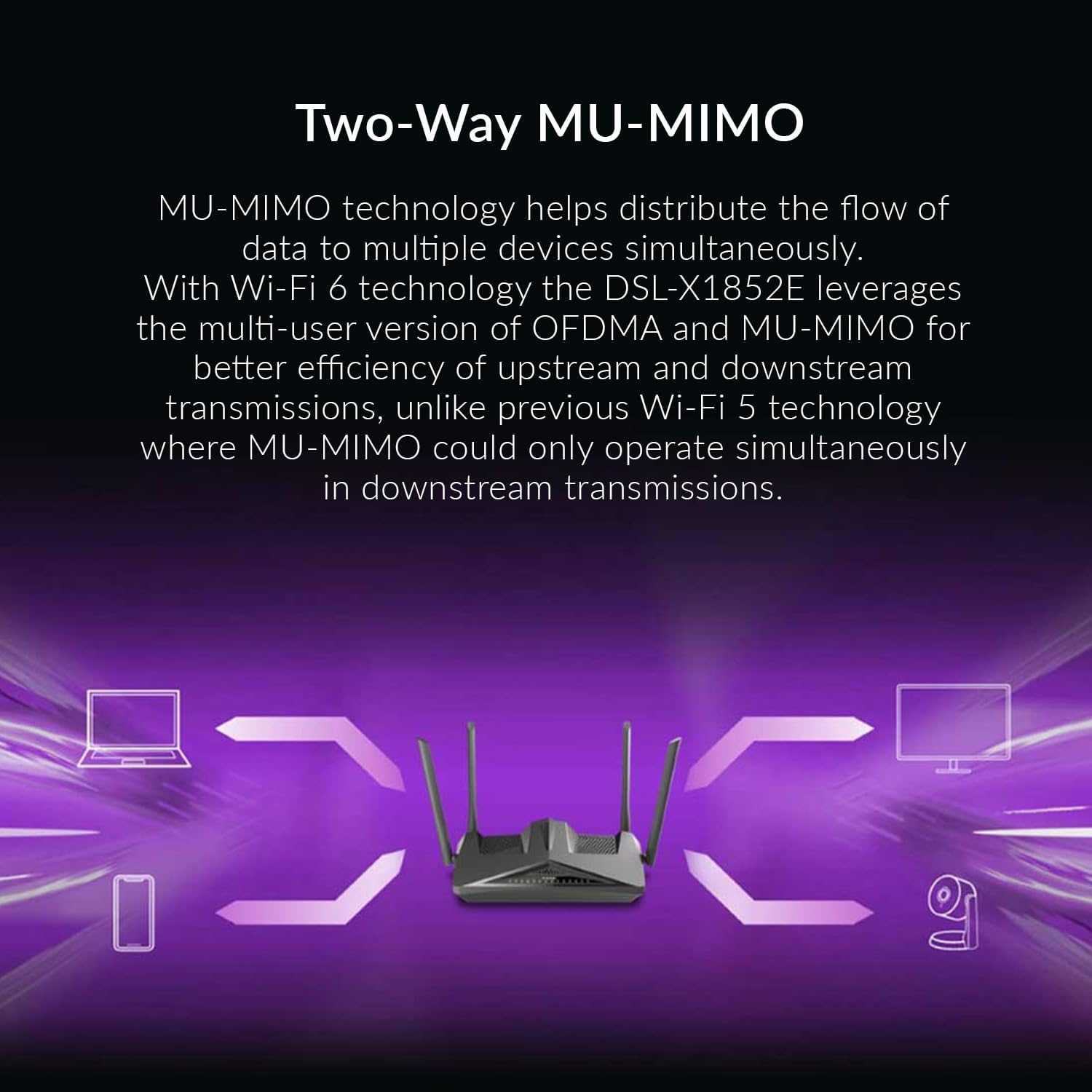
Figure 5: Diagram illustrating how Two-Way MU-MIMO technology enables simultaneous data flow to multiple devices, such as laptops, smartphones, and cameras.
3.2 USB Port Usage
The USB 3.0 port on the back of the router can be used to connect external storage devices (e.g., USB hard drives, flash drives) to create network-attached storage (NAS). This allows users on the network to access and share files centrally.
- Plug your USB storage device into the USB 3.0 port.
- Access the router's web interface to configure file sharing settings (e.g., SMB/DLNA server).
3.3 VPN Configuration
The DSL-X1852E includes a VPN Wizard to simplify the setup of Virtual Private Network connections. This feature supports both LAN-to-LAN and remote access VPNs, allowing secure communication over public networks.
- Navigate to the VPN section in the router's web interface.
- Use the VPN Wizard to guide you through the setup process for your desired VPN type.
- The router also supports VPN passthrough, allowing devices connected to it to establish their own outbound VPN connections.
4. Maintenance
4.1 Firmware Updates
Regularly updating the router's firmware is crucial for optimal performance, security, and access to new features. D-Link periodically releases firmware updates to address bugs and improve functionality.
- Visit the official D-Link support website for your region (e.g., D-Link Egypt) to check for the latest firmware version for the DSL-X1852E.
- Download the firmware file and follow the instructions provided on the support website or within the router's web interface to perform the update.
- Important: Do not power off the router during a firmware update.
4.2 Factory Reset
A factory reset can resolve persistent issues or restore the router to its default settings. This will erase all custom configurations, including Wi-Fi settings and passwords.
- With the router powered on, locate the recessed Reset (RST) button on the back panel.
- Use a paperclip or a similar pointed object to press and hold the RST button for approximately 10 seconds until the power LED blinks.
- Release the button. The router will restart with factory default settings.
5. Troubleshooting
This section provides solutions to common issues you might encounter with your D-Link DSL-X1852E modem router.
5.1 No Internet Access
- Check Cables: Ensure the DSL cable is securely connected to the router's DSL port and the wall jack. Verify Ethernet cables are properly connected if using wired devices.
- Modem Lights: Check the DSL and Internet indicator lights on the router. If they are off or blinking, there might be an issue with your DSL line or ISP connection.
- ISP Settings: Confirm that the VDSL/ADSL settings (VPI/VCI, encapsulation, connection type) in the router's web interface match those provided by your Internet Service Provider (ISP). Incorrect settings are a common cause of no internet.
- Reboot: Power cycle the router by unplugging the power adapter, waiting 30 seconds, and then plugging it back in.
- Firmware: Ensure your router has the latest firmware, especially if experiencing persistent connectivity issues. Note that some region-specific firmware versions may have limitations or bugs.
5.2 Wi-Fi Connection Issues
- Incorrect Password: Double-check that you are entering the correct Wi-Fi password. Passwords are case-sensitive.
- Signal Strength: Ensure your device is within range of the router. Walls and other obstructions can weaken the Wi-Fi signal.
- Interference: Other electronic devices (e.g., cordless phones, microwaves) can interfere with Wi-Fi signals. Try changing the Wi-Fi channel in the router's settings.
- Device Compatibility: Ensure your device supports Wi-Fi 6 (802.11ax) for optimal performance, though it is backward compatible with older Wi-Fi standards.
5.3 USB Storage/DLNA Not Working
- Format: Ensure the USB drive is formatted in a compatible file system (e.g., FAT32, NTFS).
- Power: For external hard drives, ensure they have their own power supply if required.
- Router Settings: Verify that the USB sharing and DLNA/SMB server features are enabled in the router's web interface.
6. Specifications
| Feature | Description |
|---|---|
| Model Name | DSL-X1852E |
| Brand | D-Link |
| Connectivity Technology | Wi-Fi, Ethernet, DSL |
| Wireless Standard | 802.11ax (Wi-Fi 6) |
| Frequency Band Class | Dual-Band (2.4 GHz & 5 GHz) |
| Wi-Fi Speed | Up to AX1800 (574 Mbps on 2.4 GHz, 1200 Mbps on 5 GHz) |
| DSL Compatibility | VDSL2/ADSL2+ |
| Ethernet Ports | 4 x Gigabit LAN, 1 x Gigabit WAN |
| USB Port | 1 x USB 3.0 |
| FXS Ports (VoIP) | 2 |
| Antennas | 4 x External Antennas |
| Security | WPA3 Encryption |
| Dimensions (L x W x H) | 30 x 11 x 27 cm |
| Weight | 1.5 kg |
| Country of Origin | China |
7. Warranty and Support
7.1 Product Warranty
For information regarding the warranty period and terms for your D-Link DSL-X1852E, please refer to the warranty card included in your product packaging or visit the official D-Link website for your region. D-Link offers various extended warranty options through authorized resellers.
- 1-Year Extended Warranty: Available through Salama Care (E-mail delivery).
- 2-Year Extended Warranty: Available through Salama Care (E-mail delivery).
7.2 Technical Support
If you encounter issues that cannot be resolved using this manual, or require further assistance, please contact D-Link Technical Support. Support resources typically include:
- Online Support: Visit the D-Link support website for FAQs, troubleshooting guides, and firmware downloads.
- Telephone Support: Contact D-Link's regional support hotline during business hours.
- Community Forums: Engage with other D-Link users and experts on official forums.
When contacting support, please have your product model number (DSL-X1852E) and serial number ready. The serial number is usually located on a sticker on the bottom of the device.
Related documentsDSL-X1852E


Ask a question about this manual
Ask about setup, troubleshooting, compatibility, parts, safety, or missing instructions. Manuals+ will review the question and use this page’s manual context to help answer it.