
Introduction
The Edifier S760D is a 5.1 channel home theater speaker system designed to deliver an immersive audio experience. It features Dolby Digital and DTS Digital Surround decoders, providing high-quality sound for movies, music, and gaming. This system includes a powerful 10-inch subwoofer and four satellite speakers, along with a center speaker, all housed in wooden enclosures to minimize resonance. Multiple input options ensure compatibility with various audio sources.
Package Contents
Please ensure all items are present in the package:
- Subwoofer unit
- Four satellite speakers
- One center speaker
- Wired remote control
- Wireless remote control
- Speaker cables
- Audio input cables (optical, coaxial, 5.1 analog, stereo)
- User Manual (this document)
Product Overview
The Edifier S760D system comprises a central subwoofer, a center channel speaker, and four satellite speakers for a complete 5.1 surround sound setup. It features a wired control unit and a wireless remote for convenient operation.

Figure 1: Overview of the Edifier S760D 5.1 Home Speaker System, showing the subwoofer, center speaker, four satellite speakers, wired control pod, and wireless remote.

Figure 2: The Edifier S760D system, highlighting the wired control pod with display and the wireless remote control for system adjustments.
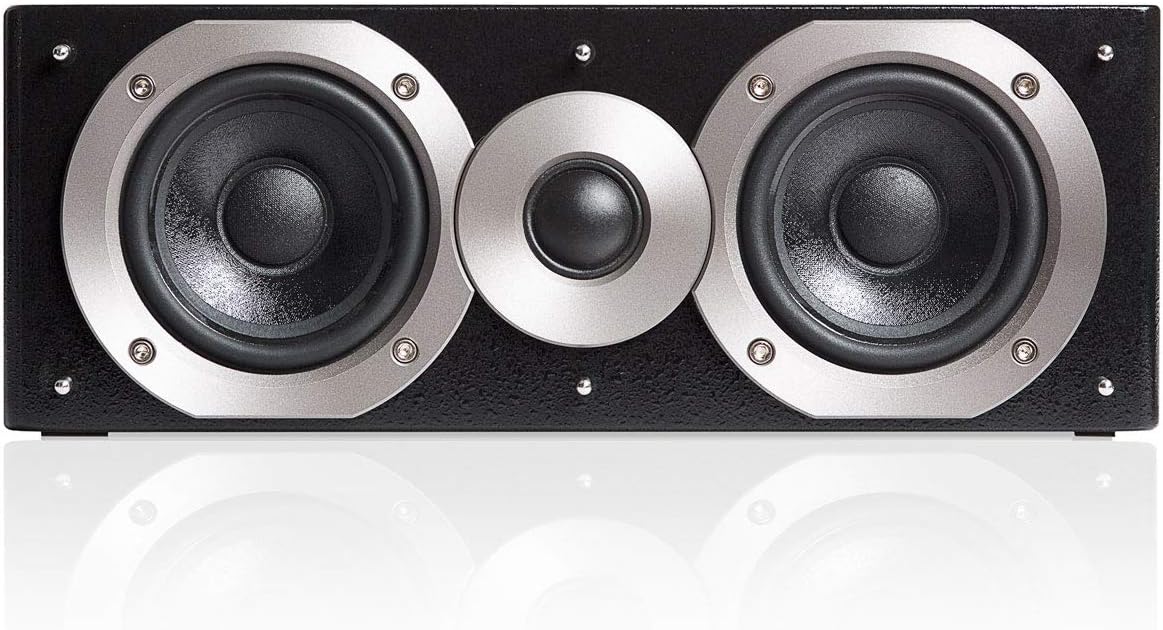
Figure 3: Detailed view of the center speaker, featuring two mid-range drivers and one silk dome tweeter.

Figure 4: Side view of the 10-inch subwoofer, showing one of the twin bass reflex radiators.
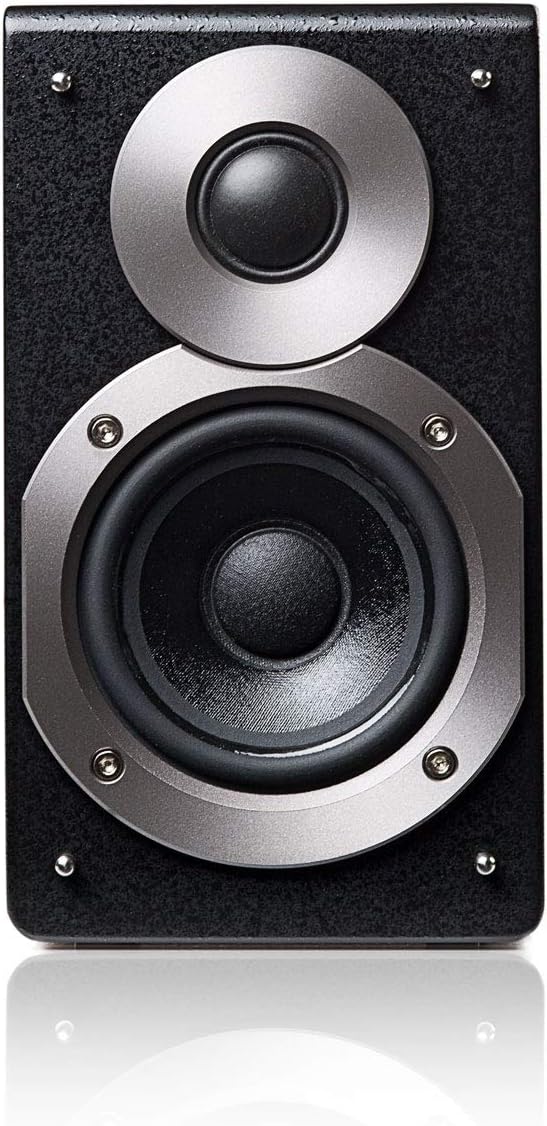
Figure 5: Detailed view of a satellite speaker, equipped with a mid-range driver and a silk dome tweeter.
Setup
1. Speaker Placement
For optimal 5.1 surround sound, position the speakers as follows:
- Center Speaker: Place directly in front of the listening position, typically above or below your display.
- Front Left/Right Speakers: Position to the left and right of your display, equidistant from the listening position.
- Surround Left/Right Speakers: Place to the sides or slightly behind the listening position, at ear level or slightly above.
- Subwoofer: Can be placed anywhere in the room, but typically performs well in a corner or near a wall for enhanced bass. Experiment with placement for the best bass response.
2. Connecting the Speakers
- Connect the satellite and center speakers to the corresponding outputs on the subwoofer using the provided speaker cables. Ensure correct polarity (+ to + and - to -).
- Connect the wired control unit to the dedicated port on the subwoofer.
3. Connecting Audio Sources
The S760D offers multiple input options:
- Optical Input: For digital audio from TVs, game consoles, or Blu-ray players. Use an optical cable.
- Coaxial Input: For digital audio from compatible devices. Use a coaxial cable.
- Analog 5.1 Channel Input: For connecting to a 5.1 channel sound card or receiver with individual channel outputs.
- Dual Stereo Inputs (RCA): For connecting stereo audio sources like CD players, smartphones, or computers.
Connect your desired audio source(s) to the appropriate input ports on the subwoofer.
4. Power Connection
Once all speakers and audio sources are connected, plug the subwoofer's power cord into a wall outlet. Turn on the system using the power switch, usually located on the subwoofer or wired control unit.
Operating Instructions
1. Using the Wired Control Unit
The wired control unit provides primary control over the system:
- Volume Control: Rotate the main knob to adjust the master volume.
- Input Selection: Press the 'Input' button to cycle through available audio inputs (Optical, Coaxial, 5.1 Analog, Stereo 1, Stereo 2).
- Channel Level Adjustment: Use dedicated buttons to adjust the volume levels of individual channels (subwoofer, center, front, surround) for balanced sound.
- Mute: Press the 'Mute' button to temporarily silence the audio.
- Display: The LCD screen shows current input, volume level, and other settings.
2. Using the Wireless Remote Control
The wireless remote offers convenient control from a distance:
- Power On/Off: Turns the system on or off.
- Volume Up/Down: Adjusts master volume.
- Input Selection: Dedicated buttons for direct input selection.
- Mute: Mutes or unmutes the audio.
- Channel Level: Adjusts individual speaker levels.
- Sound Modes: Selects different sound presets or processing modes (if available).
Ensure the remote has fresh batteries and is pointed towards the wired control unit or subwoofer for proper operation.
Maintenance
Proper maintenance ensures the longevity and performance of your speaker system:
- Cleaning: Use a soft, dry cloth to wipe down the speaker surfaces. Avoid abrasive cleaners, solvents, or excessive moisture.
- Placement: Keep speakers away from direct sunlight, heat sources, and areas with high humidity. Ensure adequate ventilation around the subwoofer.
- Cables: Periodically check all cable connections to ensure they are secure and free from damage.
- Power Off: If the system will not be used for an extended period, power it off and unplug it from the wall outlet.
Troubleshooting
| Problem | Possible Cause | Solution |
|---|---|---|
| No sound from speakers. |
|
|
| Distorted or unclear sound. |
|
|
| Remote control not working. |
|
|
| Subwoofer not producing bass. |
|
|
Specifications
| Feature | Detail |
|---|---|
| Model Name | S760D |
| Speaker Type | Satellite, Subwoofer, Surround Sound |
| Recommended Uses | For Surround Sound Systems, multi-purpose |
| Compatible Devices | Smartphone, Tablet, MP3 Player, Desktop, Television, Projector, Laptop |
| Subwoofer Diameter | 10 Inches (260 mm) |
| Surround Sound Channel Configuration | 5.1 |
| Included Components | Speaker units (Subwoofer, Satellites, Center) |
| Control Method | Remote (Wired and Wireless) |
| Power Source | Corded Electric |
| Woofer Diameter | 10 Inches |
| Tweeter Diameter | 1 Inches (25 mm) |
| Water Resistance Level | Not Water Resistant |
| Audio Driver Type | Dynamic Driver |
| Subwoofer Connectivity Technology | Wired |
| Connectivity Technology | Coaxial, Optical, Analog 5.1, Dual Stereo |
| Audio Output Mode | Stereo, Surround |
| Speaker Maximum Output Power | 1080 Watts (Peak) |
| RMS Power Output | 540W RMS (Subwoofer: 250W RMS, Satellites/Center: 4 x 60W RMS) |
| Decoders | Dolby Digital, DTS Digital Surround |
| Enclosure Material | Wooden (for all speakers) |
Warranty and Support
The Edifier S760D 5.1 Home Speaker System comes with a Limited Warranty. Please refer to the warranty card included in your package for specific terms, conditions, and duration of coverage.
For technical support, service, or further inquiries, please visit the official Edifier website or contact their customer service department. Contact information can typically be found on the Edifier website or in the product packaging.
Online Support: www.edifier.com


