
A-Tech MS668KMM5053
A-Tech 4GB (2x2GB) DDR2 800MHz RAM Memory Kit User Manual
Model: MS668KMM5053
1. Introduction
This manual provides instructions for the installation, operation, and maintenance of your A-Tech 4GB (2x2GB) DIMM DDR2 Non-ECC PC2-6400 800MHz RAM Memory Kit. This memory kit is designed to enhance the performance of compatible MSI Motherboards, including models such as K9N6PGM2-V, K9N6PGM2-V2, K9N6PGM-F, K9N6PGM-FI, K9N6SGM-V, K9NBPGM2-FID, K9NBPM2-FID, K9NG Neo-V, and K9NGM. Please read this manual thoroughly before proceeding with installation.

Image: Two A-Tech 2GB DDR2 RAM modules, individually sealed in clear blister packaging, displaying product labels and barcodes. The modules are ready for installation.
2. Safety Information
Observe the following safety precautions to prevent damage to the memory modules or your computer system, and to ensure personal safety:
- Electrostatic Discharge (ESD) Protection: Always handle memory modules by their edges. Wear an anti-static wrist strap or frequently touch a grounded metal object (e.g., the computer chassis) before and during installation to discharge static electricity.
- Power Disconnection: Ensure your computer is completely powered off and unplugged from the wall outlet before opening the case or installing any components.
- Component Compatibility: Verify that the memory modules are compatible with your motherboard's specifications. Refer to your motherboard's manual for supported RAM types and speeds.
- Physical Handling: Avoid bending or applying excessive force to the memory modules. Do not touch the gold contacts on the bottom of the modules.
3. Setup and Installation
Follow these steps to properly install the A-Tech DDR2 RAM modules into your compatible MSI Motherboard.
3.1. Pre-Installation Checks
- Compatibility: Confirm your motherboard supports DDR2 DIMM memory at 800MHz (PC2-6400) and can utilize 2GB modules for a total of 4GB.
- Tools: Gather a Phillips head screwdriver and an anti-static wrist strap (recommended).
- Environment: Work in a clean, well-lit area free from static-generating materials.
3.2. Physical Installation
- Power Down: Shut down your computer completely and unplug the power cord from the wall outlet.
- Open Case: Open your computer's side panel to access the motherboard.
- Locate DIMM Slots: Identify the DDR2 DIMM slots on your motherboard. Consult your motherboard manual for the correct slot configuration for dual-channel memory.
- Prepare Slots: Gently push down the retention clips at both ends of the DIMM slot(s) you intend to use.
- Insert Module: Hold the memory module by its edges, aligning the notch on the module with the key in the DIMM slot.
- Seat Module: Apply firm, even pressure to both ends of the module until it clicks into place and the retention clips automatically snap shut. Do not force the module.
- Repeat: If installing a kit (e.g., 2x2GB), repeat the process for the second module in the appropriate slot as indicated by your motherboard manual for optimal performance (usually matching color slots).
- Close Case: Once both modules are securely installed, close your computer's side panel.
3.3. Post-Installation Checks
- Power On: Plug the power cord back in and power on your computer.
- BIOS/UEFI Verification: Enter your system's BIOS/UEFI setup (usually by pressing DEL, F2, or F10 during startup). Verify that the system recognizes the newly installed 4GB of RAM.
- Operating System Check: Once the operating system loads, check the system properties to confirm the correct amount of installed RAM is displayed.
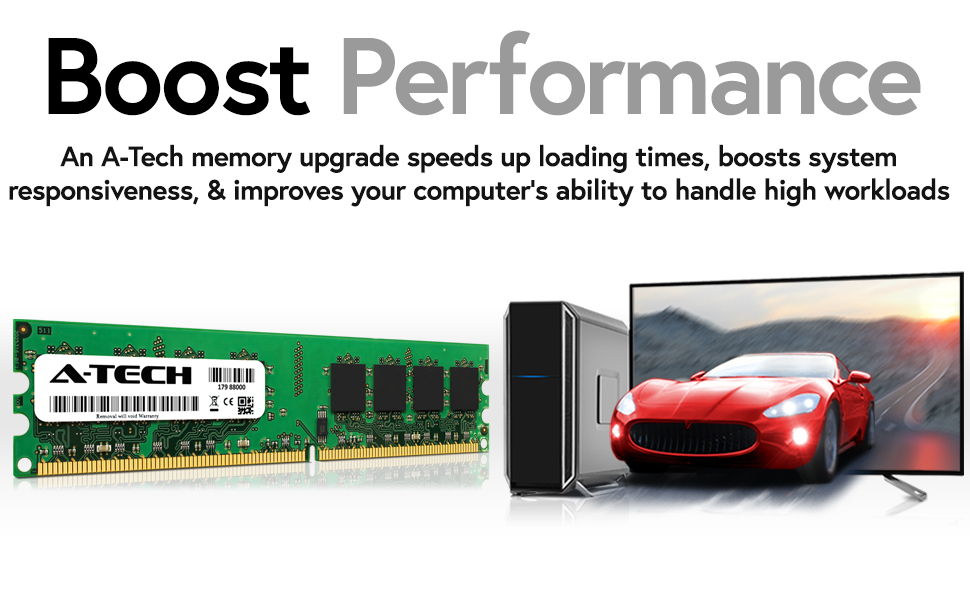
Image: An A-Tech RAM module positioned next to a desktop computer tower, with a monitor displaying a dynamic image of a red sports car. This illustrates the potential for improved system performance after a memory upgrade.
4. Operating Information
Random Access Memory (RAM) serves as your computer's short-term data storage, allowing for quick access to information needed by the CPU. Upgrading your RAM, such as with this A-Tech 4GB kit, provides several operational benefits:
- Improved Multitasking: More RAM allows your system to run more applications simultaneously without slowdowns.
- Faster Loading Times: Applications and large files can load more quickly.
- Enhanced Responsiveness: Overall system responsiveness is improved, leading to a smoother user experience.
- Increased Workload Capacity: Your computer can handle more demanding tasks, such as photo/video editing or complex software, with greater efficiency.

Image: A woman is shown working at a desk with a multi-monitor setup, engaged in tasks that suggest video editing or graphic design. This image illustrates the benefit of increased RAM for efficient multitasking and handling demanding applications.
5. Maintenance
A-Tech RAM modules are designed for long-term reliability and generally require minimal maintenance. However, observing the following guidelines can help ensure optimal performance and longevity:
- Dust Prevention: Keep your computer's interior clean by regularly removing dust buildup. Dust can impede airflow and lead to overheating, potentially affecting component performance. Use compressed air to gently clear dust from around memory modules and slots.
- Environmental Conditions: Operate your computer in a stable environment, avoiding extreme temperatures and humidity.
- Physical Handling: Avoid unnecessary removal or re-installation of memory modules once they are properly seated. If removal is necessary, follow the same ESD precautions as during installation.
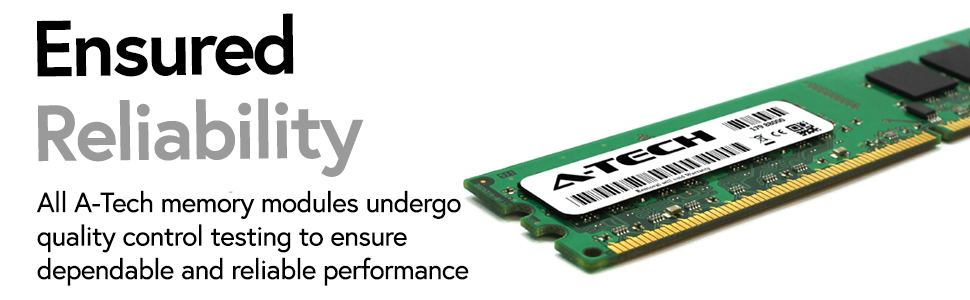
Image: A detailed close-up view of an A-Tech RAM module, showcasing its green PCB, black memory chips, and the product label. This image emphasizes the physical quality and construction of the memory module.
6. Troubleshooting
If you encounter issues after installing your A-Tech RAM, consider the following troubleshooting steps:
- System Not Booting/No Display:
- Ensure modules are fully seated in their slots. Re-seat them by pressing down firmly until the clips engage.
- Verify that the modules are installed in the correct slots for your motherboard's configuration (refer to your motherboard manual).
- Try installing only one module at a time to identify if one module is faulty.
- Clear your motherboard's CMOS (Complementary Metal-Oxide-Semiconductor) settings. Refer to your motherboard manual for instructions.
- Incorrect RAM Amount Detected:
- Check BIOS/UEFI settings to confirm the detected RAM amount.
- Ensure your operating system is a 64-bit version to fully utilize 4GB or more RAM. 32-bit operating systems typically only recognize up to 3.5GB.
- Verify that the modules are correctly seated.
- System Instability/Crashes:
- Run a memory diagnostic tool (e.g., Windows Memory Diagnostic or MemTest86) to check for errors.
- Ensure your motherboard's BIOS/UEFI is updated to the latest version, as this can improve memory compatibility.
If these steps do not resolve the issue, please contact A-Tech customer support for further assistance.
7. Specifications
| Product Name | A-Tech 4GB KIT (2 x 2GB) DIMM DDR2 Non-ECC PC2-6400 800MHz RAM Memory |
| Model Number | MS668KMM5053 |
| Memory Size | 4 GB (2 x 2GB Modules) |
| Memory Technology | DDR2 SDRAM |
| Memory Speed | 800 MHz (PC2-6400) |
| Error Correction | Non-ECC |
| Form Factor | DIMM (Desktop) |
| Compatible Devices | MSI Motherboards requiring DDR2 DIMM (e.g., K9N6PGM2-V, K9N6PGM2-V2, K9N6PGM-F, K9N6PGM-FI, K9N6SGM-V, K9NBPGM2-FID, K9NBPM2-FID, K9NG Neo-V, K9NGM) |
| Product Dimensions | 6.7 x 3.6 x 0.4 inches |
| Item Weight | 2.4 ounces |
8. Warranty and Support
8.1. Lifetime Warranty
A-Tech memory products are backed by a Lifetime Warranty. This warranty covers defects in materials and workmanship for the life of the product. For specific terms and conditions, please refer to the official A-Tech website.
8.2. Customer Support
For technical assistance, warranty claims, or any questions regarding your A-Tech memory product, please visit the official A-Tech website or contact their customer support team. You can find contact information and support resources at atechmemory.com.

Image: The A-Tech Premium Memory logo, featuring the brand name in a stylized font. This logo represents the manufacturer of the memory modules.
Related documentsMS668KMM5053


Ask a question about this manual
Ask about setup, troubleshooting, compatibility, parts, safety, or missing instructions. Manuals+ will review the question and use this page’s manual context to help answer it.