
Introduction
The Gear Head CR7500H is a versatile 58-in-1 USB 2.0 Flash Card Reader and USB Hub Combo device designed to provide convenient access to various memory card formats and expand your computer's USB connectivity. This manual provides instructions for setting up, operating, maintaining, and troubleshooting your device.
Package Contents
Please verify that all items are present in the package:
- Gear Head CR7500H 58-in-1 USB 2.0 Flash Card Reader/USB Hub Combo
- USB Cable
- User's Manual (this document)
- Warranty Information
Product Overview
The CR7500H features multiple slots for various memory card types and additional USB ports for connecting peripherals. Familiarize yourself with the device's layout before proceeding with setup.
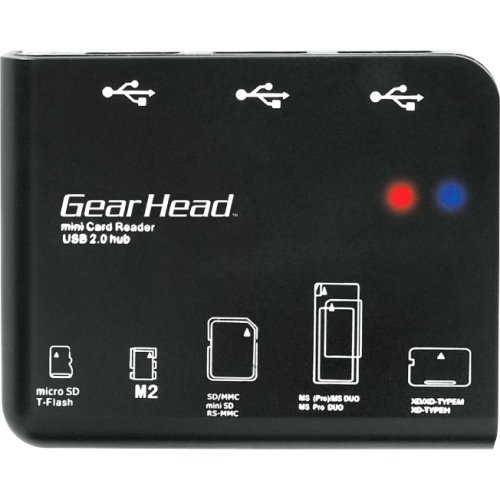
An image showing the Gear Head CR7500H device, a compact black unit with multiple card slots and USB ports visible on its front and sides.
The device typically includes slots for SD, microSD, Memory Stick, and xD-Picture cards, along with several USB 2.0 ports.
Setup
- Connect the USB Cable: Plug one end of the included USB cable into the mini-USB port on the CR7500H device.
- Connect to Computer: Plug the other end of the USB cable into an available USB 2.0 port on your computer.
- Driver Installation (if necessary): The CR7500H is typically a plug-and-play device and should be automatically recognized by most operating systems (Windows, macOS, Linux) without requiring additional drivers. If prompted, follow the on-screen instructions for driver installation.
- Verification: Once connected, your computer should detect the device. You may see new removable disk drives appear in 'My Computer' or 'File Explorer' (Windows) or on your desktop (macOS), representing the various card reader slots.
Operating Instructions
Using the Card Reader Function
- Identify Card Type: Determine the type of memory card you wish to use (e.g., SD, microSD, Memory Stick).
- Insert Memory Card: Carefully insert the memory card into the corresponding slot on the CR7500H. Ensure the card is inserted correctly, usually with the metal contacts facing down or as indicated by a diagram on the device. Do not force the card.
- Access Data: Once inserted, the memory card will appear as a removable drive on your computer. You can then open it to view, copy, or move files.
- Eject Safely: Before removing the memory card, always safely eject it from your operating system to prevent data corruption. For Windows, right-click the drive in 'File Explorer' and select 'Eject'. For macOS, drag the drive icon to the Trash or click the Eject button next to the drive in Finder.
- Remove Card: After safe ejection, gently pull the memory card out of its slot.
Using the USB Hub Function
- Connect USB Devices: Plug any USB 2.0 compatible device (e.g., flash drive, mouse, keyboard, printer) into the available USB ports on the CR7500H.
- Device Recognition: Your computer should automatically detect and install necessary drivers for the connected USB device.
- Functionality: The connected USB device will function as if it were plugged directly into your computer's USB port.
Maintenance
- Cleaning: Use a soft, dry cloth to clean the exterior of the device. Avoid using liquid cleaners or solvents.
- Storage: Store the device in a cool, dry place away from direct sunlight and extreme temperatures when not in use.
- Handling: Handle the device with care. Avoid dropping it or exposing it to excessive force, which could damage internal components or card slots.
Troubleshooting
- Device Not Recognized:
- Ensure the USB cable is securely connected to both the CR7500H and your computer.
- Try connecting the device to a different USB port on your computer.
- Restart your computer.
- Check your computer's Device Manager (Windows) or System Information (macOS) to see if the device is listed.
- Memory Card Not Detected:
- Ensure the memory card is inserted correctly and fully into the appropriate slot.
- Try the memory card in another device to confirm it is functional.
- Ensure the memory card is not locked (some SD cards have a small lock switch).
- Slow Data Transfer:
- Ensure you are connected to a USB 2.0 port on your computer. While the device is USB 2.0, connecting to an older USB 1.1 port will result in slower speeds.
- The speed of data transfer can also depend on the speed class of your memory card.
Specifications
| Model Number | CR7500H |
| Interface | USB 2.0 |
| Supported Media Types |
|
| Host Interface | USB |
| Product Type | Flash Reader/USB Hub Combo |
| Manufacturer | Gear Head, LLC |
| UPC | 878260004126 |
Warranty and Support
This product comes with a limited warranty. Please refer to the separate 'Warranty Information' document included in your package for details regarding warranty coverage, terms, and conditions. For technical support or further assistance, please contact Gear Head customer service through their official website or the contact information provided in your warranty documentation.

