
1. Introduction
The Ooma Telo Air provides crystal-clear nationwide calling for free, requiring only monthly applicable taxes and fees. This device connects to your high-speed internet and existing home phone, offering superior voice quality with Ooma PureVoice™ HD technology. It includes essential features such as voicemail, caller-ID, call-waiting, and 911 service with text alerts. Users can choose a new phone number or port an existing one for a one-time fee. Optional Ooma Premier service offers advanced features like robocall blocking, free calls to Canada and Mexico, an Instant Second Line, and voicemail-to-email forwarding. The Ooma Telo Air also integrates with smart home products like Amazon Echo and Nest for enhanced convenience and security.

Figure 1: The Ooma Telo Air integrated into a modern home environment, demonstrating its seamless use.

Figure 2: Top view of the Ooma Telo Air device, highlighting its sleek design and control buttons.
2. What's in the Box
Verify that all items are present in the package:
- Ooma Telo Air Device
- Bluetooth Adapter
- Ethernet Cable
- Power Adapter

Figure 3: The Ooma Telo Air Bluetooth Adapter, included for wireless connectivity.
3. Setup Instructions
Setting up your Ooma Telo Air is a straightforward process. Ensure you have a high-speed internet connection and a standard home phone available.
- Connect to Internet: Plug one end of the provided Ethernet cable into the "INTERNET" port on the Ooma Telo Air and the other end into an available Ethernet port on your home router or modem.
- Connect Phone: Plug your existing home phone into the "PHONE" port on the Ooma Telo Air.
- Power On: Connect the power adapter to the Ooma Telo Air and then plug it into a wall outlet. The Ooma logo on the device will light up.
- Activate Service: Visit the Ooma website or use the Ooma Mobile HD app to activate your service. You will need the activation code located on the bottom/back of your Ooma Telo Air device.
- Optional Bluetooth Adapter: If using the Bluetooth adapter, insert it into the USB port on the Ooma Telo Air. Follow the instructions in the Ooma Mobile HD app to pair Bluetooth devices.
Video 1: A product overview demonstrating the Ooma Telo Air device and its features, including setup and connectivity options.
4. Operating Instructions
4.1 Making and Receiving Calls
Once your Ooma Telo Air is set up, you can use your connected home phone to make and receive calls just as you would with a traditional landline. Enjoy crystal-clear voice quality thanks to PureVoice HD technology.
4.2 Voicemail and Caller-ID
The Ooma Telo Air includes voicemail and caller-ID features. Access your voicemail by pressing the voicemail button on your Ooma Telo Air device or through the Ooma Mobile HD app. Caller-ID information will display on your connected phone's screen.
4.3 911 Calling and Text Alerts
Ooma provides address-based 911 service, ensuring dispatchers know your exact location in an emergency. Text alerts can also be configured for 911 calls.
4.4 Ooma Mobile HD App
Download the Ooma Mobile HD app to manage your service on-the-go. Make calls using your Ooma number, check voicemail, and configure settings directly from your smartphone.
4.5 Ooma Premier Features (Optional)
With an optional Ooma Premier subscription, you gain access to advanced features:
- Robocall Blocking: Block unwanted telemarketers and scammers.
- Free International Calling: Make free calls to Canada and Mexico.
- Instant Second Line: Provides an additional line for simultaneous calls.
- Voicemail-to-Email: Receive audio files of your voicemails directly in your email inbox.
5. Maintenance
To ensure optimal performance and longevity of your Ooma Telo Air, follow these maintenance guidelines:
- Keep Clean: Regularly wipe the device with a soft, dry cloth. Avoid using liquid cleaners or aerosols.
- Ventilation: Ensure the device is placed in a well-ventilated area to prevent overheating. Do not block ventilation openings.
- Power Cycle: If you experience minor issues, try power cycling the device by unplugging it from the power outlet, waiting 10 seconds, and then plugging it back in.
- Software Updates: Ooma Telo Air automatically receives software updates. Ensure your device is connected to the internet for these updates.
6. Troubleshooting
If you encounter problems with your Ooma Telo Air, refer to the following common issues and solutions:
- No Dial Tone:
- Check all cable connections (internet, phone, power).
- Ensure your Ooma Telo Air is powered on and the Ooma logo is lit.
- Verify your internet connection is active.
- Poor Voice Quality:
- Ensure your internet connection is stable and has sufficient bandwidth.
- Try connecting the Ooma Telo Air directly to your modem, bypassing the router, to rule out router issues.
- Restart your modem, router, and Ooma Telo Air.
- Cannot Make/Receive Calls:
- Confirm your Ooma service is activated and your account is in good standing.
- Check if your phone is properly connected to the "PHONE" port.
- Bluetooth Device Pairing Issues:
- Ensure the Bluetooth adapter is securely inserted into the USB port.
- Follow the pairing instructions within the Ooma Mobile HD app carefully.
For further assistance, contact Ooma customer support.
7. Specifications
| Feature | Detail |
|---|---|
| Brand | ooma |
| Model | Ooma Telo Air |
| Color | Black |
| Power Source | Corded Electric |
| Dimensions (L x W x H) | 10.4 x 2.99 x 8.2 inches |
| Item Weight | 1.63 Pounds |
| Answering System Type | Digital (22 Minutes Recording Capacity) |
| Caller Identification | Yes |
| Compatible Devices | Smartphone (via Ooma Mobile HD app) |
| Built-In Media | Bluetooth Adapter, Ooma Telo Air |
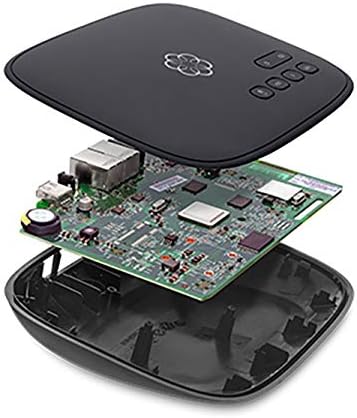
Figure 4: Internal components of the Ooma Telo Air device, showcasing its advanced circuitry.
8. Warranty and Support
The Ooma Telo Air is backed by a 30-day money-back guarantee and an extendable 1-year warranty. For customer support, visit ooma.com or call 866-747-6887. 24/7 customer support is available.


