
1. Introduction
This manual provides detailed instructions for the setup, operation, and maintenance of your Sharper Image SBT2015BK Volta Bluetooth Sound System Base. This sound system is designed to enhance your audio experience for television, music, and other media, featuring integrated Bluetooth wireless technology, a built-in subwoofer, and an FM radio. It also serves as a stable platform for most flat-panel televisions up to 55 inches or 110 pounds.
2. Important Safety Information
Please read all safety warnings and instructions carefully before using this product. Keep this manual for future reference.
- Electrical Shock Hazard: Do not open the unit. There are no user-serviceable parts inside. Refer all servicing to qualified service personnel.
- Water and Moisture: Do not expose this appliance to rain or moisture. Do not place objects filled with liquids, such as vases, on the apparatus.
- Heat: Do not install near any heat sources such as radiators, heat registers, stoves, or other apparatus (including amplifiers) that produce heat.
- Ventilation: Ensure proper ventilation. Do not block any ventilation openings.
- Power Source: Use only the power supply specified by the manufacturer.
- Cleaning: Clean only with a dry cloth.
- Placement: Ensure the unit is placed on a stable, level surface. Do not overload the unit with a TV exceeding 55 inches or 110 pounds.
3. Package Contents
Verify that all items listed below are included in your package:
- Sharper Image Volta Bluetooth Sound System Base (SBT2015BK)
- Remote Control
- AC Power Adapter
- RCA Audio Cable (Red/White)
- 3.5mm Auxiliary Audio Cable
- User Manual (this document)
4. Product Overview
Familiarize yourself with the components and controls of your sound system base.
Front Panel Controls and Display
The front panel features an LED display and backlit buttons for easy navigation and status indication.
- Power Button: Turns the unit on or off.
- Mode Button: Cycles through input modes (Bluetooth, AUX, FM Radio).
- Volume Down (-): Decreases the volume.
- Volume Up (+): Increases the volume.
- LED Display: Shows current mode, volume level, and FM frequency.
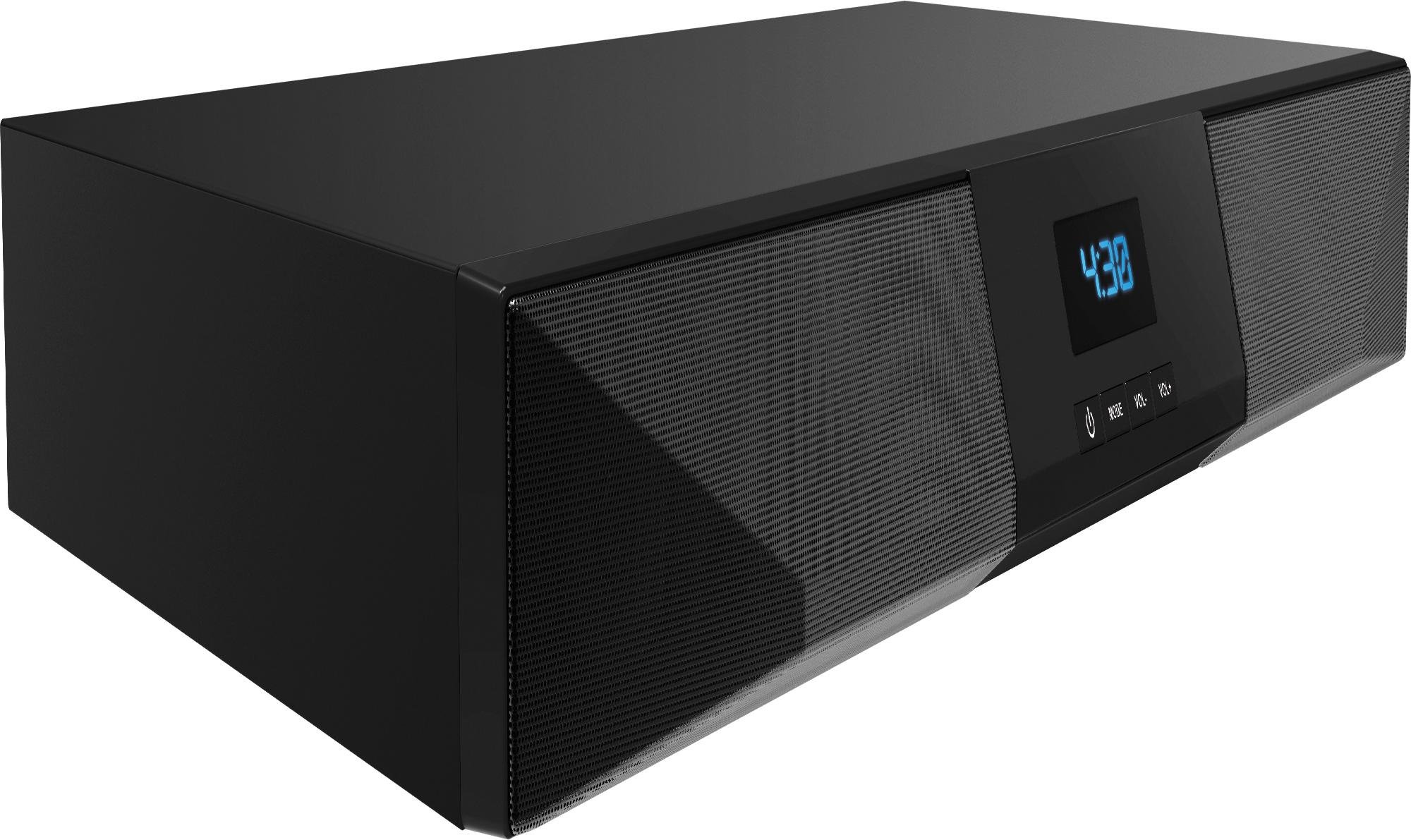
Figure 1: Front view of the Sharper Image SBT2015BK Volta Bluetooth Sound System Base, showing the LED display and control buttons.
Rear Panel Connections
The rear panel provides various ports for connecting external audio sources and power.
- AUX IN (RCA L/R): For connecting devices using RCA cables.
- LINE IN (3.5mm): For connecting devices using a 3.5mm auxiliary cable.
- DC 12V === 2A: Power input for the AC adapter.
- POWER Switch: Main power switch for the unit.
Video 1: An overview of the Sharper Image SBT2015BK Volta Bluetooth Sound System Base, demonstrating unboxing, front panel controls, and rear panel connections. This video highlights the product's features and ease of setup.
5. Setup
Follow these steps for initial setup of your sound system base.
5.1 Placement
- Place the sound system base on a stable, flat surface.
- If using as a TV stand, carefully place your flat-panel TV on top of the sound system base. Ensure the TV's weight and size do not exceed the maximum supported limits (up to 55 inches or 110 pounds).
- Ensure there is adequate space around the unit for ventilation.
5.2 Power Connection
- Connect the AC power adapter to the DC 12V === 2A input port on the rear of the sound system base.
- Plug the other end of the AC power adapter into a standard wall outlet.
- Flip the POWER switch on the rear panel to the "ON" position. The LED display on the front panel should illuminate.
5.3 Audio Connections (Optional)
You can connect external audio devices using either RCA or 3.5mm auxiliary cables.
- RCA Connection: Connect one end of the RCA audio cable (red and white plugs) to the AUX IN (R/L) ports on the sound system base. Connect the other end to the corresponding audio output ports on your TV or other audio device.
- 3.5mm Auxiliary Connection: Connect one end of the 3.5mm auxiliary audio cable to the LINE IN port on the sound system base. Connect the other end to the headphone jack or auxiliary output of your audio device.
6. Operating Instructions
Learn how to use the various functions of your sound system base.
6.1 Power On/Off
- To turn the unit on, press the Power Button (⏻) on the front panel or the remote control.
- To turn the unit off (standby mode), press the Power Button (⏻) again. The display will show "STANDBY" or similar.
- For complete power off, use the POWER switch on the rear panel. Note that turning off the main power switch may reset volume levels.
6.2 Mode Selection
Press the MODE button on the front panel or remote control to cycle through the available input modes:
- Bluetooth (BL): For wireless audio streaming.
- AUX (LINE): For RCA or 3.5mm auxiliary input.
- FM Radio (FM): For listening to FM radio stations.
6.3 Bluetooth Pairing
- Turn on the sound system base and select Bluetooth (BL) mode using the MODE button. The display will show "BL" and a blinking Bluetooth icon, indicating it's in pairing mode.
- Enable Bluetooth on your mobile device (smartphone, tablet, etc.).
- Search for available Bluetooth devices and select "SBT2015BK" from the list.
- Once paired, the Bluetooth icon on the display will stop blinking, and you can begin streaming audio wirelessly.
6.4 Using AUX Input
- Connect your audio device to the AUX IN (RCA) or LINE IN (3.5mm) port on the rear panel.
- Press the MODE button until "LINE" appears on the display.
- Play audio from your connected device.
6.5 Using FM Radio
- Press the MODE button until "FM" appears on the display.
- Use the remote control to scan for stations or manually tune to your desired frequency.
- The display will show the current FM frequency.
6.6 Volume Control
Adjust the volume using the VOL- and VOL+ buttons on the front panel or the remote control. The current volume level will be shown on the LED display.
7. Maintenance
Proper care and maintenance will ensure the longevity of your sound system base.
- Cleaning: Wipe the unit with a soft, dry cloth. Do not use liquid cleaners or aerosol sprays.
- Ventilation: Keep the ventilation openings clear of dust and debris.
- Storage: If storing the unit for an extended period, disconnect it from the power outlet and store it in a cool, dry place.
8. Troubleshooting
If you encounter issues, refer to the following common problems and solutions:
| Problem | Possible Cause | Solution |
|---|---|---|
| No power | Power adapter not connected; Rear power switch off; Outlet not working. | Ensure power adapter is securely connected. Flip the rear POWER switch to ON. Test the outlet with another device. |
| No sound | Incorrect input mode; Volume too low; Audio cable not connected properly; Device volume too low. | Press MODE to select the correct input. Increase volume on the sound system and connected device. Check audio cable connections. |
| Bluetooth not pairing | Not in Bluetooth mode; Device too far; Device already paired to another unit. | Ensure unit is in Bluetooth (BL) mode. Move device closer to the sound system. Disconnect from other Bluetooth devices. |
| FM radio static | Weak signal; Interference. | Adjust the unit's position to improve reception. Try scanning for other stations. |
| Remote control not working | Batteries dead; Obstruction between remote and unit; Remote not pointed at IR sensor. | Replace remote batteries. Remove any obstructions. Point the remote directly at the IR sensor on the front panel. |
9. Specifications
- Model: SBT2015BK
- Brand: Sharper Image
- Speaker Type: Subwoofer (Built-in)
- Surround Sound Channel Configuration: 2.1
- Speaker Maximum Output Power: 110 Watts
- Wireless Communication Technology: Bluetooth
- Audio Input: RCA (L/R), 3.5mm Auxiliary
- Special Features: FM Radio, TV Stand Functionality
- Max TV Size/Weight: Up to 55 inches / 110 pounds
- Power Source: Corded Electric (DC 12V === 2A)
- Control Method: Remote, On-unit buttons
- Product Dimensions: 23.5 x 14.5 x 3 inches
- Item Weight: 10 pounds
- Color: Black
10. Warranty and Support
For warranty information or technical support, please refer to the warranty card included in your package or visit the official Sharper Image website. Do not attempt to repair the unit yourself, as this may void your warranty.
Manufacturer: Southern Telecom