Introduction
The Somfy Telis 16 RTS remote is designed to control up to 16 individual or grouped motorized products, such as blinds and shades. Its on-screen display and intuitive controls enhance convenience in managing multiple window treatments.

Front view of the Somfy Telis 16 RTS Silver Remote, showing the display and control buttons.
Product Features
- Remote control for up to 16 RTS motorized devices or groups
- On-screen icons identify different channels
- "My" function remembers a favorite motor setting
- Silver finish blends subtly into any decor
Setup and Installation
Battery Installation
The Somfy Telis 16 RTS remote requires batteries for operation.
- Locate the battery compartment on the back of the remote.
- Open the compartment cover.
- Insert the specified batteries, ensuring correct polarity.
- Close the battery compartment cover securely.

Side view of the Somfy Telis 16 RTS remote, illustrating its ergonomic design and potential battery compartment location.
Pairing with Motorized Devices
To control your motorized blinds or shades, the remote must be paired with each device or group. Refer to the specific instructions for your Somfy motorized product for detailed pairing procedures. Generally, this involves a short press on the programming button of the motor, followed by a press on the remote's programming button.
Operating Instructions
Channel Selection
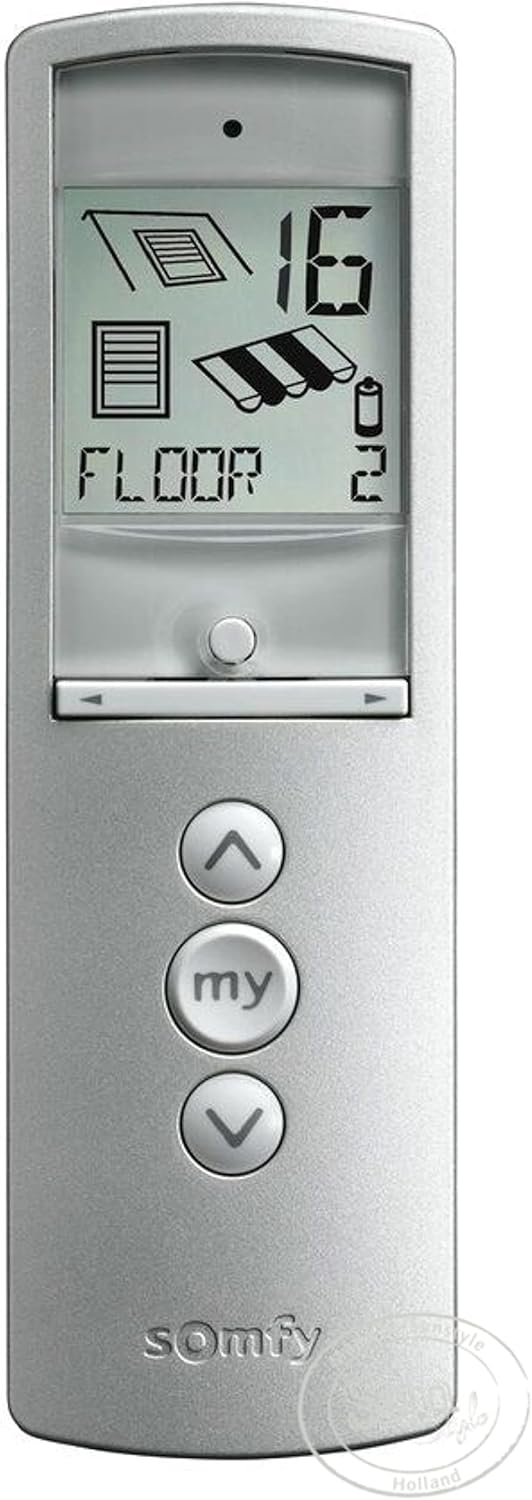
The Telis 16 RTS remote allows control of up to 16 channels. Use the channel selection buttons (usually located below the display) to cycle through the available channels. The selected channel number will be shown on the display.

Close-up of the Somfy Telis 16 RTS remote display, showing a channel number and product icon.
Basic Control Functions
Once a channel is selected, use the following buttons for operation:
- Up Arrow (▲): Moves the motorized product up (e.g., opens blinds).
- Down Arrow (▼): Moves the motorized product down (e.g., closes blinds).
- "My" Button: Stops the movement or recalls a pre-programmed favorite position.
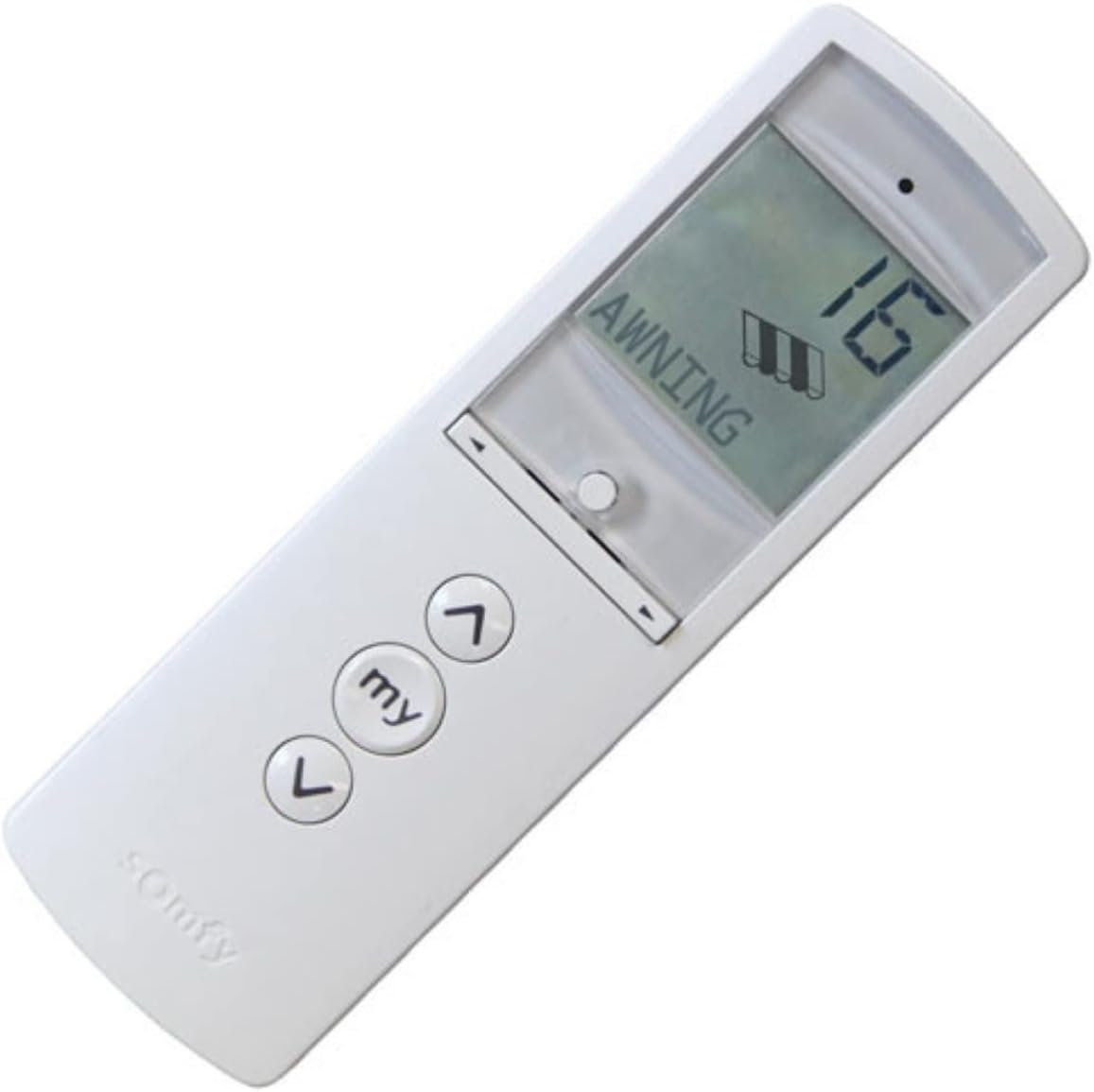
Angled view of the Somfy Telis 16 RTS remote, highlighting the up, down, and 'my' control buttons.
Setting a "My" Favorite Position
The "My" function allows you to save a preferred intermediate position for your motorized product.
- Move the motorized product to your desired intermediate position using the Up or Down arrows.
- Press the "My" button to stop the movement.
- Press and hold the "My" button until the motorized product jogs slightly. This indicates the position has been saved.
- To recall this position, simply press the "My" button when the product is fully open or closed.
Maintenance
Cleaning
Wipe the remote control with a soft, dry cloth. Do not use abrasive cleaners or solvents.
Battery Replacement
When the battery indicator appears on the display or the remote's range decreases, replace the batteries. Refer to the "Battery Installation" section for instructions.
Troubleshooting
Remote Not Responding
- Check battery level and replace if necessary.
- Ensure the remote is within range of the motorized product.
- Verify the correct channel is selected on the remote.
- Re-pair the remote with the motorized product if connection issues persist.
Motorized Product Not Moving to "My" Position
- Ensure a "My" position has been correctly programmed. Repeat the "Setting a 'My' Favorite Position" steps if unsure.
Specifications
Technical Specifications
| Feature | Detail |
|---|---|
| Manufacturer | Somfy |
| Part Number | 1811082 |
| Item Weight | 0.01 ounces |
| Product Dimensions | 5 x 2 x 8 inches |
| Item Model Number | Telis Silver, 16 Channel |
| Finish | Silver |
| Item Package Quantity | 1 |
| Special Features | Ergonomic |
| Batteries Included? | Yes |
| Batteries Required? | Yes |
| Description Pile | Rechargeable Lithium-Ion |
| Brand | Somfy |
| Max Number of Supported Devices | 16 (channels) |
| Compatible Devices | Motorized Devices, Somfy Automation System |
| Connectivity Technology | Infrared (RTS) |
Warranty Information
The Somfy Telis 16 RTS remote control comes with a 5-year warranty. For detailed terms and conditions, please refer to the official Somfy warranty documentation or contact Somfy customer support.
Somfy 5-year warranty logo.
Support and Contact
For further assistance, technical support, or to inquire about additional Somfy products, please visit the official Somfy website or contact their customer service department.
You can find more information and products at the Somfy Store on Amazon.


