Download PDFFree PDF. The Save button below keeps a bookmark and private notes in your account.
CAMPUS Poppy Music Portable Bluetooth Speaker
User Manual
Model: SP-FY24
Product Overview
The CAMPUS Poppy Music is a compact and portable Bluetooth 3.0 speaker designed for on-the-go music enjoyment. It features a unique pop-art design with interchangeable silicone covers, allowing you to customize its appearance. Equipped with a built-in microphone, it also supports hands-free calling.
Image: The CAMPUS Poppy Music speaker, showcasing its compact design and blue silicone cover.
Bluetooth 3.0 Connectivity: Seamlessly connect to smartphones, tablets, and other Bluetooth-enabled devices.
Interchangeable Silicone Covers: Comes with four vibrant colors (red, blue, green, gray) to personalize your speaker.
Long Battery Life: Enjoy 5 to 8 hours of playback on a single charge.
Hands-Free Calling: Built-in microphone for convenient call management.
Compact and Portable: Designed to fit comfortably in your hand, perfect for travel.
Micro-USB Charging: Easy charging via a standard 5V micro-USB cable.
Setup Guide
1. Package Contents
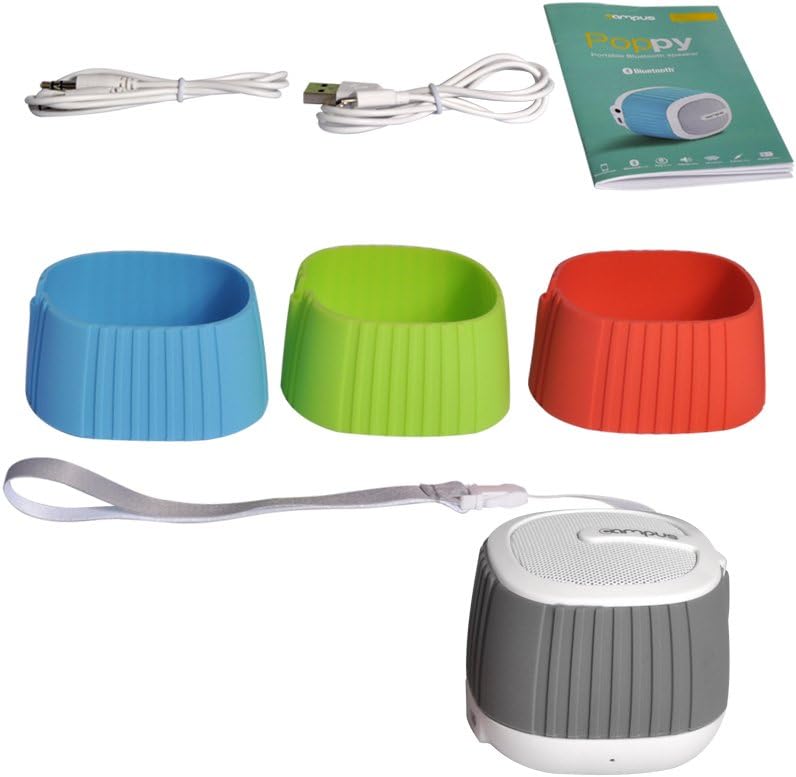
Before you begin, please ensure all items are present in the package:
Image: The complete package contents, including the speaker, multiple silicone covers, charging cable, audio cable, and user manual.
For optimal performance, fully charge the speaker before first use.
Connect the supplied Micro-USB cable to the charging port (DC 5V) on the speaker.
Connect the other end of the USB cable to a USB power adapter (not included) or a computer's USB port.
The LED indicator will illuminate during charging.
Charging typically takes 2 to 3 hours. The LED indicator will change or turn off once fully charged.
3. Changing Silicone Covers
Customize your speaker's look by easily swapping the silicone covers.
Image: A disassembled view of the speaker, showing how the silicone cover can be removed and replaced.
Gently peel off the current silicone cover from the speaker body.
Select your desired color cover.
Align the new cover with the speaker and carefully stretch it over the body until it fits snugly.
Image: Four CAMPUS Poppy Music speakers, each with a different colored silicone cover (red, blue, green, gray), demonstrating the customization options.
Operating Instructions
1. Power On/Off
To Power On: Locate the power button (often integrated with play/pause or a dedicated switch) and press and hold it until you hear an audible prompt or the LED indicator lights up.
To Power Off: Press and hold the power button again until the speaker powers down.
2. Bluetooth Pairing
Connect your speaker wirelessly to your device.
Ensure the speaker is powered on and in pairing mode (the LED indicator may flash rapidly).
On your smartphone, tablet, or other Bluetooth-enabled device, go to the Bluetooth settings.
Search for available devices. The speaker should appear as "Poppy Music" or similar.
Select the speaker from the list to pair. You will hear a confirmation sound once successfully connected.
The speaker will automatically reconnect to the last paired device when powered on, if the device's Bluetooth is active and within range.
3. Audio Playback and Controls
Control your music and calls using the speaker's integrated controls.
Play/Pause: Press the Play/Pause button (often a central button) to start or pause music playback.
Volume Control: Use the volume up (+) and volume down (-) buttons to adjust the audio level.
Next/Previous Track: Press and hold or short press (depending on model) the volume buttons or dedicated track buttons to skip tracks.
Hands-Free Calling:
Answer Call: Press the Play/Pause button once to answer an incoming call.
End Call: Press the Play/Pause button once during a call to end it.
Reject Call: Press and hold the Play/Pause button to reject an incoming call.
4. AUX Input (Wired Connection)
For devices without Bluetooth, use the 3.5mm audio cable.
Connect one end of the 3.5mm audio cable to the AUX input port on the speaker.
Connect the other end to the headphone jack of your audio device (e.g., MP3 player, computer).
The speaker will automatically switch to AUX mode.
Maintenance
Cleaning: Use a soft, dry cloth to wipe the speaker's surface. For silicone covers, a damp cloth with mild soap can be used, then dry thoroughly. Do not use harsh chemicals or abrasive cleaners.
Storage: Store the speaker in a cool, dry place away from direct sunlight and extreme temperatures.
Battery Care: To prolong battery life, avoid fully discharging the battery frequently. Charge the speaker regularly, even if not in use for extended periods.
Water Resistance: This speaker is not water-resistant. Avoid exposure to liquids.
Troubleshooting
Problem
Possible Cause
Solution
Speaker does not turn on.
Battery is low or depleted.
Charge the speaker for 2-3 hours.
Cannot pair via Bluetooth.
Speaker is not in pairing mode.
Bluetooth is off on your device.
Speaker is already connected to another device.
Too far from the device.
Ensure speaker is powered on and LED is flashing (pairing mode).
Enable Bluetooth on your device.
Disconnect from other devices or turn off their Bluetooth.
Move speaker closer to your device (within 10 meters).
No sound.
Volume is too low.
Incorrect input mode (Bluetooth/AUX).
Device not playing audio.
Increase volume on both speaker and connected device.
Ensure correct mode is active (Bluetooth connected or AUX cable inserted).
Check if audio is playing on your source device.
Poor sound quality.
Interference or distance.
Low battery.
Move speaker closer to the device, away from obstacles or other wireless devices.
Charge the speaker.
Specifications
Brand
Campus
Model Name
Poppy Music
Model Number
SP-FY24
Connectivity Technology
Bluetooth 3.0, AUX (3.5mm)
Speaker Maximum Output Power
3 Watt RMS
Battery Life
5 to 8 hours
Charging Time
2 to 3 hours (via Micro-USB, 5V)
Compatible Devices
Smartphones, Tablets, Bluetooth-enabled devices
Dimensions (Package)
15.4 x 9.2 x 8.2 cm
Weight (Package)
240.4 g
Controller Type
Touchpad (Pekplatta)
Warranty and Support
This product is covered by standard consumer warranty laws in your region. Please retain your proof of purchase for any warranty claims.
For technical support or further assistance, please refer to the contact information provided by your retailer or visit the official Campus website.
Note: Software updates are not guaranteed for this product.
Ask a question about this manual
Ask about setup, troubleshooting, compatibility, parts, safety, or missing instructions. Manuals+ will review the question and use this page’s manual context to help answer it.