
1. Introduction
This manual provides essential instructions for the setup, operation, and maintenance of your Cisco Remanufactured IP Conference Phone 8831. This device is designed to deliver high-quality audio conferencing for medium to large conference rooms.
Key features include:
- 360-Degree Coverage: Optimized for rooms up to 1140 square feet.
- Full-Duplex Wideband Audio (G.722): Ensures superior high-definition audio performance for clear two-way communication.
- Detachable Control Panel: Allows for flexible placement and viewing of the display independently from the speaker unit.
- Enhanced Security: Utilizes 128K Advanced Encryption Standard (AES) for private and secure business-grade audio communications.
2. Important Safety Information
Please read and follow these safety guidelines to prevent damage to the device and ensure user safety:
- Do not expose the phone to water or moisture.
- Avoid placing the phone near heat sources or in direct sunlight.
- Use only the power adapter and cables supplied with the device.
- Do not attempt to open or repair the phone yourself. Refer all servicing to qualified personnel.
- Ensure proper ventilation around the device.
3. Package Contents
Verify that your package contains the following items:
- Cisco IP Conference Phone 8831 main unit (CP-8831-K9-RF)
- Detachable Control Panel
- Connecting Cable
- Power Adapter (if applicable, or designed for Power over Ethernet)
4. Product Components
The Cisco IP Conference Phone 8831 consists of a main speaker unit and a detachable control panel.
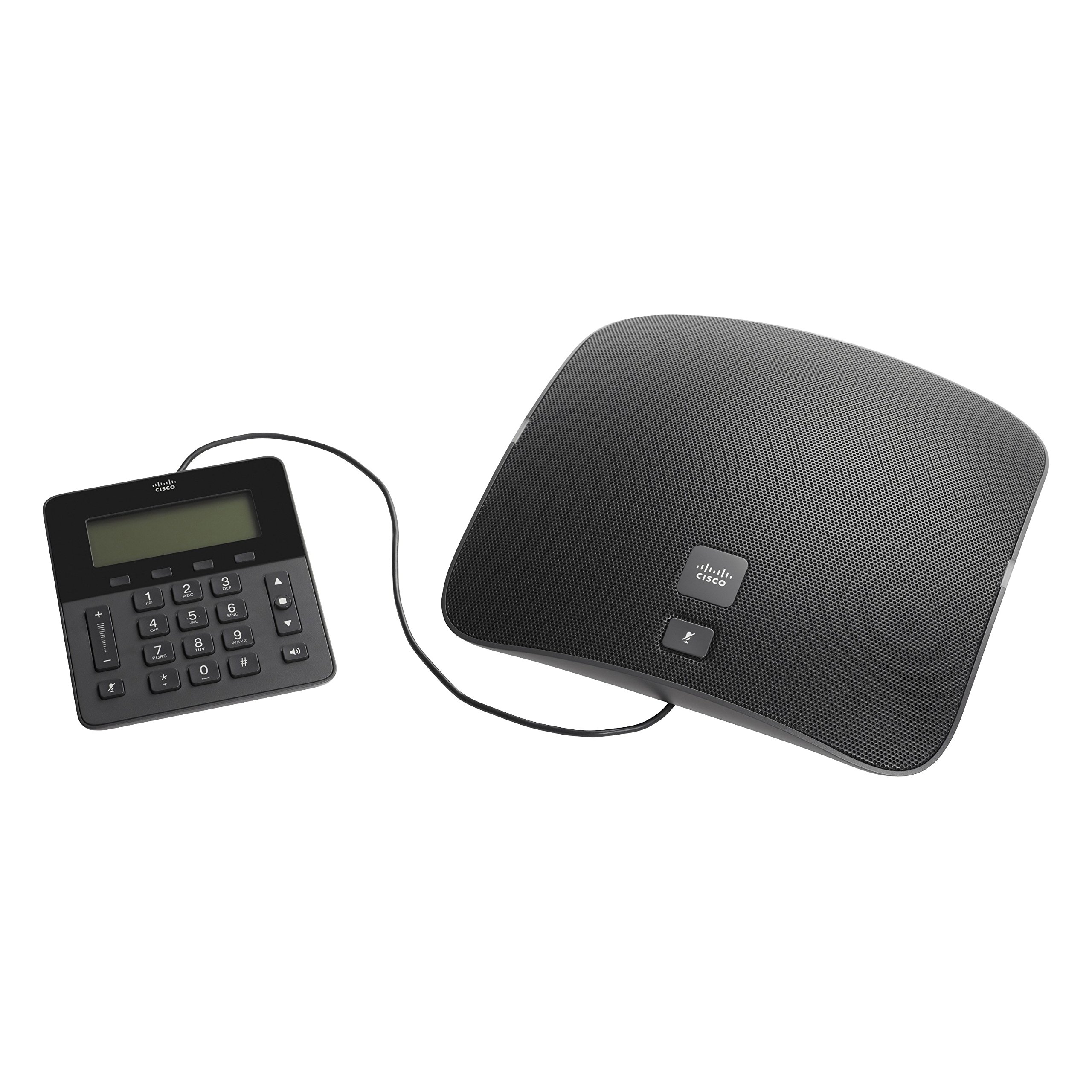
Figure 1: Cisco IP Conference Phone 8831 Overview
This image displays the Cisco IP Conference Phone 8831, consisting of two main parts: the large, oval-shaped speaker unit on the right and the smaller, rectangular control panel on the left. Both components are black and connected by a cable. The speaker unit features a perforated grille for audio output and a Cisco logo with a mute button. The control panel includes a digital display, a numeric keypad, navigation buttons, volume controls, and a mute button.
4.1. Main Speaker Unit
The main speaker unit houses the primary microphone and speaker components, providing 360-degree audio coverage. It typically includes a mute button and the Cisco branding.
4.2. Control Panel
The detachable control panel features a display screen, a numeric keypad for dialing, navigation buttons, and dedicated buttons for call control (e.g., volume up/down, mute, speakerphone). This panel connects to the main unit via a cable, allowing for flexible placement.
5. Setup and Installation
Follow these steps to set up your Cisco IP Conference Phone 8831:
- Unpack: Carefully remove all components from the packaging.
- Connect Control Panel: Connect the control panel to the main speaker unit using the provided cable.
- Power Connection:
- If using Power over Ethernet (PoE), connect an Ethernet cable from a PoE-enabled switch or injector to the Ethernet port on the main unit.
- If using an AC power adapter, connect the adapter to the main unit and then plug it into a power outlet.
- Network Connection: Connect an Ethernet cable from your network to the Ethernet port on the main unit.
- Initial Boot-up: The phone will power on and begin its boot-up sequence. This may take a few minutes as it connects to your network and registers with your Cisco Unified Communications Manager or SIP-based VoIP service.
- Configuration: Once registered, the phone is ready for use. Additional configuration may be required by your system administrator.
6. Basic Operation
6.1. Making a Call
- Lift the control panel (if applicable) or ensure the speakerphone is active.
- Dial the desired number using the numeric keypad.
- Press the Call button (or equivalent on-screen prompt).
6.2. Answering a Call
When the phone rings, press the Answer button (or equivalent on-screen prompt) to accept the call.
6.3. Adjusting Volume
Use the Volume Up (+) and Volume Down (-) buttons on the control panel to adjust the speaker volume during a call or the ringer volume when idle.
6.4. Muting the Microphone
Press the Mute button (microphone icon) on either the main speaker unit or the control panel to mute your microphone. Press it again to unmute.
6.5. Ending a Call
Press the End Call button (or equivalent on-screen prompt) to terminate an active call.
7. Care and Maintenance
To ensure the longevity and optimal performance of your conference phone:
- Cleaning: Use a soft, dry, lint-free cloth to clean the exterior surfaces. Do not use liquid cleaners, aerosols, or solvents.
- Storage: Store the phone in a cool, dry place away from direct sunlight and extreme temperatures.
- Handling: Handle the device with care to avoid dropping or physical damage.
8. Troubleshooting
If you encounter issues with your Cisco IP Conference Phone 8831, refer to the following common solutions:
| Problem | Possible Solution |
|---|---|
| Phone does not power on. |
|
| No dial tone or cannot make calls. |
|
| Poor audio quality. |
|
| Control panel display is blank. |
|
9. Technical Specifications
| Feature | Detail |
|---|---|
| Model Number | CP-8831-K9-RF |
| Brand | Cisco |
| Item Weight | 5.05 pounds (approx. 2.29 kg) |
| Product Dimensions | 0.39 x 0.39 x 0.39 inches (approx. 1 x 1 x 1 cm) - Note: These dimensions appear to be placeholder values and may not reflect the actual product size. |
| Color | Black |
| Telephone Type | Corded IP Conference Phone |
| Power Source | Corded Electric (PoE or AC Adapter) |
| Compatible Devices | Cisco Unified Communications Manager, Business Edition, SIP-based VoIP services |
| Conference Call Capability | Basic |
| Audio Features | Full-Duplex Two-Way Wideband (G.722) Hands-Free Speaker |
| Coverage Area | Up to 1140 square feet (360-degree) |
| Security | 128K Advanced Encryption Standard (AES) |
| Country Of Origin | China |
| Date First Available | October 22, 2014 |
10. Warranty and Support
10.1. Limited Hardware Warranty
This Cisco Remanufactured IP Conference Phone 8831 typically comes with a 1-Year Limited Hardware Warranty. Please refer to your purchase documentation for specific terms and conditions regarding warranty coverage.
10.2. Technical Support
For technical assistance, troubleshooting beyond this manual, or warranty claims, please contact Cisco support or your authorized reseller. You can find more information and support resources on the official Cisco website:


