
PDP AGU.50
PDP Afterglow AGU.50 Wired Headset
User Manual
Introduction
This manual provides comprehensive instructions for the setup, operation, maintenance, and troubleshooting of your PDP Afterglow AGU.50 Wired Headset. Designed for multi-platform compatibility, this headset offers clear audio and communication for an enhanced gaming experience.

Image: The PDP Afterglow AGU.50 Wired Headset, showcasing its design with blue illuminated earcups and attached microphone.
Package Contents
- Afterglow AGU.50 Wired Headset
- Detachable Noise-Cancelling Microphone
- In-line Control Unit (integrated with cable)
Setup
Follow these steps to connect your Afterglow AGU.50 headset to your gaming system or PC.

Image: Exploded view of the Afterglow AGU.50 headset components, showing the main headset, detachable microphone, and the in-line control module.
- Attach the Microphone: Insert the flexible microphone into the designated port on the left earcup until it clicks securely into place. Ensure the microphone is oriented correctly for optimal voice pickup.
- Connect to Your Device:
- For Xbox 360, PlayStation 3, and Wii U: Connect the headset's 3.5mm audio jack to the appropriate audio output port on your console or TV. For chat functionality, additional console-specific adapters (not included) may be required depending on your console model and setup.
- For PC Gaming: Connect the headset's 3.5mm audio jack to your computer's audio output (green port) and microphone input (pink port) if your PC has separate jacks. If your PC has a single combined audio jack, you may need a Y-splitter adapter (not included).
- Power On (if applicable): The headset is wired and does not require separate power. Ensure your console or PC is powered on.
Operation
Understanding the controls and features of your headset.

Image: Side profile of the Afterglow AGU.50 headset, showing the attached flexible microphone and the illuminated earcup.
- Adjusting the Headset: Extend or retract the headband to fit comfortably over your head. The earcups are designed to pivot for a snug fit.
- In-line Controls: The headset features an in-line control unit on the cable for easy access to audio adjustments.
- Master Volume Dial: Rotate the dial to increase or decrease the overall audio volume.
- Game/Chat Balance (if supported by console/PC setup): Some setups allow for separate adjustment of game audio and chat volume. Refer to your console or PC's audio settings for configuration.
- Microphone Mute Switch: Use the switch to quickly mute or unmute your microphone.
- Microphone Usage: Position the flexible microphone approximately 1-2 inches from your mouth for optimal voice clarity. The noise-cancelling feature helps reduce background noise.
- Afterglow Illumination: The earcups feature blue LED illumination, which activates when the headset is connected and receiving power through the audio jack.
Maintenance
Proper care ensures the longevity and performance of your headset.
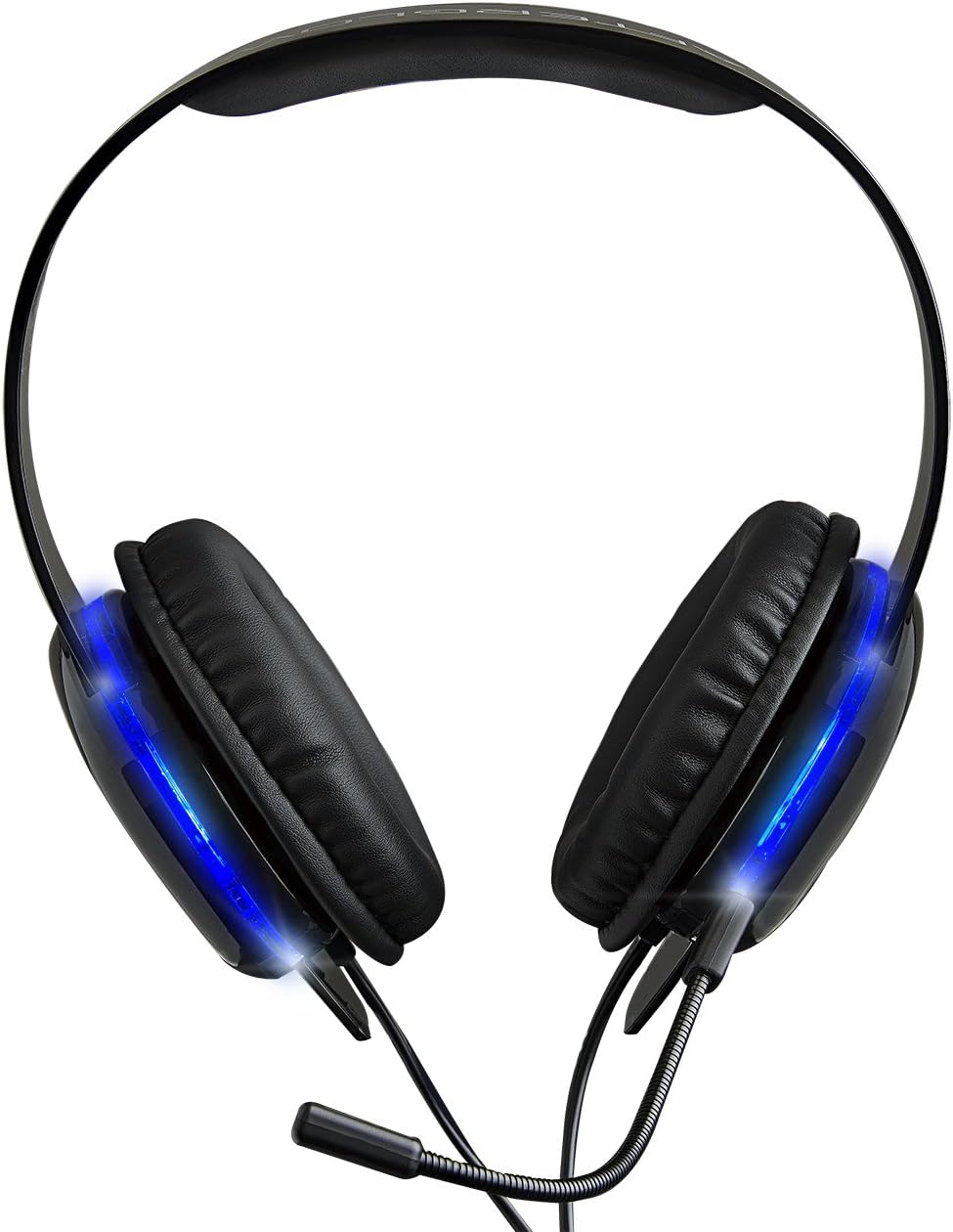
Image: Overhead view of the Afterglow AGU.50 headset, showing the padded headband and earcups.
- Cleaning: Use a soft, dry cloth to wipe down the headset. For earcups, a slightly damp cloth with mild soap can be used, but ensure no moisture enters the speaker grilles. Do not use harsh chemicals or abrasive cleaners.
- Storage: Store the headset in a cool, dry place away from direct sunlight and extreme temperatures. Avoid wrapping the cable too tightly to prevent damage.
- Microphone Care: When not in use, the microphone can be detached and stored separately to prevent bending or damage.
Troubleshooting
If you encounter issues with your headset, refer to the following common solutions.
| Problem | Solution |
|---|---|
| No audio from headset. |
|
| Microphone is not working. |
|
| Experiencing static or poor audio quality. |
|
Specifications
| Feature | Detail |
|---|---|
| Model Number | 9218 |
| Connectivity | Wired (3.5mm audio jack) |
| Compatibility | Xbox 360, PlayStation 3, PC, Wii U |
| Microphone | Detachable, Noise-Cancelling |
| Controls | In-line volume control, microphone mute switch |
| Illumination | Blue LED Afterglow earcups |
| Cable Feature | Retractable |
| Item Weight | 5.3 ounces (0.33 Pounds) |
| Product Dimensions | 2.88 x 7.4 x 8.74 inches |
| Material | Plastic |
Safety Information
- Avoid prolonged listening at high volumes to prevent hearing damage.
- Do not expose the headset to extreme temperatures, humidity, or liquids.
- Keep out of reach of small children due to small parts and cables.
- Do not attempt to disassemble or modify the headset, as this will void the warranty and may cause damage.
Warranty and Support
For warranty information or technical support, please refer to the official PDP website or contact their customer service department. Keep your proof of purchase for warranty claims.
PDP Official Website: www.pdp.com
Related documentsAGU.50


Ask a question about this manual
Ask about setup, troubleshooting, compatibility, parts, safety, or missing instructions. Manuals+ will review the question and use this page’s manual context to help answer it.