
Visual Land ME-7Q-KC-8GB-BLU
Prestige ELITE 7Q-KC User Manual
Model: ME-7Q-KC-8GB-BLU
Introduction
This manual provides essential information for the operation and maintenance of your Visual Land Prestige ELITE 7Q-KC tablet. Please read this manual thoroughly before using your device to ensure proper functionality and longevity.
The Prestige ELITE 7Q-KC is a 7-inch Quad Core Android tablet designed for portable use, offering smooth performance for streaming, web browsing, and various applications. It features a 7-inch screen with 5-point capacitive multi-touch and 8GB of internal storage.
Setup
1. Unpacking and Initial Inspection
Carefully remove all components from the packaging. Verify that all items listed below are present and undamaged:
- Prestige ELITE 7Q-KC Tablet
- Keyboard Case
- Power Adapter
- USB Cable
- User Manual (this document)
2. Charging the Tablet
Before first use, fully charge the tablet. Connect the power adapter to the tablet's charging port and plug it into a power outlet. The charging indicator will illuminate. A full charge typically takes approximately 3-4 hours.
3. Attaching the Keyboard Case
Align the tablet with the designated slot in the keyboard case. Gently press the tablet into place until it is securely seated. The keyboard connects via a USB port on the tablet.
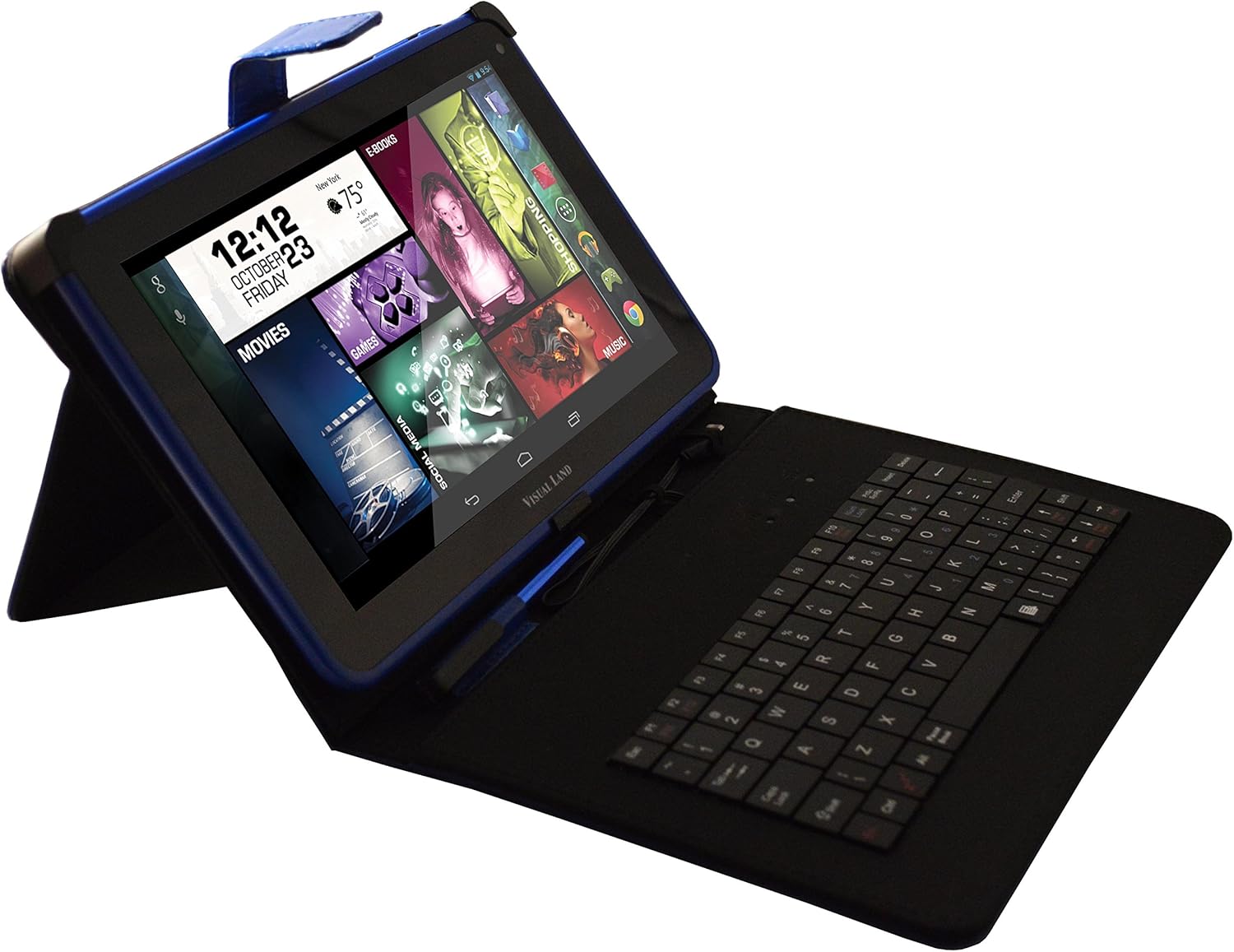
Image: Prestige ELITE 7Q-KC tablet inserted into its matching blue keyboard case, viewed from an angle, showing the tablet screen and the physical keyboard.
4. Powering On and Initial Configuration
Press and hold the power button located on the side of the tablet until the screen illuminates. Follow the on-screen prompts to complete the initial setup, including language selection, Wi-Fi connection, and Google account setup.
Operating Instructions
1. Basic Navigation
The tablet operates on Android 4.4 KitKat. Use touch gestures for navigation:
- Tap: Select an item or open an application.
- Swipe: Scroll through screens or lists.
- Pinch-to-zoom: Zoom in or out on images or web pages.
- Long press: Access contextual menus or move icons.
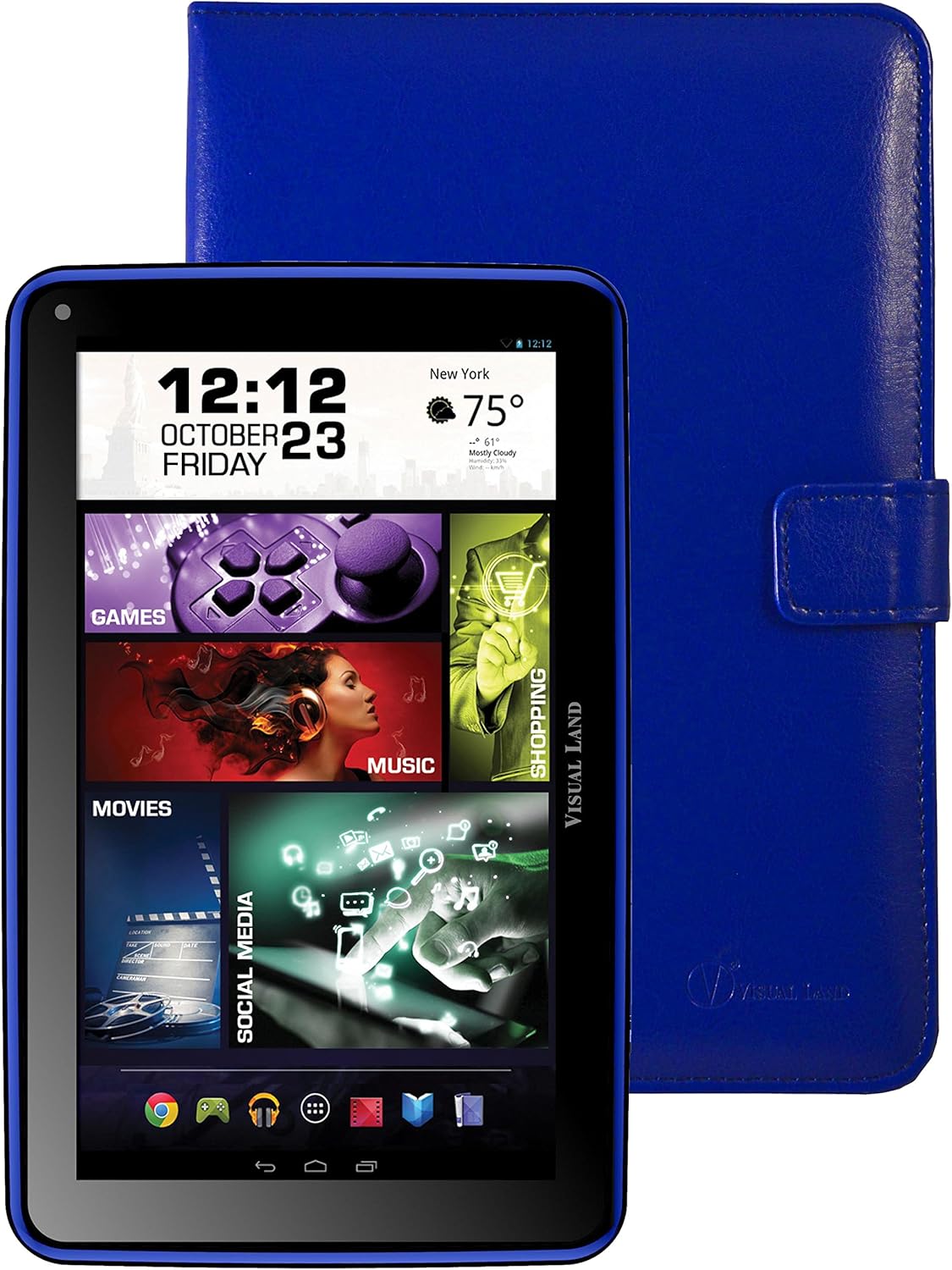
Image: Front view of the Prestige ELITE 7Q-KC tablet displaying the Android home screen with various app icons and widgets, including a clock, weather, and media shortcuts.
2. Connecting to Wi-Fi
- Go to Settings.
- Select Wi-Fi.
- Toggle Wi-Fi On.
- Select your desired network from the list and enter the password if required.
3. Using the Keyboard Case
Once connected, the keyboard case functions as a standard external keyboard. Ensure the tablet is properly seated and the USB connection is firm. The keyboard allows for faster typing and navigation within applications.
4. Accessing Google Play Store
The tablet comes with Google Play pre-installed. Tap the Play Store icon to browse and download applications, games, movies, music, and books. A Google account is required for full access.
Maintenance
1. Cleaning the Tablet
Use a soft, lint-free cloth to clean the screen and body of the tablet. For stubborn smudges, slightly dampen the cloth with water or a screen cleaner specifically designed for electronics. Avoid using harsh chemicals or abrasive materials.
2. Battery Care
- Avoid exposing the tablet to extreme temperatures.
- Do not allow the battery to fully discharge frequently.
- Charge the tablet regularly to maintain battery health.
3. Software Updates
Periodically check for system updates to ensure optimal performance and security. Go to Settings > About tablet > System updates.
Troubleshooting
| Problem | Possible Cause | Solution |
|---|---|---|
| Tablet does not power on. | Low battery; system crash. | Charge the tablet for at least 30 minutes. If still unresponsive, press and hold the power button for 10-15 seconds to force a restart. |
| Wi-Fi connection issues. | Incorrect password; out of range; router issue. | Verify Wi-Fi password. Move closer to the router. Restart the router and the tablet. |
| Touchscreen unresponsive. | Temporary software glitch; screen protector interference. | Restart the tablet. Ensure the screen is clean. If using a screen protector, ensure it is properly applied or temporarily remove it to test. |
| Keyboard not working. | Loose connection; tablet not recognizing. | Ensure the tablet is securely connected to the keyboard case via the USB port. Restart the tablet. |
If problems persist, refer to the support section or contact customer service.
Specifications
| Feature | Detail |
|---|---|
| Model Number | ME-7Q-KC-8GB-BLU |
| Operating System | Android 4.4 KitKat |
| Processor | 1.2 GHz Quad Core (Allwinner chipset) |
| RAM | 1 GB DDR3 |
| Internal Storage | 8 GB |
| Screen Size | 7 Inches |
| Screen Resolution | 1024x600 Pixels |
| Wireless Connectivity | 802.11bgn Wi-Fi |
| USB Ports | 1 (USB 2.0) |
| Battery Life | Approximately 8 Hours (average use) |
| Dimensions (LxWxH) | 7.5 x 0.4 x 4.7 inches |
| Item Weight | 10.6 ounces |
| Color | Blue |

Image: Rear view of the Prestige ELITE 7Q-KC tablet, showing the blue textured back panel and port labels for USB, MicroSD, DC, and Mic, along with the "Prestige ELITE 7Q" branding.
Warranty and Support
For warranty information and technical support, please refer to the documentation included with your purchase or visit the official Visual Land website. Keep your proof of purchase for warranty claims.
Visual Land Official Store: Visual Land Store on Amazon
Related documentsME-7Q-KC-8GB-BLU


Ask a question about this manual
Ask about setup, troubleshooting, compatibility, parts, safety, or missing instructions. Manuals+ will review the question and use this page’s manual context to help answer it.