Introduction
This manual provides instructions for the Jabra Evolve 20 Stereo Headset. It covers setup, operation, maintenance, and troubleshooting to ensure optimal performance and longevity of your device. The Jabra Evolve 20 is designed for professional use, offering clear audio for calls and multimedia, passive noise cancellation, and easy call management.
Package Contents
Verify that all items are present in your package:
- Jabra Evolve 20 Stereo On-Ear Headset
- USB Cable with Controller
- User Manual (this document)

Image: Jabra Evolve 20 Stereo Headset with its USB controller and cable.
Setup
Connecting the Headset
- Plug in the USB cable: Connect the USB-A connector of the headset cable into an available USB port on your computer (laptop or desktop).
- Automatic Recognition: Your computer should automatically detect and install the necessary drivers for the Jabra Evolve 20 headset. This is a plug-and-play device.
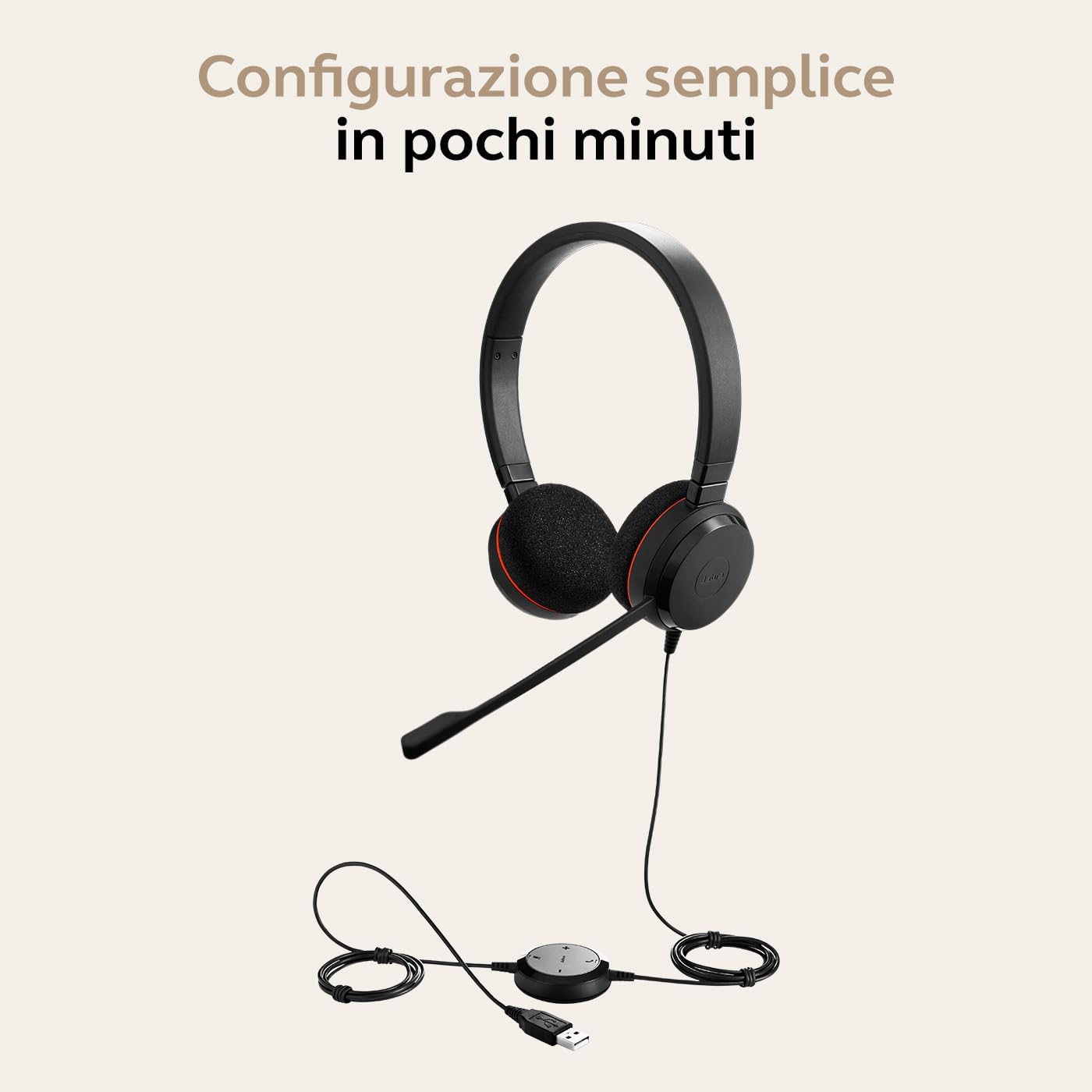
Image: Jabra Evolve 20 headset with its USB cable and controller, ready for connection to a laptop.
Adjusting the Headset
- Headband Adjustment: Adjust the headband to ensure a comfortable and secure fit on your head. The ear cushions should rest gently over your ears.
- Microphone Positioning: Position the microphone boom approximately 2-3 cm (1 inch) from your mouth. The microphone is flexible and can be adjusted for optimal voice pickup.

Image: A person wearing the Jabra Evolve 20 headset, demonstrating proper microphone positioning.
Video Guide: Using Jabra Evolve 20
Video: A short guide demonstrating how to set up and use the Jabra Evolve 20 headset, including connecting to a laptop, adjusting the headband, and positioning the microphone.
Operating the Headset
The Jabra Evolve 20 features an in-line control unit for easy management of calls and audio.
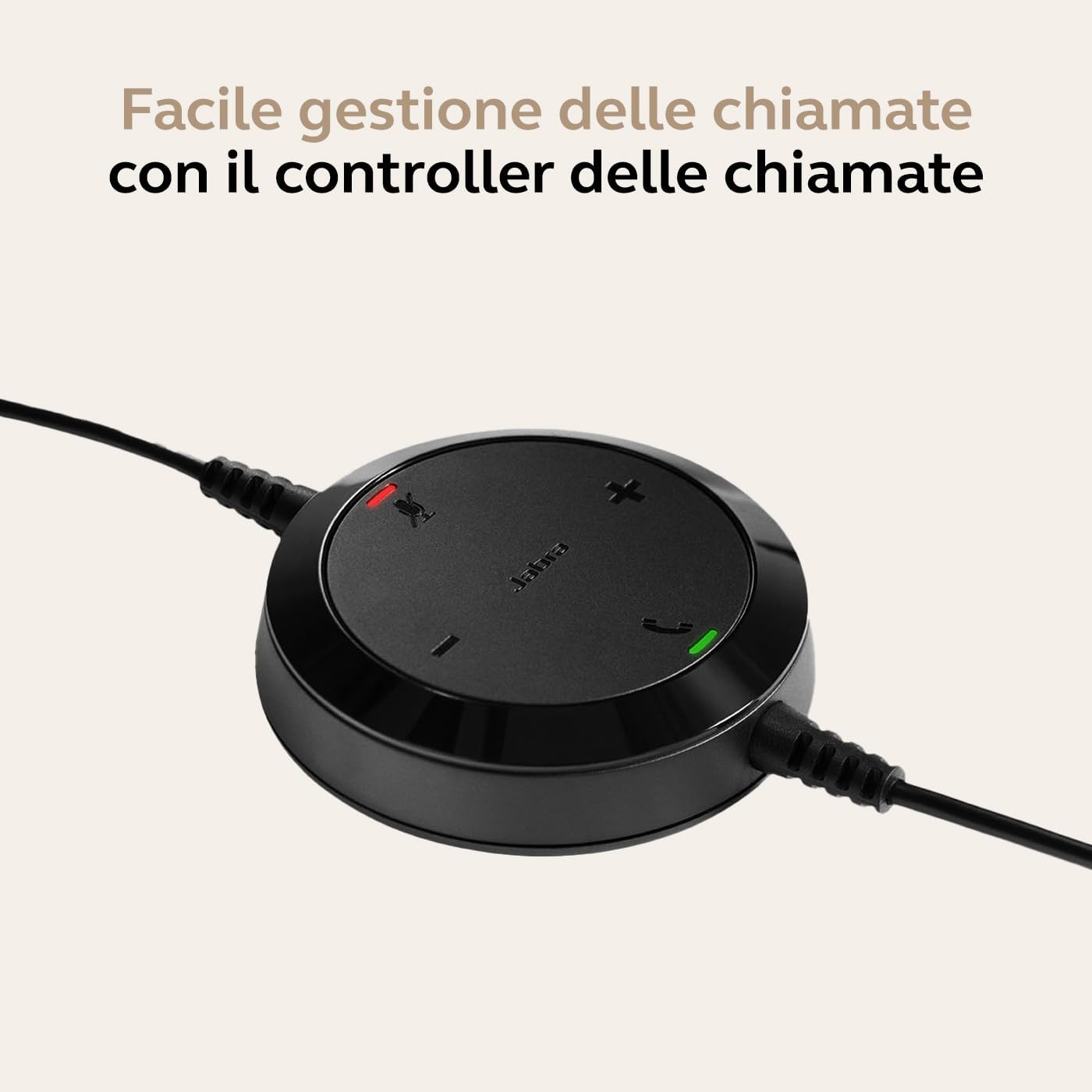
Image: Close-up of the Jabra Evolve 20 in-line controller with buttons for volume, mute, and call control.
Call Management
- Answer/End Call: Press the Call button (phone icon) on the control unit to answer or end a call.
- Mute/Unmute Microphone: Press the Mute button (microphone icon) to mute or unmute your microphone during a call. An indicator light on the controller will show the mute status.
Volume Control
- Increase Volume: Press the Volume Up button (+) to increase the listening volume.
- Decrease Volume: Press the Volume Down button (-) to decrease the listening volume.
Passive Noise Cancellation
The headset's design and ear cushions provide passive noise cancellation, reducing ambient noise for improved focus during calls and tasks.
Maintenance
Cleaning
- Ear Cushions: Gently wipe the ear cushions with a soft, dry cloth. For deeper cleaning, use a slightly damp cloth with mild soap and water, then dry thoroughly.
- Headband and Microphone: Wipe the headband and microphone boom with a soft, dry cloth. Avoid using harsh chemicals or abrasive materials.
Storage
When not in use, store the headset in a clean, dry place away from extreme temperatures and direct sunlight. Avoid tangling the cable to prevent damage.
Troubleshooting
| Problem | Solution |
|---|---|
| No audio from headset |
|
| Microphone not working |
|
| Call control buttons not responding |
|
Specifications
| Feature | Detail |
|---|---|
| Brand | Jabra |
| Model Name | Evolve 20 MS Stereo |
| Model Number | 4999-823-109 |
| Connectivity Technology | Wired (USB-A) |
| Wireless Communication Technology | Bluetooth (Note: This specific model is wired USB-A. Bluetooth may refer to other variants or general Jabra technology.) |
| Ear Placement | On-Ear (Supra-aural) |
| Noise Control | Passive Noise Cancellation |
| Microphone Form Factor | Boom |
| Impedance | 32 Ohm |
| Frequency Response | 20 KHz (Max) |
| Weight | 119 grams |
| Dimensions | 22.4 x 16.1 x 4.5 cm |
| Compatible Devices | Laptops, Desktops |
| Operating System | Optimized for Microsoft Teams |
| Additional Features | Volume Control, Call Control |
| Material | Soft headband and comfortable on-the-ear foam ear pads. Evolve 20SE variant comes with leatherette ear cushions. |
Warranty and Support
The Jabra Evolve 20 Stereo Headset comes with a standard manufacturer's warranty. For detailed warranty information, technical support, or service inquiries, please visit the official Jabra support website or contact their customer service.
Online Support: For the latest support information, FAQs, and software updates, please visit www.jabra.com/support.


