
1. Introduction
This manual provides essential information for the proper use and maintenance of your Lexar Professional 128GB 1000x Speed SDXC UHS-II Memory Card. Designed for high-speed performance, this card is ideal for capturing and transferring high-quality photos and 1080p full-HD, 3D, and 4K video. Please read these instructions carefully to ensure optimal performance and longevity of your memory card.
2. Product Overview
Key Features
- 128GB storage capacity.
- Read and write speeds up to 150MB/s.
- Leverages UHS-II technology (UHS Speed Class 3 (U3)) for high-speed performance.
- Designed for capturing high-quality photos and 1080p full-HD, 3D, and 4K video.
- Waterproof design for enhanced durability.

Figure 1: Lexar Professional 128GB 1000x SDXC UHS-II Memory Card. This image displays the front of the memory card, highlighting its 128GB capacity, 150MB/s speed rating, SDXC, UHS-II, and Class 10 markings, along with the Lexar Professional branding.
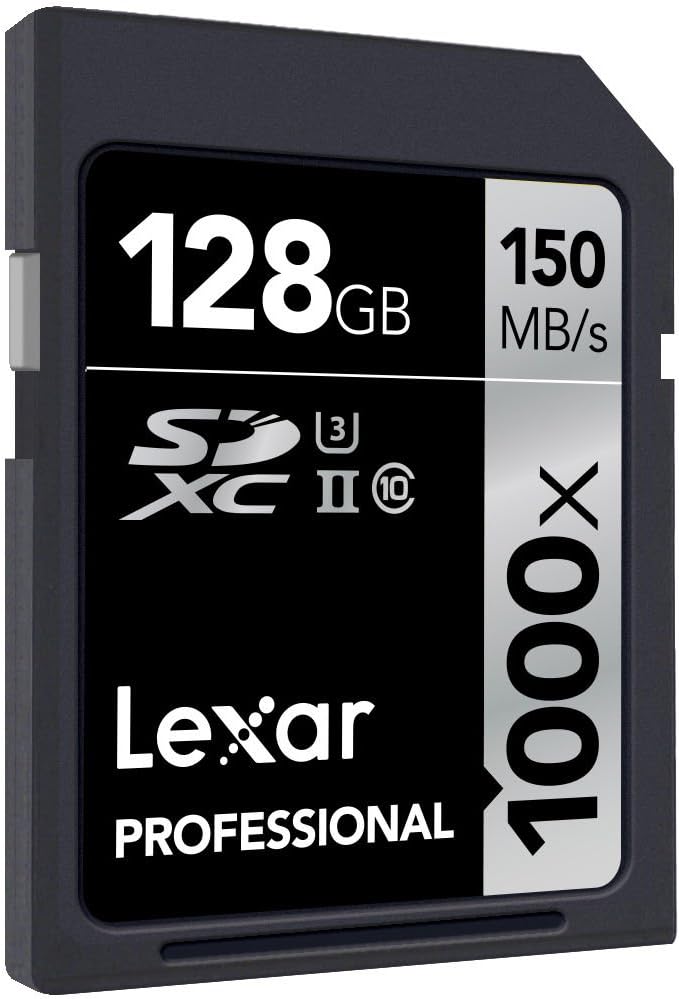
Figure 2: Angled view of the Lexar Professional 128GB 1000x SDXC UHS-II Memory Card, showing its design and labeling from a different perspective.
3. Setup
3.1 Inserting the Memory Card
- Locate the SD card slot on your compatible device (e.g., digital camera, camcorder, laptop, card reader).
- Ensure the memory card is oriented correctly, with the gold contacts facing the correct direction as indicated by your device's manual.
- Gently insert the card into the slot until it clicks into place. Do not force the card.
- To remove, gently push the card inward until it clicks, then release, and it will eject slightly for removal.
3.2 Compatibility
For optimal performance, use this Lexar Professional SDXC UHS-II card with devices that support the UHS-II standard. While the card is backward compatible with UHS-I devices, it will operate at UHS-I speeds in such devices. Always refer to your device's manual for specific memory card compatibility.
4. Operating Instructions
4.1 Data Transfer
To transfer data to or from the memory card:
- Insert the card into a compatible card reader connected to your computer, or directly into a device with an SD card slot.
- Your computer or device should recognize the card as a removable storage drive.
- Drag and drop files to transfer them. For large files or high volumes of data, using a UHS-II compatible card reader will ensure the fastest transfer speeds, up to 150MB/s.
4.2 Recording Media
When used in a compatible camera or video recorder, the Lexar Professional 1000x SDXC UHS-II card enables high-speed continuous shooting and extended recording of high-resolution video formats, including 4K. Ensure your device's settings are configured to utilize the card's full capabilities for optimal recording performance.
5. Maintenance and Care
5.1 General Care
- Keep the memory card clean and free from dust and debris. Avoid touching the gold contacts.
- Store the card in its protective case when not in use to prevent physical damage.
- Avoid exposing the card to extreme temperatures, humidity, or strong magnetic fields.
- Do not bend or apply excessive force to the card.
5.2 Data Recovery
In the event of accidental deletion or data corruption, Lexar Professional line memory cards often include access to Image Rescue software. This software can help recover most photo and select video files, even if they have been erased or the card has been corrupted. Refer to the product packaging or Lexar's official website for details on accessing and using this software.

Figure 3: Packaging for the Lexar Professional 128GB 1000x SDXC UHS-II Memory Card, indicating the inclusion of Image Rescue software.
6. Troubleshooting
6.1 Common Issues
- Card Not Recognized: Ensure the card is fully inserted into the slot. Verify that your device supports SDXC cards and the UHS-II standard. Try the card in another compatible device or card reader to rule out a device issue.
- Slow Performance: Confirm that your device and card reader are UHS-II compatible to achieve maximum speeds. Older devices or card readers may limit performance to UHS-I speeds.
- Data Corruption or Errors: If you experience frequent errors, try reformatting the card using your device's formatting function (this will erase all data). If issues persist, the card may be faulty. Use data recovery software before reformatting if data is critical.
- Card Write-Protected: Check the small lock switch on the side of the SD card. Slide it to the unlocked position if it is set to write-protect.
7. Specifications
| Feature | Detail |
|---|---|
| Model Number | LSD128CRBEU1000 |
| Capacity | 128 GB |
| Flash Memory Type | SDXC |
| Hardware Interface | SDXC |
| Read Speed | Up to 150 MB/s |
| Write Speed | Up to 150 MB/s |
| Secure Digital Association Speed Class | UHS-II, U3, Class 10 |
| Special Feature | Water Proof |
| Product Dimensions (LxWxH) | 1.26 x 0.94 x 0.08 inches |
| Item Weight | 0.035 ounces (1 gram) |
| Color | Black |
8. Warranty and Support
8.1 Warranty Information
All Lexar Professional line memory cards come with a limited lifetime warranty. This warranty covers defects in material and workmanship under normal use. Please retain your proof of purchase for warranty claims.
8.2 Technical Support
Lexar Professional products are backed by expert technical support. For assistance with product setup, troubleshooting, or warranty inquiries, please visit the official Lexar website or contact their customer service department. You can find more information and support resources at the Lexar Store.


