
SPYCLOPS SPY-MINIDOMEW2P
SPYCLOPS SPY-MINIDOMEW2P CCD Mini Dome Camera User Manual
Model: SPY-MINIDOMEW2P | Brand: SPYCLOPS
1. Introduction and Overview
This manual provides comprehensive instructions for the installation, operation, and maintenance of your SPYCLOPS SPY-MINIDOMEW2P CCD Mini Dome Camera. Designed for indoor surveillance, this camera offers reliable monitoring with its CCD sensor and 720p video resolution. Please read this manual thoroughly before using the product to ensure proper setup and functionality.
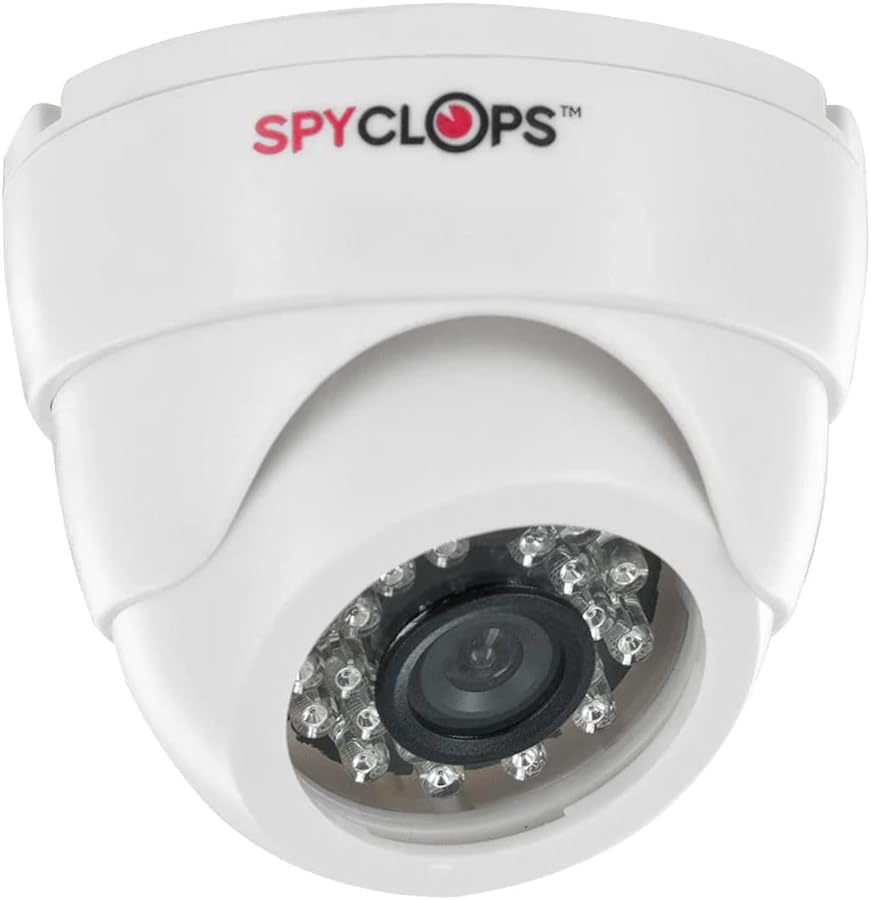
Figure 1: SPYCLOPS SPY-MINIDOMEW2P CCD Mini Dome Camera
The SPY-MINIDOMEW2P is a compact, white plastic dome camera featuring a CCD photo sensor for clear image capture. It supports Wi-Fi for wireless communication and is designed for wall mounting in various indoor environments such as offices, kitchens, living rooms, and classrooms. Its IP54 rating indicates protection against dust ingress and splashing water, making it suitable for typical indoor conditions.
2. Product Features
- Video Resolution: 720p for clear video capture.
- Photo Sensor Technology: CCD (Charge-Coupled Device) for enhanced image quality.
- Wireless Connectivity: Wi-Fi for network integration and Bluetooth for specific accessory connections.
- Indoor Use: Specifically designed for indoor surveillance applications.
- Form Factor: Discreet dome design.
- Mounting: Wall mountable for flexible placement.
- Power Source: AC/DC compatible for versatile power options.
- Protection Rating: IP54, offering protection against dust and splashing water.
- Material: Durable plastic construction.
- Special Feature: Portable design for ease of relocation within indoor spaces.
3. Package Contents
Please verify that all items are present in the package before proceeding with installation:
- SPYCLOPS SPY-MINIDOMEW2P CCD Mini Dome Camera
- Mounting Hardware (screws, wall anchors)
- Power Adapter (AC/DC)
- User Manual (this document)
If any items are missing or damaged, please contact your retailer or SPYCLOPS customer support.
4. Setup and Installation
4.1 Choosing a Location
Select an indoor location that provides the desired viewing angle and is within range of your Wi-Fi network. Ensure the surface is suitable for wall mounting. Avoid placing the camera near heat sources, direct sunlight, or areas with high humidity.
4.2 Mounting the Camera
- Carefully unpack the camera and mounting hardware.
- Position the camera at the desired mounting location on a wall.
- Mark the drill holes using the camera's base as a template.
- Drill pilot holes at the marked positions. Insert wall anchors if necessary.
- Secure the camera base to the wall using the provided screws.
- Adjust the camera's angle to cover the desired surveillance area.
4.3 Power Connection
Connect the provided power adapter to the camera's power input port. Plug the adapter into a standard AC power outlet. Ensure the power source is stable and meets the camera's requirements.
4.4 Network Configuration (Wi-Fi)
- Once powered on, the camera will enter setup mode (indicated by an LED status light, refer to camera's LED guide if available).
- Download the official SPYCLOPS surveillance application on your smartphone or tablet (check product packaging or manufacturer's website for app details).
- Follow the in-app instructions to add your new camera. This typically involves scanning a QR code on the camera or connecting to a temporary Wi-Fi hotspot created by the camera.
- Select your home/office Wi-Fi network and enter the password when prompted.
- Wait for the camera to connect to your network. The LED status light will change to indicate a successful connection.
5. Operating the Camera
5.1 Accessing Live Feed
Open the SPYCLOPS surveillance application on your device. Select your camera from the device list to view the live video feed. You can monitor your designated area in real-time.
5.2 Recording and Playback
The application typically allows for manual recording of video footage. Depending on the camera's features and app settings, you may also configure motion-activated recording. Recorded footage can be accessed and played back through the app's history or gallery section.
5.3 Camera Settings
Within the application, you can adjust various camera settings, including video resolution (if multiple options are available), motion detection sensitivity, notification preferences, and potentially other advanced features. Refer to the in-app help or the manufacturer's website for detailed explanations of each setting.
6. Maintenance
6.1 Cleaning
To maintain optimal performance, regularly clean the camera lens and body. Use a soft, dry, lint-free cloth to wipe away dust. For stubborn smudges on the lens, slightly dampen the cloth with a lens cleaning solution. Do not use harsh chemicals or abrasive materials, as they can damage the plastic and lens coating.
6.2 Firmware Updates
Periodically check the SPYCLOPS application or manufacturer's website for available firmware updates. Keeping your camera's firmware up-to-date ensures you have the latest features, security patches, and performance improvements. Follow the provided instructions carefully when performing updates.
6.3 Environmental Considerations
The SPY-MINIDOMEW2P is designed for indoor use. Avoid exposing the camera to extreme temperatures, direct water spray, or high humidity, as this can damage internal components. Ensure proper ventilation around the camera if installed in an enclosed space.
7. Troubleshooting
If you encounter issues with your SPYCLOPS SPY-MINIDOMEW2P camera, refer to the following common problems and solutions:
- No Power:
- Ensure the power adapter is securely plugged into both the camera and a working electrical outlet.
- Check if the outlet is receiving power by plugging in another device.
- No Video Feed / Offline:
- Verify that your Wi-Fi router is on and functioning correctly.
- Check the camera's LED status light for network connection status (refer to camera's LED guide).
- Restart the camera by unplugging and re-plugging the power adapter.
- Ensure the camera is within range of your Wi-Fi router. Obstacles like thick walls can weaken the signal.
- If the issue persists, try re-configuring the network connection through the app.
- Poor Image Quality:
- Clean the camera lens with a soft, lint-free cloth.
- Ensure there are no obstructions in front of the lens.
- Check lighting conditions in the surveillance area.
- Verify the video resolution setting in the app.
- App Not Connecting to Camera:
- Ensure your smartphone/tablet is connected to the same Wi-Fi network as the camera.
- Update the SPYCLOPS app to the latest version.
- Restart your smartphone/tablet.
For issues not covered here, or if troubleshooting steps do not resolve the problem, please contact SPYCLOPS customer support.
8. Specifications
| Feature | Specification |
|---|---|
| Model Number | SPY-MINIDOMEW2P |
| Brand | SPYCLOPS |
| Color | White |
| Material | Plastic |
| Form Factor | Dome |
| Photo Sensor Technology | CCD |
| Video Capture Resolution | 720p |
| Video Capture Format | MPEG-4 |
| Wireless Communication Technology | Wi-Fi |
| Connectivity Protocol | Bluetooth |
| Mounting Type | Wall Mount |
| Indoor/Outdoor Usage | Indoor |
| Recommended Uses For Product | Indoor Security |
| Power Source | AC/DC |
| International Protection Rating | IP54 |
| Item Weight | 10.6 Pounds |
| Date First Available | October 10, 2014 |
9. Warranty and Support
Specific warranty details for the SPYCLOPS SPY-MINIDOMEW2P camera are not provided within this manual. Please refer to the product packaging, the original purchase documentation, or the official SPYCLOPS website for comprehensive warranty information.
For technical support, product inquiries, or assistance with troubleshooting beyond the scope of this manual, please visit the SPYCLOPS official website or contact their customer service department using the contact information provided with your product or on their website.
Ask a question about this manual
Ask about setup, troubleshooting, compatibility, parts, safety, or missing instructions. Manuals+ will review the question and use this page’s manual context to help answer it.