
A-Tech MS656KMM1029
A-Tech 8GB DDR2 RAM Memory Upgrade Kit User Manual
Model: MS656KMM1029

A-Tech: The Experts in RAM Memory Upgrades
1. Introduction
This manual provides essential information for the installation, operation, maintenance, and troubleshooting of your A-Tech 8GB (4 x 2GB) DIMM DDR2 Non-ECC PC2-6400 800MHz RAM Memory Kit. This memory kit is specifically designed to enhance the performance of compatible ASUS ASmobile Motherboards by providing a reliable and efficient memory upgrade.
Memory (RAM) is a critical component that allows your computer to temporarily store data for quick access, improving overall system responsiveness and multitasking capabilities. Upgrading your RAM can significantly boost your system's ability to handle demanding applications and workloads.

Image: Four A-Tech 2GB DDR2 RAM modules, each sealed in clear blister packaging, ready for installation. Each module features a green PCB and black memory chips.
2. Setup and Installation
Before installing your new A-Tech RAM modules, please ensure your computer is powered off and unplugged from the wall outlet. It is crucial to take precautions against electrostatic discharge (ESD) to prevent damage to your components.
2.1 Safety Precautions
- Power Off: Always power down your computer completely and unplug the power cord before opening the case.
- Ground Yourself: Discharge static electricity by touching a grounded metal object (e.g., the unpainted metal chassis of your computer) before handling components. Consider using an anti-static wrist strap.
- Handle with Care: Hold the RAM modules by their edges, avoiding contact with the gold connectors or the chips.
2.2 Installation Steps
- Open Computer Case: Remove the side panel of your computer case to access the motherboard.
- Locate RAM Slots: Identify the DIMM slots on your motherboard. Refer to your motherboard's manual for specific slot configurations and recommended installation order (e.g., dual-channel setup).
- Prepare Slots: Gently push down the small clips at each end of the DIMM slot to open them.
- Insert RAM Module: Align the notch on the RAM module with the key in the DIMM slot. Press down firmly and evenly on both ends of the module until the clips snap into place, securing the module. Do not force the module if it does not fit; recheck the alignment.
- Repeat: Install the remaining RAM modules into the appropriate slots, following your motherboard's guidelines.
- Close Case: Once all modules are securely installed, replace the computer case side panel.
- Power On: Reconnect the power cord and power on your computer. The system should automatically detect the new memory.
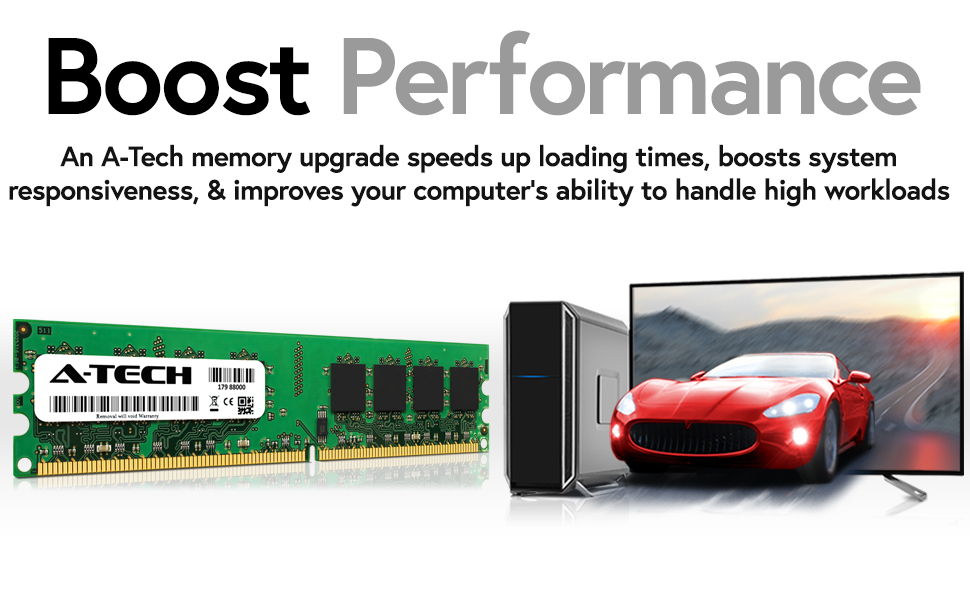
Image: A comparison showing a larger DIMM (Desktop) RAM module and a smaller SODIMM (Laptop) RAM module. Your A-Tech kit contains DIMM modules for desktop motherboards.
3. Operating Principles and Performance Benefits
Once installed, your A-Tech DDR2 RAM modules will work seamlessly with your system's processor to provide fast data access. The 800MHz speed (PC2-6400) ensures efficient data transfer, contributing to a smoother computing experience.
3.1 Performance Enhancement
- Boosted Loading Times: Applications and files will load more quickly.
- Improved Responsiveness: Your system will feel snappier and more fluid during general use.
- Enhanced Multitasking: Run multiple programs simultaneously without significant slowdowns.
- Greater Workload Handling: Tackle resource-intensive tasks like video editing, gaming, or complex computations with ease.

Image: A visual representation of how A-Tech memory upgrades can boost performance, showing a fast car emerging from a computer screen, symbolizing increased speed and efficiency.

Image: A woman working efficiently across multiple computer monitors, demonstrating the ease of multitasking with sufficient RAM.

Image: Three icons illustrating key benefits: a speedometer for accelerating speeds to 800MHz, stacked windows for taking on greater workloads, and a shield for designed for high quality performance.
4. Maintenance
RAM modules generally require minimal maintenance. However, ensuring a clean and well-ventilated computer environment can prolong the life of all your components, including RAM.
- Dust Removal: Periodically clean the interior of your computer case using compressed air to remove dust buildup, which can impede airflow and lead to overheating.
- Proper Ventilation: Ensure your computer case has adequate airflow and is not placed in an enclosed space that restricts ventilation.
- Software Updates: Keep your operating system and drivers updated to ensure optimal performance and compatibility with your hardware.
5. Troubleshooting
If you encounter issues after installing your A-Tech RAM, refer to the following common troubleshooting steps:
- System Not Booting / No Display:
- Ensure RAM modules are fully seated in their slots. The clips on both ends should be securely locked.
- Verify that the RAM modules are compatible with your motherboard.
- Try installing one module at a time to identify if a specific module is faulty.
- Clear the CMOS (Complementary Metal-Oxide-Semiconductor) settings on your motherboard (refer to your motherboard manual for instructions).
- Incorrect RAM Capacity Detected:
- Check your BIOS/UEFI settings to confirm the detected RAM amount.
- Ensure your operating system is a 64-bit version to fully utilize more than 4GB of RAM.
- Verify that all modules are correctly installed and recognized by the system.
- System Instability / Blue Screens (BSOD):
- Run a memory diagnostic tool (e.g., Windows Memory Diagnostic or MemTest86) to check for errors.
- Ensure your motherboard's BIOS/UEFI is updated to the latest version.
- Check for proper cooling within your computer case.
6. Specifications
| Feature | Detail |
|---|---|
| RAM Capacity | 8 GB (4 x 2GB modules) |
| Memory Type | DDR2 SDRAM |
| Memory Speed | 800 MHz (PC2-6400) |
| Error Correction | Non-ECC Unbuffered |
| Form Factor | DIMM (Desktop) |
| Item Model Number | MS656KMM1029 |
| Item Weight | 4.8 ounces |
| Product Dimensions | 6.7 x 3.6 x 0.8 inches |
7. Compatibility
This A-Tech 8GB DDR2 RAM Memory Kit is designed for specific ASUS ASmobile Motherboard models. Verified compatible models include:
- ASUS ASmobile Motherboard P5Q Pro Turbo SE Plus SE/R WS
- ASUS ASmobile Motherboard P5QD
- ASUS ASmobile Motherboard P5Q-E WiFi-AP
For optimal performance, always refer to your motherboard's official documentation for detailed memory compatibility lists and recommended configurations.
8. Warranty
A-Tech stands behind the quality and reliability of its products. This 8GB DDR2 RAM Memory Kit is backed by a Lifetime Warranty. For detailed warranty terms and conditions, please refer to the official A-Tech website or contact customer support.
Image: A graphic emphasizing "Ensured Reliability" with an A-Tech memory module, highlighting the rigorous quality control testing all modules undergo.
9. Support
For further assistance, technical support, or to view additional product information, please visit the official A-Tech website:
You may also contact A-Tech customer service for any inquiries regarding your memory upgrade.
Related documentsMS656KMM1029


Ask a question about this manual
Ask about setup, troubleshooting, compatibility, parts, safety, or missing instructions. Manuals+ will review the question and use this page’s manual context to help answer it.