
msi V316-001R
MSI NVIDIA GTX 970 Gaming 4G Graphics Card User Manual
Model: V316-001R
Introduction
This manual provides comprehensive instructions for the installation, operation, maintenance, and troubleshooting of your MSI NVIDIA GTX 970 Gaming 4G Graphics Card. Please read this manual thoroughly before installing and using the product to ensure optimal performance and longevity.
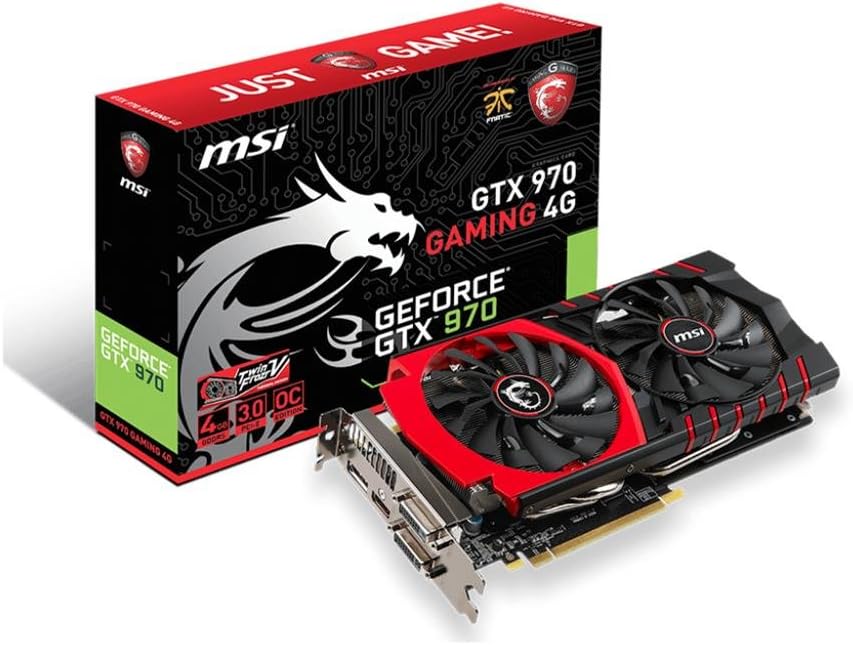
This image displays the MSI NVIDIA GTX 970 Gaming 4G Graphics Card alongside its retail packaging. The card features a dual-fan cooling system with red accents, while the box highlights key features like 'GTX 970 GAMING 4G' and the MSI dragon logo.
Setup
1. Unpacking
Carefully remove the graphics card and all accessories from the packaging. Ensure the following items are present:
- MSI NVIDIA GTX 970 Gaming 4G Graphics Card
- User Manual (this document)
- Driver CD (if included, otherwise download latest drivers online)
- Any included power adapters or cables
2. System Requirements
Before installation, ensure your system meets the following minimum requirements:
- PCI Express-compliant motherboard with one dual-width x16 graphics slot
- Minimum 500W power supply with one 8-pin and one 6-pin PCI Express power connectors (or equivalent)
- Minimum 4GB system RAM (8GB recommended for optimal performance)
- Microsoft Windows 7, 8, 8.1, or 10 (64-bit recommended)
- Internet connection for driver updates
3. Hardware Installation
- Power Off: Turn off your computer and disconnect the power cord from the wall outlet.
- Open Case: Open your computer case.
- Locate PCIe Slot: Find an available PCI Express x16 slot on your motherboard.
- Remove Slot Cover: Remove the metal slot cover from the back of the computer case corresponding to the chosen PCIe slot.
- Insert Card: Carefully align the graphics card with the PCIe slot and press it firmly until it is securely seated. Ensure the retention clip clicks into place.
- Secure Card: Secure the graphics card to the case with the screw removed earlier.
- Connect Power: Connect the required 8-pin and 6-pin PCI Express power connectors from your power supply to the corresponding ports on the graphics card.
- Close Case: Close your computer case and reconnect the power cord.
4. Driver Installation
- Power On: Turn on your computer.
- Initial Boot: The system may boot with a basic display driver.
- Download Drivers: Visit the official MSI website or NVIDIA's website to download the latest drivers for the GTX 970. It is recommended to always use the latest drivers for best performance and compatibility.
- Install Drivers: Run the downloaded driver installer and follow the on-screen instructions. A system restart may be required after installation.
Operating the Graphics Card
1. Connecting Displays
The MSI GTX 970 Gaming 4G supports multiple display outputs. Connect your monitor(s) to the available ports on the graphics card. Common ports include DisplayPort, HDMI, DVI-I, and DVI-D.
- DisplayPort: For high-resolution and high-refresh-rate monitors.
- HDMI: For connecting to TVs or monitors with HDMI input, supports audio passthrough.
- DVI: Digital and/or analog video output.
2. Software Utilities
MSI provides utility software to enhance your graphics card experience:
- MSI Afterburner: A widely recognized utility for graphics card overclocking, monitoring, and fan control. It allows you to fine-tune performance settings and monitor temperatures in real-time.
- MSI Gaming App: Offers quick access to different performance modes (OC Mode, Gaming Mode, Silent Mode) and visual enhancements.
These utilities can be downloaded from the official MSI website.
Maintenance
1. Cleaning
Regular cleaning helps maintain optimal performance and extends the lifespan of your graphics card:
- Dust Removal: Periodically use compressed air to clear dust from the heatsink fins and fan blades. Ensure the computer is powered off and unplugged before cleaning.
- Fan Maintenance: Do not attempt to lubricate or disassemble the fans. If a fan becomes noisy or stops working, consider professional service.
2. Driver and Firmware Updates
Keep your graphics card drivers updated to ensure compatibility with the latest games and applications, and to benefit from performance improvements and bug fixes. Check the NVIDIA and MSI websites regularly for new driver releases. Firmware updates for the graphics card are less frequent but should be applied if recommended by MSI.
Troubleshooting
If you encounter issues with your graphics card, refer to the following common troubleshooting steps:
| Problem | Possible Cause / Solution |
|---|---|
| No display on monitor |
|
| Low performance in games/applications |
|
| System crashes or freezes |
|
| Fans not spinning or excessively noisy |
|
Specifications
| Feature | Detail |
|---|---|
| Model Number | V316-001R |
| Graphics Processor | NVIDIA GeForce GTX 970 |
| Video Memory | 4 GB GDDR5 |
| Memory Speed | 1279 MHz |
| Max Resolution | 7680x4320 |
| Video Output Interface | DisplayPort, HDMI, DVI |
| Item Weight | 1.79 pounds |
| Product Dimensions (LxWxH) | 10.59 x 5.55 x 1.38 inches |
| Manufacturer | MSI COMPUTER |
Warranty and Support
For warranty information and technical support, please refer to the warranty card included with your product or visit the official MSI website. The MSI support portal provides drivers, FAQs, and contact information for further assistance.
MSI Official Website: www.msi.com
Ask a question about this manual
Ask about setup, troubleshooting, compatibility, parts, safety, or missing instructions. Manuals+ will review the question and use this page’s manual context to help answer it.