
Introduction
Thank you for choosing the Magnasonic EAAC470 Alarm Clock Radio. This manual provides essential instructions for setting up, operating, and maintaining your device. Please read it thoroughly to ensure proper use and to maximize the features of your alarm clock radio.
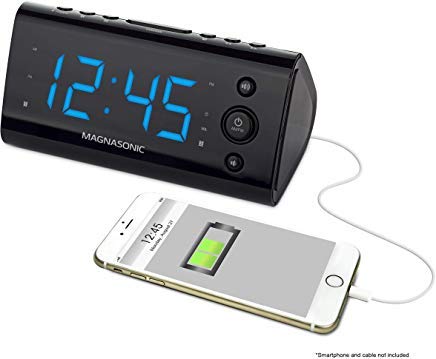
Figure 1: Front view of the Magnasonic EAAC470 Alarm Clock Radio.
Package Contents
- Magnasonic EAAC470 Alarm Clock Radio
- Power Adapter
- User Manual (this document)
- CR2032 Lithium Battery (for backup)
Setup
1. Power Connection
- Connect the power adapter to the DC input jack on the back of the alarm clock.
- Plug the power adapter into a standard wall outlet. The display will illuminate.
2. Battery Backup Installation
The EAAC470 includes a CR2032 lithium battery for backup power. This ensures that time and alarm settings are maintained during a power outage, and the alarm will still sound.
- Locate the battery compartment on the bottom of the unit.
- Open the battery compartment cover.
- Insert one CR2032 lithium battery, observing the correct polarity (+/-).
- Close the battery compartment cover securely.
3. Automatic Time Setting (SelfSet Technology)
The alarm clock is equipped with SelfSet technology, which automatically displays the correct time upon initial power-up. You only need to set your time zone.
- Upon first power-up, the clock will display a default time.
- Press the TIME ZONE button (location may vary, refer to device buttons).
- Use the HOUR or MINUTE buttons to select your correct time zone.
- The clock will automatically adjust to the correct time for your selected zone.
- Note: If the time is incorrect after setting the time zone, manual adjustment may be required.
4. Manual Time and Date Adjustment
If the automatic time setting is inaccurate or if you need to adjust the time manually:
- Press and hold the TIME SET button until the display flashes.
- Use the HOUR and MINUTE buttons to set the current time.
- Press TIME SET again to confirm the time.
- Follow similar steps to adjust the year, month, and day if necessary, using the appropriate buttons.
5. FM Antenna Setup
For optimal FM radio reception, fully extend the wire antenna located on the back of the unit. Position it for the best signal.
Operating Instructions
1. Setting Alarms (Alarm 1 & Alarm 2)
The EAAC470 features dual alarms that can be set independently.
- Press and hold either ALARM 1 or ALARM 2 button until the alarm time flashes.
- Use the HOUR and MINUTE buttons to set the desired alarm time.
- Press the respective ALARM button again to select the alarm source (Buzzer or Radio).
- Press the ALARM button a third time to select the alarm schedule (Every Day, Weekdays, Weekends).
- Press the ALARM button a fourth time to confirm and activate the alarm. An alarm indicator will appear on the display.
- To disable an alarm, repeatedly press its ALARM button until the alarm indicator disappears.
2. Radio Operation (AM/FM)
The clock radio includes a digital AM/FM tuner with station presets.
- Press the RADIO ON/OFF button to turn the radio on.
- Press the AM/FM button to switch between bands.
- Use the TUNE +/- buttons to manually tune to a station or press and hold to auto-scan for the next available station.
- To save a preset:
- Tune to the desired station.
- Press and hold the PRESET button until the preset number flashes.
- Use the PRESET +/- buttons to select a preset number (1-20).
- Press PRESET again to save the station.
- To recall a preset: Briefly press the PRESET button and use PRESET +/- to cycle through saved stations.
- Adjust volume using the VOLUME +/- buttons.
Note on Radio Quality: The built-in speaker is designed for alarm clock functionality. Sound quality may not match dedicated audio systems. AM reception can be directional; adjust the unit's position for better clarity.
3. USB Charging Port
A convenient USB charging port is located on the front of the unit.

Figure 2: Front view highlighting the USB charging port.
Plug your smartphone, tablet, or other USB-powered device into this port to charge. This port provides power for charging and does not transfer data.
4. Display Dimming Options
The 1.2" LED display offers four brightness settings (High, Medium, Low, Off).

Figure 3: Close-up of the LED display.
Press the DIMMER button (often integrated with the SNOOZE button) repeatedly to cycle through the brightness levels: High → Medium → Low → Off.
Note on Brightness: Even the lowest setting may appear bright in a completely dark room. The "Off" setting allows for a completely dark display if preferred.
5. Snooze and Sleep Functions
- Snooze: When an alarm sounds, press the SNOOZE button to temporarily silence the alarm for a set period (e.g., 9 minutes). The alarm will sound again after the snooze period.
- Sleep Timer: While the radio is playing, press the SLEEP button repeatedly to set a sleep timer (e.g., 90, 60, 30, 15 minutes). The radio will play for the selected duration and then automatically turn off.
6. Temperature Display
The unit can display the indoor temperature. Press the TEMP button (or a multi-function button) to cycle between time and temperature display.
Maintenance
Cleaning
- Disconnect the power adapter before cleaning.
- Use a soft, dry cloth to wipe the exterior of the unit.
- Do not use abrasive cleaners, waxes, or solvents as they may damage the finish.
- Avoid getting moisture into any openings.
Battery Replacement
The CR2032 backup battery typically lasts for several years. If the time or settings are lost during a power outage, it may be time to replace the battery.
- Disconnect the power adapter.
- Open the battery compartment on the bottom of the unit.
- Remove the old CR2032 battery.
- Insert a new CR2032 lithium battery, ensuring correct polarity.
- Close the battery compartment.
- Reconnect power. You may need to reset the time zone and any manual time adjustments.
Troubleshooting
| Problem | Possible Cause / Solution |
|---|---|
| Clock display is blank or not working. |
|
| Alarm does not sound. |
|
| Radio reception is poor or static. |
|
| USB charging is not working. |
|
| Time is incorrect after power-up. |
|
| Display is too bright even on the lowest setting. |
|
Specifications
| Feature | Detail |
|---|---|
| Brand | Magnasonic |
| Model Number | EAAC470 |
| Display Type | Digital LED (1.2") |
| Display Dimming | 4 Options (High, Medium, Low, Off) |
| Power Source | AC Power Adapter |
| Battery Backup | 1 x CR2032 Lithium Battery (included) |
| Connectivity | USB (for charging only) |
| Radio Tuner | Digital AM/FM (20 programmable stations) |
| Alarms | Dual Alarm with selectable source (Buzzer/Radio) and schedule |
| Special Features | Auto Time Set (SelfSet), Indoor Temperature Display |
| Product Dimensions | 6 x 3.1 x 3 inches |
| Item Weight | 12 ounces (0.75 Pounds) |
| Material | Acrylonitrile Butadiene Styrene |
Warranty Information
The Magnasonic EAAC470 Alarm Clock Radio is covered by a 1 Year Manufacturer's Direct Warranty. This warranty covers defects in materials and workmanship under normal use. Please retain your proof of purchase for warranty claims. For specific terms and conditions, refer to the warranty card included with your product or visit the Magnasonic official website.
Support
For further assistance, technical support, or warranty inquiries, please contact Magnasonic customer service. Contact information can typically be found on the manufacturer's website or on the product packaging.
Website: www.magnasonic.com (Note: This is a placeholder URL, please refer to official product documentation for the correct support website.)


