
Product Overview
The KINESIS Freestyle2 Blue is a wireless ergonomic keyboard designed for Mac users. It features a split design that allows for adjustable separation and tenting, promoting natural hand, wrist, and forearm positioning. This keyboard utilizes multichannel Bluetooth technology, enabling connection to up to three Bluetooth-enabled devices, such as MacBooks, iMacs, iPhones, and iPads, with instant switching capabilities. It comes with a standard Mac layout, including Mac-specific hotkeys and multimedia controls, and is equipped with low-force, tactile key switches to reduce typing fatigue.
- Split Design: Adjustable separation up to 9 inches and rotation for optimal ergonomic positioning.
- Bluetooth Wireless: Connects to up to 3 Bluetooth-enabled devices (Mac, iOS) and allows instant switching.
- Mac Layout: Standard Mac layout with dedicated hotkeys and multimedia controls.
- Low-Force Key Switches: Designed to reduce finger fatigue and impact.
- Portability: Designed for portability.
Setup
1. Unboxing and Initial Inspection
Carefully remove the keyboard and its components from the packaging. Verify that all items are present:
- Freestyle2 Blue for Mac wireless Bluetooth keyboard (standard Mac Layout)
- 9-inch linking cable (connecting the two halves)
- Detachable pivot tether (for adjustable splay)
- USB charging cable (6ft)
- Quick Start Guide
2. Charging the Keyboard
Before first use, fully charge the keyboard. Connect the provided USB charging cable to the keyboard and to a USB power source (e.g., computer USB port, USB wall adapter). The rechargeable Lithium polymer battery provides up to 300 hours of typing on a single charge.
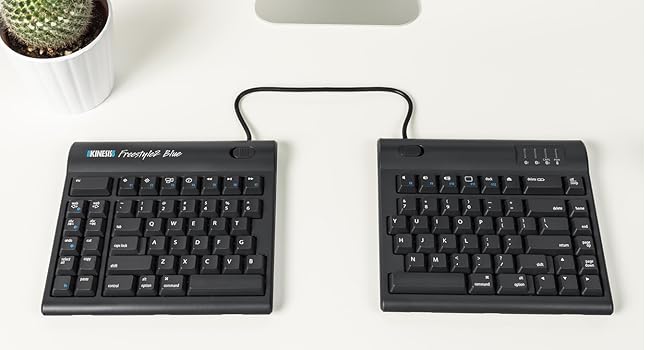
Image: Kinesis Freestyle2 Blue keyboard connected to a laptop via USB cable for charging.
3. Connecting via Bluetooth
The Freestyle2 Blue uses multichannel Bluetooth technology, allowing you to pair it with up to three devices. No software or special drivers are required for macOS or iOS.
- Ensure Bluetooth is enabled on your Mac or iOS device.
- Turn on the keyboard.
- Press and hold one of the three Bluetooth channel keys (labeled 1, 2, or 3) located on the right module until the corresponding LED indicator blinks, indicating pairing mode.
- On your device, search for Bluetooth devices and select "Freestyle2 Blue" to pair.
- Repeat for up to two additional devices using different channel keys.

Image: Kinesis Freestyle2 Blue keyboard connected wirelessly to a MacBook, iPad, and iPhone, demonstrating multichannel Bluetooth connectivity.
Operating Instructions
1. Ergonomic Positioning
The Freestyle2 Blue's split design allows for personalized ergonomic adjustments to reduce strain on your wrists, hands, and forearms.
- Separation: Separate the two key modules up to 9 inches to align with your shoulder width, promoting a neutral wrist posture.
- Splay: Use the detachable pivot tether to adjust the angle (splay) between the two modules, further reducing ulnar deviation.
- Tenting (with accessories): Optional accessories (sold separately) allow you to elevate the inner edge of the keyboard, reducing pronation and keeping wrists straight.

Image: Kinesis Freestyle2 Blue keyboard with modules separated to keep wrists straight.

Image: Kinesis Freestyle2 Blue keyboard with low profile and zero-degree slope to reduce wrist extension.

Image: Close-up of a hand typing on the Kinesis Freestyle2 Blue keyboard, showing low-force, tactile key switches.
2. Switching Between Devices
To switch between paired Bluetooth devices, simply press the corresponding channel key (1, 2, or 3) on the keyboard. The keyboard will instantly connect to the selected device.

Image: Top-down view of the Kinesis Freestyle2 Blue keyboard showing the standard Mac layout with hotkeys.
3. Mac-Specific Hotkeys and Shortcuts
The keyboard features a standard Mac layout with dedicated hotkeys and shortcuts for enhanced productivity. These include multimedia keys and function keys (F1-F12) that can be toggled with the Fn key.
Maintenance
1. Cleaning
To clean the keyboard, disconnect it from any power source and turn it off. Use a soft, damp cloth to wipe down the keys and surfaces. Avoid using harsh chemicals or abrasive materials.
2. Battery Care
The keyboard uses a rechargeable Lithium polymer battery. For optimal battery life, avoid fully discharging the battery frequently. Recharge when the battery indicator suggests low power. The keyboard can be used while charging.
Troubleshooting
1. Connectivity Issues
- Keyboard not pairing: Ensure the keyboard is in pairing mode (blinking LED on channel key). Check that Bluetooth is enabled on your device and that the keyboard is within the 30-foot range.
- Intermittent connection: Recharge the keyboard if the battery is low. Ensure no strong interference sources are nearby. Try re-pairing the keyboard with your device.
2. Typing Adjustment
Adapting to a split ergonomic keyboard may take some time. Users typically adjust within a few days. Focus on maintaining a neutral wrist position and allowing your hands to rest comfortably on the palm supports (if used). Experiment with different separation and splay angles to find what works best for your body.
3. Key Functionality
If certain keys are not responding, ensure the keyboard is fully charged and properly connected. If issues persist, consult the Kinesis support website.
Specifications
| Feature | Detail |
|---|---|
| Product Dimensions | 15.4"L x 0.9"W x 7.1"H |
| Item Weight | 2 pounds |
| Brand | KINESIS |
| Model Number | KB800MB-BT |
| Connectivity Technology | Bluetooth |
| Compatible Devices | Mac, iOS (Mac OS X 10.4+ & Newer) |
| Keyboard Description | Ergonomic, Split |
| Special Feature | Ergonomic |
| Color | Dark Gray |
| Batteries | 1 Lithium Ion battery required (rechargeable) |
| First Available Date | September 16, 2014 |
Official Product Video
Video: Kinesis Freestyle2 Blue Wireless Ergonomic Keyboard overview, demonstrating its features and benefits.
Warranty and Support
For warranty information, product support, and additional resources, please visit the official Kinesis website or refer to the Quick Start Guide included with your product. Kinesis Corporation was founded in 1991 with a focus on ergonomic computer peripherals.
This product is from a small business brand.


