
1. Introduction
The D-Link DWR-116 Wireless N300 Multi-WAN Router is designed to provide flexible and reliable internet connectivity. It allows you to share a mobile broadband connection (via a 4G LTE or 3G USB adapter) or a traditional wired internet connection (via a DSL/Cable modem) across a high-speed wireless network. This router supports N300 wireless standards, offering speeds up to 300 Mbps, and includes advanced security features like WPA/WPA2 encryption and dual-active firewalls.
Key features include:
- Support for 4G LTE/EV-DO/CDMA/HSPA+/HSUPA/HSDPA/UMTS wireless networks via USB adapter.
- Input Type RJ-45 (Ethernet Cable) for ISPs such as MTNL, BSNL, Airtel, Hathway, ACT Fibernet.
- Portable mobile wireless capability.
- Auto WAN Failover for uninterrupted connection.
- Dual-active firewalls (SPI and NAT) and WPA/WPA2 wireless encryption for secure network sharing.
- Maximum physical rate up to 300Mbps in 802.11n 1x1 mode.
2. Package Contents
Please verify that your package contains the following items:
- D-Link DWR-116 Wireless N300 Multi-WAN Router
- Power Adapter
- Ethernet Cable
- Quick Installation Guide (if included)
If any items are missing or damaged, please contact your local D-Link reseller.
3. Hardware Overview
Front Panel
The front panel of the DWR-116 router features LED indicators that provide status information about the device's operation.

Figure 1: Front view of the D-Link DWR-116 router, showing the LED indicators for power, internet, Wi-Fi, and WAN/LAN status.
Rear Panel
The rear panel contains all the necessary ports for connecting the router to your network and power source.
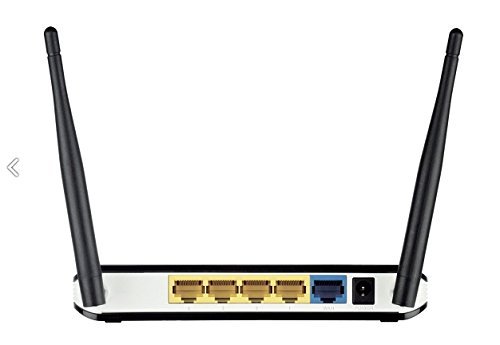
Figure 2: Rear view of the D-Link DWR-116 router, displaying the WAN port (blue), LAN ports (yellow), USB port, and power input.
Side View
A side view illustrates the overall design and antenna placement.

Figure 3: Side view of the D-Link DWR-116 router, highlighting its compact design and two external antennas.
4. Setup Instructions
4.1 Initial Hardware Connection
- Positioning the Router: Place the DWR-116 in a central location to maximize wireless coverage. Avoid placing it near obstructions, metal objects, or devices that emit radio frequency noise (e.g., microwave ovens).
- Connect Power: Plug the provided power adapter into the router's power input port and then into a wall outlet. The Power LED on the front panel should illuminate.
- Connect to Internet Source:
- For Mobile Broadband (3G/4G LTE): Insert your compatible 3G/4G USB adapter into the USB port on the rear of the DWR-116 router.
- For Wired Internet (DSL/Cable Modem): Connect an Ethernet cable from your DSL/Cable modem's LAN port to the blue WAN port on the DWR-116 router.
- Connect Local Devices (Optional): For wired connections, connect Ethernet cables from your computers or other network devices to the yellow LAN ports on the DWR-116 router.
4.2 Configuration via Web Interface
- Connect to the Router:
- Wired: Ensure your computer is connected to one of the router's LAN ports.
- Wireless: Connect to the router's default Wi-Fi network. The default Wi-Fi name (SSID) and password are usually printed on a label on the bottom of the router.
- Access Web Interface: Open a web browser (e.g., Chrome, Firefox) and type the router's default IP address (commonly
192.168.0.1or192.168.1.1) into the address bar, then press Enter. - Login: Enter the default username and password. These are typically
adminfor both, or found on the router's label. - Run Setup Wizard: Follow the on-screen instructions of the setup wizard to configure your internet connection (3G/4G or WAN), Wi-Fi network name (SSID), and password. It is highly recommended to change the default administrator password for security.
- Update Firmware: After initial setup, navigate to the firmware update section in the router's web interface and check for the latest firmware version. Updating the firmware can improve performance and security.
5. Operating the Router
5.1 Connecting to the Wireless Network
To connect a wireless device (laptop, smartphone, tablet) to your DWR-116 router:
- On your device, enable Wi-Fi and scan for available networks.
- Select your router's Wi-Fi network name (SSID) from the list.
- Enter the Wi-Fi password (WPA/WPA2 key) you configured during setup.
- Your device should now be connected to the internet.
5.2 Using WPS (Wi-Fi Protected Setup)
WPS allows for easy and secure connection of new devices without manually entering the Wi-Fi password.
- On your wireless device, initiate the WPS connection process (often found in Wi-Fi settings).
- Within two minutes, press the WPS button on your DWR-116 router (refer to the hardware overview for location).
- The devices will automatically establish a secure connection.
5.3 WAN Failover Functionality
The DWR-116 features an auto-failover mechanism to ensure continuous internet connectivity.
- If you have both a wired WAN connection (DSL/Cable modem) and a 3G/4G USB adapter connected, the router can be configured to use one as the primary connection and the other as a backup.
- In case the primary WAN link is lost, the router will automatically switch to the backup 3G/4G network.
- This feature can be configured in the router's web interface under WAN settings.
6. Maintenance
- Firmware Updates: Regularly check the D-Link support website for firmware updates for your DWR-116 router. Firmware updates can provide new features, improve performance, and enhance security.
- Router Placement: Ensure the router is placed in an open area, away from walls, large metal objects, and other electronic devices that may cause interference. Optimal placement improves Wi-Fi signal strength and coverage.
- Cleaning: Keep the router clean and free from dust. Use a soft, dry cloth to wipe the exterior. Do not use liquid cleaners.
- Restarting: If you experience network issues, a simple restart of the router (unplugging the power for 10 seconds and plugging it back in) can often resolve temporary problems.
- Password Management: Periodically change your Wi-Fi password and router administration password to maintain network security.
7. Troubleshooting
This section addresses common issues you might encounter with your DWR-116 router.
- No Internet Connection:
- Check all cable connections (power, WAN, LAN, USB adapter).
- Verify that your internet service (3G/4G or wired) is active and working.
- Restart your modem (if applicable) and then your router.
- Ensure the correct WAN settings are configured in the router's web interface.
- Poor Wi-Fi Signal or Speed:
- Relocate the router to a more central position, away from obstructions and interference sources.
- Ensure the router's antennas are positioned vertically for optimal signal.
- Check for firmware updates.
- Reduce the number of connected devices or bandwidth-intensive activities.
- Devices Not Reconnecting to Wi-Fi (Android specific issue mentioned in reviews):
- Restart the router.
- Ensure the router's firmware is up to date.
- On the Android device, forget the network and reconnect.
- PPOE Connection Issues (e.g., after power interruption, password reset):
- Ensure the router's firmware is updated, as this was a reported bug.
- Re-enter PPOE credentials in the router's web interface if they reset.
- Contact your ISP to verify PPOE settings.
- Cannot Access Router Web Interface:
- Verify your computer is connected to the router (wired or wireless).
- Ensure you are using the correct IP address (e.g.,
192.168.0.1). - Clear your browser's cache or try a different browser.
- If you changed the router's IP address, use the new one.
8. Specifications
| Feature | Detail |
|---|---|
| Brand | D-Link |
| Model Number | DWR-116 |
| Connectivity Type | 3G, 4G, Wi-Fi |
| Wireless Type | 802.11n |
| Wireless Communication Standard | 802.11n |
| Frequency Band Class | Dual-Band |
| Max Physical Rate | Up to 300Mbps (in 802.11n 1x1 mode) |
| WAN Ports | 1 x 10/100 Ethernet WAN port |
| LAN Ports | 4 x 10/100 Ethernet LAN ports |
| USB Port | 1 x USB port for 3G/4G USB adapter |
| Security | WPA/WPA2 wireless encryption, Dual-active firewalls (SPI and NAT) |
| Special Feature | USB Print Server |
| Item Weight | 128 g |
| Package Dimensions | 27.2 x 21 x 7 cm |
9. Warranty and Support
9.1 Warranty Information
This product comes with a manufacturing warranty as per the principles of D-Link. Please refer to the warranty card included with your product or visit the official D-Link website for detailed warranty terms and conditions. Some reviews indicate a 3-year warranty.
9.2 Technical Support
For technical assistance, product registration, or to download the latest firmware and documentation, please visit the official D-Link support website. Contact information for D-Link support can typically be found on their website or in the product packaging.
When contacting support, please have your product model number (DWR-116) and serial number ready.


