1. Introduction and Overview
The EDUP EP-3701 Wi-Fi Disk is a portable wireless storage device designed to expand the scope of your Wi-Fi signal and provide wireless access to your external USB storage. This device allows you to convert any standard USB external storage device into a Wi-Fi accessible media server, enabling you to stream videos, music, photos, and access data wirelessly from your iPad, iPhone, Smartphone, tablet PC, and other compatible devices.
It features a standard USB 2.0 host port for connecting external storage and LED indicators for operational status. The EP-3701 can also bridge its internet connection to your existing wireless router, allowing simultaneous data access and internet browsing.
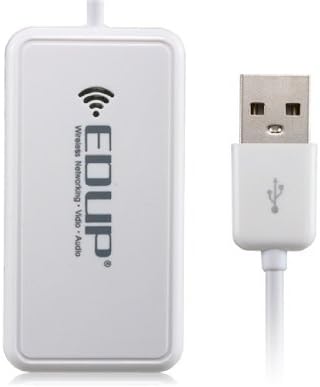
Figure 1.1: The EDUP EP-3701 Wi-Fi Disk device shown with its integrated USB cable. The device is white with the EDUP logo and Wi-Fi symbol.

Figure 1.2: The retail packaging for the EDUP EP-3701 Wi-Fi Disk, displaying the product image and "Wifi Disk" branding.
2. Setup Guide
Follow these steps to set up your EDUP EP-3701 Wi-Fi Disk:
- Connect External Storage: Connect your USB external storage device (e.g., USB flash drive, external hard drive) into the built-in USB port of the EP-3701.
- Power On: Connect the EP-3701's integrated USB cable to a power source. This can be a computer's USB port, a USB wall adapter, or a power bank. The device will power on automatically.
- Initial Access: Once powered, the device will broadcast a Wi-Fi signal. Search for the device's Wi-Fi network on your smartphone, tablet, or computer and connect to it. Refer to the product packaging or included documentation for the default Wi-Fi network name (SSID) and password.
- Install APP (if required): For optimal functionality and easy management, download and install the dedicated APP-Wi-Fi application on your mobile device. This application is typically available on major app stores.
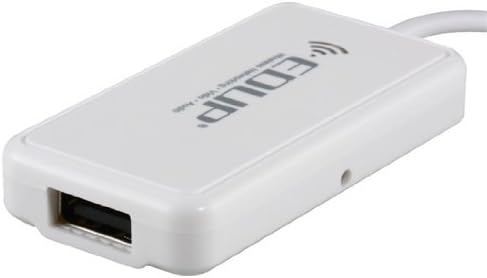
Figure 2.1: A close-up view of the standard USB 2.0 host port on the EDUP EP-3701, where external storage devices are connected.

Figure 2.2: The EDUP EP-3701 device with its integrated USB cable extended, ready for connection to a power source.
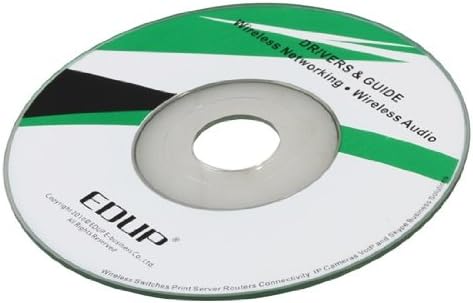
Figure 2.3: The included Driver & Guide CD, which may contain necessary software or drivers for initial setup and operation.
3. Operating Instructions
After successful setup, you can begin using your EDUP EP-3701 Wi-Fi Disk:
- Wireless Data Access: Open the APP-Wi-Fi application on your connected device. You will be able to browse and access the files stored on the external USB device connected to the EP-3701. This includes videos, music, photos, and other data files.
- Streaming Content: Select media files within the application to stream them directly to your iPad, iPhone, Smartphone, or tablet PC without needing to transfer them.
- Internet Bridging: The EP-3701 can bridge its internet connection to your existing wireless router. This feature allows you to access data on the connected storage device while simultaneously surfing the internet through your home or office Wi-Fi network. Consult the APP-Wi-Fi application settings for configuration options related to internet bridging.
- LED Indicators: Observe the LED indicators on the device for status updates, such as power, Wi-Fi connectivity, and data transfer activity. Refer to the full product manual (if provided separately) for a detailed explanation of LED behaviors.
4. Maintenance
To ensure the longevity and optimal performance of your EDUP EP-3701 Wi-Fi Disk, follow these general maintenance guidelines:
- Cleaning: Gently wipe the device with a soft, dry cloth. Avoid using liquid cleaners, aerosols, or abrasive materials, as these can damage the device.
- Storage: When not in use, store the device in a cool, dry place away from direct sunlight and extreme temperatures.
- Handling: Handle the device with care. Avoid dropping it or subjecting it to strong impacts, which could damage internal components.
- Ventilation: Ensure that the device has adequate ventilation during operation to prevent overheating. Do not cover ventilation openings.
5. Troubleshooting
If you encounter issues with your EDUP EP-3701 Wi-Fi Disk, consider the following troubleshooting steps:
- Device Not Powering On:
- Ensure the USB cable is securely connected to a working USB port or power adapter.
- Try a different USB port or power source.
- Cannot Connect to Wi-Fi:
- Verify that the EP-3701 is powered on and its Wi-Fi indicator LED is active.
- Check if you are selecting the correct Wi-Fi network (SSID) broadcast by the device.
- Ensure you are entering the correct Wi-Fi password.
- Restart both the EP-3701 and your connecting device (smartphone, tablet).
- Cannot Access Files:
- Confirm that the external USB storage device is properly connected to the EP-3701's USB port.
- Ensure the external storage device is functioning correctly when connected directly to a computer.
- Check if the file system of your external storage is supported by the EP-3701 (e.g., FAT32, NTFS).
- Restart the APP-Wi-Fi application or reinstall it if necessary.
- Slow Performance/Disconnections:
- Ensure there are no significant obstructions between the EP-3701 and your connecting device.
- Reduce the distance between the devices.
- Minimize interference from other Wi-Fi networks or electronic devices.
If problems persist, consult the manufacturer's support resources or the full product manual for more detailed troubleshooting steps.
6. Specifications
| Feature | Detail |
|---|---|
| Brand | Computer components and accessoriesDDL |
| Manufacturer | Computer components and accessoriesDDL |
| Model Number | DHFF58965 |
| Part Number | DHFF58965 |
| ASIN | B00N0NJVC2 |
| Date First Available | Oct. 19 2014 |
| Connectivity | USB 2.0 Host, Wi-Fi |
| Functionality | Wireless storage access, Wi-Fi signal expansion, internet bridging |
| Compatibility | iPad, iPhone, Smartphone, tablet PC, etc. |
7. Warranty and Support
Specific warranty details for the EDUP EP-3701 Wi-Fi Disk are not provided within this document. Please refer to the product packaging, any included warranty cards, or the official website of "Computer components and accessoriesDDL" for comprehensive warranty information and support contact details.
For technical assistance or further inquiries, it is recommended to visit the manufacturer's support page or contact their customer service directly.


