
A-Tech MS650KMM3548

A-Tech 4GB DDR PC3200 RAM Memory Kit User Manual
Model: MS650KMM3548
Product Overview
This manual provides essential information for the installation, operation, and maintenance of your A-Tech 4GB (4 x 1GB) DIMM DDR Non-ECC PC3200 400MHz RAM Memory Kit. This memory kit is specifically designed for compatibility with Fujitsu-Siemens Scenic systems, including models N600 i865G D1562, P300 i865G D1561, P320 i915G D1931, and Mainboard W600 i865G D1567.

Image: The A-Tech 4GB (4 x 1GB) DIMM DDR PC3200 RAM Memory Kit, showing four individually packaged memory modules.
A-Tech memory modules are rigorously tested to ensure high quality and dependable performance, providing an effective upgrade solution for compatible systems.
Setup and Installation
Installing RAM memory requires careful handling to prevent damage to the modules or your computer system. Always ensure proper electrostatic discharge (ESD) precautions are taken.
Safety Precautions:
- Power Off: Completely shut down your computer and disconnect it from the power source before opening the case.
- Ground Yourself: Use an anti-static wrist strap or frequently touch a grounded metal object (like the computer's unpainted metal chassis) to discharge static electricity.
- Handle Carefully: Hold memory modules by their edges, avoiding contact with the gold connectors or the chips.
- Consult System Manual: Refer to your computer's specific user manual for detailed instructions on accessing memory slots and any system-specific installation requirements.
Installation Steps:
- Prepare Your System: Power down and unplug your computer. Open the computer case according to your system's instructions.
- Locate Memory Slots: Identify the DIMM slots on your motherboard. These are typically long, narrow slots with clips on either end.
- Open Clips: Gently push the clips at both ends of the memory slot outwards to open them.
- Align Module: Align the notch(es) on the bottom edge of the RAM module with the corresponding key(s) in the memory slot. Ensure the module is oriented correctly.
- Insert Module: Place the module into the slot and press down firmly and evenly on both ends until the clips snap into place, securing the module. Do not force the module if it does not fit; re-check alignment.
- Repeat: Repeat for all additional memory modules.
- Close Case: Once all modules are securely installed, close your computer case and reconnect the power.
Operation
Upon successful installation, your computer system should automatically detect and utilize the newly installed A-Tech RAM. No specific software installation or configuration is typically required for standard memory modules.
Verifying Installation:
After booting your computer, you can verify the new memory is recognized by checking your system's properties:
- Windows: Right-click on "This PC" or "My Computer" and select "Properties." The installed RAM amount will be displayed under "Installed memory (RAM)."
- macOS: Click the Apple menu () > "About This Mac." The memory information will be listed.
- Linux: Open a terminal and use commands like
free -horsudo lshw -c memory.

Image: Visual representation of how upgrading RAM can maximize system performance, speeding up loading times and boosting overall system responsiveness.

Image: Illustrates the benefit of increased memory, allowing users to multitask more efficiently and handle greater workloads.
Maintenance
A-Tech RAM modules are designed for long-term reliability and typically require no direct maintenance. However, general computer maintenance practices can help ensure optimal performance and longevity of your system, including the memory:
- Keep System Clean: Periodically clean the interior of your computer case to prevent dust buildup, which can impede airflow and lead to overheating. Use compressed air to gently clear dust from components, including around memory slots.
- Ensure Proper Airflow: Make sure your computer's fans are functioning correctly and that ventilation openings are not obstructed. Good airflow helps maintain optimal operating temperatures for all components, including RAM.
- Software Updates: Keep your operating system and drivers updated. While not directly related to RAM hardware, a well-maintained software environment contributes to overall system stability.
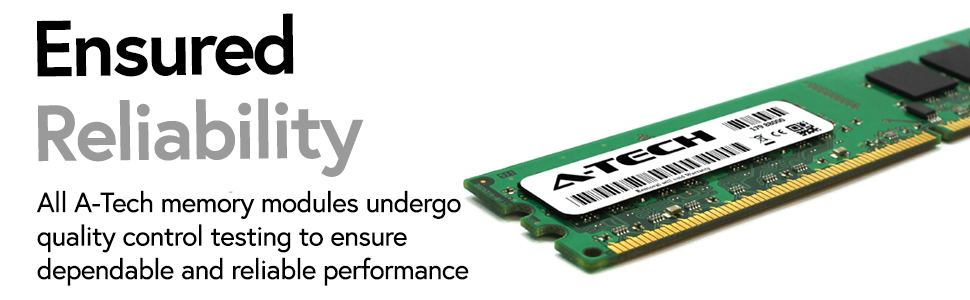
Image: Highlights the rigorous quality control testing that A-Tech memory modules undergo to ensure dependable and reliable performance.
Troubleshooting
If you encounter issues after installing your A-Tech RAM, consider the following troubleshooting steps:
- System Not Booting / No Display:
- Ensure all RAM modules are fully seated in their slots. Gently press down on both ends of each module until the clips snap into place.
- Verify that the RAM modules are compatible with your motherboard. Refer to your motherboard's manual for supported RAM types and speeds.
- Try booting with only one RAM module installed at a time to identify if a specific module is faulty.
- Clear the CMOS (Complementary Metal-Oxide-Semiconductor) settings on your motherboard. Consult your motherboard manual for instructions.
- Incorrect RAM Amount Detected:
- Re-seat all RAM modules.
- Check your system's BIOS/UEFI settings to ensure the correct amount of RAM is detected.
- Ensure your operating system is a 64-bit version if you have installed more than 4GB of RAM, as 32-bit operating systems can only address approximately 3.5GB.
- System Instability / Blue Screens (BSOD):
- Run a memory diagnostic tool (e.g., Windows Memory Diagnostic, MemTest86) to check for errors in the RAM modules.
- Ensure your system's BIOS/UEFI is updated to the latest version, as this can improve memory compatibility and stability.
- Verify that the RAM speed and timings are correctly set in the BIOS/UEFI, or reset them to default.
If these steps do not resolve the issue, please contact A-Tech customer support for further assistance.
Specifications
| Feature | Detail |
|---|---|
| Product Type | RAM Memory Kit |
| Total Memory Size | 4 GB (4 x 1GB modules) |
| Memory Technology | DDR SDRAM |
| Memory Speed | 400 MHz (PC3200) |
| Error Correction | Non-ECC |
| Form Factor | DIMM |
| Compatible Devices | Fujitsu-Siemens Scenic N600 i865G D1562, P300 i865G D1561, P320 i915G D1931, Mainboard W600 i865G D1567 |
| Model Number | MS650KMM3548 |
| Product Dimensions | 6.7 x 3.6 x 0.8 inches |
| Item Weight | 4.8 ounces |
Warranty Information
A-Tech provides a Lifetime Warranty for this memory kit. This warranty covers defects in materials and workmanship for the lifetime of the product. For specific terms and conditions, please refer to the official A-Tech warranty policy available on their website or contact customer support.
Customer Support
For technical assistance, warranty claims, or any other inquiries regarding your A-Tech RAM memory kit, please contact A-Tech customer support.
You can find more information and contact details on the official A-Tech website:
Related documentsMS650KMM3548


Ask a question about this manual
Ask about setup, troubleshooting, compatibility, parts, safety, or missing instructions. Manuals+ will review the question and use this page’s manual context to help answer it.