
1. Introduction
This manual provides instructions for the Beyution Replacement Remote Control, designed for use with various Philips LCD LED television models. This remote control offers a direct replacement solution without requiring complex programming.
2. Product Overview
The Beyution Replacement Remote Control is an infrared (IR) device engineered to function seamlessly with a wide range of Philips LCD LED TVs. It features a standard button layout for intuitive operation.
2.1 Compatible Philips TV Models
This remote control is compatible with, but not limited to, the following Philips LCD LED TV models:
- 19PFL3504D/F7, 19PFL3505D/F7, 19PFL4505D/F7
- 22PFL3504D/F7, 22PFL3505D/F7, 22PFL4505D/F7, 22PFL4507/F7
- 26PFL4507/F7
- 32HFL3663S/F7, 32HFL4663S/F7, 32PFL3504D/F7, 32PFL3505D/F7, 32PFL3506/F7, 32PFL3514D/F7, 32PFL4505D/F7, 32PFL4507/F7
- 40HFL3683S/F7, 40PFL3505D/F7, 40PFL3705D/F7, 40PFL3706/F7, 40PFL4707/F7
- 42PFL3704D/F7, 42PFL7603, 42PFL7603D/27, 42PFL7603D/F7
- 46HFL3683S/F7, 46PFL3505D/F7, 46PFL3705D/F7, 46PFL3706/F7
- 47PFL7603, 47PFL7603D/27, 47PFL7603D/F7
- 50PFL3707/F7
2.2 Key Features
- No Programming Required: Ready to use after battery installation.
- Infrared Technology: Ensures reliable communication with your TV.
- Ergonomic Design: Comfortable to hold and operate.
- Long Control Range: Effective up to 33 feet (10 meters).
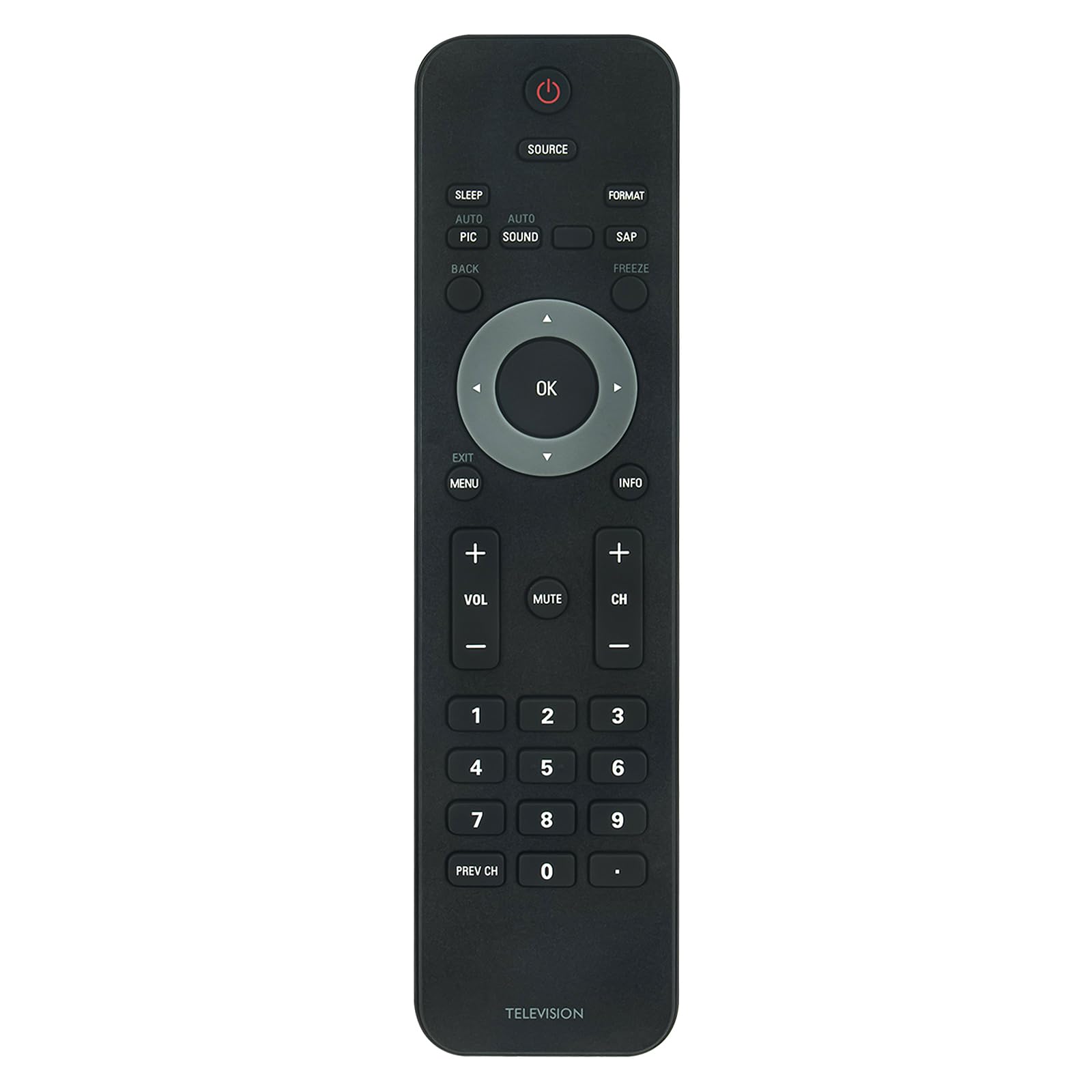
Figure 1: Front view of the Beyution replacement remote control, showing all buttons.

Figure 2: Illustration of the remote control's effective range of 30 feet and multi-angle control capability.
3. Setup
3.1 Battery Installation
The remote control requires two AAA batteries (not included) for operation. Follow these steps to install the batteries:
- Locate the battery compartment cover on the back of the remote control.
- Press down on the tab and slide the cover downwards to open the compartment.
- Insert two AAA batteries, ensuring the positive (+) and negative (-) terminals align correctly with the markings inside the compartment.
- Slide the battery compartment cover back into place until it clicks securely.
Caution: Do not mix old and new batteries. Do not mix alkaline, standard (carbon-zinc), or rechargeable (nickel-cadmium) batteries.

Figure 3: Rear view of the remote control with the battery compartment open for AAA battery installation.
4. Operating Instructions
Once batteries are installed, the remote control is ready for immediate use with your compatible Philips LCD LED TV. Point the remote control directly at the TV's infrared receiver.
4.1 Basic Functions
- Power Button (⏻): Turns the TV on or off.
- Source Button: Cycles through input sources (HDMI, AV, Component, etc.).
- Volume Up/Down (VOL +/-): Adjusts the sound volume.
- Mute Button: Mutes or unmutes the TV sound.
- Channel Up/Down (CH +/-): Changes TV channels.
- Number Pad (0-9): Directly enters channel numbers.
- Menu Button: Accesses the TV's main menu.
- Navigation Buttons (Up, Down, Left, Right) and OK Button: Used to navigate menus and confirm selections.
- Exit/Back Button: Exits menus or returns to the previous screen.
- Sleep Button: Sets a sleep timer for the TV.
- Format Button: Adjusts the screen aspect ratio.
- SAP Button: Selects Secondary Audio Program (if available).
- Freeze Button: Pauses the current image on screen.

Figure 4: Angled view of the remote control, showing the arrangement of function buttons.

Figure 5: Example of a user operating a television with the Beyution replacement remote control.
5. Troubleshooting
5.1 Remote Control Not Responding
- Check Batteries: Ensure batteries are inserted correctly with the correct polarity (+/-). Replace old or depleted batteries with new AAA batteries.
- Line of Sight: Make sure there are no obstructions between the remote control and the TV's infrared sensor.
- Distance: Ensure you are within the effective operating range (approximately 33 feet or 10 meters) of the TV.
- TV Sensor: Verify that the TV's infrared sensor is clean and not covered.
5.2 Specific Buttons Not Working
- Clean Buttons: Dust or debris might be interfering with button contacts. Gently clean around the buttons.
- Test Other Functions: If only a few buttons are unresponsive, it might indicate a specific issue with those buttons. If many buttons are unresponsive, refer to the 'Remote Control Not Responding' section.
6. Maintenance
- Cleaning: Wipe the remote control with a soft, dry cloth. Do not use liquid cleaners or abrasive materials.
- Battery Care: Remove batteries if the remote control will not be used for an extended period to prevent leakage.
- Storage: Store the remote control in a cool, dry place away from direct sunlight and extreme temperatures.
7. Specifications
| Brand | Beyution |
| Model Number | cd-PHTV-nocolorkey-ori-gen |
| Connectivity Technology | Infrared (IR) |
| Compatible Devices | Philips LCD LED Televisions |
| Power Source | 2 x AAA Batteries (not included) |
| Maximum Range | 33 Feet (10 meters) |
| Dimensions (L x W x H) | 5" x 1" x 0.5" (12.7 cm x 2.54 cm x 1.27 cm) |
| Item Weight | 50 Grams |

Figure 6: Physical dimensions of the remote control.
8. Warranty and Support
8.1 Warranty Information
This Beyution Replacement Remote Control comes with a 1-year warranty from the date of purchase. This warranty covers manufacturing defects under normal use. It does not cover damage caused by misuse, accidents, unauthorized modifications, or battery leakage.
8.2 Customer Support
For any questions, troubleshooting assistance, or warranty claims, please contact your retailer or the Beyution customer support team through the contact information provided at the point of purchase.