
1. Overview
The Fujitsu fi-6130 color duplex scanner provides unmatched performance and market-leading document imaging capabilities with enhanced scanning speeds, advanced paper handling and improved feeding technology. This compact sheet-fed document scanner offers outstanding value for the money. With duplex scanning performance of up to 80 images per minute in monochrome and grayscale, the fi-6130 scanner handles up to 60 images per minute in color at 300 dpi, offering unparalleled image detail as well as speed. Engineered with one of the most advanced paper separation features in its class, the fi-6130 is the first workgroup scanner equipped with reversing roller technology, resulting in unmatched feeding reliability for a wide variety of document weights. The automatic document feeder (ADF) is capable of scanning documents up to 10 feet long, and also robust enough to feed up to three hard cards continuously or an embossed card up to 1.4 mm in thickness. Additionally, the fi-6130 harmoniously combines the security of Ultrasonic Double Feed Detection with the efficiency of Intelligent MultiFeed Function (iMFF) so that intentional double-feeds, such as a taped receipt or sticky note, can be manually bypassed while double-feed detection is enabled.
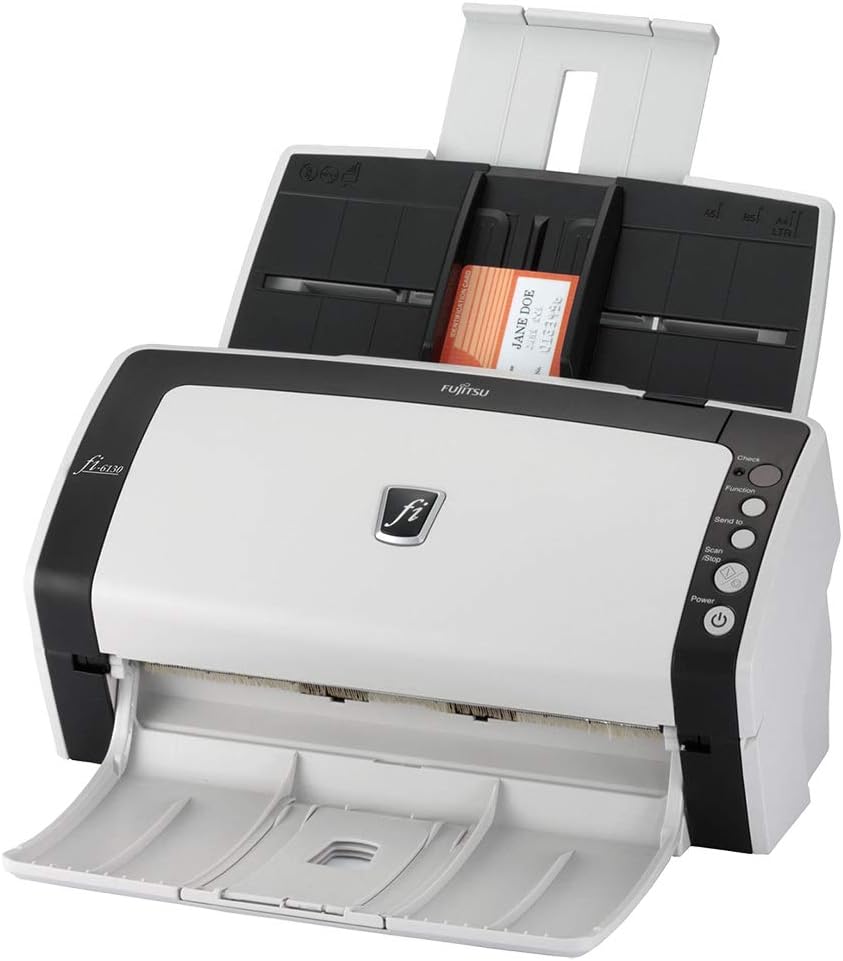
Figure 1: The Fujitsu fi-6130 Document Scanner, ready for operation with documents in the feeder.
2. Setup
Follow these steps to set up your Fujitsu fi-6130 Document Scanner:
- Unpacking: Carefully remove the scanner and all accessories from the packaging. Ensure all components are present, including the scanner unit, input/output trays, power supply, and USB cable.
- Physical Connection:
- Connect the power supply to the scanner and plug it into a suitable electrical outlet.
- Connect the USB cable from the scanner to an available USB port on your computer.
- Attach the input and output trays to the scanner as indicated in the quick setup guide.
- Software Installation:
- Insert the provided software CD (if applicable) or download the latest drivers and scanning software from the official Fujitsu website.
- Follow the on-screen instructions to complete the software installation. This typically includes installing the scanner driver and the PaperStream Capture or similar scanning application.
- Power On: Press the power button on the scanner. The power indicator light should illuminate.
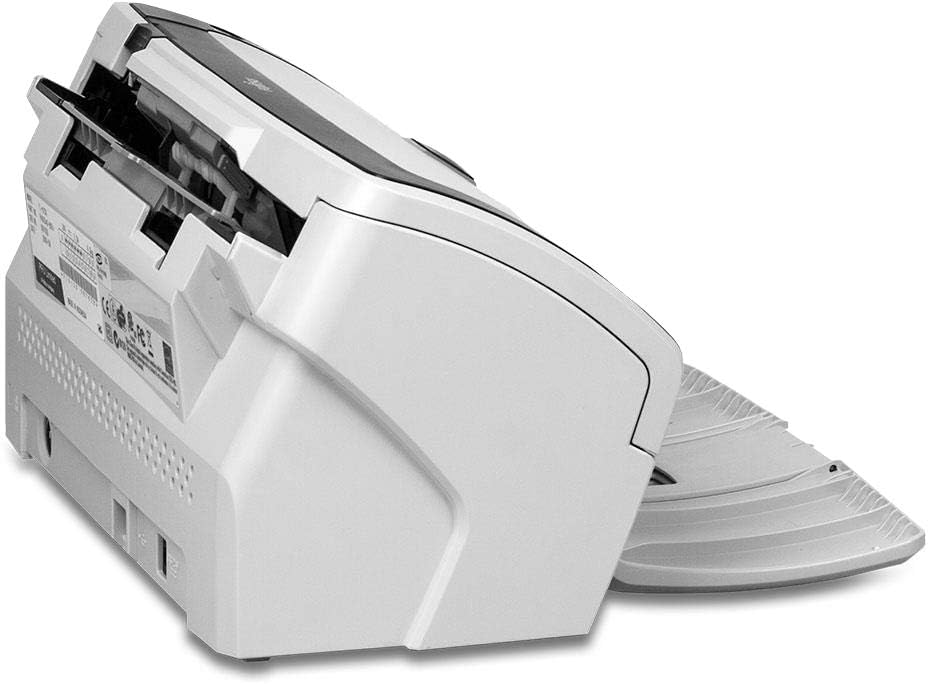
Figure 2: Side view of the scanner, illustrating the compact design and potential connection points.
3. Operating Instructions
3.1. Loading Documents
- Automatic Document Feeder (ADF): The fi-6130 features a 50-page ADF. Fan the edges of your documents to prevent misfeeds and load them face-down into the ADF. Adjust the paper guides to fit the width of your documents.
- Special Documents: The ADF is robust enough to feed up to three hard cards continuously or an embossed card up to 1.4 mm in thickness. It can also scan documents up to 10 feet long.
- Intelligent MultiFeed Function (iMFF): This feature allows you to manually bypass intentional double-feeds (e.g., a taped receipt or sticky note) while maintaining double-feed detection for other documents.
3.2. Scanning Documents
- Initiating a Scan: Use the installed scanning software (e.g., PaperStream Capture) on your computer to configure scan settings such as color mode (monochrome, grayscale, color), resolution (up to 600 dpi), and destination folder.
- Scanning Speed: The scanner offers fast performance, with speeds of 40 pages per minute (ppm) / 80 images per minute (ipm) for monochrome and grayscale, and up to 60 ipm in color at 300 dpi.
- Image Quality: Scans are crisp and clear, ensuring high-quality digital reproductions of your documents.
- Advanced Paper Handling: The reversing roller technology ensures reliable feeding for a wide variety of document weights, minimizing misfeeds.

Figure 3: The scanner in action, demonstrating its automatic document feeding capability.
4. Maintenance
Regular maintenance ensures optimal performance and longevity of your scanner:
- Cleaning:
- Periodically clean the scanner's rollers and glass surfaces with a soft, lint-free cloth and a mild, non-abrasive cleaner specifically designed for electronics.
- Ensure the scanner is powered off and unplugged before cleaning.
- Consumables: Check and replace consumables such as brake rollers and pick rollers as recommended by Fujitsu to maintain optimal paper feeding performance. Refer to the official Fujitsu website for replacement part information.
- Software Updates: Regularly check the Fujitsu website for driver and software updates to ensure compatibility and access to the latest features and performance enhancements.
5. Troubleshooting
If you encounter issues with your scanner, consider the following common solutions:
- Scanner Not Detected:
- Ensure the power cable and USB cable are securely connected to both the scanner and the computer.
- Try connecting the USB cable to a different USB port on your computer.
- Restart both the scanner and your computer.
- Verify that the scanner drivers are correctly installed and up to date.
- Paper Jams or Misfeeds:
- Remove all documents from the ADF.
- Open the scanner covers and carefully remove any jammed paper.
- Clean the feed rollers to ensure they are free of dust or debris.
- Fan the documents before loading them into the ADF to separate pages.
- Adjust the paper guides to fit the document width snugly.
- Poor Scan Quality:
- Clean the scanner's glass surfaces and rollers.
- Adjust the scan resolution settings in your scanning software. Higher resolution (e.g., 300 dpi for color) generally yields better quality.
- Check document condition; heavily wrinkled or damaged documents may not scan well.
- Software Issues:
- Close and restart the scanning application.
- Reinstall the scanning software if problems persist.
- Check for software updates on the Fujitsu website.
6. Specifications
| Feature | Specification |
|---|---|
| Model Name | Fi-6130 |
| Model Number | PA03540-B965 |
| Manufacturer | Fujitsu |
| Scanner Type | Document Scanner (Duplex, Sheet-fed) |
| Connectivity Technology | USB |
| Scanning Speed (Monochrome/Grayscale) | 40 ppm / 80 ipm |
| Scanning Speed (Color @ 300 dpi) | 60 ipm |
| Optical Resolution | 600 dpi |
| Color Depth | 12 bpp |
| Automatic Document Feeder (ADF) Capacity | 50 pages |
| Supported Media Types | Paper, Embossed Cards (up to 1.4 mm thickness) |
| Maximum Document Length | Up to 10 feet |
| Product Dimensions (D x W x H) | 6.4 x 11.8 x 6.2 inches |
| Item Weight | 0.01 ounces (Note: This weight may be a data entry error, typical scanner weight is higher) |
7. Warranty and Support
This Fujitsu fi-6130 Document Scanner, if purchased as a refurbished unit, typically comes with a 90-day warranty. Please refer to your purchase documentation for specific warranty terms and conditions.
For technical support, driver downloads, and additional resources, please visit the official Fujitsu support website. You may also find helpful FAQs and troubleshooting guides there.
For information regarding returns or replacements, please consult the retailer's return policy, which may offer a 30-day refund/replacement period.


