
1. Introduction
Thank you for choosing the Rapoo E6500 Bluetooth Multi-Media Ultra-Slim Wireless Keyboard. This manual provides detailed instructions on how to set up, operate, and maintain your new keyboard. Please read this manual carefully before use to ensure optimal performance and longevity of your device.
The Rapoo E6500 is designed for seamless connectivity with Android devices, offering a compact and portable typing solution with integrated multimedia functions.
2. Key Features
- Ultra-Slim Design: With a thickness of only 5.6mm, this keyboard is exceptionally portable.
- Bluetooth Connectivity: Provides a stable and reliable wireless connection to your Android devices.
- Multi-Media Hotkeys: Dedicated keys for quick access to media controls and other functions.
- Compact Layout: Efficient design for comfortable typing on the go.
- Durable Construction: Built with quality materials for long-lasting use.

Figure 2.1: Top-down view of the Rapoo E6500 Bluetooth Keyboard, showcasing its full key layout and multimedia function keys.
3. Package Contents
Please check the package contents upon unboxing. If any items are missing or damaged, contact your retailer.
- Rapoo E6500 Bluetooth Keyboard
- USB Charging Cable (if applicable)
- User Manual (this document)
4. Setup Guide
4.1. Charging the Keyboard (if applicable)
If your keyboard has a built-in rechargeable battery, connect the provided USB charging cable to the keyboard's charging port and the other end to a USB power source (e.g., computer USB port, USB wall adapter). The charging indicator light will illuminate during charging and turn off when fully charged.
4.2. Pairing with Your Android Device
- Ensure the keyboard is sufficiently charged or has fresh batteries installed.
- Turn on the keyboard by sliding the power switch (usually located on the side or back) to the "ON" position.
- Press and hold the Bluetooth pairing button (often labeled with a Bluetooth icon or "Connect") for a few seconds until the Bluetooth indicator light starts blinking. This indicates the keyboard is in pairing mode.
- On your Android device, go to Settings > Connected devices > Bluetooth.
- Ensure Bluetooth is turned "ON" on your Android device.
- Your device will scan for available Bluetooth devices. Select "Rapoo E6500" or a similar name from the list of found devices.
- If prompted, enter the pairing code displayed on your Android device using the Rapoo E6500 keyboard, then press Enter.
- Once paired, the Bluetooth indicator light on the keyboard will stop blinking and remain solid or turn off, indicating a successful connection.
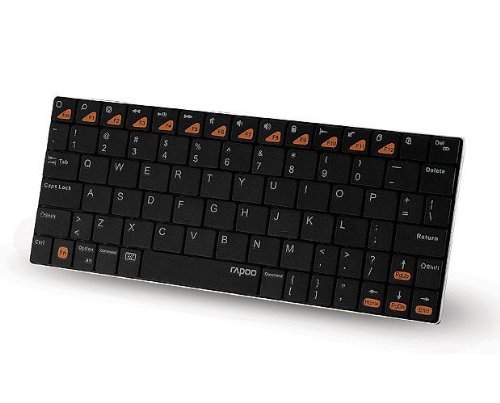
Figure 4.1: Angled view of the Rapoo E6500 keyboard, highlighting its slim profile and key layout.
5. Operating Instructions
5.1. Basic Typing
Once paired, you can use the Rapoo E6500 keyboard like any standard keyboard. Simply open any text input field on your Android device and begin typing.
5.2. Using Multimedia Hotkeys
The Rapoo E6500 features dedicated multimedia hotkeys (F1-F12) that provide quick access to various functions. These functions are typically activated by pressing the Fn key simultaneously with the desired function key.
| Hotkey Combination | Function |
|---|---|
| Fn + F1 | Home Screen |
| Fn + F2 | Search |
| Fn + F3 | Back |
| Fn + F4 | Menu |
| Fn + F5 | Play/Pause |
| Fn + F6 | Previous Track |
| Fn + F7 | Next Track |
| Fn + F8 | Mute |
| Fn + F9 | Volume Down |
| Fn + F10 | Volume Up |
| Fn + F11 | Lock Screen |
| Fn + F12 | Browser/Web |
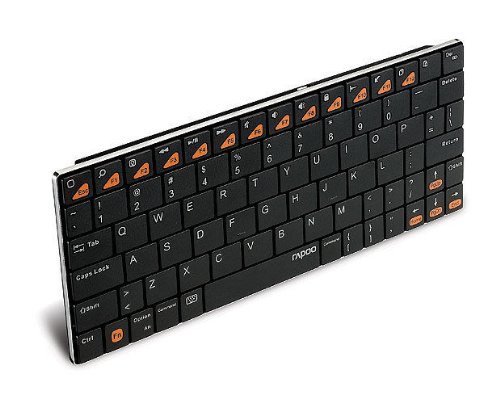
Figure 5.1: Side view of the Rapoo E6500 keyboard, emphasizing its thin profile.
6. Maintenance and Care
To ensure the longevity and optimal performance of your Rapoo E6500 keyboard, follow these maintenance guidelines:
- Cleaning: Use a soft, dry, lint-free cloth to wipe the surface of the keyboard. For stubborn dirt, slightly dampen the cloth with water or a mild, non-abrasive cleaner. Avoid excessive moisture.
- Storage: When not in use for extended periods, turn off the keyboard to conserve battery life. Store it in a cool, dry place away from direct sunlight and extreme temperatures.
- Avoid Liquids: Do not expose the keyboard to liquids. Spills can cause permanent damage.
- Handle with Care: Avoid dropping the keyboard or subjecting it to strong impacts.
7. Troubleshooting
If you encounter issues with your Rapoo E6500 keyboard, please refer to the following common problems and solutions:
| Problem | Possible Cause | Solution |
|---|---|---|
| Keyboard does not turn on. | Low battery or power switch is off. | Charge the keyboard. Ensure the power switch is in the "ON" position. |
| Keyboard does not connect to device. | Bluetooth not enabled on device, keyboard not in pairing mode, or already paired with another device. | Ensure Bluetooth is enabled on your Android device. Put the keyboard into pairing mode. Forget the device on your Android device and re-pair. Ensure no other devices are actively connected to the keyboard. |
| Keys are not responding or typing incorrectly. | Low battery, connection issue, or software glitch. | Charge the keyboard. Re-pair the keyboard with your device. Restart your Android device. |
| Multimedia hotkeys not working. | Not pressing the Fn key, or device software incompatibility. | Ensure you are pressing the Fn key simultaneously with the desired function key. Some Android versions or apps may have limited support for certain hotkeys. |
If the problem persists after trying these solutions, please contact Rapoo customer support for further assistance.
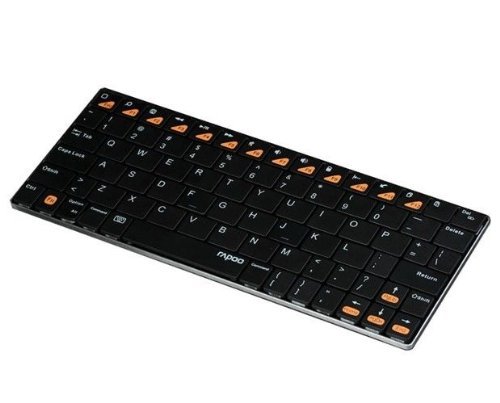
Figure 7.1: Another angled top-down view of the Rapoo E6500 keyboard, showing the full key layout.
8. Product Specifications
| Feature | Detail |
|---|---|
| Model Number | 14207-ARE6500BK-K07 |
| Connectivity | Bluetooth |
| Operating System Compatibility | Android |
| Color | Black |
| Dimensions (LxWxH) | 21.1 x 9.7 x 1.5 cm (approx. 8.3 x 3.8 x 0.6 inches) |
| Item Weight | 220 g (approx. 0.48 lbs) |
| Special Feature | Wireless, Multi-Media Keys |
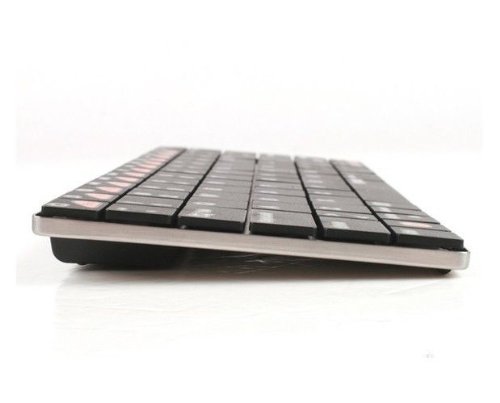
Figure 8.1: Front view of the Rapoo E6500 keyboard, showing its slim profile from the front.
9. Warranty and Support
Rapoo products are designed and manufactured to the highest quality standards. For information regarding warranty coverage, terms, and conditions, please refer to the warranty card included with your product or visit the official Rapoo website.
For technical support, troubleshooting assistance beyond this manual, or to inquire about replacement parts, please contact Rapoo customer service through their official channels. Details can typically be found on the product packaging or the Rapoo website.
Important: Keep your purchase receipt as proof of purchase for warranty claims.


