
Introduction
This instruction manual provides comprehensive guidance for the Beyution Replacement Remote Control, designed for use with various SEIKI LCD and LED television models. This infrared remote control requires no programming; simply insert batteries to begin operation. It is compatible with a wide range of SEIKI TV models, ensuring seamless control over your television's functions.
Setup
Battery Installation
To prepare your remote control for use, follow these steps to install the batteries:
- Locate the battery compartment cover on the back of the remote control.
- Press down on the tab and slide the cover downwards to open the compartment.
- Insert two AAA batteries (not included), ensuring the positive (+) and negative (-) terminals align correctly with the markings inside the compartment.
- Slide the battery compartment cover back into place until it clicks securely.
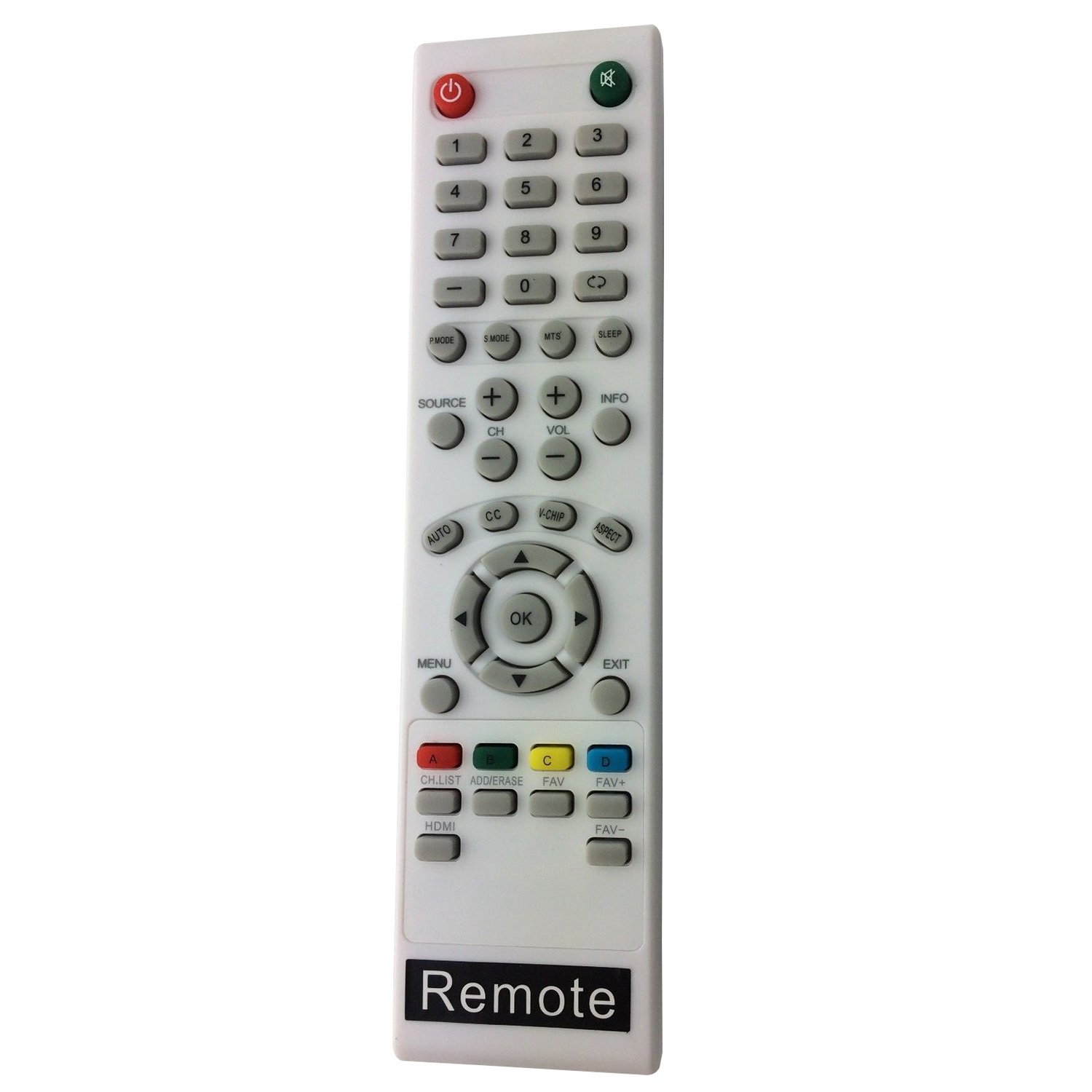
Image: Angled view of the Beyution Replacement Remote Control, showing its general design.
Once batteries are installed, the remote control is ready for immediate use with your compatible SEIKI TV. No additional programming is required.
Operating Instructions
This section details the functions of the buttons on your Beyution Replacement Remote Control. Refer to the image below for button identification.

Image: Top-down view of the Beyution Replacement Remote Control, highlighting all functional buttons.
| Button | Function |
|---|---|
| POWER (⏻) | Turns the TV on or off. |
| MUTE (🔇) | Mutes or restores the TV audio. |
| 0-9 (Number Buttons) | Directly selects TV channels. |
| P.MODE | Cycles through picture modes (e.g., Standard, Dynamic, Movie). |
| S.MODE | Cycles through sound modes (e.g., Standard, Music, Movie). |
| MTS | Selects Multi-channel Television Sound (e.g., Stereo, SAP). |
| SLEEP | Sets the TV to turn off automatically after a specified time. |
| SOURCE | Selects the input source (e.g., HDMI, AV, Component). |
| CH +/- | Changes channels up or down. |
| VOL +/- | Adjusts the volume level up or down. |
| INFO | Displays current channel information or program details. |
| AUTO | Initiates auto-tuning for channels. |
| CC | Activates or deactivates Closed Captions. |
| V-CHIP | Accesses V-Chip parental control settings. |
| ASPECT | Changes the screen aspect ratio (e.g., 16:9, 4:3). |
| MENU | Opens the TV's main menu. |
| Navigation Buttons (Up, Down, Left, Right) | Navigates through menu options. |
| OK | Confirms selections in menus. |
| EXIT | Exits the current menu or on-screen display. |
| CH.LIST | Displays the channel list. |
| ADD/ERASE | Adds or erases channels from the favorite list. |
| FAV+ / FAV- | Navigates through favorite channels. |
| HDMI | Directly selects the HDMI input source. |
| Color Buttons (Red, Green, Yellow, Blue) | Functions vary depending on the TV model and current menu/application. Refer to your TV's on-screen prompts. |
Maintenance
Proper care and maintenance will extend the life of your remote control.
- Cleaning: Use a soft, dry cloth to clean the remote control. For stubborn dirt, lightly dampen the cloth with water or a mild, non-abrasive cleaner. Avoid using harsh chemicals or abrasive materials.
- Battery Replacement: Replace batteries when the remote's response becomes sluggish or stops working. Always replace both batteries at the same time with new ones of the same type (AAA).
- Storage: If the remote control will not be used for an extended period, remove the batteries to prevent leakage and potential damage. Store the remote in a cool, dry place.
- Avoid Exposure: Do not expose the remote control to direct sunlight, extreme temperatures, high humidity, or liquids.
Troubleshooting
If you experience issues with your remote control, refer to the following common problems and solutions:
| Problem | Possible Cause / Solution |
|---|---|
| Remote control is not working. |
|
| Remote control works intermittently. |
|
| Certain buttons do not function. |
|
Specifications
| Feature | Detail |
|---|---|
| Product Dimensions | 7 x 5 x 2 inches |
| Item Weight | 2.39 ounces |
| Brand | Beyution |
| Compatible Devices | SEIKI LCD/LED Televisions (various models including LC-32GC12F, LC-46G68, LC-40G81, LC-40GJ15, LC-37G77B, LC-22G82, LC-24G82, LC-32G82, LE-46GCA, LE-55G77E, LE-32SCL-C, LE-55GB2A, LE-22GBR-C, LE-39GJ05, SC552GS, SC324FB, SC461TS, SC151FS, SC241FS, SC221FS, SC261FS, SC262FS, SC371TS, SC391TS, SC501TS, SC601GS, SC601US, SC601TS, SC32HT04, SC22HY07, SE20HY, SE32HG, SE43FK, SE39HC, SE50FY, SE32HY, SE24FLSE421TT, SE241TS, SE501TS, SE131FS, SE191FS, SE221FS, SE222FS, SE242TS, SE321FB, SE391TS, SE401GS, SE461TS, SE551GS, SE32HS01, SE65FY18, SE60GY24, SE65JY25, SE19HT01, SE40FY19, SE50UY04, SE39UY04, SE47FY19, SE55UY04, SE22HY01, SE55GH01, SE60GY05, SE32HY10, SE20HS04, SE65JY25, SE48FY25, SE32HY27, SE39HE02, SE40FY19T, SE70GY03, SE55GY04, SE55GY07, SE50FY10, SE50FY04, SE46FY10, SE46FT03, SE42FY08, SE40FH03, SE40GT03, SE39FH03, SE39FY09, SE32HT05, SE32HY01, SE28HT07, SE28HY10, SE28HY01, SE26HY10, SE24FT07, SE24FY10, SE24FY01, SE22FR01, SE22FT07, SE22FY01, SE19HY10, SE19HY01, SE39HE02, 845-045-03B01) |
| Power Source | 2 x AAA Batteries (not included) |
| Connectivity Technology | Infrared |
| Special Feature | Ergonomic design, No programming required |
Warranty and Support
For any questions, concerns, or support regarding your Beyution Replacement Remote Control, please refer to the retailer or manufacturer's customer service channels. Specific warranty details may vary by region and retailer.