
Nokia 220 DUAL
Nokia 220 2G Unlocked Mobile Phone User Manual
Model: 220 DUAL | Model Number: 7740A001AH
1. Introduction
This user manual provides essential information for the safe and efficient operation of your Nokia 220 2G Unlocked Mobile Phone. Please read this manual carefully before using your device to ensure proper functionality and to avoid damage. Keep this manual for future reference.
2. Product Overview
The Nokia 220 is a compact and reliable 2G mobile phone designed for essential communication. It features a 2.4-inch display, a 2-megapixel camera, and Dual SIM capability, allowing you to manage two phone numbers simultaneously. Its robust design and long-lasting battery make it ideal for everyday use.
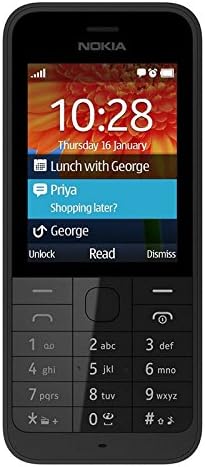
Figure 2.1: Front view of the Nokia 220 mobile phone. This image displays the phone's 2.4-inch screen, which shows the current time and date, along with notification icons. Below the screen is the physical alphanumeric keypad and central navigation buttons, typical of a feature phone.
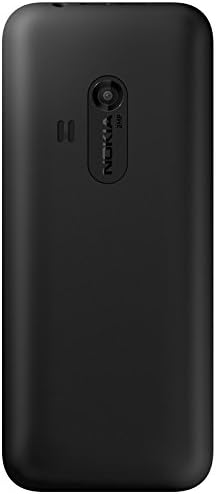
Figure 2.2: Back view of the Nokia 220 mobile phone. This image highlights the rear of the device, featuring the integrated 2-megapixel camera lens positioned centrally near the top. The Nokia brand logo is visible below the camera module, and the phone has a matte black finish.
3. Setup
3.1. Inserting the SIM Card(s) and Battery
- Remove the back cover: Gently pry open the back cover of the phone using the notch usually located at the bottom or side.
- Insert SIM card(s): Locate the SIM card slots. For Dual SIM models, there will be two slots. Insert your standard or micro SIM card(s) into the designated slots with the gold contacts facing down, ensuring they click into place.
- Insert the microSD card (optional): If you wish to expand storage, insert a microSD card (up to 32 GB) into its dedicated slot.
- Insert the battery: Align the battery contacts with the phone's contacts and gently press the battery into its compartment.
- Replace the back cover: Align the back cover and press it firmly until it snaps into place around all edges.
3.2. Charging the Battery
Before first use, fully charge the battery. Connect the micro USB charger cable to the phone's charging port and plug the other end into a power outlet. The battery indicator on the screen will show charging progress. A full charge typically takes a few hours.
3.3. Powering On/Off
- To power on: Press and hold the Power/End Call button until the phone vibrates and the screen lights up.
- To power off: Press and hold the Power/End Call button until the power-off options appear on the screen, then select "Power off" or "Shut down".
4. Operating Instructions
4.1. Basic Navigation
- Navigation Key: Use the central navigation key (up, down, left, right) to scroll through menus and options.
- Select/OK Button: The center button of the navigation key is used to confirm selections.
- Soft Keys: The two keys directly below the screen (left and right) are context-sensitive. Their function is displayed on the screen directly above them.
- Back/Clear Key: Used to go back to the previous screen or delete characters.
4.2. Making and Receiving Calls
- To make a call: Enter the phone number using the keypad and press the Green Call button.
- To answer a call: Press the Green Call button when the phone rings.
- To end a call: Press the Red End Call button.
4.3. Sending and Receiving Messages
- To send an SMS: Go to Menu > Messaging > Create message. Type your message, enter the recipient's number, and select "Send".
- To read a message: New messages will typically appear as a notification. You can also go to Menu > Messaging > Inbox to view received messages.
4.4. Camera Usage
The Nokia 220 features a 2-megapixel camera.
- To open the camera: Go to Menu > Camera.
- To take a photo: Frame your shot and press the central navigation key or the designated soft key to capture the image.
- To view photos: Go to Menu > Gallery or Menu > Photos.
5. Maintenance
- Cleaning: Use a soft, dry cloth to clean the phone's screen and body. Avoid using liquid cleaners or abrasive materials.
- Battery Care:
- Do not expose the battery to extreme temperatures.
- Avoid fully discharging the battery frequently.
- Use only original or approved chargers.
- Storage: Store the phone in a cool, dry place when not in use for extended periods.
- Software Updates: While specific software updates are not guaranteed, ensure your phone's software is up-to-date if prompted, to maintain optimal performance and security.
6. Troubleshooting
| Problem | Possible Cause | Solution |
|---|---|---|
| Phone does not power on. | Battery is drained or not properly inserted. | Charge the battery. Ensure the battery is correctly inserted. |
| Cannot make or receive calls. | No network signal, SIM card not inserted correctly, or SIM card issue. | Check network signal strength. Reinsert SIM card(s). Contact your service provider. |
| Screen is frozen or unresponsive. | Temporary software glitch. | Remove and reinsert the battery to perform a hard reset. |
| Poor camera image quality. | Lens is dirty or lighting conditions are poor. | Clean the camera lens with a soft cloth. Ensure adequate lighting. |
7. Specifications
| Feature | Detail |
|---|---|
| Brand | Nokia (Manufactured by Microsoft) |
| Model Name | 220 DUAL |
| Model Number | 7740A001AH |
| Display Size | 2.4 inches |
| Display Resolution | 320 x 240 pixels |
| Cellular Technology | 2G |
| SIM Type | Dual SIM |
| Camera Resolution | 2 Megapixels |
| Internal Memory | 1 MB (for OS and basic functions) |
| Expandable Storage | Up to 32 GB via MicroSD (TransFlash) |
| Connectivity | Bluetooth, Micro USB |
| Battery Type | Lithium-ion |
| Color | Black |
8. Warranty and Support
- Manufacturer's Warranty: This product comes with a 2-year manufacturer's warranty. Please retain your proof of purchase for warranty claims.
- Spare Parts Availability: Information regarding the availability of spare parts for this device is currently unavailable.
- Software Updates: Information regarding guaranteed software updates for this device is not available.
- Customer Support: For further assistance or technical support, please refer to the official Nokia support website or contact your retailer.