
Beyution cd-ELEMENT3row-ori-gen
Beyution Replacement Remote Control User Manual
For Element LCD LED TV Models: ELCFW328, ELCFW329, ELEFS191, ELEFS241, ELEFS321, ELEFT195, ELEFT281, ELEFT326, ELEFW195, ELEFW401A, ELEFW5016, ELEFW408, ELEFW504A, ELEFW605 and more.
1. Product Overview
The Beyution Replacement Remote Control is designed to provide seamless control over a wide range of Element LCD LED TV models. This infrared remote control requires no complex programming or setup; simply insert batteries, and it is ready for use. Its ergonomic design and intuitive button layout ensure a comfortable and efficient user experience.
2. Specifications
| Product Dimensions | 8 x 2 x 0.7 inches |
| Item Weight | 1.94 ounces |
| Material | ABS Plastic |
| Connectivity Technology | Infrared |
| Maximum Distance | 10 Meters |
| Batteries Required | 2 x AAA batteries (not included) |
| Color | Black |
3. Setup
3.1 Battery Installation
To begin using your remote control, you must first install the batteries.
- Locate the battery compartment on the back of the remote control.
- Slide the battery compartment cover downwards or outwards to open it.
- Insert two (2) AAA batteries, ensuring that the positive (+) and negative (-) terminals align correctly with the markings inside the compartment.
- Close the battery compartment cover by sliding it back into place until it clicks securely.
The remote control is now ready for use with your Element TV. No additional programming is required.
4. Operating Instructions
This section details the functions of each button on your Beyution Replacement Remote Control.
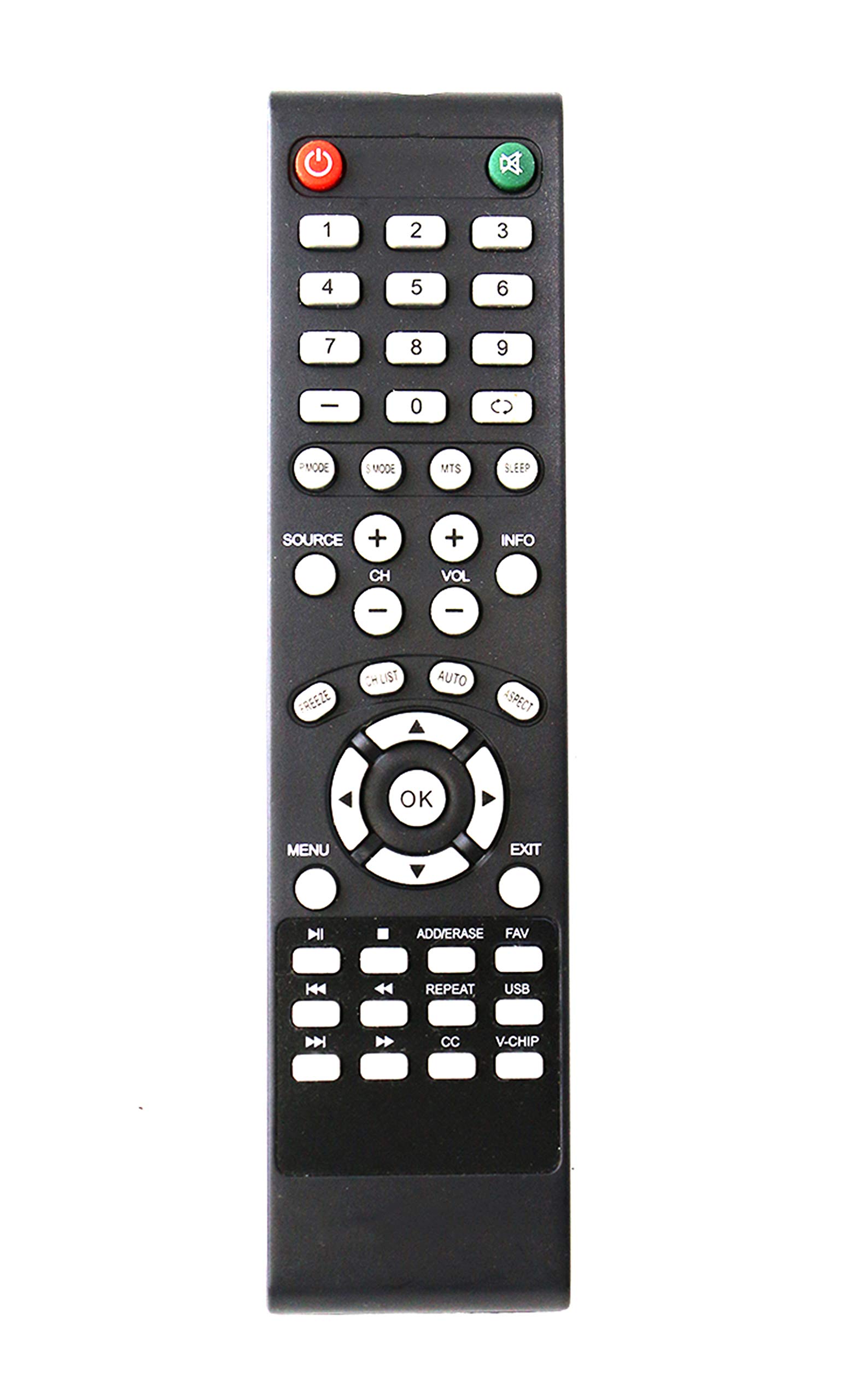
Image: Front view of the Beyution Replacement Remote Control, showing all buttons and their labels.
4.1 Button Functions
- Power (Red Button): Turns the TV on or off.
- Mute (Green Button): Mutes or unmutes the TV audio.
- Number Pad (0-9): Directly selects channels or inputs numerical values.
- -: Used for entering dashed numbers, such as sub-channels (e.g., 7-1).
- (<>): Likely for switching between previous and current channels or input sources.
- PMODE (Picture Mode): Cycles through various picture modes (e.g., Standard, Dynamic, Movie).
- SMODE (Sound Mode): Cycles through various sound modes (e.g., Standard, Music, Movie).
- MTS (Multi-channel Television Sound): Selects audio options like Stereo, SAP (Secondary Audio Program), or Mono.
- SLEEP: Sets a timer for the TV to automatically turn off.
- SOURCE: Selects the input source (e.g., HDMI 1, AV, Component, TV).
- CH+ / CH-: Changes the channel up or down.
- VOL+ / VOL-: Increases or decreases the volume.
- INFO: Displays current channel information, program details, or input status.
- FREEZE: Pauses the current image on the screen.
- CH LIST (Channel List): Displays the list of available channels.
- AUTO: Initiates auto-tuning or auto-adjustment for certain inputs.
- ASPECT: Changes the screen aspect ratio (e.g., 16:9, 4:3, Zoom).
- Navigation Buttons (Up, Down, Left, Right Arrows): Navigates through menus and options.
- OK: Confirms selections in menus or displays the channel list.
- MENU: Opens the main TV menu for settings and adjustments.
- EXIT: Exits the current menu or on-screen display.
- Media Control Buttons (Play/Pause, Stop, Rewind, Fast Forward, Skip Back, Skip Forward): Controls playback of media content (e.g., from USB or connected devices).
- ADD/ERASE: Used for managing channels or favorite lists.
- FAV (Favorites): Accesses or manages favorite channel lists.
- REPEAT: Repeats playback of media content.
- USB: Switches to the USB input source.
- CC (Closed Caption): Toggles closed captions on or off.
- V-CHIP: Accesses V-Chip settings for parental controls.
5. Maintenance
Proper care will extend the life of your remote control.
- Cleaning: Use a soft, dry cloth to wipe the surface of the remote control. For stubborn dirt, slightly dampen the cloth with water or a mild, non-abrasive cleaner. Do not use harsh chemicals or abrasive materials.
- Battery Replacement: Replace batteries when the remote's response becomes sluggish or it stops working. Always replace both batteries at the same time with new ones of the same type (AAA).
- Storage: Store the remote control in a cool, dry place away from direct sunlight and extreme temperatures. If not used for an extended period, remove the batteries to prevent leakage.
- Avoid Drops: Protect the remote from physical impact, as drops can damage internal components.
6. Troubleshooting
If you encounter issues with your remote control, try the following solutions:
| Problem | Solution |
|---|---|
| Remote control is not working. |
|
| Remote control range is poor. |
|
| Specific buttons are not responding. |
|
If the issue persists after trying these steps, please contact customer support.
7. Warranty and Support
This Beyution Replacement Remote Control comes with a 6-month warranty period from the date of purchase.
If you receive a damaged or non-working remote control, or if your device model is not listed as compatible, please contact Beyution customer service. Our customer service staff is committed to providing a satisfactory solution within 24 hours.
For support, please refer to the contact information provided with your purchase or visit the official Beyution support channels.
Ask a question about this manual
Ask about setup, troubleshooting, compatibility, parts, safety, or missing instructions. Manuals+ will review the question and use this page’s manual context to help answer it.