
RCA RT3205/RLDED3258A
RCA 32 Inch LED HDTV User Manual
Model: RT3205/RLDED3258A
Introduction
This manual provides comprehensive instructions for the setup, operation, maintenance, and troubleshooting of your RCA 32 Inch LED HDTV. Please read this manual thoroughly before using your television to ensure proper and safe operation. The RCA 32" LED 60Hz HDTV features energy-efficient LED technology for a bright, clear picture and HD 720p resolution for an immersive entertainment experience. It supports a wide range of input technologies including HDMI, VGA, YPBPR, AV Audio/Video, PC Audio, Headphone, and RF, offering versatile connectivity options. Its 60Hz refresh rate ensures smooth, blur-free images.
1. Setup Guide
1.1 Unpacking
- Carefully remove the television and all accessories from the packaging.
- Retain the original packaging materials for future transport or service needs.
- Verify that all components are present: TV unit, remote control, power cord, and stand components.
1.2 Attaching the Stand
To attach the included stand to your RCA 32 Inch LED HDTV, follow these steps:
- Place the TV screen-down on a soft, clean surface to prevent scratches.
- Align the stand bases with the corresponding slots on the bottom of the TV.
- Secure the stands using the provided screws. Ensure they are firmly tightened.

Figure 1.1: Bottom view of the TV illustrating the stand attachment points.

Figure 1.2: Angled side view of the TV, showcasing the slim profile and the attached stand.
1.3 Wall Mounting (Optional)
This television is compatible with VESA standard wall mounts. Refer to your wall mount's instructions for installation. Ensure proper ventilation when wall-mounting.

Figure 1.3: Rear view of the TV, highlighting the VESA mounting points and various input/output ports.
1.4 Connecting External Devices
Your RCA HDTV offers multiple connectivity options for various devices:
- HDMI: Connect Blu-ray players, game consoles, cable/satellite boxes. The TV features 3 HDMI ports.
- VGA: Connect a computer for use as a monitor.
- YPBPR (Component Video): Connect older video devices.
- AV Audio/Video (Composite): Connect standard definition devices.
- PC Audio: Audio input for VGA connection.
- Headphone: For private listening.
- RF (Antenna/Cable): Connect an antenna for over-the-air broadcasts or a cable TV connection.

Figure 1.4: Side view of the TV, detailing the accessible input and output ports.
1.5 Power Connection
After connecting all desired devices, plug the power cord into the TV's power input, then into a standard electrical outlet.
2. Operating Instructions
2.1 Power On/Off
Press the POWER button on the remote control or on the TV's control panel to turn the TV on or off.

Figure 2.1: Front view of the RCA 32 Inch LED HDTV.
2.2 Input Source Selection
Press the INPUT or SOURCE button on the remote control to cycle through available input sources (HDMI1, HDMI2, HDMI3, VGA, AV, YPBPR, TV).
2.3 Menu Navigation (OSD)
Use the MENU button to access the On-Screen Display (OSD) menu. Use the arrow keys (▲/▼/◄/►) to navigate and the OK or ENTER button to confirm selections.
2.4 Picture Settings
Within the OSD menu, navigate to 'Picture' to adjust settings such as:
- Picture Mode: Standard, Dynamic, Movie, User.
- Brightness: Adjust the overall lightness or darkness of the image.
- Contrast: Adjust the difference between light and dark areas.
- Color: Adjust the intensity of colors.
- Tint: Adjust the green-magenta balance (NTSC only).
- Sharpness: Adjust the clarity of image edges.
2.5 Sound Settings
Within the OSD menu, navigate to 'Sound' to adjust settings such as:
- Sound Mode: Standard, Music, Movie, User.
- Bass/Treble: Adjust low and high frequency audio.
- Balance: Adjust the volume balance between left and right speakers.
- Auto Volume: Enable to reduce sudden volume changes.
2.6 Language Settings
The OSD language can be set to English, Spanish, or French. Navigate to 'Setup' or 'System' in the OSD menu to change the language.
3. Maintenance
3.1 Cleaning the Screen
To clean the screen, gently wipe it with a soft, lint-free cloth. For stubborn marks, dampen the cloth slightly with water or a specialized screen cleaner. Never spray cleaner directly onto the screen.
3.2 Cleaning the Cabinet
Wipe the TV cabinet with a soft, dry cloth. Avoid using abrasive cleaners, waxes, or solvents as they can damage the finish.
3.3 General Care
- Avoid exposing the TV to direct sunlight or extreme temperatures.
- Do not block ventilation openings on the back of the TV.
- Unplug the TV from the power outlet during lightning storms or when left unattended for long periods.
4. Troubleshooting Guide
Before contacting customer support, please refer to the following common issues and solutions:
| Problem | Possible Cause | Solution |
|---|---|---|
| No Power | Power cord not securely connected; Power outlet not active. | Ensure power cord is firmly plugged into TV and outlet. Test outlet with another device. |
| No Picture, but Sound is Present | Incorrect input source selected; External device not powered on or connected properly. | Press the INPUT/SOURCE button to select the correct input. Check connections of external devices. |
| No Sound, but Picture is Present | Volume muted or too low; Incorrect audio output settings; External device audio issue. | Unmute volume or increase level. Check TV's audio settings. Verify audio output from external device. |
| Remote Control Not Working | Batteries are dead or incorrectly inserted; Obstruction between remote and TV; Remote sensor blocked. | Replace batteries, ensuring correct polarity. Remove any obstructions. Ensure remote is pointed at the TV's sensor. Note: Some users report the remote layout is not intuitive and may not pair with universal cable remotes. This is a design characteristic. |
| Picture and Sound Out of Sync | Source device issue; TV processing delay. | Try restarting the TV and the connected source device. Check if the issue persists across different inputs. This can sometimes occur after the TV is turned off and on again. |
| Ghost Images or Lines on Screen | Panel deterioration; Signal interference. | Check cable connections for interference. If the issue persists and worsens over time, it may indicate a hardware issue. |
5. Specifications
| Feature | Detail |
|---|---|
| Model Number | RT3205/RLDED3258A |
| Screen Size | 32 Inches (82 cm diagonal) |
| Display Technology | LED |
| Resolution | 720p |
| Refresh Rate | 60 Hz |
| Aspect Ratio | 16:9 |
| Connectivity Technology | HDMI (x3), VGA, YPBPR, AV Audio/Video, PC Audio, Headphone, RF |
| Product Dimensions (D x W x H) | 3.1" x 28.9" x 17.4" (7.9 cm x 73.4 cm x 44.2 cm) |
| Item Weight | 7.6 Pounds (3.45 kg) |
| Wattage | 42 watts |
| Included Components | TV, Remote Control, Power Cord, Stand |
| OSD Language | English, Spanish, French |
Energy Efficiency
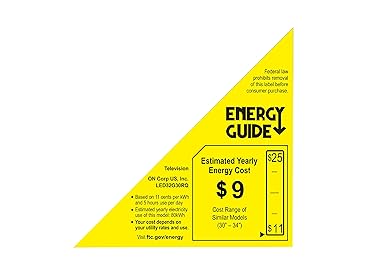
Figure 5.1: Estimated Yearly Energy Cost for the RCA 32 Inch LED HDTV.
6. Warranty Information
For specific warranty details, please refer to the warranty card included with your product or contact RCA customer support. Typically, RCA products come with a limited warranty covering manufacturing defects for a specified period from the date of purchase.
7. Customer Support
If you require further assistance or encounter issues not covered in this manual, please contact RCA customer support. Visit the official RCA website for contact information, FAQs, and additional resources.
Related documentsRT3205/RLDED3258A

Ask a question about this manual
Ask about setup, troubleshooting, compatibility, parts, safety, or missing instructions. Manuals+ will review the question and use this page’s manual context to help answer it.