
WoneNice
WoneNice USB Laser Barcode Scanner User Manual
Model: WN3300
1. Introduction
The WoneNice USB Laser Barcode Scanner is a reliable and easy-to-use device designed for efficient barcode scanning in various environments such as businesses, shops, and warehouses. Its plug-and-play functionality ensures a simple setup process, allowing you to begin scanning immediately.

Figure 1.1: WoneNice USB Laser Barcode Scanner
2. Safety Information
WARNING: DO NOT POINT THE SCANNER'S LASER BEAM DIRECTLY INTO EYES. Prolonged exposure to the laser beam may cause eye injury.
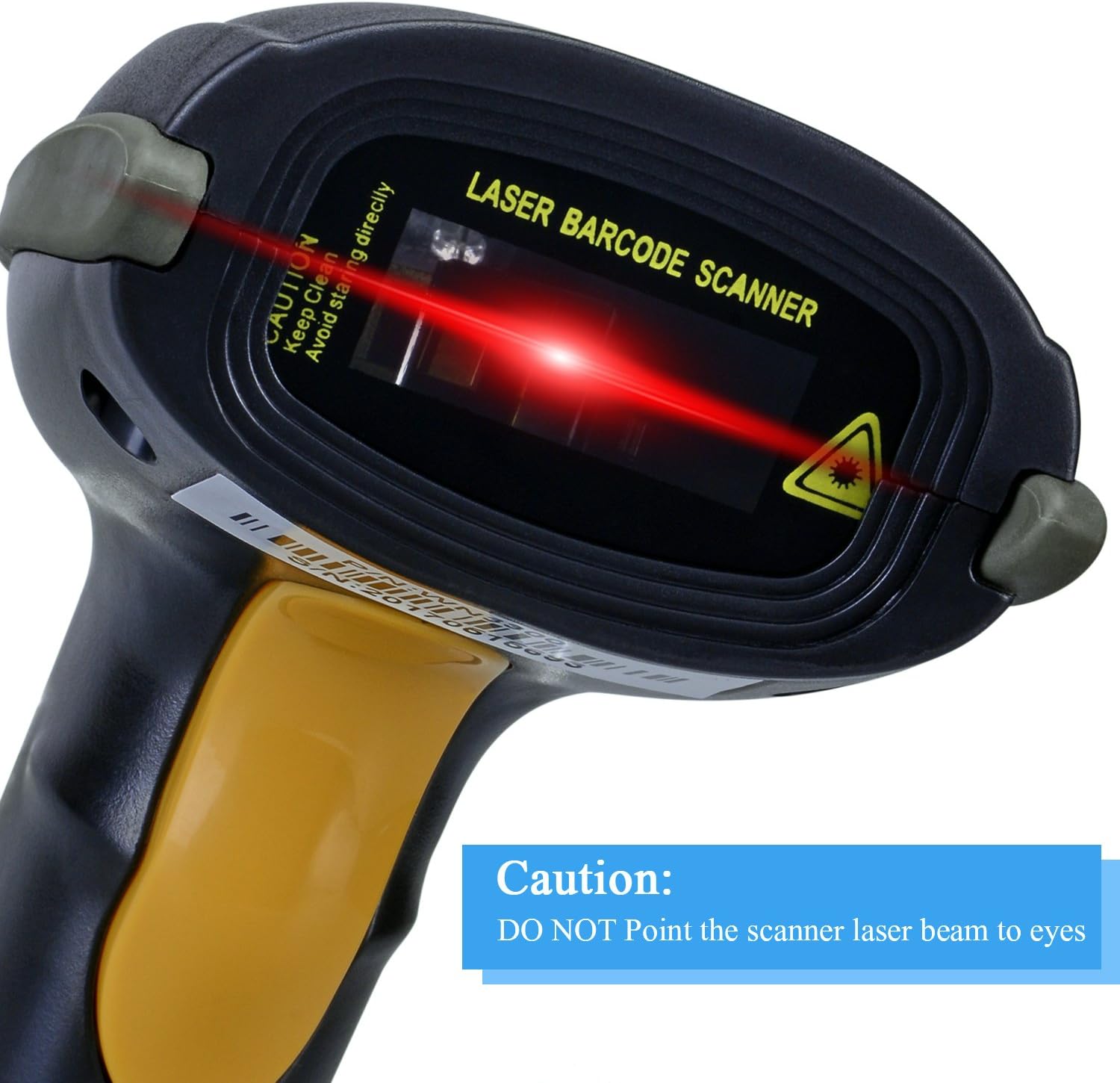
Figure 2.1: Laser Caution on Scanner
3. Package Contents
Please verify that all items are present in the package:
- WoneNice USB Laser Barcode Scanner
- USB Cable (attached)
- User Manual (this document)

Figure 3.1: Package Contents
4. Setup
The WoneNice USB Laser Barcode Scanner is designed for simple plug-and-play operation.
- Locate an available USB port on your computer (PC or Laptop).
- Insert the USB connector of the scanner's cable into the USB port.
- The operating system will automatically detect and install the necessary drivers. No additional software installation is required.
- Once installed, the scanner is ready for use.

Figure 4.1: Scanner with USB Connector

Figure 4.2: Compatible Devices for Connection
5. Operation
To operate the scanner, simply point the laser beam at the barcode you wish to scan and press the trigger button. The scanned data will be input directly into any active text field on your connected computer, similar to typing with a keyboard.
5.1. Scanning Performance
- Scanning Speed: 200 scans per second.
- Scanning Angle: Inclination angle 55°, Elevation angle 65°.
- Operational Light Source: Visible Laser 650-670nm.
5.2. Decode Capability
The scanner supports a wide range of 1D barcode symbologies:
- Code11, Code39, Code93, Code32, Code128
- Coda Bar, UPC-A, UPC-E, EAN-8, EAN-13
- ISBN/ISSN, JAN.EAN/UPC Add-on2/5
- MSI/Plessey, Telepen and China Postal Code
- Interleaved 2 of 5, Industrial 2 of 5, Matrix 2 of 5, etc.
The scanner also offers 300 configurable options for prefix, suffix, and termination strings, and supports turning the beep sound on/off.

Figure 5.1: Barcode Type Compatibility

Figure 5.2: Advanced Barcode Reading Capabilities
6. Compatibility
The WoneNice USB Laser Barcode Scanner is broadly compatible with major operating systems:
- Windows (XP, 7, 8, 10)
- Mac OS
- Linux
It integrates seamlessly with common software applications such as Word, Excel, and Novell.

Figure 6.1: Operating System Compatibility
7. Maintenance
To ensure the longevity and optimal performance of your barcode scanner, follow these maintenance guidelines:
- Cleaning: Use a soft, dry cloth to clean the scanner's exterior. For the scanning window, use a lens cleaning cloth and a mild, non-abrasive cleaner if necessary. Avoid harsh chemicals or abrasive materials.
- Storage: Store the scanner in a cool, dry place away from direct sunlight and extreme temperatures.
- Handling: Handle the scanner with care. Avoid dropping it or subjecting it to strong impacts. The device is designed to withstand a 1.5m drop on a concrete surface, but excessive force can cause damage.
- Cable Care: Do not bend or crimp the USB cable excessively. Ensure the cable is not under tension when in use or storage.
8. Troubleshooting
If you encounter issues with your WoneNice barcode scanner, refer to the following common problems and solutions:
| Problem | Possible Cause | Solution |
|---|---|---|
| Scanner not recognized by computer | Loose USB connection; Faulty USB port; Driver issue | Ensure USB cable is securely plugged in. Try a different USB port. Restart your computer. |
| No scan output | Scanner not powered on; Incorrect barcode type; Application not ready for input | Check if the laser beam is active. Ensure the barcode is 1D. Click into a text field in your application. |
| Difficulty scanning on curved surfaces | Laser scanners perform best on flat surfaces | Adjust the angle of the scanner or try to flatten the barcode if possible. |
| Laser beam not visible | Scanner malfunction; Power issue | Ensure the scanner is properly connected. If the issue persists, contact customer support. |
9. Specifications
| Feature | Detail |
|---|---|
| Model Number | WN3300 |
| Product Dimensions | 3.6 x 2.6 x 6.1 inches |
| Item Weight | 3.52 ounces |
| Connectivity Technology | USB Cable |
| Power Source | Corded Electric |
| Scan Rate | 200 scans/s |
| Operational Light Source | Visible Laser 650-670nm |
| Shock Resistance | 1.5m drop on concrete surface |
| Regulatory Approvals | FCC CE |
10. Warranty and Support
For warranty information and technical support, please refer to the documentation included with your purchase or contact WoneNice customer service through their official channels. Keep your purchase receipt for warranty claims.
Related documents


Ask a question about this manual
Ask about setup, troubleshooting, compatibility, parts, safety, or missing instructions. Manuals+ will review the question and use this page’s manual context to help answer it.