
1. Introduction
This manual provides detailed instructions for the installation, operation, and maintenance of your Logisys 4-Port 3.5-inch Bay USB 3.0/2.0 Hub. This device is designed to expand the USB connectivity of your desktop computer by utilizing an available 3.5-inch drive bay, providing convenient access to multiple USB ports directly from the front panel of your PC.
The hub features a combination of USB 3.0 and USB 2.0 ports, including a dedicated i-Charger port for efficient device charging. Please read this manual thoroughly before installation and use to ensure proper functionality and safety.

Figure 1: Front view of the Logisys 4-Port 3.5-inch Bay USB 3.0/2.0 Hub, showing the four USB ports and the Logisys branding.
2. Package Contents
Please verify that all items are present in the package:
- Logisys 4-Port 3.5-inch Bay USB 3.0/2.0 Hub
- Mounting Screws (typically 4)
- USB 3.0 Internal Header Cable (if not integrated)
- USB 2.0 Internal Header Cable (if not integrated)
- SATA Power Cable (if required for additional power)
If any items are missing or damaged, please contact your retailer or Logisys support.
3. Product Features
- 4 USB Ports: Provides two USB 3.0 ports and two USB 2.0 ports for versatile connectivity.
- 3.5-inch Bay Design: Fits into a standard 3.5-inch drive bay on desktop computers.
- USB 3.0 SuperSpeed: Supports data transfer rates up to 5Gbps (backward compatible with USB 2.0/1.1).
- USB 2.0 High-Speed: Supports data transfer rates up to 480Mbps.
- i-Charger Port: Dedicated port for faster charging of compatible devices.
- Plug and Play: No drivers required for most operating systems.
- Durable Construction: Designed for reliable long-term use.
4. Setup and Installation
Before beginning installation, ensure your computer is powered off and unplugged from the wall outlet. It is recommended to wear an anti-static wrist strap to prevent damage to internal components.
- Open Computer Case: Remove the side panel of your computer case to access the internal components.
- Locate 3.5-inch Bay: Identify an available 3.5-inch drive bay on the front of your computer case. You may need to remove a blank panel cover.
- Insert Hub: Slide the Logisys USB Hub into the chosen 3.5-inch bay from the front of the case until its mounting holes align with those on the drive bay.
- Secure Hub: Use the provided mounting screws to secure the hub firmly in place.
- Connect USB 3.0 Cable: Locate an available 20-pin USB 3.0 header on your motherboard. Connect the hub's internal USB 3.0 cable to this header. Ensure the connection is secure and correctly oriented.
- Connect USB 2.0 Cable: Locate an available 9-pin USB 2.0 header on your motherboard. Connect the hub's internal USB 2.0 cable to this header. Ensure the connection is secure and correctly oriented.
- Connect Power Cable (if applicable): If your hub requires additional power (e.g., for the i-Charger port or high-power devices), connect the SATA power cable from your power supply to the corresponding port on the hub.
- Close Case: Replace the computer's side panel and secure it.
- Power On: Plug your computer back into the wall outlet and power it on. The operating system should automatically detect and install the necessary drivers for the hub.
5. Operating Instructions
Once installed, the Logisys USB Hub operates as a standard USB expansion device. Simply plug your USB devices into the available ports.
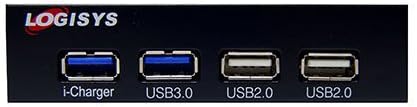
Figure 2: Close-up view of the hub's front panel, highlighting the 'i-Charger', 'USB3.0', and 'USB2.0' labels for each port.
- USB 3.0 Ports: Use these ports for devices that require high-speed data transfer, such as external hard drives, SSDs, or high-resolution webcams. These ports are typically blue internally.
- USB 2.0 Ports: Suitable for devices like keyboards, mice, printers, USB flash drives, and other peripherals where high-speed data transfer is not critical. These ports are typically black or white internally.
- i-Charger Port: This port is optimized for faster charging of compatible mobile devices. While it can also transfer data, its primary function is enhanced power delivery.
The hub is hot-swappable, meaning you can connect and disconnect USB devices without needing to restart your computer.
6. Maintenance
The Logisys USB Hub requires minimal maintenance.
- Cleaning: Use a soft, dry cloth to gently wipe the exterior of the hub. Avoid using liquid cleaners or abrasive materials, as they may damage the finish or internal components.
- Environment: Ensure the computer case has adequate ventilation to prevent overheating. Avoid exposing the hub to extreme temperatures, humidity, or direct sunlight.
- Cable Management: Ensure internal cables are neatly routed and not obstructing airflow or other components.
7. Troubleshooting
If you encounter issues with your Logisys USB Hub, refer to the following troubleshooting steps:
- Device Not Recognized:
- Ensure the hub's internal USB cables are securely connected to the motherboard headers.
- Try connecting the USB device directly to a motherboard USB port to verify the device itself is functional.
- Restart your computer.
- Check Device Manager in Windows (or System Information in macOS/Linux) to see if the hub is listed without errors.
- Slow Data Transfer Speeds:
- Ensure you are using the USB 3.0 ports for USB 3.0 devices. USB 2.0 devices will operate at USB 2.0 speeds even when connected to a USB 3.0 port.
- Verify that your motherboard's USB 3.0 header is functioning correctly.
- Avoid connecting too many high-bandwidth devices simultaneously to the same hub.
- No Power to Devices / Charging Issues:
- Ensure the optional SATA power cable is connected from your power supply to the hub (if required for your model).
- Test with a different USB device to rule out a faulty device.
- Check your power supply's capacity if you are connecting many power-hungry devices.
- Hub Not Detected:
- Re-check all internal cable connections to the motherboard.
- Try a different 3.5-inch bay or motherboard header if available.
8. Specifications
| Brand | Logisys |
| Total USB Ports | 4 (2x USB 3.0, 2x USB 2.0) |
| Hardware Interface | USB |
| Special Features | Plug and Play, Fast Charging (i-Charger port) |
| Compatible Devices | USB Devices |
| Form Factor | 3.5-inch Drive Bay |
| Item Weight | 3.2 ounces (approx. 90.7 grams) |
| Package Dimensions | 7 x 4.9 x 1.5 inches (approx. 17.8 x 12.4 x 3.8 cm) |
| Date First Available | June 16, 2014 |
9. Warranty and Support
Logisys products are designed for reliability and performance. For specific warranty information, please refer to the warranty card included with your product or visit the official Logisys website. If you encounter any issues that cannot be resolved using the troubleshooting guide, please contact Logisys customer support for assistance.
Please retain your proof of purchase for warranty claims.