
1. Product Overview
The Philips HDP1590 Screeneo is a smart ultra-short throw projector designed for versatile media display. It incorporates LED technology for long-lasting projection and offers various connectivity options for integration with multiple devices.
- Projects an image up to 100 inches when placed 18 inches from a wall.
- Utilizes DLP (Digital Light Processing) LED technology, providing up to 30,000 hours of projection.
- Supports multiple connectivity options for set-top boxes, DVD/Blu-ray players, game consoles, and media servers.
- Enables audio streaming from smartphones or tablets via Bluetooth or Wi-Fi/DLNA.
- Wireless screen mirroring from tablets or smartphones is possible using Miracast.
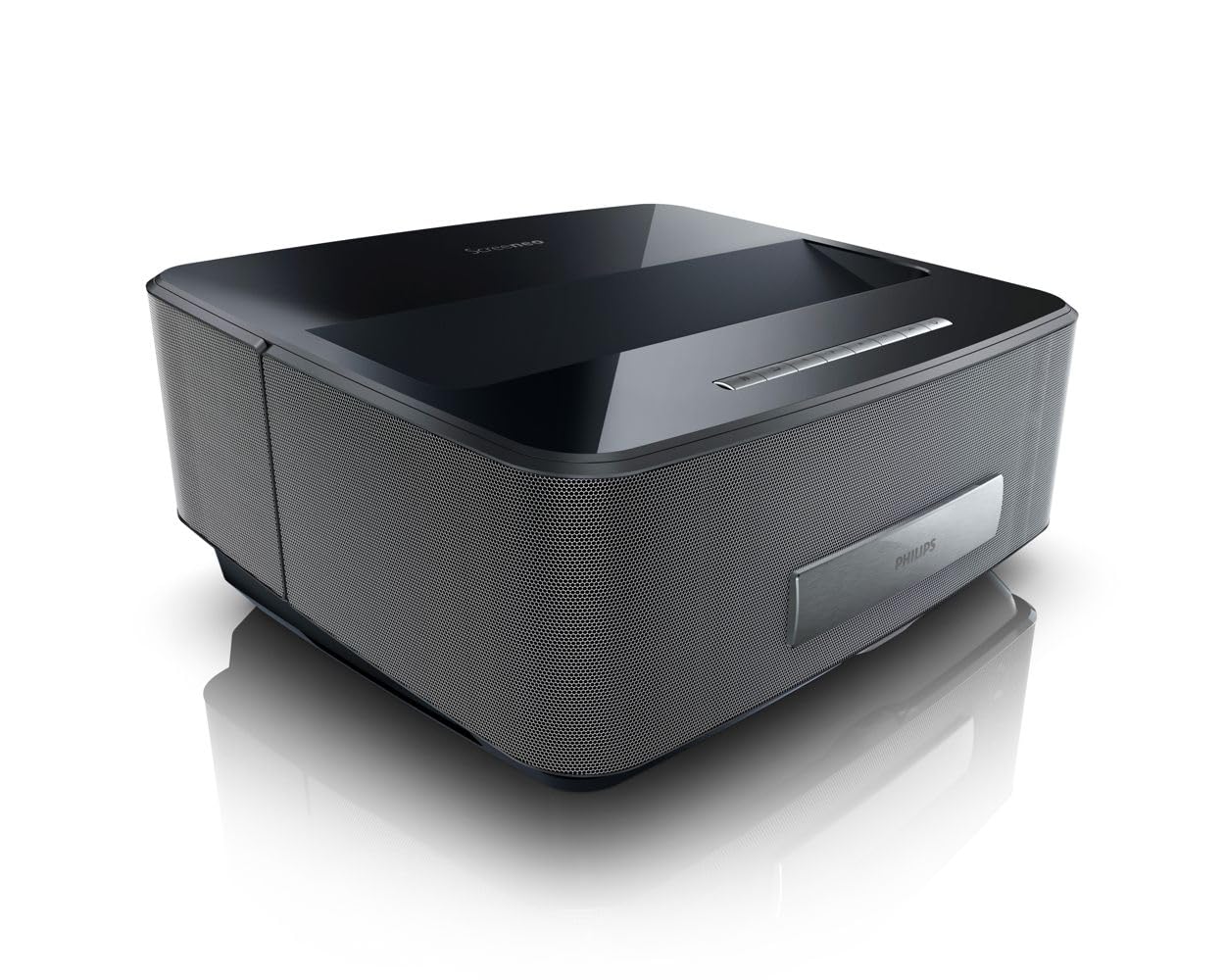
Figure 1: Front view of the Philips HDP1590 Screeneo Smart Projector.
2. Package Contents
Verify that all items are present in the package:
- Philips HDP1590 Screeneo Smart Projector
- Power Cable
- Remote Control (with 2 AAA batteries included)
- Quick Start Guide
- Other accessories as specified on the packaging
Video 1: Unboxing and initial overview of the Philips HDP1590 Screeneo Smart Projector.
3. Setup
- Placement: Position the projector on a stable, flat surface. For a 100-inch image, place the projector approximately 18 inches from the projection surface (wall or screen). Ensure the projection path is clear of obstructions.
- Power Connection: Connect the power cable to the projector's power input and then to a suitable electrical outlet.
- Source Connection:
- For HDMI devices (e.g., Blu-ray player, game console, set-top box), connect an HDMI cable from the device to an HDMI input port on the projector.
- For USB media, insert a USB drive into the designated USB port.
- Initial Power On: Press the power button on the projector or the remote control to turn on the device. Follow any on-screen prompts for initial setup, such as language selection.
4. Operation
- Power On/Off: Press the power button on the projector or remote control to turn the unit on or off.
- Menu Navigation: Use the arrow keys and 'OK' button on the remote control to navigate through the on-screen menus.
- Source Selection: Access the input source menu to select between connected HDMI devices, USB, or internal smart features.
- Focus and Keystone Correction: Adjust the focus manually or via the menu. Utilize the digital keystone correction feature to square the image if the projector is not perfectly perpendicular to the screen.
- Volume Control: Adjust the audio volume using the dedicated volume buttons on the remote control.
5. Connectivity
The Philips HDP1590 Screeneo offers a range of connectivity options:
- HDMI: Multiple HDMI ports are available for connecting external video sources such as Blu-ray players, gaming consoles, and cable/satellite boxes.
- Wi-Fi: Integrated Wi-Fi allows for network access, enabling smart features, streaming, and DLNA connectivity.
- Bluetooth: Connect Bluetooth-enabled audio devices, such as speakers or headphones, for wireless sound output.
- Miracast: Wirelessly mirror the screen of compatible Android smartphones and tablets directly to the projector.
- USB: USB ports support playback of media files from USB storage devices.
6. Maintenance
Regular maintenance ensures optimal performance and longevity of your projector:
- Lens Cleaning: Use a soft, lint-free cloth specifically designed for optical lenses to gently clean the projector lens. Avoid abrasive materials or harsh chemicals.
- Dust Removal: Periodically clean the projector's exterior with a soft, dry cloth. Ensure ventilation openings are free from dust accumulation to prevent overheating.
- Storage: When not in use for extended periods, store the projector in a cool, dry place, protected from dust and direct sunlight.
7. Troubleshooting
If you encounter issues with your Philips HDP1590 Screeneo, consider the following:
- No Power: Ensure the power cable is securely connected to both the projector and the electrical outlet. Verify the outlet is functional.
- No Image: Check that the correct input source is selected. Verify that the video source device is powered on and functioning correctly. Ensure all video cables (e.g., HDMI) are securely connected.
- Blurred Image: Adjust the focus settings. Ensure the projector is placed at the recommended distance from the projection surface.
- No Sound: Check the volume level on both the projector and the connected source device. Verify that audio cables are correctly connected or that Bluetooth audio is properly paired.
- Poor Picture Quality: Ensure the projection surface is clean and flat. Check the resolution settings of the source device to match the projector's native resolution (1280 x 800).
8. Specifications
| Feature | Detail |
|---|---|
| Brand | Philips |
| Model Number | HDP1590/F7 |
| Item Weight | 10.72 pounds |
| Product Dimensions | 11.29 x 13.34 x 5.83 inches |
| Batteries | 2 AAA batteries (included for remote) |
| Color | Black |
| Special Features | Short Throw, Built-in Speakers |
| Speaker Type | Built-In, Subwoofer |
| Connectivity Technology | Wireless (Wi-Fi, Bluetooth) |
| Display Resolution | 1280 x 800 |
| Projection Technology | DLP LED |
9. Warranty and Support
For warranty information, technical support, or service inquiries, please refer to the warranty card included with your product or visit the official Philips support website. Keep your proof of purchase for warranty claims.
Online resources and frequently asked questions may also be available on the Philips product support pages.


