
1. Introduction
This manual provides comprehensive instructions for the installation and verification of your new Computer Memory Solutions 4GB (2x2GB) DDR3 1066MHz SODIMM memory upgrade kit. This memory kit is specifically designed for compatibility with Lenovo ThinkPad L510 2873-xxx series laptops.
The kit includes two 2GB PC3-8500 DDR3-1066 CL7 204-pin SDRAM SODIMM modules, enhancing your system's performance. For optimal performance, it is recommended to install both modules as a pair.
2. Safety Precautions
- Always power off your laptop and disconnect the AC adapter and battery before opening the chassis or handling internal components.
- Discharge any static electricity from your body by touching a grounded metal object (e.g., an unpainted metal surface on the computer chassis) before handling memory modules. Static electricity can damage electronic components.
- Handle memory modules by their edges to avoid touching the gold connectors or the chips.
- Work in a clean, well-lit area.
3. Setup: Memory Installation
Follow these steps to install the new memory modules into your Lenovo ThinkPad L510 laptop:
- Prepare the Laptop: Ensure the laptop is powered off, unplugged from the AC adapter, and the battery is removed.
- Access Memory Slots: Carefully open the memory compartment cover on the underside of your laptop. Refer to your laptop's specific service manual for precise instructions on how to access the memory slots.
- Remove Existing Modules (if applicable): If you are replacing existing memory, gently push apart the small metal clips on either side of the SODIMM module. The module will pop up at an angle. You can then carefully pull it out of the slot.
- Install New Modules: Align the notch on the new SODIMM module with the key in the memory slot. Insert the module at a 45-degree angle into the slot.
- Secure Modules: Gently push down on the module until the metal clips on both sides snap into place, securing the module horizontally. Ensure both modules are firmly seated.
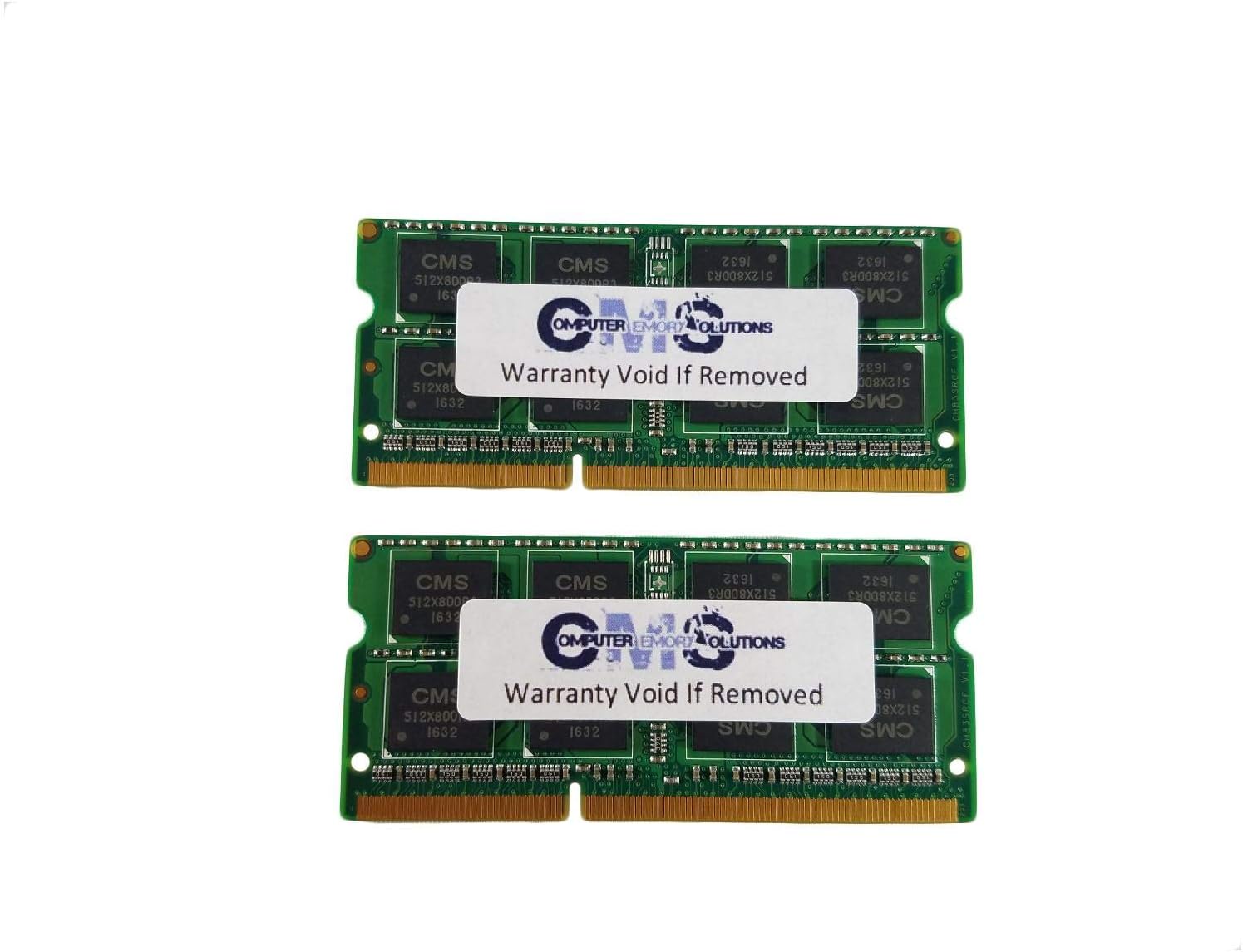
Figure 1: Front view of two Computer Memory Solutions DDR3 SODIMM memory modules. Each module features the CMS logo and "Warranty Void If Removed" sticker.

Figure 2: Angled view of two Computer Memory Solutions DDR3 SODIMM memory modules, showing the gold contacts and the "Warranty Void If Removed" sticker.
- Close Compartment: Replace the memory compartment cover and secure it.
- Reconnect Power: Reinstall the battery and reconnect the AC adapter.
4. Operating: Verifying Memory Installation
After installation, power on your laptop and verify that the new memory is recognized:
- BIOS/UEFI Check: During startup, enter your laptop's BIOS or UEFI settings (usually by pressing F1, F2, Del, or Esc repeatedly). Look for a "System Information" or "Memory" section to confirm the total installed RAM.
- Operating System Check:
- Windows: Right-click "This PC" or "My Computer," then select "Properties." The "Installed RAM" or "Memory" value should reflect the new total.
- Linux: Open a terminal and type
free -horcat /proc/meminfo.
The system should now report 4GB of installed memory (or 3GB if using 32-bit Windows Vista, as per product specifications).
5. Maintenance
Memory modules generally require minimal maintenance. Follow these guidelines for proper care:
- Avoid touching the gold contacts on the memory modules. Oils and dirt from your fingers can interfere with connectivity.
- Keep memory modules in their anti-static packaging until ready for installation to protect them from static discharge and physical damage.
- Ensure your laptop's cooling system is functioning correctly to prevent excessive heat buildup, which can affect all internal components, including RAM.
6. Troubleshooting
If you encounter issues after installing the memory, consider the following troubleshooting steps:
- System Does Not Boot or Beeps:
- Ensure the memory modules are fully seated in their slots. Remove and re-insert them firmly.
- Verify that the notches on the modules align correctly with the slots.
- Try installing one module at a time to identify if one module is faulty.
- Incorrect Memory Reported:
- Double-check that the modules are correctly installed.
- Ensure your operating system supports the full amount of RAM (e.g., 32-bit Windows Vista supports up to 3GB).
- System Instability or Crashes:
- Run a memory diagnostic tool (e.g., Windows Memory Diagnostic) to check for errors.
- Ensure your laptop's BIOS is up to date.
7. Specifications
| Brand | Computer Memory Solutions |
| Model Number | CM256648500SO2RX2 |
| Memory Type | DDR3 SODIMM |
| Capacity | 4GB (2 x 2GB modules) |
| Speed | 1066 MHz (PC3-8500) |
| Pin Count | 204-Pin |
| ECC Type | Non-ECC |
| Compatible Devices | Lenovo ThinkPad L510 2873-xxx Series Laptops |
| Product Dimensions | 2.66 x 0.15 x 1.18 inches |
| Item Weight | 2 ounces |
8. Warranty and Support
Computer Memory Solutions provides a Limited Lifetime Warranty for this product when purchased directly from Computer Memory Solutions. This warranty covers defects in materials and workmanship under normal use.
For warranty claims or technical support, please contact Computer Memory Solutions directly. Refer to the official Computer Memory Solutions website or your purchase documentation for contact information.
Legal Disclaimer:
All products branded as Computer Memory Solutions are to be sold solely by Computer Memory Solutions. Computer Memory Solutions does not authorize the sale of their branded products to any other sellers.
This ensures that you receive genuine products and valid warranty support.

