
1. Introduction
This manual provides instructions for the proper use and maintenance of your Silicon Power Armor A80 2TB Portable Hard Drive. The Armor A80 is designed for durability, featuring shockproof and waterproof capabilities, making it suitable for various environments. Please read this manual thoroughly before using the device.

Image 1.1: The Silicon Power Armor A80 2TB Portable Hard Drive in blue.
2. Product Features
- Military Standard Shockproof: Complies with U.S. Military Drop Test Standard MIL-STD810G Method 516.6 StepIV (Transportation Drop Test), offering robust protection against impacts.
- IPX7 Waterproof: Designed to withstand submersion in water up to 1 meter for 30 minutes, based on IEC529 standards.
- Dust and Pressure Resistant: Provides additional protection against environmental factors.
- SuperSpeed USB 3.1 Gen1 Interface: (Compatible with USB 3.0) for fast data transfer speeds, ideal for large files.
- Integrated Cable Carry Design: The included USB cable can be conveniently stored along the side of the drive.
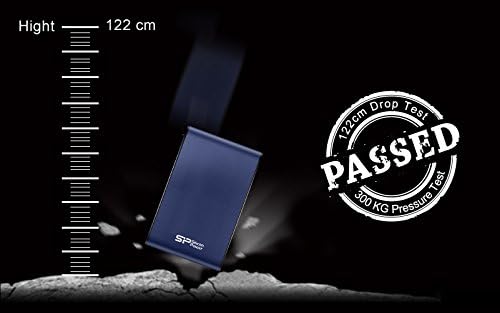
Image 2.1: Illustration of the Armor A80's drop and pressure resistance.

Image 2.2: Internal protection features including rubber sealing and metal casing.
3. Package Contents
Verify that all items are present in the package:
- Silicon Power Armor A80 Portable Hard Drive
- USB 3.0 Cable

Image 3.1: The Armor A80 drive and its USB 3.0 cable.
4. Setup
- Connect the USB Cable: Locate the USB port on your Armor A80 drive. Connect one end of the included USB 3.0 cable to the drive.
- Connect to Computer: Connect the other end of the USB 3.0 cable to an available USB port on your computer (PC or Mac). For optimal performance, use a USB 3.0 port.
- Power On: The drive is bus-powered and will turn on automatically once connected to your computer. No external power adapter is required.
- Drive Recognition: Your operating system should automatically detect the new hard drive. It may appear as a new drive letter (Windows) or on your desktop/Finder (Mac).
- Formatting (Optional): The drive comes pre-formatted. If you need to reformat the drive for a specific operating system or file system (e.g., NTFS for Windows, HFS+ for Mac, exFAT for cross-platform compatibility), use your operating system's disk utility tools. Note: Formatting will erase all data on the drive.
5. Operating Instructions
- Data Transfer: Drag and drop files or folders to and from the Armor A80 drive as you would with any other storage device.
- Safe Removal: Always safely eject or unmount the drive from your operating system before disconnecting the USB cable to prevent data corruption.
- Windows: Right-click the drive icon in "This PC" or the system tray, then select "Eject".
- Mac: Drag the drive icon to the Trash or click the Eject button next to the drive name in Finder.
- Cable Storage: When not in use, the USB cable can be securely stored around the drive's casing for portability.
6. Maintenance
- Cleaning: Use a soft, dry cloth to clean the exterior of the drive. Avoid using harsh chemicals or abrasive materials.
- Water Exposure: While the drive is waterproof, ensure the USB port is dry before connecting it to a computer after exposure to water.
- Temperature: Operate and store the drive within recommended temperature ranges (typically 5°C to 55°C operating, -40°C to 70°C storage).
- Physical Protection: Despite its rugged design, avoid unnecessary drops or impacts to prolong the life of the device.
- Data Backup: Regularly back up important data stored on the drive to another location. No storage device is immune to failure.
7. Troubleshooting
- Drive not recognized by computer:
- Ensure the USB cable is securely connected to both the drive and the computer.
- Try a different USB port on your computer.
- Try a different USB cable (if available).
- Restart your computer.
- Check your computer's Disk Management (Windows) or Disk Utility (Mac) to see if the drive is detected but unformatted or has a partition issue.
- Slow data transfer speeds:
- Ensure you are connected to a USB 3.0 port on your computer. USB 2.0 ports will result in slower speeds.
- Avoid transferring many small files simultaneously; large files transfer more efficiently.
- Close other applications that might be using system resources or performing disk operations.
- Check for outdated USB drivers on your computer.
- Drive disconnects randomly:
- Ensure the USB cable is not loose.
- Try a different USB port or cable.
- Disable USB selective suspend settings in Windows Power Options (for Windows users).
- Ensure your computer's power supply is adequate if using a desktop with many USB devices.
8. Specifications
| Feature | Detail |
|---|---|
| Model Number | FBA_SP020TBPHDA80S3B |
| Digital Storage Capacity | 2000 GB (2TB) |
| Hard Disk Type | Mechanical Hard Disk, 2.5 Inches |
| Interface | USB 3.1 Gen1 (USB 3.0/2.0 compatible) |
| Connectivity Technology | USB |
| Color | Blue |
| Dimensions (LxWxH) | 8.66 x 3.15 x 1.18 inches |
| Item Weight | 11.6 ounces |
| Hardware Platform | Mac, PC |
| Special Feature | Shockproof, Waterproof (IPX7), Non-slip, Cable Carry Design |
9. Warranty Information
The Silicon Power Armor A80 Portable Hard Drive typically comes with a 3-year limited warranty from the date of purchase. This warranty covers defects in materials and workmanship under normal use. Please retain your proof of purchase for warranty claims.
For detailed warranty terms and conditions, please refer to the official SP Silicon Power website or the warranty card included with your product.
10. Support
For further assistance, technical support, or to download the latest drivers and utilities, please visit the official SP Silicon Power website:
You can also visit the SP Silicon Power store on Amazon for product information and customer service:


