
1. Introduction
This manual provides detailed instructions for the installation, operation, and maintenance of your GIGABYTE GA-H97-D3H LGA1150 ATX Motherboard. Please read this manual thoroughly before beginning installation to ensure proper setup and to maximize the performance and longevity of your system.
The GIGABYTE GA-H97-D3H motherboard supports 4th and 5th Generation Intel Core processors, offering robust performance and a range of features for a stable computing experience. Key features include Extreme multi-graphics support, SATA Express, M.2 for SSDs, Intel GbE LAN, and high-fidelity audio.
2. Setup and Installation
2.1. Package Contents
Verify that all components are present in the motherboard package:
- GIGABYTE GA-H97-D3H Motherboard
- I/O Shield
- SATA Cables
- Driver CD/DVD
- User Manual (this document)
- Quick Installation Guide
2.2. Motherboard Layout
Familiarize yourself with the various components and connectors on the motherboard. Refer to the image below for a visual guide.

Figure 1: GIGABYTE GA-H97-D3H Motherboard Overview. This image displays the full layout of the motherboard, highlighting the LGA1150 CPU socket, four DDR3 DIMM slots, multiple PCIe expansion slots, SATA ports, and various headers for front panel connections and USB ports.
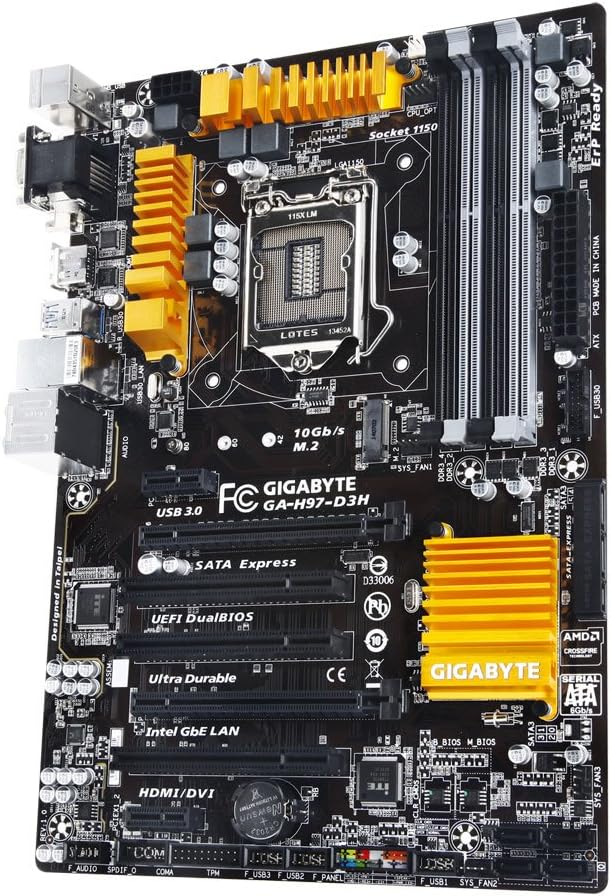
Figure 2: Angled view of the GIGABYTE GA-H97-D3H Motherboard. This perspective provides a clearer view of the CPU socket area, the golden heatsinks over the VRM and chipset, and the arrangement of the DDR3 memory slots.
2.3. Component Installation
Follow these steps for installing essential components:
- CPU Installation:
Carefully open the CPU socket lever. Align the triangular mark on the Intel LGA1150 CPU with the mark on the socket. Gently place the CPU into the socket without forcing it. Close the lever to secure the CPU.
- CPU Cooler Installation:
Apply thermal paste (if not pre-applied) to the CPU. Mount the CPU cooler according to its manufacturer's instructions, ensuring it is securely fastened and the fan is connected to the CPU_FAN header on the motherboard.
- Memory (RAM) Installation:
Open the clips on both ends of the DDR3 DIMM slots. Align the notch on the memory module with the key in the DIMM slot. Press down firmly on both ends of the module until the clips snap into place. Install modules in matching color slots for dual-channel operation.
- Graphics Card (PCIe) Installation:
Open the retention clip on the desired PCI Express x16 slot. Align the graphics card with the slot and press down firmly until it is seated. Secure the card with a screw to the chassis. Connect any required PCIe power cables from the power supply to the graphics card.
- Storage Devices (SATA/M.2) Installation:
Connect SATA data cables from your hard drives or SSDs to the SATA ports on the motherboard. Connect SATA power cables from the power supply to the drives. For M.2 SSDs, insert the M.2 module into the M.2 slot and secure it with the provided screw.
- Power Supply Connections:
Connect the 24-pin ATX main power connector and the 8-pin (or 4-pin) ATX 12V CPU power connector from your power supply to the corresponding ports on the motherboard.
- Front Panel Connections:
Connect the front panel headers (Power SW, Reset SW, HDD LED, Power LED) and USB/Audio headers from your PC case to the corresponding pins on the motherboard. Refer to the motherboard manual for exact pin layouts.

Figure 3: GIGABYTE GA-H97-D3H Motherboard Rear I/O. This image shows the various input/output ports available on the back panel, including USB ports, video outputs (VGA, DVI, HDMI), Ethernet, and audio jacks.

Figure 4: Rear I/O Panel Connectors. A detailed view of the rear input/output ports, including PS/2 keyboard/mouse, USB 2.0, USB 3.0, VGA, DVI, HDMI, Gigabit Ethernet, and 7.1 channel audio jacks.
3. Operating Instructions
3.1. First Boot and BIOS Setup
After assembling all components, connect a monitor, keyboard, and mouse. Power on the system. During startup, press the DEL key repeatedly to enter the BIOS/UEFI setup utility. Here you can configure boot order, system time, and other advanced settings.
- Boot Order: Navigate to the Boot section to set your primary boot device (e.g., SSD/HDD with OS, USB installer).
- System Information: Verify CPU, RAM, and storage device detection in the System Information or Main tab.
- Save and Exit: After making changes, save them and exit the BIOS. The system will restart.
3.2. Operating System Installation
Insert your operating system installation media (USB drive or DVD) and boot from it. Follow the on-screen instructions to install your preferred operating system (e.g., Windows 10, Linux). After installation, install the drivers from the provided driver CD or download the latest drivers from the GIGABYTE website.
3.3. Driver Installation
Install the following drivers in the recommended order for optimal system performance:
- Chipset Drivers
- Intel Management Engine Interface (MEI) Drivers
- Graphics Drivers (Intel HD Graphics or discrete GPU drivers)
- Audio Drivers (Realtek ALC1150)
- LAN Drivers (Intel GbE)
- USB 3.0 Drivers
- SATA/AHCI Drivers
4. Maintenance
4.1. BIOS Updates
Regularly check the GIGABYTE website for BIOS updates. BIOS updates can improve system stability, add support for new hardware, or fix bugs. Follow the instructions provided by GIGABYTE for updating the BIOS, typically using their Q-Flash utility or a Windows-based utility.
4.2. Driver Updates
Keep your drivers updated to ensure optimal performance and compatibility. Visit the GIGABYTE support page for your motherboard model to download the latest drivers.
4.3. Physical Cleaning
Periodically clean your computer's interior to prevent dust buildup, which can lead to overheating. Use compressed air to remove dust from fans, heatsinks, and motherboard components. Ensure the system is powered off and unplugged before cleaning.
5. Troubleshooting
| Problem | Possible Cause | Solution |
|---|---|---|
| No Power / System Does Not Turn On | Loose power connections, faulty power supply, incorrect front panel wiring. | Check 24-pin and 8-pin power connectors. Verify front panel power switch wiring. Test power supply. |
| No Display on Monitor | Loose graphics card, incorrect monitor cable, faulty RAM, no CPU power. | Reseat graphics card and RAM. Ensure monitor cable is connected to the graphics card (or motherboard if using integrated graphics). Check CPU power connector. |
| System Boots but No OS Loads | Incorrect boot order, missing OS, faulty storage drive. | Check BIOS boot order. Ensure OS is installed on the selected drive. Verify storage drive connections. |
| Frequent Crashes or Instability | Overheating, faulty RAM, outdated drivers, unstable overclock. | Monitor temperatures. Test RAM with diagnostic tools. Update all drivers. Reset BIOS to default settings. |
For more detailed troubleshooting, refer to the comprehensive manual available on the GIGABYTE support website or contact GIGABYTE technical support.
6. Specifications
Below are the key technical specifications for the GIGABYTE GA-H97-D3H Motherboard:
| Feature | Detail |
|---|---|
| Model Name | GA-H97-D3H |
| CPU Socket | LGA 1150 |
| Compatible Processors | 4th and 5th Generation Intel Core Processors |
| Chipset | Intel H97 Express Chipset |
| RAM Memory Technology | DDR3 |
| Memory Clock Speed | 1333 MHz (Supports up to 1600 MHz) |
| Max RAM Capacity | 32 GB (4 x 8 GB DIMM) |
| Storage Interfaces | SATA Express, M.2 (10 Gb/s), SATA 6Gb/s |
| LAN | Intel GbE LAN |
| Audio | Realtek ALC1150 115dB SNR HD Audio |
| Expansion Slots | 1 x PCI Express x16 (running at x16), 1 x PCI Express x16 (running at x4), 2 x PCI Express x1, 3 x PCI slots |
| Form Factor | ATX |
| Dimensions | 13.19 x 9.65 x 2.36 inches |
| Weight | 2.2 pounds |
7. Warranty and Support
7.1. Warranty Information
GIGABYTE motherboards typically come with a limited manufacturer's warranty. The duration and terms of the warranty may vary by region and retailer. Please retain your proof of purchase for warranty claims. For specific warranty details, refer to the warranty card included with your product or visit the official GIGABYTE website.
7.2. Technical Support
If you encounter any issues that cannot be resolved using the troubleshooting guide, please contact GIGABYTE technical support. You can find contact information, FAQs, and driver downloads on the official GIGABYTE support website:
When contacting support, please have your motherboard model (GA-H97-D3H) and serial number ready.


